






Connect to Outlook Data in Google Apps Script via SQL Gateway

Google Apps Script gives you the ability to create custom functionality within your Google documents, including Google Sheets, Google Docs, and more. With the CData SQL Gateway, you can create a MySQL interface for any ODBC driver, including the hundreds of drivers by CData for sources like Outlook. The MySQL protocol is natively supported through the JDBC service in Google Apps Script, so by utilizing the SQL Gateway, you gain access to live Outlook data within your Google documents.
This article discusses connecting to the ODBC Driver for Outlook from Google Apps Script, walking through the process of configuring the SQL Gateway and providing sample scripting for processing Outlook data in a Google Spreadsheet.
Real-Time Connectivity Through SQL Gateway
With SQL Gateway, your local ODBC data sources can look and behave like a standard MySQL database. Simply create a new MySQL remoting service in the SQL Gateway for the ODBC Driver for Outlook and ensure that the SQL Gateway is installed on a web-facing machine (or can connect to a hosted SSH server).
Connect to Outlook Data
If you have not already done so, provide values for the required connection properties in the data source name (DSN). You can use the built-in Microsoft ODBC Data Source Administrator to configure the DSN. This is also the last step of the driver installation. See the "Getting Started" chapter in the help documentation for a guide to using the Microsoft ODBC Data Source Administrator to create and configure a DSN.
Using OAuth Authentication
Microsoft Graph API uses OAuth 2.0 for authentication. You must register an application in the Microsoft Azure Portal to obtain OAuth credentials (Client ID and Client Secret).
Obtaining OAuth Credentials
- Log in to the Azure Portal.
- Navigate to Azure Active Directory > App registrations.
- Click New registration to create a new application.
- Enter an application name and select the appropriate account types.
- Set the Redirect URI to your application's callback URL (e.g., http://localhost:33333 for desktop apps).
- Click Register to create the application.
- On the application overview page, copy the Application (client) ID - this is your OAuthClientId.
- Navigate to Certificates & secrets and create a new client secret.
- Copy the client secret value - this is your OAuthClientSecret.
- Navigate to API permissions and add the required Microsoft Graph API permissions:
- Mail.Read - For accessing email messages
- Contacts.Read - For accessing contacts
- Calendars.Read - For accessing calendar events
- Tasks.Read - For accessing To Do tasks
- offline_access - For obtaining refresh tokens
- Click Grant admin consent to grant these permissions.
Connecting with OAuth
After setting the following connection properties, you are ready to connect:
- AuthScheme: Set this to OAuth.
- InitiateOAuth: Set this to GETANDREFRESH. The CData API Profile for Outlook will automatically walk through the OAuth process in order to obtain the access token.
- OAuthClientId: Set this to the Application (client) ID from Azure Portal.
- OAuthClientSecret: Set this to the client secret value from Azure Portal.
- TenantId: Set this to your Azure AD tenant identifier (GUID or domain name like 'contoso.onmicrosoft.com').
- CallbackURL: Set this to the Redirect URI you specified in your app registration (e.g., http://localhost:33333 for desktop apps).
Example connection string
Profile=C:\profiles\Outlook.apip;AuthScheme=OAuth;InitiateOAuth=GETANDREFRESH;OAuthClientId=your_client_id;OAuthClientSecret=your_client_secret;TenantId=your_tenant_id;CallbackUrl=http://localhost:33333;
Create a MySQL Remoting Service for Outlook Data
See the SQL Gateway Overview to set up connectivity to Outlook data as a virtual MySQL database. You will configure a MySQL remoting service that listens for MySQL requests from clients. The service can be configured in the SQL Gateway UI.
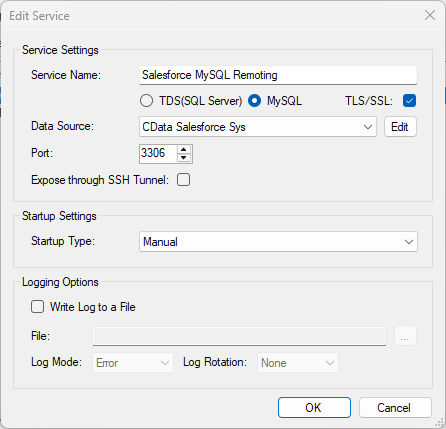
Configure Remote Access
If your ODBC Driver and the remoting service are installed on-premise (and not accessible from Google Apps Script), you can use the reverse SSH tunneling feature to enable remote access. For detailed instructions, read our Knowledge Base article: SQL Gateway SSH Tunneling Capabilities.
Connecting to Outlook Data with Apps Script
At this point, you should have configured the SQL Gateway for Outlook data. All that is left now is to use Google Apps Script to access the MySQL remoting service and work with your Outlook data in Google Sheets.
In this section, you will create a script (with a menu option to call the script) to populate a spreadsheet with Outlook data. We have created a sample script and explained the different parts. You can view the raw script at the end of the article.
1. Create an Empty Script
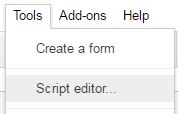
To create a script for your Google Sheet, click Tools Script editor from the Google Sheets menu:
2. Declare Class Variables
Create a handful of class variables to be available for any functions created in the script.
//replace the variables in this block with real values as needed
var address = 'my.server.address:port';
var user = 'SQL_GATEWAY_USER';
var userPwd = 'SQL_GATEWAY_PASSWORD';
var db = 'CData API Sys';

var dbUrl = 'jdbc:mysql://' + address + '/' + db;
3. Add a Menu Option
This function adds a menu option to your Google Sheet, allowing you to use the UI to call your function.
function onOpen() {
  var spreadsheet = SpreadsheetApp.getActive();
  var menuItems = [
    {name: 'Write data to a sheet', functionName: 'connectToAPIData'}
  ];
  spreadsheet.addMenu('Outlook Data', menuItems);
}

4. Write a Helper Function
This function is used to find the first empty row in a spreadsheet.
/*
 * Finds the first empty row in a spreadsheet by scanning an array of columns
 * @return The row number of the first empty row.
 */
function getFirstEmptyRowByColumnArray(spreadSheet, column) {
  var column = spreadSheet.getRange(column + ":" + column);
  var values = column.getValues(); // get all data in one call
  var ct = 0;
  while ( values[ct] && values[ct][0] != "" ) {
    ct++;
  }
  return (ct+1);
}
5. Write a Function to Write Outlook Data to a Spreadsheet
The function below writes the Outlook data, using the Google Apps Script JDBC functionality to connect to the MySQL remoting service, SELECT data, and populate a spreadsheet. When the script is run, two input boxes will appear:
The first one asking the user to input the name of a sheet to hold the data (if the spreadsheet does not exist, the function creates it)
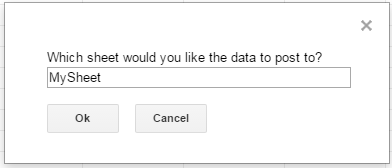
and the second one asking the user to input the name of a Outlook table to read. If an invalid table is chosen, an error message appears and the function is exited.
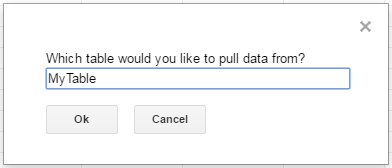
It is worth noting that, while the function is designed to be used as a menu option, it could be extended for use as a formula in a spreadsheet.
/*
 * Reads data from a specified Outlook 'table' and writes it to the specified sheet.
 *    (If the specified sheet does not exist, it is created.)
 */
function connectToAPIData() {
  var thisWorkbook = SpreadsheetApp.getActive();

  //select a sheet and create it if it does not exist
  var selectedSheet = Browser.inputBox('Which sheet would you like the data to post to?',Browser.Buttons.OK_CANCEL);
  if (selectedSheet == 'cancel')
    return;

  if (thisWorkbook.getSheetByName(selectedSheet) == null)
    thisWorkbook.insertSheet(selectedSheet);
  var resultSheet = thisWorkbook.getSheetByName(selectedSheet);
  var rowNum = 2;

  //select a Outlook 'table'
  var table = Browser.inputBox('Which table would you like to pull data from?',Browser.Buttons.OK_CANCEL);
  if (table == 'cancel')
    return;

  var conn = Jdbc.getConnection(dbUrl, user, userPwd);

  //confirm that var table is a valid table/view
  var dbMetaData = conn.getMetaData();
  var tableSet = dbMetaData.getTables(null, null, table, null);
  var validTable = false;
  while (tableSet.next()) {
    var tempTable = tableSet.getString(3);
    if (table.toUpperCase() == tempTable.toUpperCase()){
      table = tempTable;
      validTable = true;
      break;
    }
  }
  tableSet.close();
  if (!validTable) {
    Browser.msgBox("Invalid table name: " + table, Browser.Buttons.OK);
    return;
  }

  var stmt = conn.createStatement();

  var results = stmt.executeQuery('SELECT * FROM ' + table);
  var rsmd = results.getMetaData();
  var numCols = rsmd.getColumnCount();

  //if the sheet is empty, populate the first row with the headers
  var firstEmptyRow = getFirstEmptyRowByColumnArray(resultSheet, "A");
  if (firstEmptyRow == 1) {
    //collect column names
    var headers = new Array(new Array(numCols));
    for (var col = 0; col < numCols; col++){
      headers[0][col] = rsmd.getColumnName(col+1);
    }
    resultSheet.getRange(1, 1, headers.length, headers[0].length).setValues(headers);
  } else {
    rowNum = firstEmptyRow;
  }

  //write rows of Outlook data to the sheet
  var values = new Array(new Array(numCols));
  while (results.next()) {
    for (var col = 0; col < numCols; col++) {
      values[0][col] = results.getString(col + 1);
    }
    resultSheet.getRange(rowNum, 1, 1, numCols).setValues(values);
    rowNum++;
  }

  results.close();
  stmt.close();
}
When the function is completed, you have a spreadsheet populated with your Outlook data and you can now leverage all of the calculating, graphing, and charting functionality of Google Sheets anywhere you have access to the Internet.
Complete Google Apps Script
//replace the variables in this block with real values as needed
var address = 'my.server.address:port';
var user = 'SQL_GATEWAY_USER';
var userPwd = 'SQL_GATEWAY_PASSWORD';
var db = 'CData API Sys';

var dbUrl = 'jdbc:mysql://' + address + '/' + db;

function onOpen() {
  var spreadsheet = SpreadsheetApp.getActive();
  var menuItems = [
    {name: 'Write table data to a sheet', functionName: 'connectToAPIData'}
  ];
  spreadsheet.addMenu('Outlook Data', menuItems);
}

/*
 * Finds the first empty row in a spreadsheet by scanning an array of columns
 * @return The row number of the first empty row.
 */
function getFirstEmptyRowByColumnArray(spreadSheet, column) {
  var column = spreadSheet.getRange(column + ":" + column);
  var values = column.getValues(); // get all data in one call
  var ct = 0;
  while ( values[ct] && values[ct][0] != "" ) {
    ct++;
  }
  return (ct+1);
}

/*
 * Reads data from a specified 'table' and writes it to the specified sheet.
 *    (If the specified sheet does not exist, it is created.)
 */
function connectToAPIData() {
  var thisWorkbook = SpreadsheetApp.getActive();

  //select a sheet and create it if it does not exist
  var selectedSheet = Browser.inputBox('Which sheet would you like the data to post to?',Browser.Buttons.OK_CANCEL);
  if (selectedSheet == 'cancel')
    return;

  if (thisWorkbook.getSheetByName(selectedSheet) == null)
    thisWorkbook.insertSheet(selectedSheet);
  var resultSheet = thisWorkbook.getSheetByName(selectedSheet);
  var rowNum = 2;

  //select a Outlook 'table'
  var table = Browser.inputBox('Which table would you like to pull data from?',Browser.Buttons.OK_CANCEL);
  if (table == 'cancel')
    return;

  var conn = Jdbc.getConnection(dbUrl, user, userPwd);

  //confirm that var table is a valid table/view
  var dbMetaData = conn.getMetaData();
  var tableSet = dbMetaData.getTables(null, null, table, null);
  var validTable = false;
  while (tableSet.next()) {
    var tempTable = tableSet.getString(3);
    if (table.toUpperCase() == tempTable.toUpperCase()){
      table = tempTable;
      validTable = true;
      break;
    }
  }
  tableSet.close();
  if (!validTable) {
    Browser.msgBox("Invalid table name: " + table, Browser.Buttons.OK);
    return;
  }

  var stmt = conn.createStatement();

  var results = stmt.executeQuery('SELECT * FROM ' + table);
  var rsmd = results.getMetaData();
  var numCols = rsmd.getColumnCount();

  //if the sheet is empty, populate the first row with the headers
  var firstEmptyRow = getFirstEmptyRowByColumnArray(resultSheet, "A");
  if (firstEmptyRow == 1) {
    //collect column names
    var headers = new Array(new Array(numCols));
    for (var col = 0; col < numCols; col++){
      headers[0][col] = rsmd.getColumnName(col+1);
    }
    resultSheet.getRange(1, 1, headers.length, headers[0].length).setValues(headers);
  } else {
    rowNum = firstEmptyRow;
  }

  //write rows of Outlook data to the sheet
  var values = new Array(new Array(numCols));
  while (results.next()) {
    for (var col = 0; col < numCols; col++) {
      values[0][col] = results.getString(col + 1);
    }
    resultSheet.getRange(rowNum, 1, 1, numCols).setValues(values);
    rowNum++;
  }

  results.close();
  stmt.close();
}