






How to create Outlook federated tables in MySQL

You can use the SQL Gateway to configure a MySQL remoting service and set up federated tables for Outlook data. The service is a daemon process that provides a MySQL interface to the CData ODBC Driver for Outlook: After you have started the service, you can create a server and tables using the FEDERATED Storage Engine in MySQL. You can then work with Outlook data just as you would local MySQL tables.
Connect to Outlook Data
If you have not already done so, provide values for the required connection properties in the data source name (DSN). You can use the built-in Microsoft ODBC Data Source Administrator to configure the DSN. This is also the last step of the driver installation. See the "Getting Started" chapter in the help documentation for a guide to using the Microsoft ODBC Data Source Administrator to create and configure a DSN.
Using OAuth Authentication
Microsoft Graph API uses OAuth 2.0 for authentication. You must register an application in the Microsoft Azure Portal to obtain OAuth credentials (Client ID and Client Secret).
Obtaining OAuth Credentials
- Log in to the Azure Portal.
- Navigate to Azure Active Directory > App registrations.
- Click New registration to create a new application.
- Enter an application name and select the appropriate account types.
- Set the Redirect URI to your application's callback URL (e.g., http://localhost:33333 for desktop apps).
- Click Register to create the application.
- On the application overview page, copy the Application (client) ID - this is your OAuthClientId.
- Navigate to Certificates & secrets and create a new client secret.
- Copy the client secret value - this is your OAuthClientSecret.
- Navigate to API permissions and add the required Microsoft Graph API permissions:
- Mail.Read - For accessing email messages
- Contacts.Read - For accessing contacts
- Calendars.Read - For accessing calendar events
- Tasks.Read - For accessing To Do tasks
- offline_access - For obtaining refresh tokens
- Click Grant admin consent to grant these permissions.
Connecting with OAuth
After setting the following connection properties, you are ready to connect:
- AuthScheme: Set this to OAuth.
- InitiateOAuth: Set this to GETANDREFRESH. The CData API Profile for Outlook will automatically walk through the OAuth process in order to obtain the access token.
- OAuthClientId: Set this to the Application (client) ID from Azure Portal.
- OAuthClientSecret: Set this to the client secret value from Azure Portal.
- TenantId: Set this to your Azure AD tenant identifier (GUID or domain name like 'contoso.onmicrosoft.com').
- CallbackURL: Set this to the Redirect URI you specified in your app registration (e.g., http://localhost:33333 for desktop apps).
Example connection string
Profile=C:\profiles\Outlook.apip;AuthScheme=OAuth;InitiateOAuth=GETANDREFRESH;OAuthClientId=your_client_id;OAuthClientSecret=your_client_secret;TenantId=your_tenant_id;CallbackUrl=http://localhost:33333;
Configure the SQL Gateway
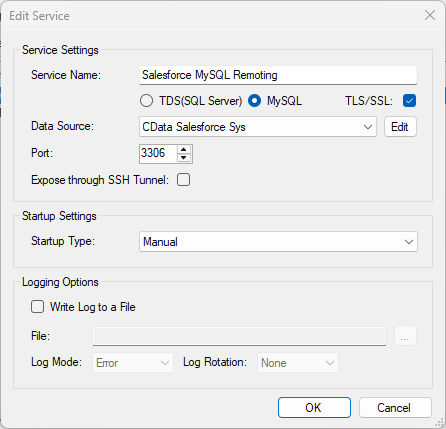
See the SQL Gateway Overview to set up connectivity to Outlook data as a virtual MySQL database. You will configure a MySQL remoting service that listens for MySQL requests from clients. The service can be configured in the SQL Gateway UI.
Create a FEDERATED Server and Tables for Outlook Data
After you have configured and started the service, create a FEDERATED server to simplify the process of creating FEDERATED tables:
Create a FEDERATED Server
The following statement will create a FEDERATED server based on the ODBC Driver for Outlook. Note that the username and password of the FEDERATED server must match a user account you defined on the Users tab of the SQL Gateway.
CREATE SERVER fedAPI
FOREIGN DATA WRAPPER mysql
OPTIONS (USER 'sql_gateway_user', PASSWORD 'sql_gateway_passwd', HOST 'sql_gateway_host', PORT ####, DATABASE 'CData API Sys');
Create a FEDERATED Table
To create a FEDERATED table using our newly created server, use the CONNECTION keyword and pass the name of the FEDERATED server and the remote table (CalendarGroupCalendars). Refer to the following template for the statement to create a FEDERATED table:
CREATE TABLE fed_calendargroupcalendars (
  ...,
    TYPE(LEN),
    TYPE(LEN),
  ...,
)
ENGINE=FEDERATED
DEFAULT CHARSET=latin1
CONNECTION='fedAPI/calendargroupcalendars';
NOTE: The table schema for the FEDERATED table must match the remote table schema exactly. You can always connect directly to the MySQL remoting service using any MySQL client and run a SHOW CREATE TABLE query to get the table schema.
Execute Queries
You can now execute queries to the Outlook FEDERATED tables from any tool that can connect to MySQL, which is particularly useful if you need to JOIN data from a local table with data from Outlook. Refer to the following example:
SELECT
  fed_calendargroupcalendars.,
  local_table.custom_field
FROM
  local_table
JOIN
  fed_calendargroupcalendars
ON
  local_table.foreign_ = fed_calendargroupcalendars.;