






Publish Outlook-Connected Dashboards in Tableau Server

Tableau Server is a visual analytics platform transforming the way businesses use data to solve problems. When paired with the CData API Driver for Tableau, you get access to live Outlook data within Tableau Server. This article shows how to connect to Outlook in Tableau Desktop, publish a Data Source to Tableau Server, and build a simple chart from that data.
The CData Tableau Connectors enable high-speed access to live Outlook data in Tableau Server. Once you install the connector, you simply authenticate with Outlook and you can immediately start building responsive, dynamic visualizations and dashboards. By surfacing Outlook data using native Tableau data types and handling complex filters, aggregations, & other operations automatically, CData Tableau Connectors grant seamless access to Outlook data.
NOTE: The CData Tableau Connectors require Tableau 2020.3 or higher. If you are using an older version of Tableau, you will need to use the CData JDBC Driver.
Enable Connectivity to Outlook in Tableau Server
Start by installing the CData Tableau Connector on the machine hosting Tableau Server.
Installation on a Linux Machine:
- Unpack the setup.zip archive. Creating a directory for the connector like /opt/cdata/api is recommended, but the exact install location does not matter.
- Navigate to the lib subdirectory under the install directory. Generate a license file by running this command and following the prompts:
java -jar cdata.tableau.api.jar -l
- Copy cdata.tableau.api.jar and cdata.tableau.api.lic into the drivers directory, /opt/tableau/tableau_driver/jdbc.
- Copy cdata.api.taco into the connectors directory, MyTableauServerRootDir/data/tabsvc/vizqlserver/Connectors. In most cases MyTableauServerRootDir is located at /var/opt/tableau/tableau_server.
- Restart Tableau Server.
If you cannot execute the java commmand from step 2, you will need to install a Java runtime environment. The name of this package differs on Red Hat-based and Debian-based systems:
| OS | Java Package |
|---|---|
| Ubuntu | openjdk-8-jre-headless |
| Debian | openjdk-8-jre-headless |
| RHEL | java-1.8.0-openjdk |
| CentOS | java-1.8.0-openjdk |
| Fedora | java-1.8.0-openjdk |
| SUSE | java-1_8_0-openjdk |
You can substitute Java 8 with a later Java release as needed.
Installation on a Windows Machine:
- Run the setup.exe installer. The driver JAR file will be automatically placed in the drivers directory, C:\Program Files\Tableau\Drivers.
- Navigate to the lib folder under the installation directory. By default the installation directory is a folder in C:\Program Files\CData.
- Copy cdata.tableau.api.lic into the drivers directory.
- Copy cdata.tableau.api.taco into the connectors directory, MyTableauServerRootDir/data/tabsvc/vizqlserver/Connectors. In most cases MyTableauServerRootDir is located under C:\ProgramData.
- Restart Tableau Server.
Connect to Outlook in Tableau Desktop
Once the connectors are installed on the Server machine, we can configure a connection to Outlook in Tableau Desktop and publish a Outlook-based Data Source to Tableau Server.
- Open Tableau Desktop.
- Click More under Connect -> To a Server.
- Select "Outlook by CData".
- Configure the connection to the data.
Using OAuth Authentication
Microsoft Graph API uses OAuth 2.0 for authentication. You must register an application in the Microsoft Azure Portal to obtain OAuth credentials (Client ID and Client Secret).
Obtaining OAuth Credentials
- Log in to the Azure Portal.
- Navigate to Azure Active Directory > App registrations.
- Click New registration to create a new application.
- Enter an application name and select the appropriate account types.
- Set the Redirect URI to your application's callback URL (e.g., http://localhost:33333 for desktop apps).
- Click Register to create the application.
- On the application overview page, copy the Application (client) ID - this is your OAuthClientId.
- Navigate to Certificates & secrets and create a new client secret.
- Copy the client secret value - this is your OAuthClientSecret.
- Navigate to API permissions and add the required Microsoft Graph API permissions:
- Mail.Read - For accessing email messages
- Contacts.Read - For accessing contacts
- Calendars.Read - For accessing calendar events
- Tasks.Read - For accessing To Do tasks
- offline_access - For obtaining refresh tokens
- Click Grant admin consent to grant these permissions.
Connecting with OAuth
After setting the following connection properties, you are ready to connect:
- AuthScheme: Set this to OAuth.
- InitiateOAuth: Set this to GETANDREFRESH. The CData API Profile for Outlook will automatically walk through the OAuth process in order to obtain the access token.
- OAuthClientId: Set this to the Application (client) ID from Azure Portal.
- OAuthClientSecret: Set this to the client secret value from Azure Portal.
- TenantId: Set this to your Azure AD tenant identifier (GUID or domain name like 'contoso.onmicrosoft.com').
- CallbackURL: Set this to the Redirect URI you specified in your app registration (e.g., http://localhost:33333 for desktop apps).
Example connection string
Profile=C:\profiles\Outlook.apip;AuthScheme=OAuth;InitiateOAuth=GETANDREFRESH;OAuthClientId=your_client_id;OAuthClientSecret=your_client_secret;TenantId=your_tenant_id;CallbackUrl=http://localhost:33333;
- Click "Sign In".
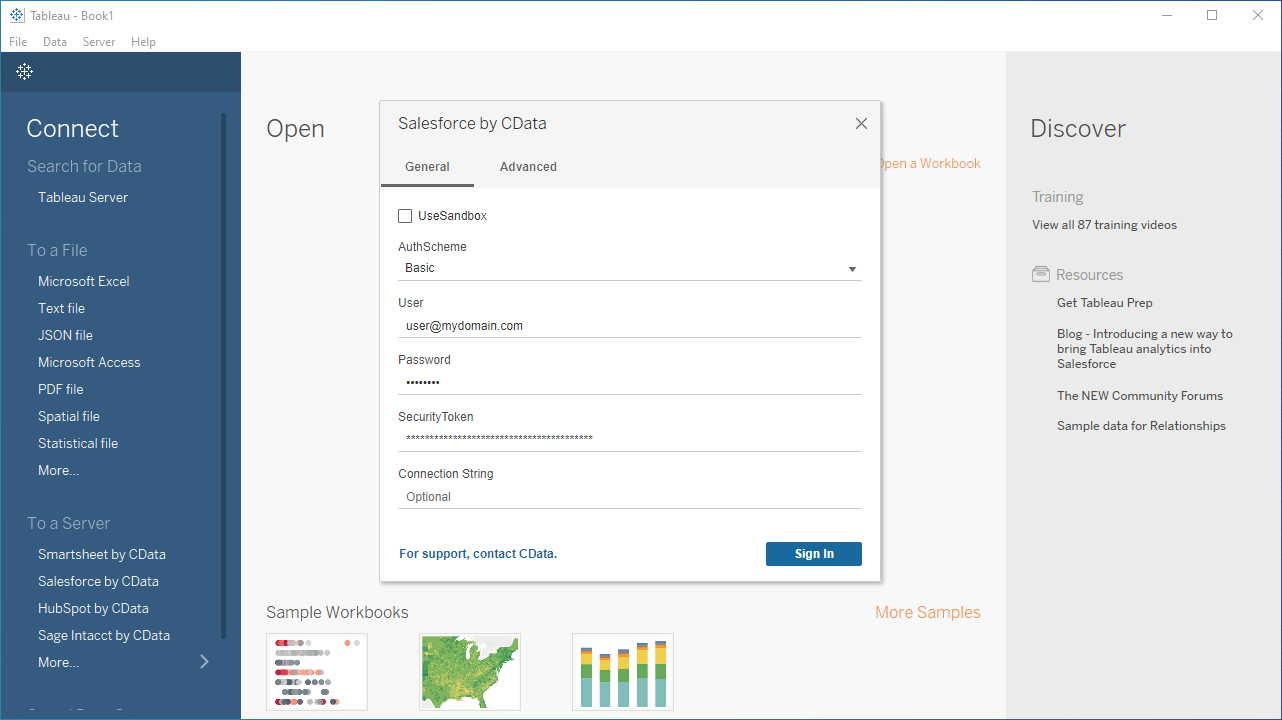
Discover Schemas and Query Data
Once you establish the connection to Outlook data, you can configure which entities to visualize.
- Select CData from the Database pull-down menu.
- Select API from the Schema pull-down menu.
- Drag the tables and views you wish to visualize onto the join area. You can include multiple tables.
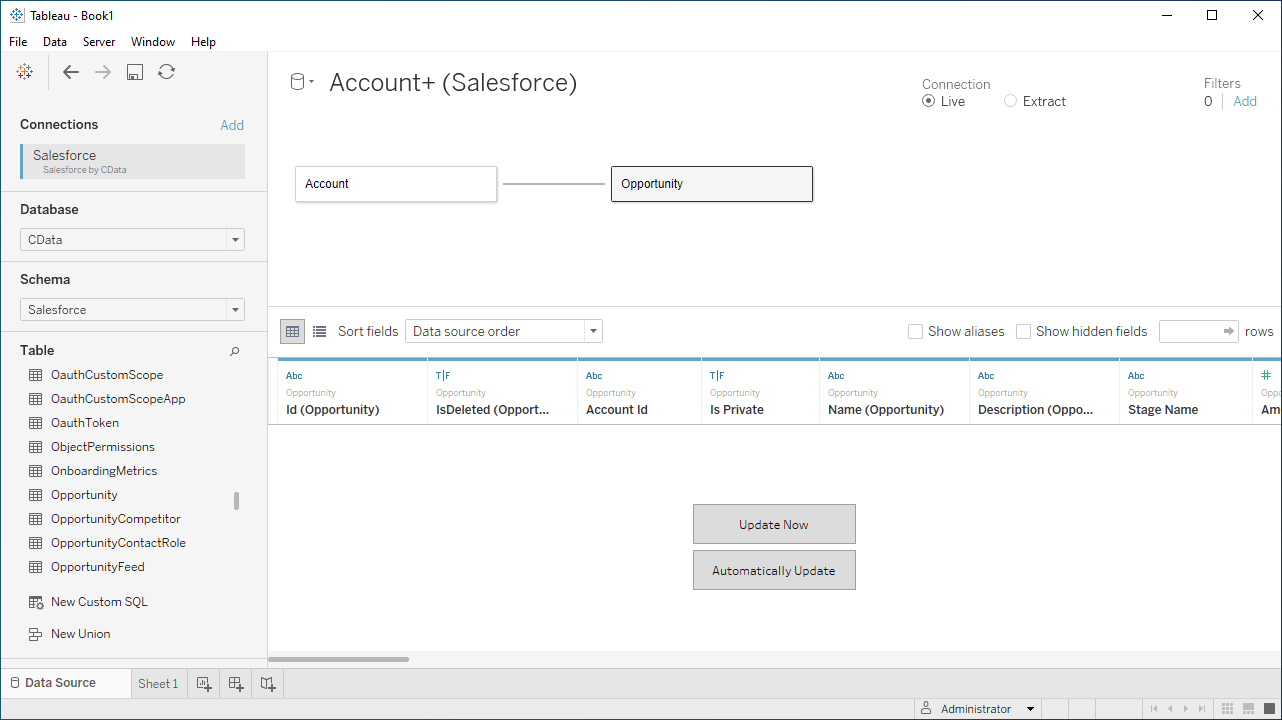
- Select Update Now or Automatically Update. Update Now lets you preview the first 10,000 rows of the data source (or enter the number of rows you want to see in the Rows text box). Automatically Update auto-loads the changes in the preview area.
Publish Data to Tableau Server
After you configure the data you wish to visualize, you can publish the Data Source to a Tableau Server instance. In Tableau Desktop:
- Click Server -> Sign In.
- Enter the URL for your Tableau Server.
- Authenticate with Tableau Server credentials.
- Click Server -> Publish Data Source and select your data source.
- Click Publish.
- Select the Project, name the Data Source, and optionally add a description.
- Click Publish.
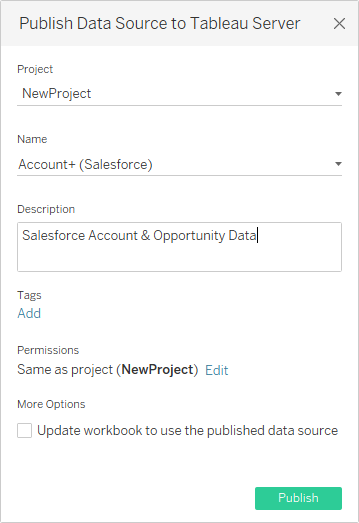
This creates a new entry under the server's data source list, from which you an change the data source's permissions, view its history, and perform other management tasks.
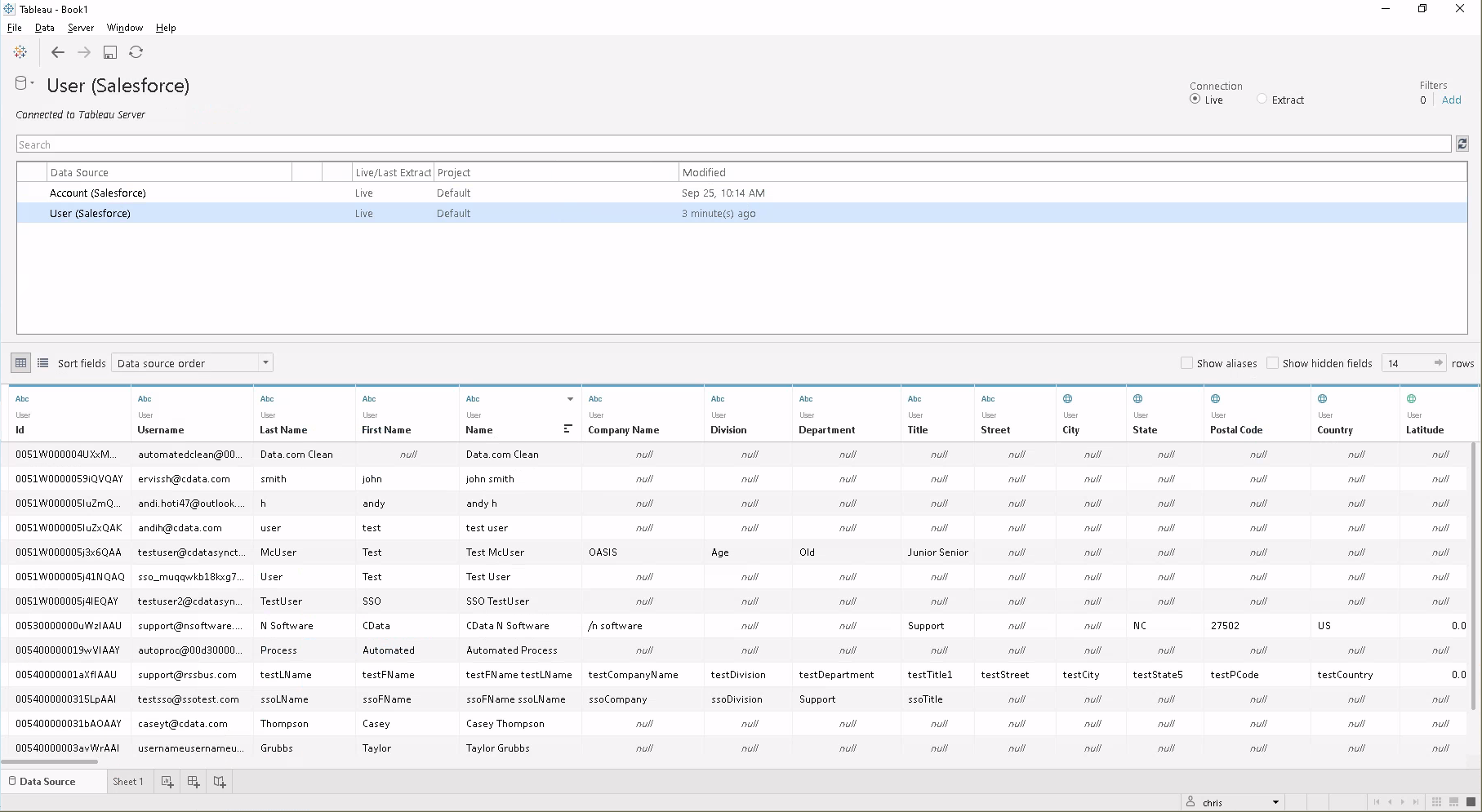
Note that workstation connected to the same server will be able to use the same source in Tableau Desktop, even if the connector isn't installed there. Also, workbooks created directly on Tableau Server (via the web interface) can use this source.
Visualize Outlook Data in Tableau Server
With the Data Source published to Tableau Server, you are ready to visualize Outlook data.
- Login to your Tableau Server instance.
- Connect to the remote source using the Search for Data -> Tableau Server in the Connect sidebar.
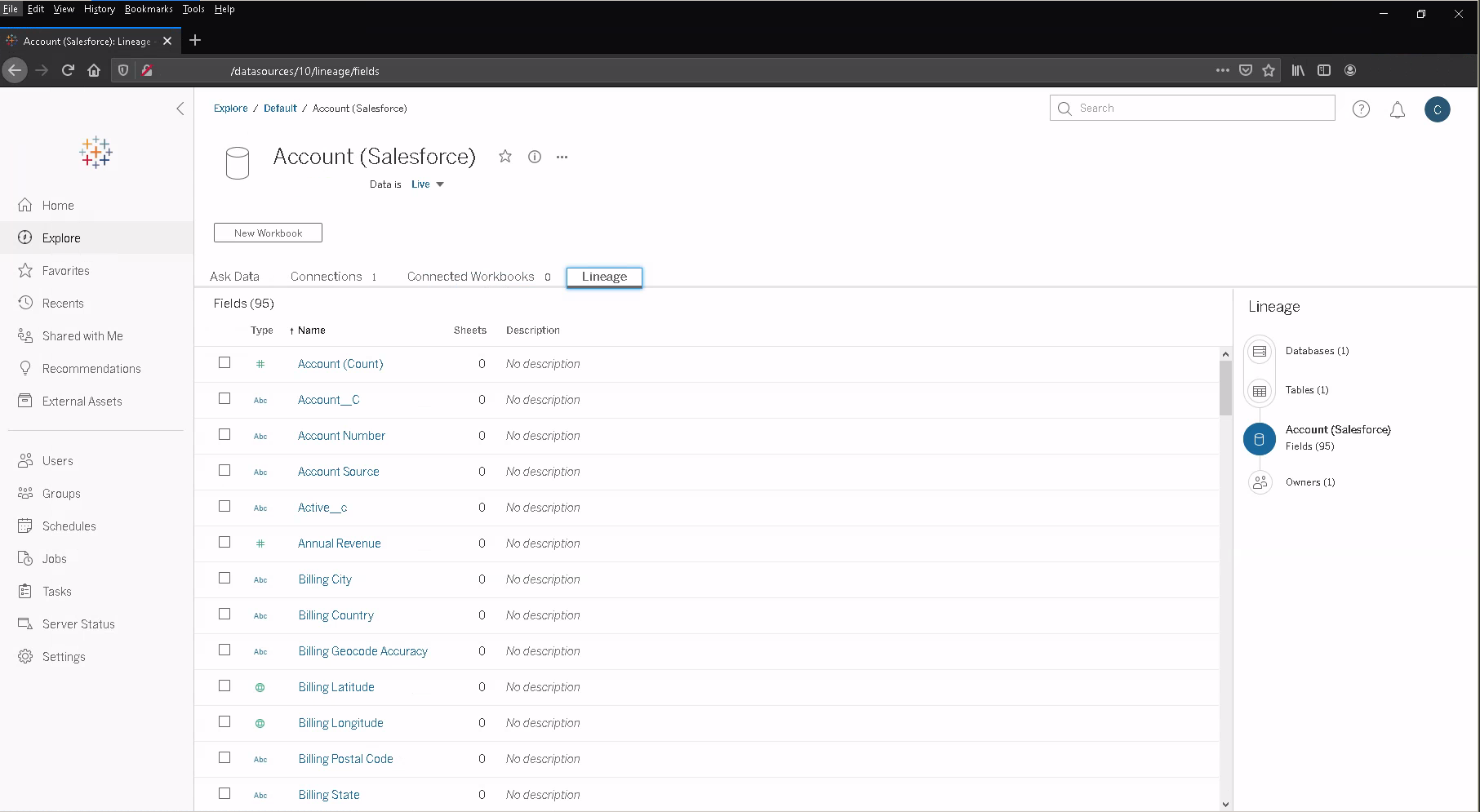
- Click the published Data Source.
- Click New Workbook.
- In the workbook, Outlook fields are listed as Dimensions and Measures, depending on the data type. The CData Tableau Connector discovers data types automatically, allowing you to leverage the powerful data processing and visualization features of Tableau.
- Drag a field from the Dimensions or Measures area to Rows or Columns. Tableau creates column or row headers.
- Select one of the chart types from the Show Me tab. Tableau displays the chart type that you selected.
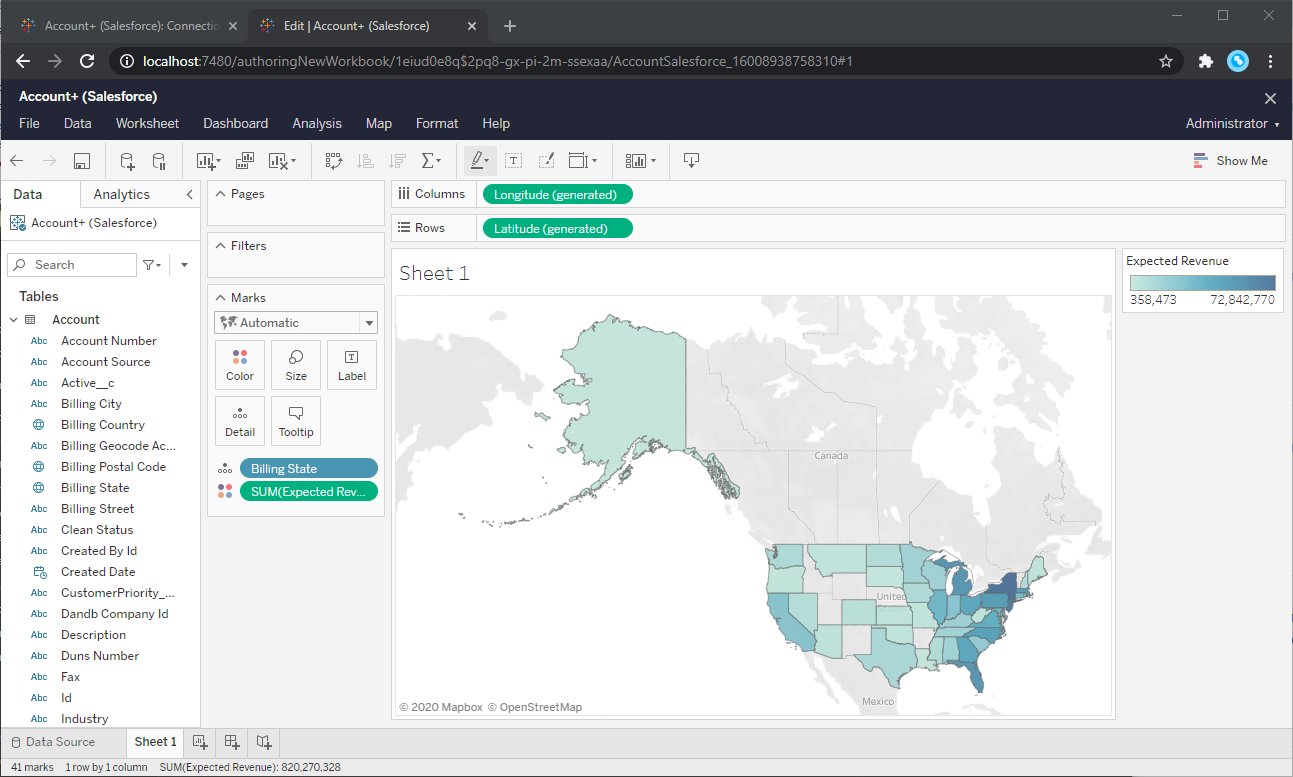
Using the CData API Driver for Tableau with Tableau Server, you can easily create robust visualizations and reports on Outlook data. Download a free, 30-day trial and get started today.