






Import Real-Time Paddle Data via ODBC in ColdFusion to Build Applications

Adobe ColdFusion is a web and mobile application development platform. It uses its own scripting language, ColdFusion Markup Language (CFML), to create data-driven websites as well as generate remote services, such as REST. When ColdFusion is paired with the CData API Driver for ODBC, you can link your ColdFusion web and mobile applications to operational Paddle data. This allows for your applications to be more robust and complete. This article details how to use the ODBC driver to create a table populated with Paddle data from within a ColdFusion markup file.
To follow along with this tutorial, you need to install the CData API Driver for ODBC and Adobe ColdFusion.
Configuring the Connection
If you have not already, first specify connection properties in an ODBC DSN (Data Source Name). This is the last step of the driver installation process. You can use the Microsoft ODBC Data Source Administrator to create and configure ODBC DSNs.
Using API Key Authentication
Paddle uses API key authentication. To obtain an API key:
- Sign in to your Paddle account at https://vendors.paddle.com
- Navigate to Developer Tools > Authentication
- Click "Generate API Key"
- Assign the appropriate permissions for the data you wish to access
- Copy the generated key (sandbox keys begin with pdl_sdbx_apikey_; production keys begin with pdl_live_apikey_)
After obtaining your API key, set the following connection properties:
- AuthScheme: Set this to APIKey.
- APIKey: Set this to your Paddle API key.
Example Connection String
Profile=C:\profiles\Paddle.apip;AuthScheme=APIKey;ProfileSettings="APIKey=your_api_key";
Connecting to Paddle
Once the authentication is configured, you can connect to Paddle and query data from any of the available tables such as Products, Customers, Subscriptions, and Transactions.
Adding a Data Source and Creating a Table
After creating a DSN, follow the steps below to add a new data source, test our connection to it, create a ColdFusion markup file, and, finally, import Paddle Data and display it in a table in ColdFusion:
-
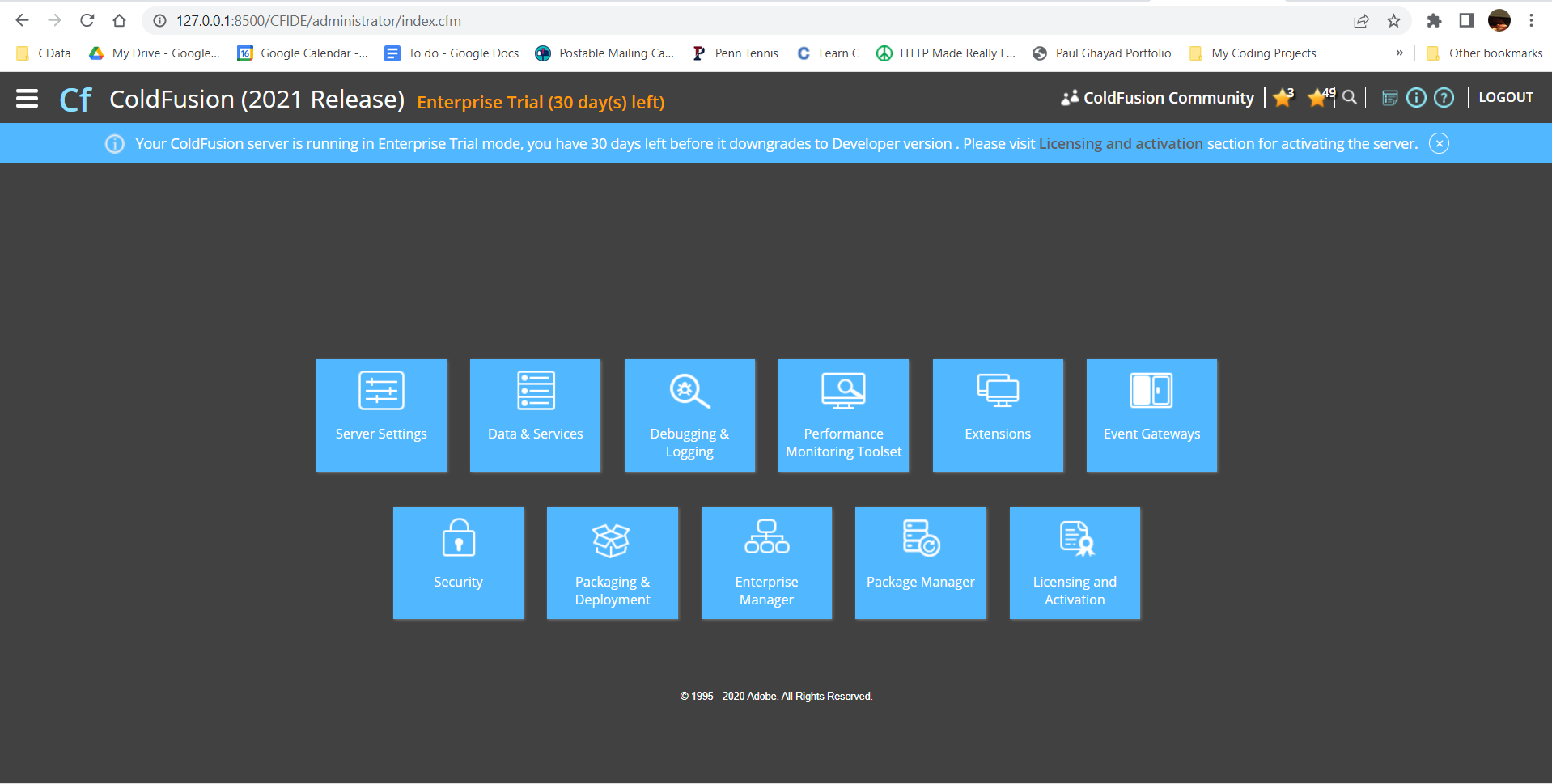
From the ColdFusion administrator interface, choose Data & Services.
-
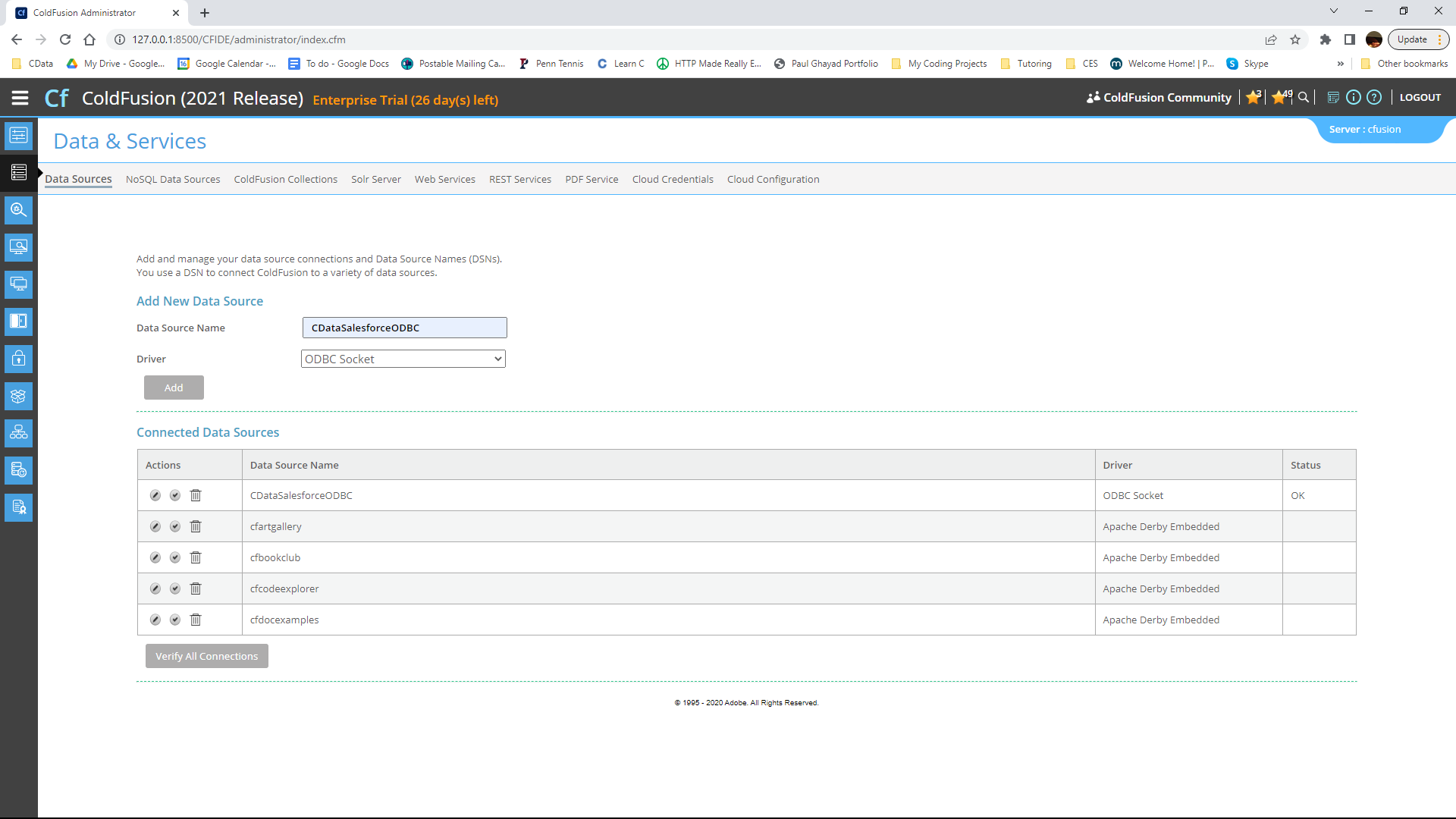
Here, click "Add New Data Source". The data source name can be any name, provided it conforms to the ColdFusion
variable naming conventions. For our ODBC driver, choose "ODBC Socket", then click the "Add" button.
-
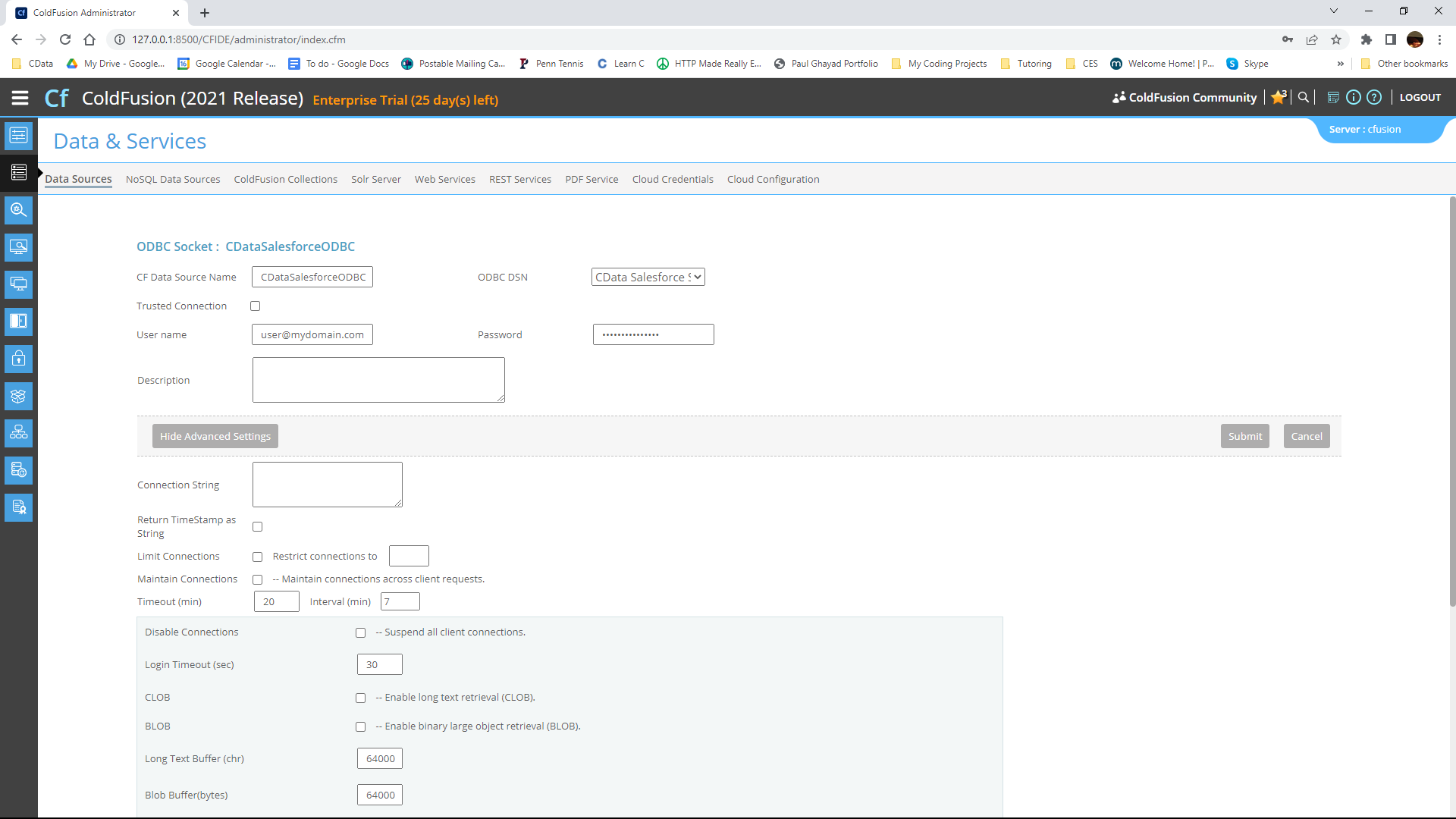
From the ODBC DSN Dropdown menu select CData Paddle Sys. Under the Advanced Settings section, leave the
Connection String blank. Note that any properties specified in this input field will override the ones specified in the
DSN Configuration.
-
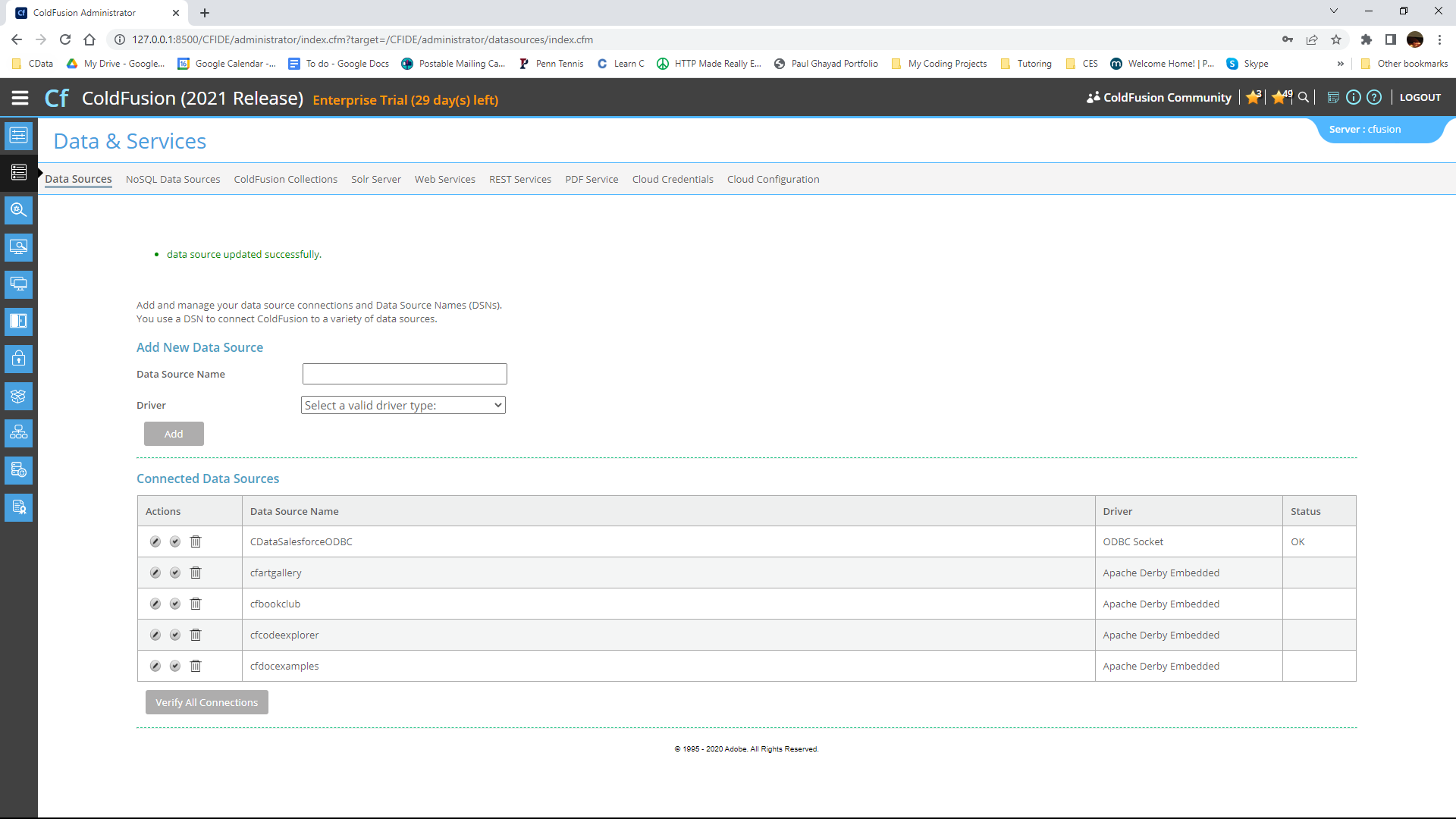
Now, test the connection by pressing the check mark to the left of the CDataPaddleODBC data source you just created.
When the data source reports an "OK" status, it is ready for use.
-
Next, create a new ColdFusion Markup file (.cfm) and place it in the wwwroot directory ("C:\ColdFusion2021\cfusion\wwwroot")
for ColdFusion.
The following code queries the data source:
        <cfquery name="PaddleQuery" dataSource="CDataPaddleODBC">
          SELECT * FROM Products
        </cfquery>
And a CFTable can be used to quickly output the table in HTML:<cftable query = "PaddleQuery" border = "1" colHeaders colSpacing = "2" headerLines = "2" HTMLTable maxRows = "500" startRow = "1"> <cfcol header="<b></b>" align="Left" width=2 text=""/> <cfcol header="<b></b>" align="Left" width=15 text=""/> ... </cftable>Full code, including the HTML portion is available below:<html> <head><title>CData Software | Paddle Products Table Demo </title></head> <body> <cfoutput>#ucase("Paddle Products Table Demo")#</cfoutput> <cfquery name="PaddleQuery" dataSource="CDataPaddleODBC"> SELECT * FROM Products </cfquery> <cftable query = "PaddleQuery" border = "1" colHeaders colSpacing = "2" headerLines = "2" HTMLTable maxRows = "500" startRow = "1"> <cfcol header="<b></b>" align="Left" width=2 text=""/> <cfcol header="<b></b>" align="Left" width=15 text=""/> ... </cftable> </body> </html> -
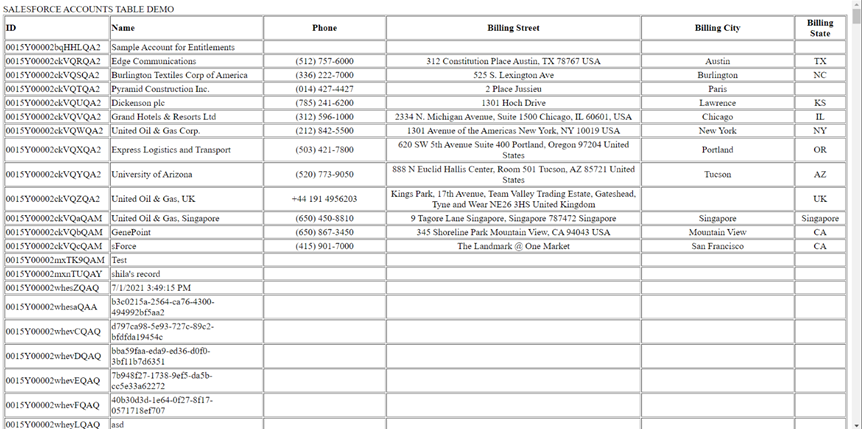
Finally, run the code in a browser. It produces a table populated with Paddle data!
As a note, the CData ODBC Drivers also support parameterized queries using the cfqueryparam element. For example:
SELECT * FROM Account WHERE name =
Get Started Today
Download a free, 30-day trial of the CData ODBC Driver for Paddle and start building Paddle-connected applications with Adobe ColdFusion. Reach out to our Support Team if you have any questions.