Use the CData ODBC Driver for Pushover in Microsoft Power Query

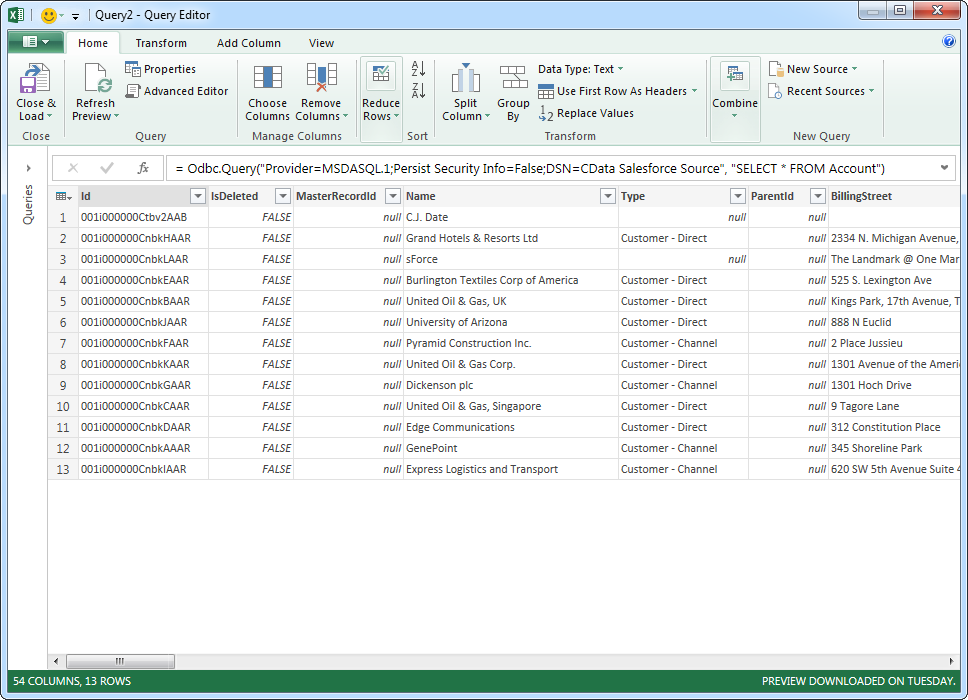
The CData ODBC Driver for Pushover enables you to link to Pushover data in Microsoft Power Query, ensuring that you see any updates. This article details how to use the ODBC driver to import Pushover data into Microsoft Power Query.
Connect to Pushover as an ODBC Data Source
If you have not already, first specify connection properties in an ODBC DSN (data source name). This is the last step of the driver installation. You can use the Microsoft ODBC Data Source Administrator to create and configure ODBC DSNs.
Start by setting the Profile connection property to the location of the Pushover Profile on disk (e.g. C:\profiles\Pushover.apip). Next, set the ProfileSettings connection property to the connection string for Pushover (see below).
Pushover API Profile Settings
Pushover uses API Key authentication. Your Pushover Application API Token is used to authenticate all requests. You can create and manage API tokens in the Pushover dashboard at pushover.net by registering an application under Settings > Your Applications.
After setting the following connection properties, you are ready to connect:
- AuthScheme: Set this to APIKey.
- APIKey: Set this to your 30-character Pushover Application API Token.
Import Pushover Data
Follow the steps below to import Pushover data using standard SQL:
-
From the ribbon in Excel, click Power Query -> From Other Data Sources -> From ODBC.
- Enter the ODBC connection string. Below is a connection string using the default DSN created when you install the driver:
Provider=MSDASQL.1;Persist Security Info=False;DSN=CData API Source -
Enter the SELECT statement to import data with. For example:
SELECT User, Memo FROM GroupMembers WHERE GroupKey = 'your_group_key'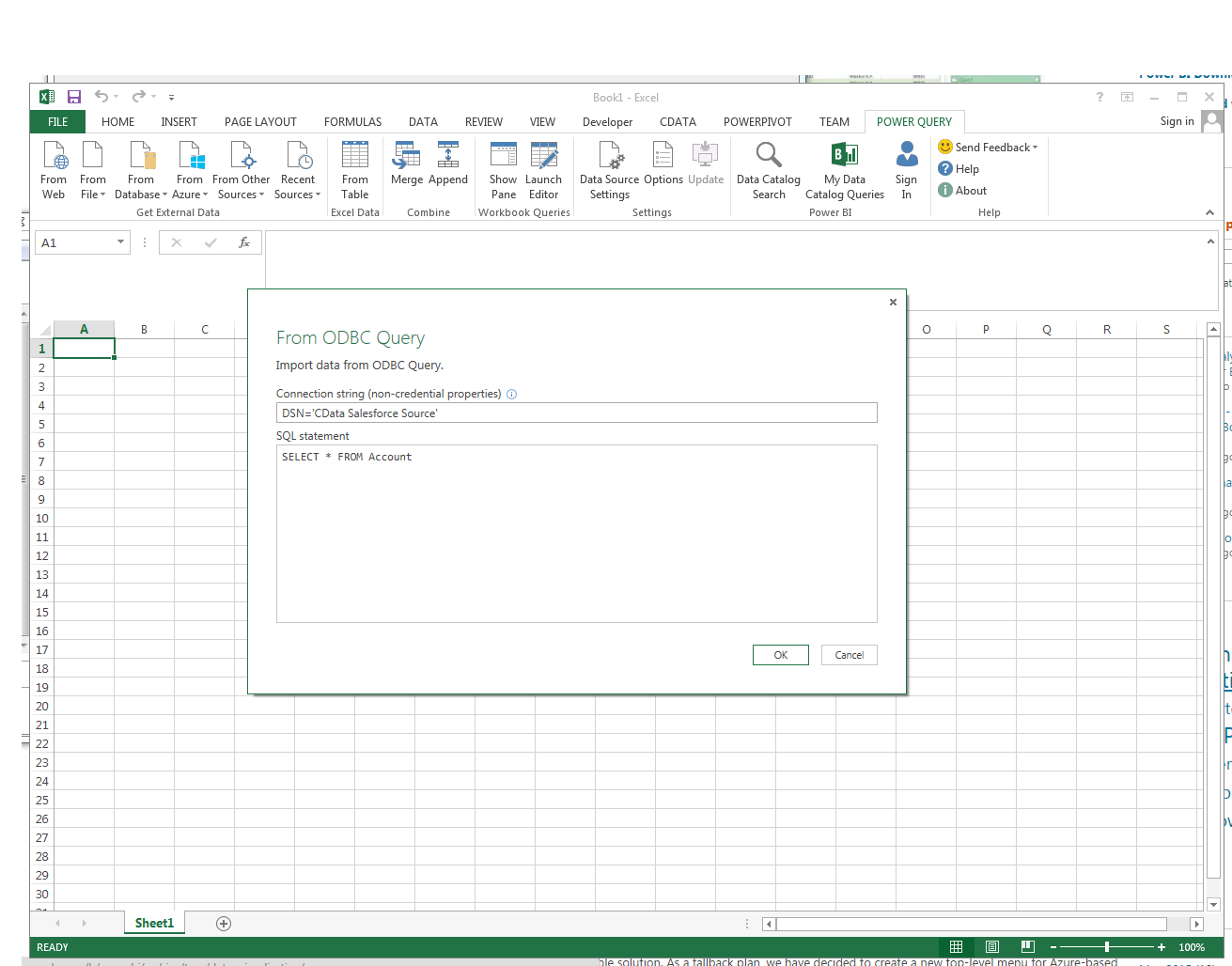
Enter credentials, if required, and click Connect. The results of the query are displayed in the Query Editor Preview. You can combine queries from other data sources or refine the data with Power Query formulas. To load the query to the worksheet, click the Close and Load button.