






How to Access Live Qualaroo Data in Power Automate Desktop via ODBC

The CData ODBC Driver for Qualaroo enables you to access live Qualaroo data in workflow automation tools like Power Automate. This article shows how to integrate Qualaroo data into a simple workflow, moving Qualaroo data into a CSV file.
Through optimized data processing, CData ODBC Drivers offer unmatched performance for interacting with live Qualaroo data in Microsoft Power Automate. When you issue complex SQL queries from Power Automate to Qualaroo, the driver pushes supported SQL operations, like filters and aggregations, directly to Qualaroo and utilizes the embedded SQL engine to process unsupported operations client-side (e.g. SQL functions and JOIN operations).
Connect to Qualaroo as an ODBC Data Source
If you have not already, first specify connection properties in an ODBC DSN (data source name). This is the last step of the driver installation. You can use the Microsoft ODBC Data Source Administrator to create and configure ODBC DSNs.
Qualaroo uses HTTP Basic Authentication to control access to the API. You will need your API Key and API Secret, which can be found under Account Details > Reporting API in the Qualaroo dashboard.
Using Basic Authentication
After setting the following connection properties, you are ready to connect:
- AuthScheme: Set this to Basic.
- User: Set this to your Qualaroo API Key.
- Password: Set this to your Qualaroo API Secret.
Example connection string:
Profile=C:\profiles\Qualaroo.apip;AuthScheme=Basic;User=your_api_key;Password=your_api_secret;
When you configure the DSN, you may also want to set the Max Rows connection property. This will limit the number of rows returned, which is especially helpful for improving performance when designing workflows.
Integrate Qualaroo Data into Power Automate Workflows
After configuring the DSN for Qualaroo, you are ready to integrate Qualaroo data into your Power Automate workflows. Open Microsoft Power Automate, add a new flow, and name the flow.
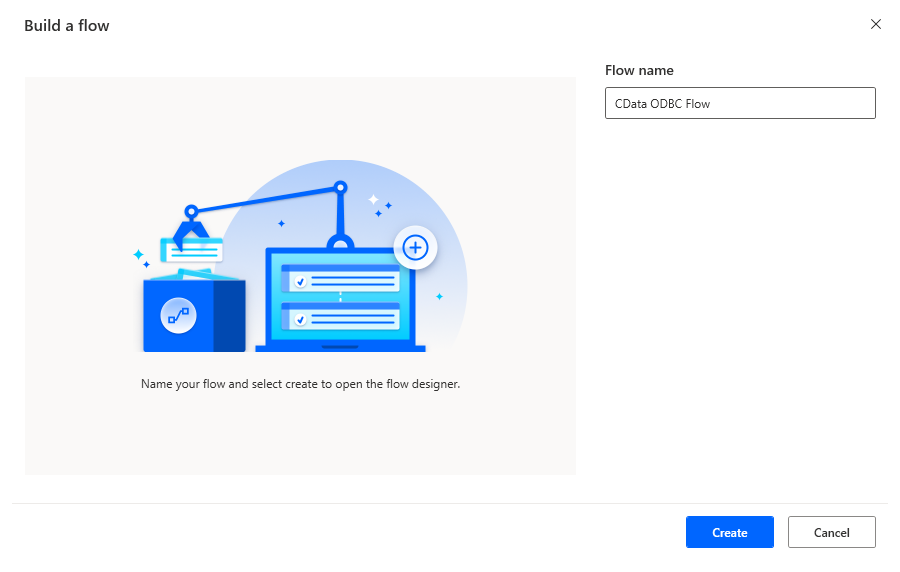
In the flow editor, you can add the actions to connect to Qualaroo, query Qualaroo using SQL, and write the query results to a CSV document.
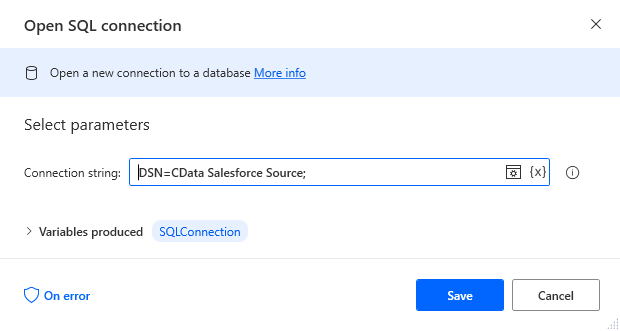
Add an Open SQL Connection Action
Add an "Open SQL connection" action (Actions -> Database) and configure the properties.
- Connection string: DSN=CData Qualaroo Source
After configuring the action, click Save.
Add an Execute SQL Statement Action
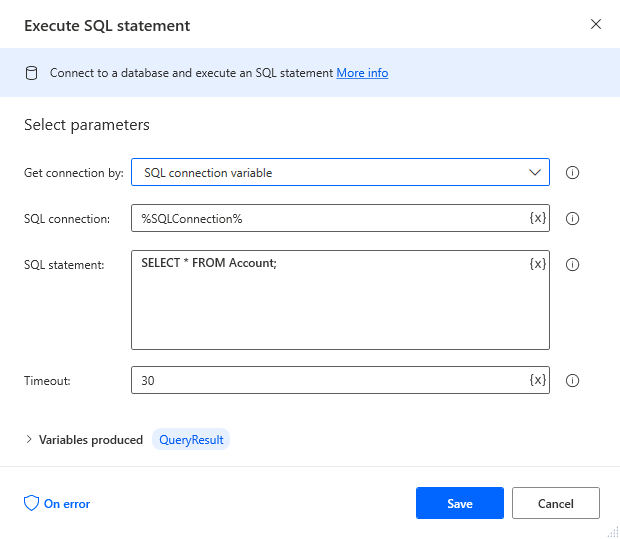
Add an "Execute SQL statement" action (Actions -> Database) and configure the properties.
- Get connection by: SQL connection variable
- SQL connection: %SQLConnection% (the variable from the "Open SQL connection" action above)
- SQL statement: SELECT * FROM SurveyResponses
After configuring the action, click Save.
Add a Write to CSV File Action
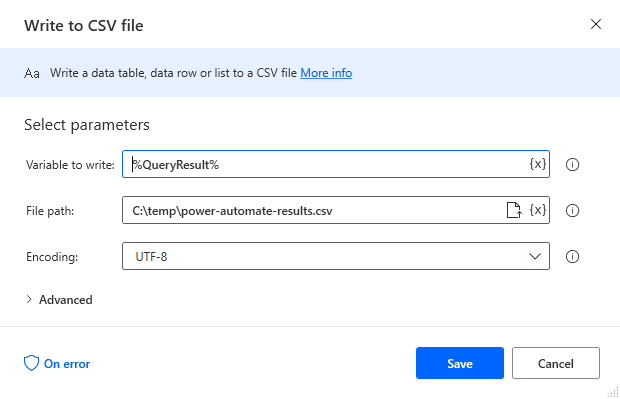
Add a "Write to CSV file" action (Actions -> File) and configure the properties.
- Variable to write to: %QueryResult% (the variable from the "Execute SQL statement" action above)
- File path: set to a file on disk
- Configure Advanced settings as needed.
After configuring the action, click Save.
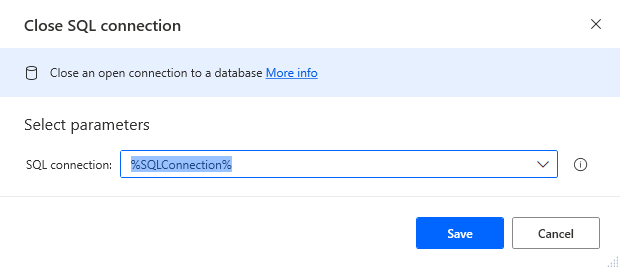
Add a Close SQL Connection Action
Add a "Close SQL connection" action (Actions -> Database) and configure the properties.
- SQL Connection: %SQLConnection% (the variable from the "Open SQL connection" action above)
After configuring the action, click Save.
Save & Run the Flow
Once you have configured all the actions for the flow, click the disk icon to save the flow. Click the play icon to run the flow.
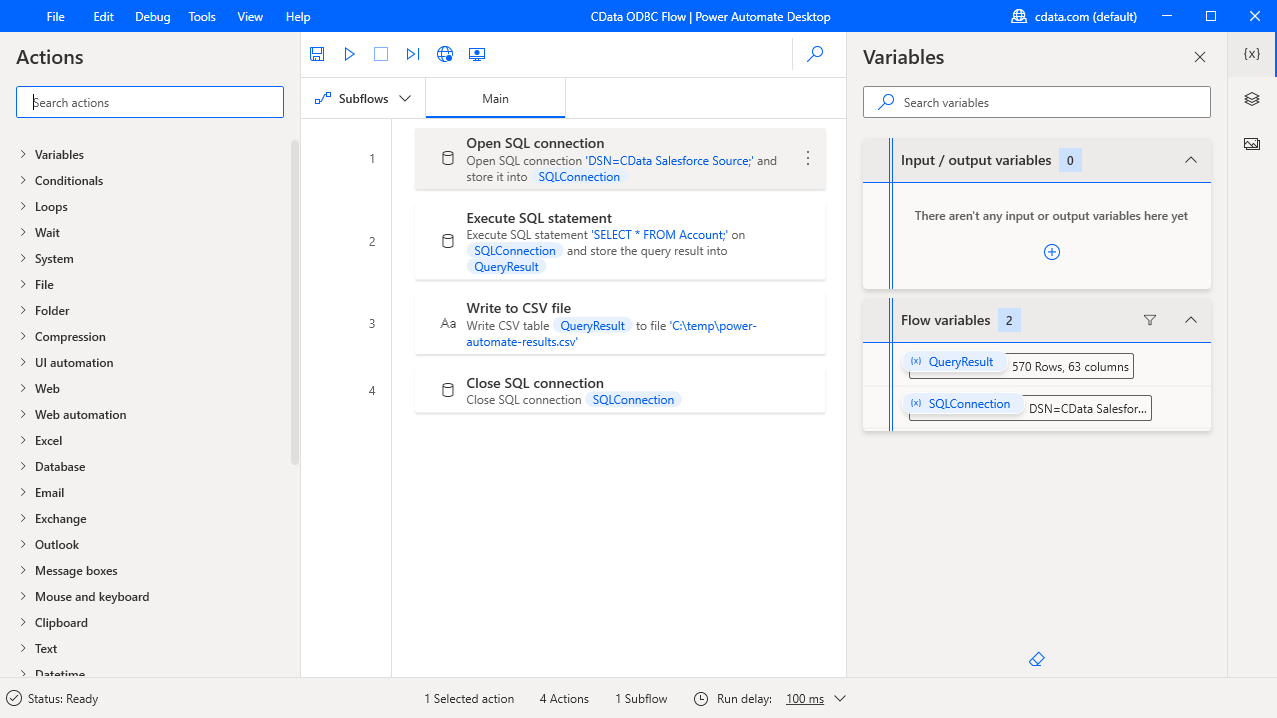
Now you have a workflow to move Qualaroo data into a CSV file.
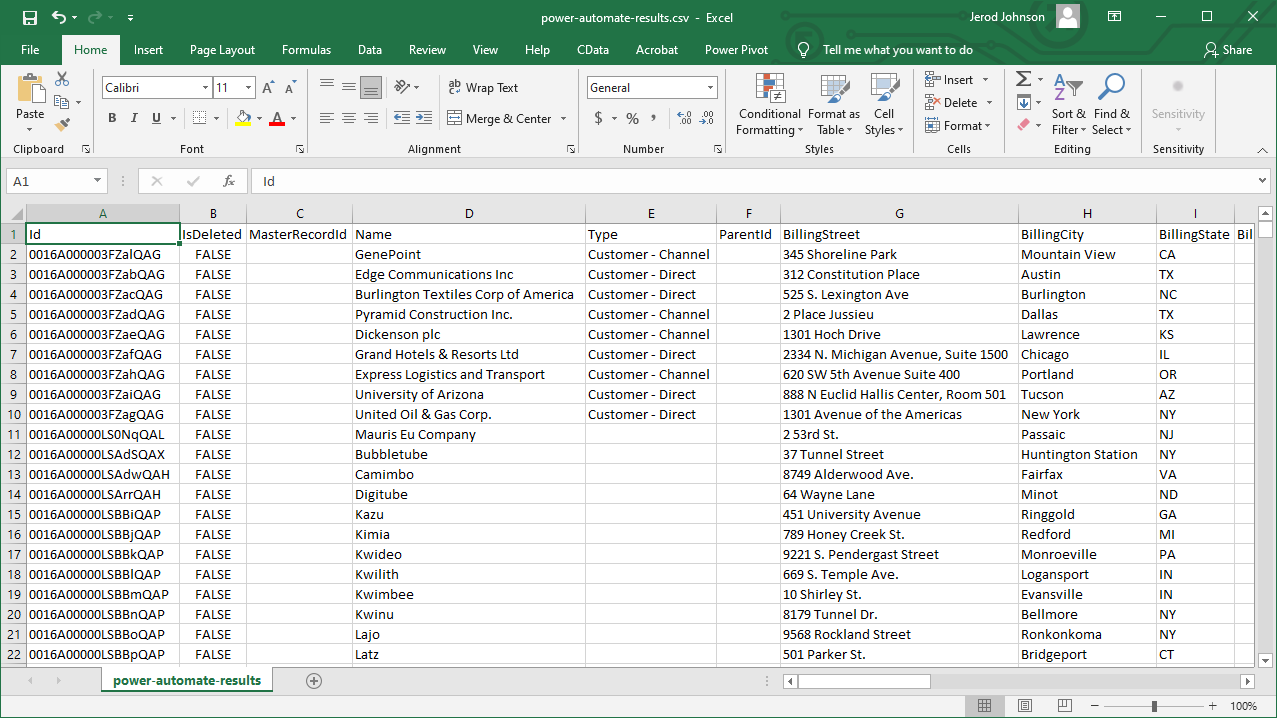
With the CData ODBC Driver for Qualaroo, you get live connectivity to Qualaroo data within your Microsoft Power Automate workflows.
Related Power Automate Articles
This article explains how to use the CData ODBC Driver for Qualaroo with Power Automate Desktop. Check out our other articles for more ways to work with Power Automate (Desktop & Online):