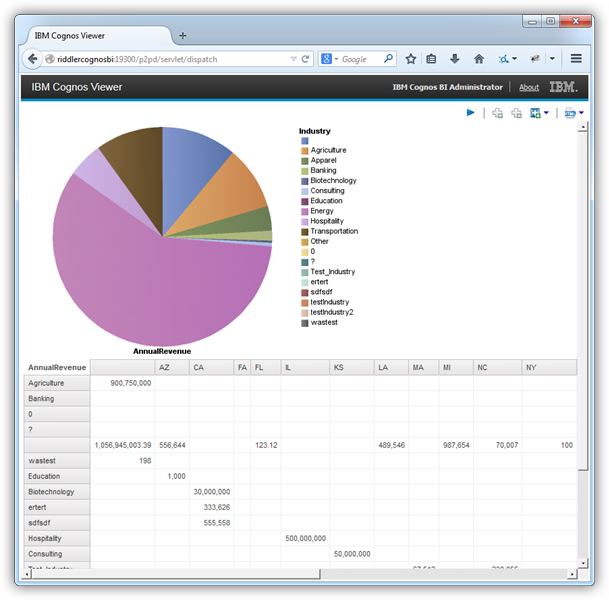
Create Data Visualizations in Cognos BI with RabbitMQ Data

You can use the CData ODBC driver for RabbitMQ to integrate RabbitMQ data with the drag-and-drop style of Cognos Report Studio. This article describes both a graphical approach to create data visualizations, with no SQL required, as well as how to execute any SQL query supported by RabbitMQ.
Configure and Publish the Data Source
If you have not already, first specify connection properties in an ODBC DSN (data source name). This is the last step of the driver installation. You can use the Microsoft ODBC Data Source Administrator to create and configure ODBC DSNs.
About RabbitMQ Management HTTP API
RabbitMQ is an open-source message broker that supports multiple messaging protocols. The RabbitMQ Management HTTP API provides HTTP-based access to management and monitoring data for a RabbitMQ server. The API exposes information about virtual hosts, exchanges, queues, bindings, connections, channels, consumers, users, permissions, policies, and cluster-wide statistics.
The Management plugin must be enabled on the RabbitMQ server for the HTTP API to be available. By default, the management interface listens on port 15672.
Using Basic Authentication
RabbitMQ Management HTTP API uses HTTP Basic authentication. You must supply the username and password of a RabbitMQ management user.
To enable access to the management API:
- Ensure the RabbitMQ Management plugin is enabled on your server (rabbitmq-plugins enable rabbitmq_management).
- Use an existing management user or create one with the appropriate management tag (management, policymaker, monitoring, or administrator).
- Note the full base URL of your RabbitMQ Management HTTP API (e.g., http://localhost:15672).
After configuring your RabbitMQ server, set the following connection properties to connect:
- AuthScheme: Set this to Basic.
- URL: Set this to the base URL of your RabbitMQ Management HTTP API (e.g., http://localhost:15672).
- User: Set this to your RabbitMQ management username (e.g., guest).
- Password: Set this to your RabbitMQ management password.
Example connection string:
Profile=C:\profiles\RabbitMQ.apip;AuthScheme=Basic;URL=http://localhost:15672;User=guest;Password=guest;
Available Tables
The RabbitMQ profile provides access to the following tables:
- Overview - Cluster-wide statistics and information about the RabbitMQ node
- Nodes - Information about individual nodes in the RabbitMQ cluster
- NodeMemory - Detailed memory usage breakdown for a specific cluster node
- Connections - List of all open AMQP connections to the broker
- Channels - List of all open AMQP channels across all connections
- Consumers - List of all consumers registered across all queues
- Exchanges - List of exchanges declared across all virtual hosts
- Queues - List of queues declared across all virtual hosts
- Bindings - List of all bindings between exchanges and queues
- VirtualHosts - List of virtual hosts configured on the broker
- VhostPermissions - User permissions within a specific virtual host
- Users - List of all RabbitMQ users
- Permissions - Permission records for all users across all virtual hosts
- TopicPermissions - Topic-level permission records for all users
- Policies - List of policies applied to queues and exchanges in virtual hosts
- OperatorPolicies - List of operator policies applied to queues in virtual hosts
- Parameters - List of component parameters (e.g., federation, shovel) per virtual host
- GlobalParameters - List of global parameters that apply across all virtual hosts
- VhostLimits - Resource limits configured for specific virtual hosts
- UserLimits - Resource limits configured for specific users
- FeatureFlags - List of feature flags and their enabled/disabled state on the node
- DeprecatedFeatures - List of deprecated features and their usage state
- AuthAttempts - Authentication attempt statistics for the node
- ClusterName - The name of the RabbitMQ cluster
- WhoAmI - Information about the currently authenticated management user
- ExchangeBindingsSource - Bindings for which a specific exchange is the source
- ExchangeBindingsDestination - Bindings for which a specific exchange is the destination
- QueueBindings - Bindings for a specific queue within a virtual host
When you configure the DSN, you may also want to set the Max Rows connection property. This will limit the number of rows returned, which is especially helpful for improving performance when designing reports and visualizations.
If you are running Cognos from a 64-bit machine and want to modify the DSN or create other RabbitMQ DSNs, you must use a system DSN. You will also need to open the 32-bit ODBC Data Source Administrator. You can open it with the following command:
C:\Windows\sysWOW64\odbcad32.exe
After creating a DSN, you can then publish the data source:
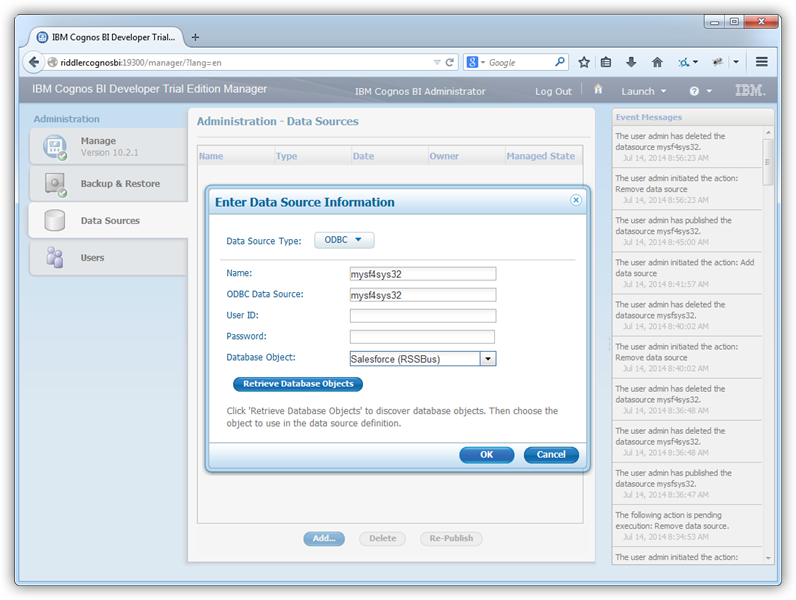
- Open Cognos Administration and click Data Source Connections to add a new data source:
-
Select the ODBC option and enter the DSN, CData API Sys, and a user-friendly name.
- Click Retrieve Objects and choose the CData RabbitMQ database object.
Add Data Visualizations to a Report
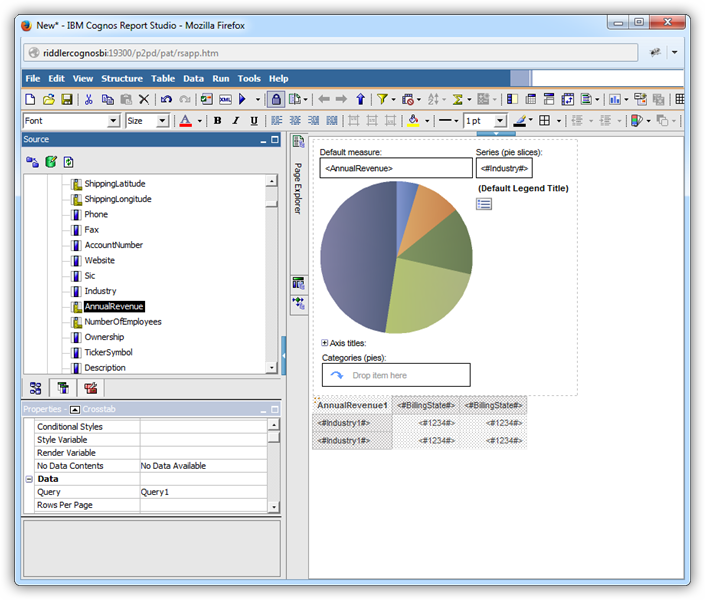
You can now create reports on RabbitMQ data in Cognos Report Studio by dragging and dropping table columns from the Source Explorer onto report objects. The sections below show how to create a simple report with a chart that shows up-to-date data.
As you build the report, Cognos Report Studio will generate SQL queries and rely on the driver to execute them. The driver will convert queries into requests to the RabbitMQ API. To execute queries to the live RabbitMQ data, the driver depends on the capabilities of the underlying API.
Create a Chart Based on an Aggregate
You can populate almost any report object in Cognos with RabbitMQ data by simply dragging and dropping columns from the Source Explorer onto the dimensions of the object. The column in the Series dimension of the chart is automatically grouped.
Additionally, Cognos sets a logical default aggregate function for the measure dimension based on the data type. For this example, override the default by clicking the column in the Data Items tab and set the Aggregate Function property to Not Applicable. The Rollup Aggregate Function property must be set to Automatic.
Convert a Query Object to SQL
When you know the query you need, or if you want to adjust the generated query, convert a query object into an SQL statement. After a query has been converted to SQL, the UI controls are not available for the query object. Follow the procedure below to populate a chart with user-defined SQL.
Cognos will rely on the driver to execute the user-defined query. Using the driver's SQL engine ensures that queries will always return up-to-date results, as there is no cached copy of the data.
- Hover over the Query Explorer and click the Queries folder to display the query objects in your report.
-
If you want to edit the autogenerated query, click the button in the Generated SQL property for the query object. In the resulting dialog, click Convert.
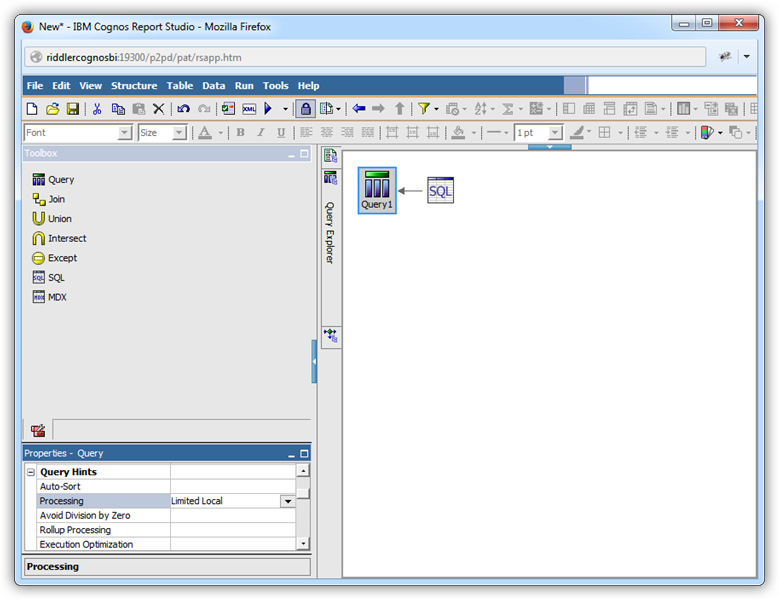
If you want to enter a new SQL statement, drop an SQL object in-line with the query object.
- Modify the properties for the SQL object: Select the RabbitMQ data source in the SQL properties and set the SQL Syntax property to Native.
Click the button in the SQL property and enter the SQL query in the resulting dialog. This example uses the query below:
SELECT , FROM AuthAttempts WHERE NodeName = 'rabbit@hostname'
Modify the properties for the query object: Set the Processing property to "Limited Local". This value is required to convert a query object to SQL.
Fill a Chart with the Results of a Query
You can now access the results of the SQL query as objects in the Data Items tab. Follow the procedure below to create a chart with the results; for example, the for each from the AuthAttempts table.
- Return to the page by hovering over the Page Explorer and then clicking the page object.
- Drag a pie chart from the toolbox onto the workspace.
- In the properties for the chart, set the Query property to the name of the query you created above.
- Click the Data Items tab and drag columns onto the x- and y-axes. In this example, drag the column to the Series (pie slices) box and the column to the Default Measure box.
-
Modify the default properties for the Default Measure (the values): In the Aggregate Function box, select the Total option.
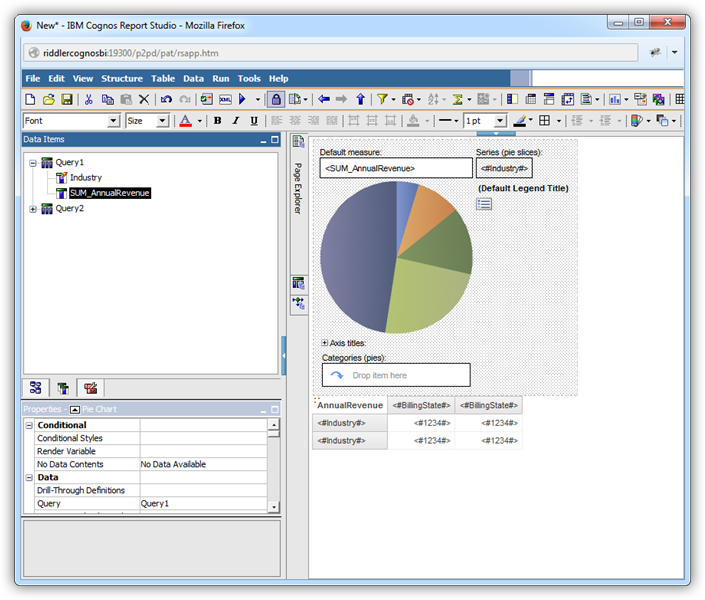
Run the report to add the results of the query.