






Access RabbitMQ Data from MySQL in HeidiSQL

HeidiSQL is an open-source database administration tool that natively supports MariaDB, MySQL, SQL Server, and PostgreSQL. When paired with the CData API Driver for ODBC and SQL Gateway, HediSQL's reach extends to include access to live RabbitMQ data. This article demonstrates how to connect to on-premise RabbitMQ and query RabbitMQ data in HeidiSQL.
Connect to RabbitMQ Data
If you have not already done so, provide values for the required connection properties in the data source name (DSN). You can use the built-in Microsoft ODBC Data Source Administrator to configure the DSN. This is also the last step of the driver installation. See the "Getting Started" chapter in the help documentation for a guide to using the Microsoft ODBC Data Source Administrator to create and configure a DSN.
About RabbitMQ Management HTTP API
RabbitMQ is an open-source message broker that supports multiple messaging protocols. The RabbitMQ Management HTTP API provides HTTP-based access to management and monitoring data for a RabbitMQ server. The API exposes information about virtual hosts, exchanges, queues, bindings, connections, channels, consumers, users, permissions, policies, and cluster-wide statistics.
The Management plugin must be enabled on the RabbitMQ server for the HTTP API to be available. By default, the management interface listens on port 15672.
Using Basic Authentication
RabbitMQ Management HTTP API uses HTTP Basic authentication. You must supply the username and password of a RabbitMQ management user.
To enable access to the management API:
- Ensure the RabbitMQ Management plugin is enabled on your server (rabbitmq-plugins enable rabbitmq_management).
- Use an existing management user or create one with the appropriate management tag (management, policymaker, monitoring, or administrator).
- Note the full base URL of your RabbitMQ Management HTTP API (e.g., http://localhost:15672).
After configuring your RabbitMQ server, set the following connection properties to connect:
- AuthScheme: Set this to Basic.
- URL: Set this to the base URL of your RabbitMQ Management HTTP API (e.g., http://localhost:15672).
- User: Set this to your RabbitMQ management username (e.g., guest).
- Password: Set this to your RabbitMQ management password.
Example connection string:
Profile=C:\profiles\RabbitMQ.apip;AuthScheme=Basic;URL=http://localhost:15672;User=guest;Password=guest;
Available Tables
The RabbitMQ profile provides access to the following tables:
- Overview - Cluster-wide statistics and information about the RabbitMQ node
- Nodes - Information about individual nodes in the RabbitMQ cluster
- NodeMemory - Detailed memory usage breakdown for a specific cluster node
- Connections - List of all open AMQP connections to the broker
- Channels - List of all open AMQP channels across all connections
- Consumers - List of all consumers registered across all queues
- Exchanges - List of exchanges declared across all virtual hosts
- Queues - List of queues declared across all virtual hosts
- Bindings - List of all bindings between exchanges and queues
- VirtualHosts - List of virtual hosts configured on the broker
- VhostPermissions - User permissions within a specific virtual host
- Users - List of all RabbitMQ users
- Permissions - Permission records for all users across all virtual hosts
- TopicPermissions - Topic-level permission records for all users
- Policies - List of policies applied to queues and exchanges in virtual hosts
- OperatorPolicies - List of operator policies applied to queues in virtual hosts
- Parameters - List of component parameters (e.g., federation, shovel) per virtual host
- GlobalParameters - List of global parameters that apply across all virtual hosts
- VhostLimits - Resource limits configured for specific virtual hosts
- UserLimits - Resource limits configured for specific users
- FeatureFlags - List of feature flags and their enabled/disabled state on the node
- DeprecatedFeatures - List of deprecated features and their usage state
- AuthAttempts - Authentication attempt statistics for the node
- ClusterName - The name of the RabbitMQ cluster
- WhoAmI - Information about the currently authenticated management user
- ExchangeBindingsSource - Bindings for which a specific exchange is the source
- ExchangeBindingsDestination - Bindings for which a specific exchange is the destination
- QueueBindings - Bindings for a specific queue within a virtual host
When you configure the DSN, you may also want to set the Max Rows connection property. This will limit the number of rows returned, which is especially helpful for improving performance when designing reports and visualizations.
Configure the SQL Gateway
See the SQL Gateway Overview to set up connectivity to RabbitMQ data as a virtual MySQL database. You will configure a MySQL remoting service that listens for MySQL requests from clients. The service can be configured in the SQL Gateway UI.
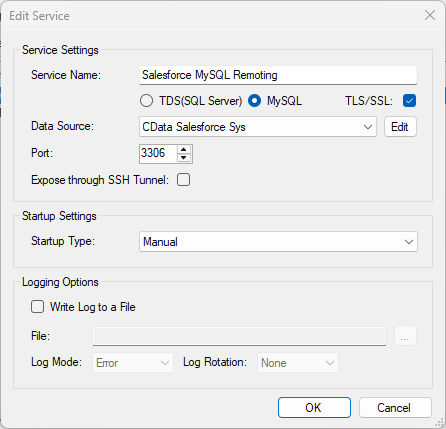
To connect to the SQL Gateway from HeidiSQL, you will need to run the SQL Gateway on a web-facing machine. After configuring the SQL Gateway, make note of the following information:
- The IP address or domain name of the machine hosting the SQL Gateway
- The data source name (likely CData API Sys) of the MySQL service
- The port number of the MySQL service
- The credentials of a SQL Gateway user with access to the service
Configure Remote Access
If your ODBC Driver and the remoting service are installed on-premise (and not accessible from HeidiSQL), you can use the reverse SSH tunneling feature to enable remote access. For detailed instructions, read our Knowledge Base article: SQL Gateway SSH Tunneling Capabilities.
Connect to RabbitMQ in HeidiSQL
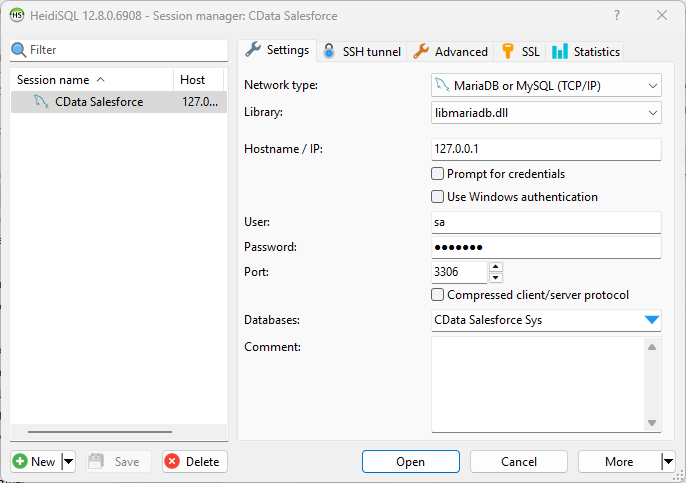
Once you have a MySQL Service configured for the CData API Driver for ODBC, you are ready to connect to the data in HeidiSQL. Start by creating a new connection Session in HeidiSQL, then choose the MySQL library type.
Configure the data set using the values for the MySQL service for RabbitMQ you configured in SQL Gateway (be sure to use the DSN for the database name). Validate your connection and click Open.
Query RabbitMQ from HeidiSQL
- In the database listing on the left, find your connection to RabbitMQ configured earlier.
- In the database listing on the left, expand the appropriate connection and to view individual tables or data objects present within RabbitMQ.
- Write custom SQL queries targeting these tables, treating the data source like any SQL Server database, or visually explore each tabular data set by selecting the relevant tables
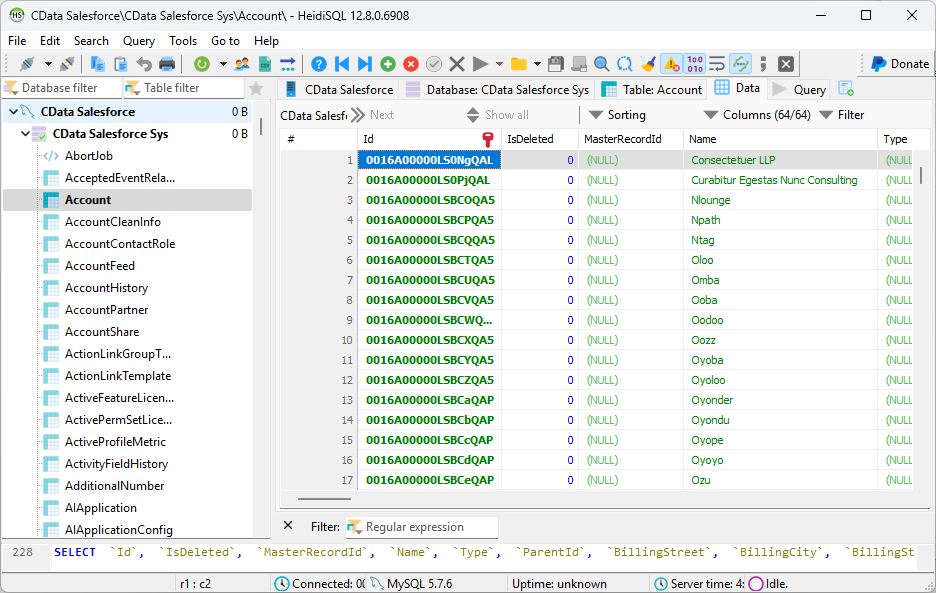
With the CData API Driver for ODBC and SQL Gateway, you are able to easily query data from RabbitMQ data in HeidiSQL. If you have any questions, such as needing to access your on-premises data from HeidiSQL, let our Support Team know.