






How to create an RPA flow for RabbitMQ Data in UiPath Studio

UiPath is a Robotic Process Automation (RPA) platform with rich features and an easy-to-use UI that enables non-developers to create process automation. By using UiPath Studio, you can build an RPA program just like drawing a diagram. With the CData API Driver for ODBC, users can embed RabbitMQ data in the workflow.
This article explains how to use the RabbitMQ ODBC Driver in UiPath Studio to create an RPA program that accesses RabbitMQ data.
Configure the Connection to RabbitMQ
If you have not already, first specify connection properties in an ODBC DSN (data source name). This is the last step of the driver installation. You can use the Microsoft ODBC Data Source Administrator to create and configure ODBC DSNs.
About RabbitMQ Management HTTP API
RabbitMQ is an open-source message broker that supports multiple messaging protocols. The RabbitMQ Management HTTP API provides HTTP-based access to management and monitoring data for a RabbitMQ server. The API exposes information about virtual hosts, exchanges, queues, bindings, connections, channels, consumers, users, permissions, policies, and cluster-wide statistics.
The Management plugin must be enabled on the RabbitMQ server for the HTTP API to be available. By default, the management interface listens on port 15672.
Using Basic Authentication
RabbitMQ Management HTTP API uses HTTP Basic authentication. You must supply the username and password of a RabbitMQ management user.
To enable access to the management API:
- Ensure the RabbitMQ Management plugin is enabled on your server (rabbitmq-plugins enable rabbitmq_management).
- Use an existing management user or create one with the appropriate management tag (management, policymaker, monitoring, or administrator).
- Note the full base URL of your RabbitMQ Management HTTP API (e.g., http://localhost:15672).
After configuring your RabbitMQ server, set the following connection properties to connect:
- AuthScheme: Set this to Basic.
- URL: Set this to the base URL of your RabbitMQ Management HTTP API (e.g., http://localhost:15672).
- User: Set this to your RabbitMQ management username (e.g., guest).
- Password: Set this to your RabbitMQ management password.
Example connection string:
Profile=C:\profiles\RabbitMQ.apip;AuthScheme=Basic;URL=http://localhost:15672;User=guest;Password=guest;
Available Tables
The RabbitMQ profile provides access to the following tables:
- Overview - Cluster-wide statistics and information about the RabbitMQ node
- Nodes - Information about individual nodes in the RabbitMQ cluster
- NodeMemory - Detailed memory usage breakdown for a specific cluster node
- Connections - List of all open AMQP connections to the broker
- Channels - List of all open AMQP channels across all connections
- Consumers - List of all consumers registered across all queues
- Exchanges - List of exchanges declared across all virtual hosts
- Queues - List of queues declared across all virtual hosts
- Bindings - List of all bindings between exchanges and queues
- VirtualHosts - List of virtual hosts configured on the broker
- VhostPermissions - User permissions within a specific virtual host
- Users - List of all RabbitMQ users
- Permissions - Permission records for all users across all virtual hosts
- TopicPermissions - Topic-level permission records for all users
- Policies - List of policies applied to queues and exchanges in virtual hosts
- OperatorPolicies - List of operator policies applied to queues in virtual hosts
- Parameters - List of component parameters (e.g., federation, shovel) per virtual host
- GlobalParameters - List of global parameters that apply across all virtual hosts
- VhostLimits - Resource limits configured for specific virtual hosts
- UserLimits - Resource limits configured for specific users
- FeatureFlags - List of feature flags and their enabled/disabled state on the node
- DeprecatedFeatures - List of deprecated features and their usage state
- AuthAttempts - Authentication attempt statistics for the node
- ClusterName - The name of the RabbitMQ cluster
- WhoAmI - Information about the currently authenticated management user
- ExchangeBindingsSource - Bindings for which a specific exchange is the source
- ExchangeBindingsDestination - Bindings for which a specific exchange is the destination
- QueueBindings - Bindings for a specific queue within a virtual host
Connect UiPath Studio to RabbitMQ Data
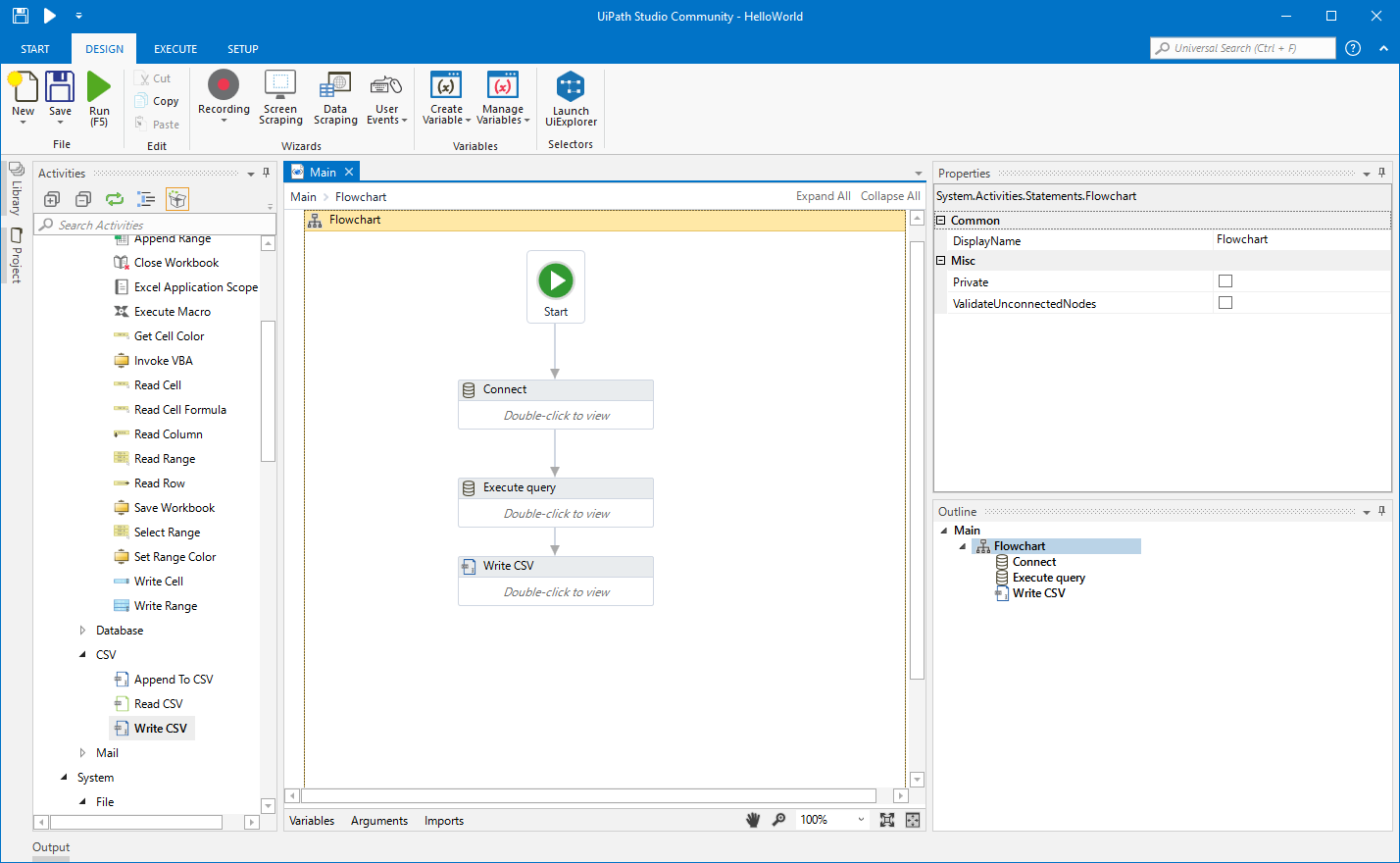
Now you are ready to use RabbitMQ data ODBC DSN in UiPath Studio with the following steps.
- From the Start page, click Blank to create a New Project.
- Click Manage Packages then search for and install UiPath.Database.Activities.
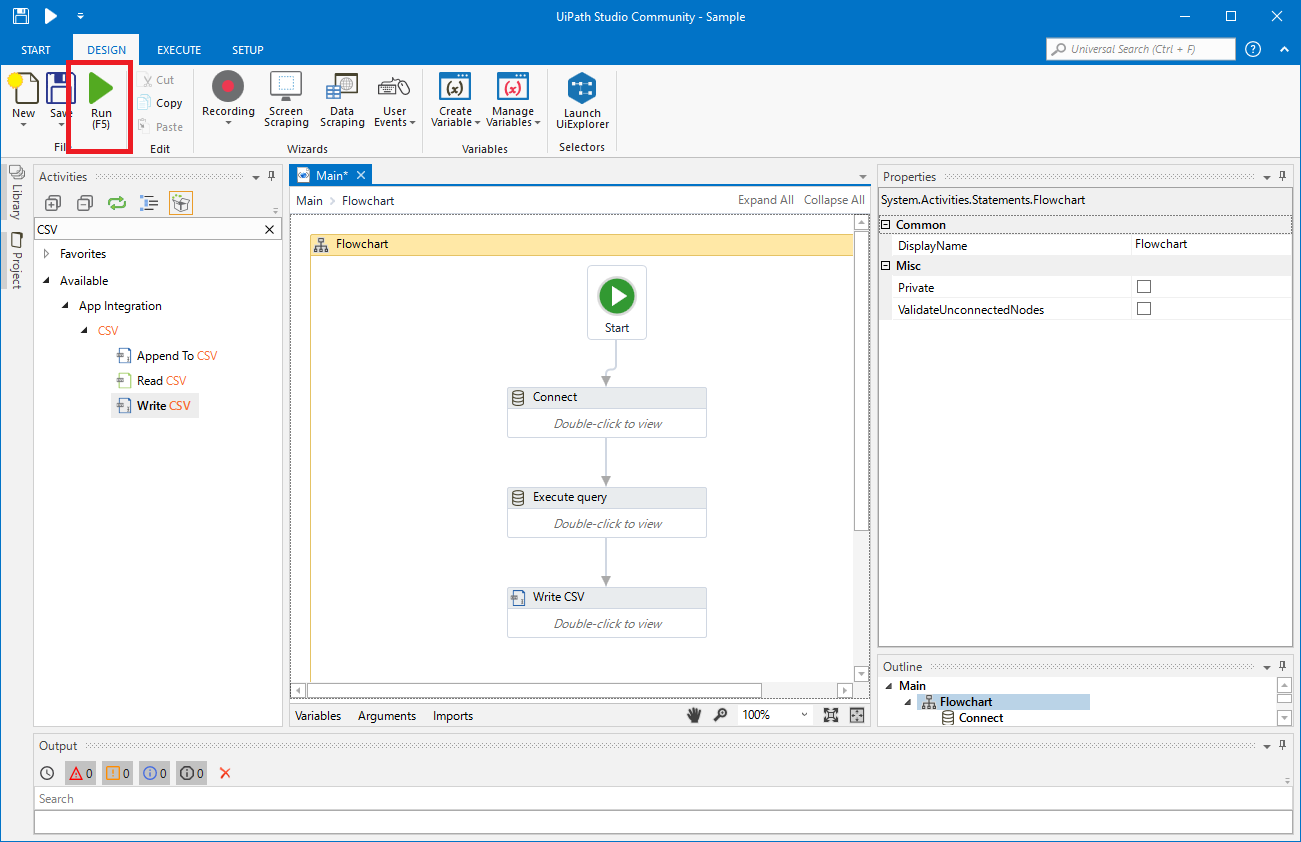
- Navigate to the Activities and drop a Flowchart (Workflow -> Flowchart -> Flowchart) onto the process.
- Drop a database Connect activity (App Integration -> Datbase -> Connect) after the Start activity.
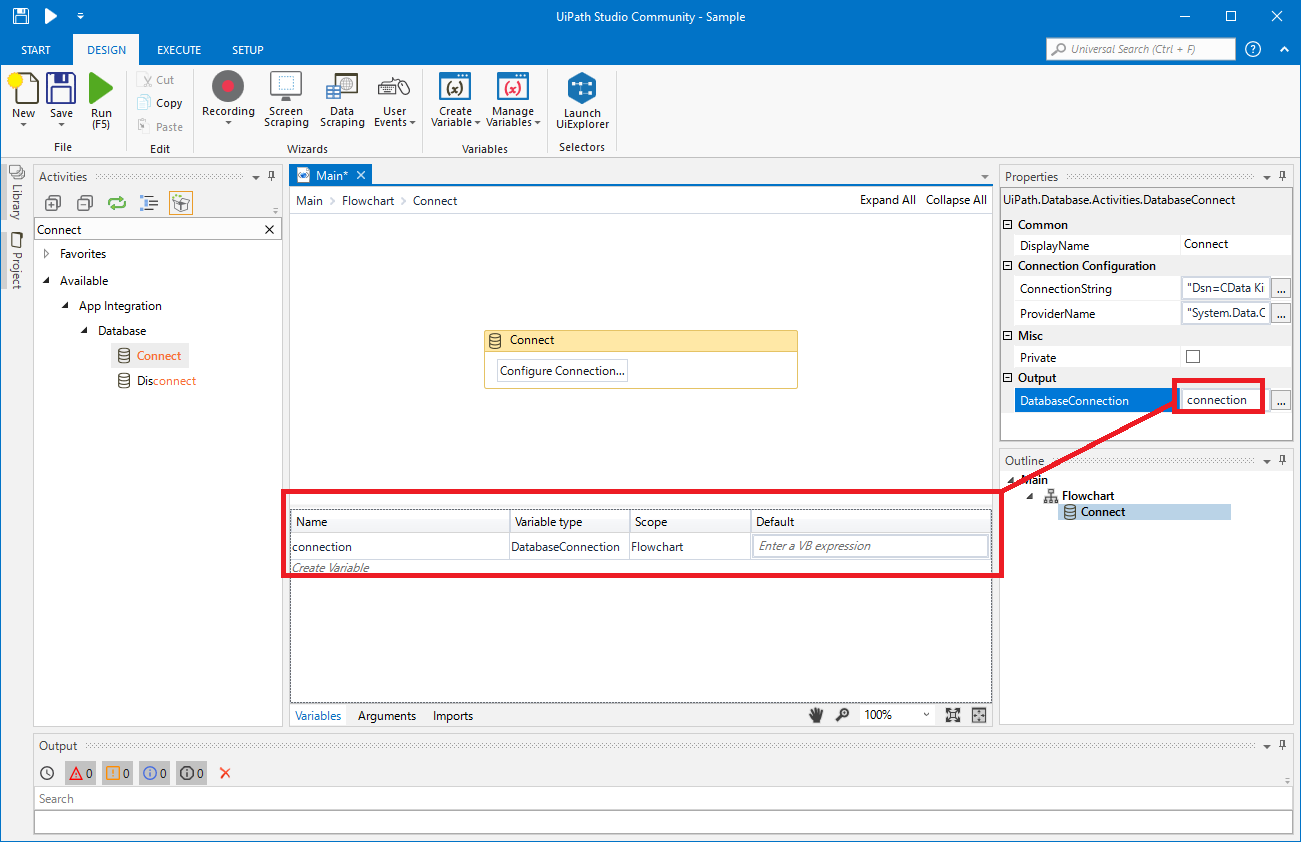
- Double-click the Connect activity and configure the Connection.

- Click the Connection Wizard
- Select "Microsoft ODBC Data Source"
- In Connection Properties, select your DSN (CData API Source) and click OK
- To store Connection info, create a variable and bind to Output in the Properties section. Choose DatabaseConnection in Output.
Create an Execute Query Activity
With the connection configured, we are ready to query RabbitMQ data in our RPA.
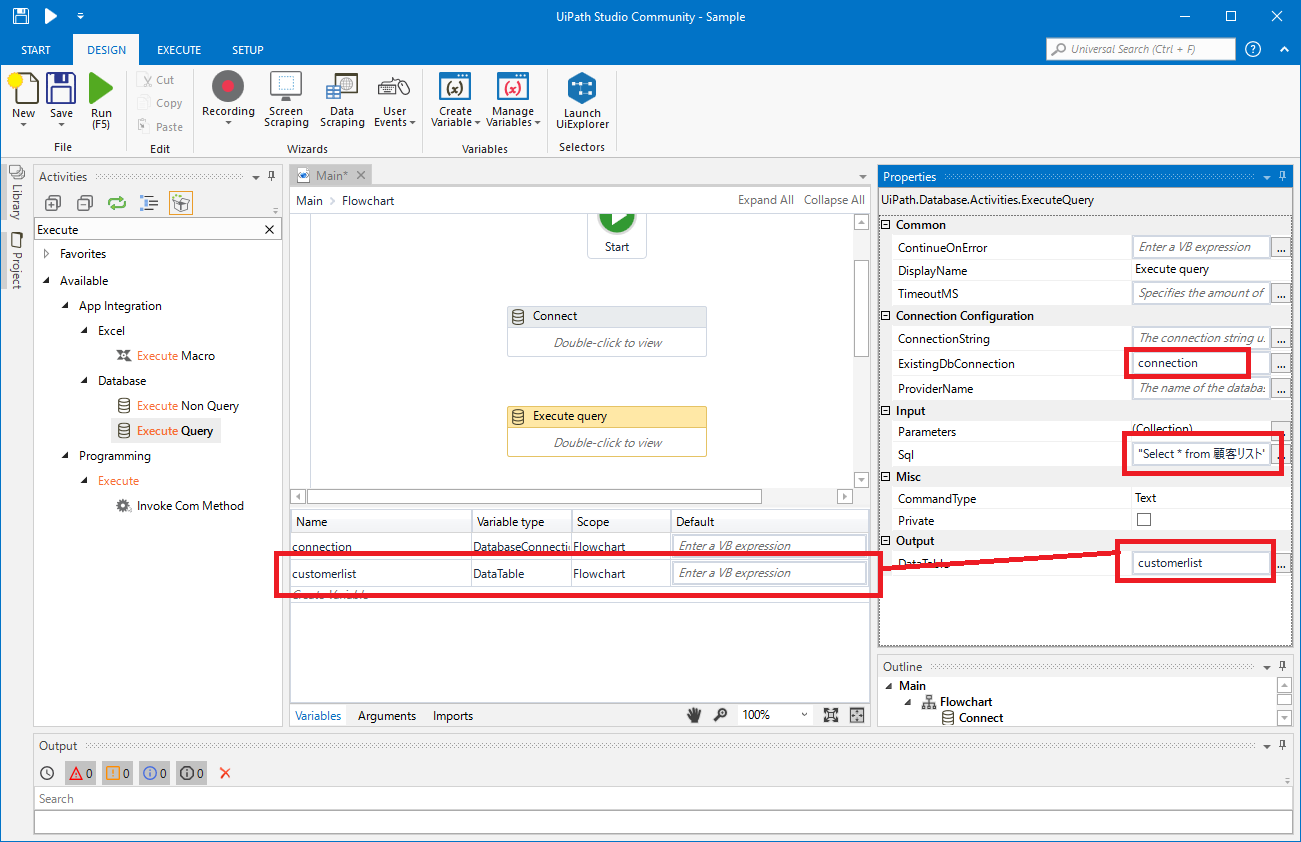
- From the Activities navigation, select Execute Query and drop it on the Flowchart.
- Double-click the Execute Query activity and set the properties as follows:
- ExistingDbConnection: Your Connection variable
- Sql: SELECT statement like SELECT , FROM AuthAttempts WHERE NodeName = 'rabbit@hostname'
- DataTable: Create and use a variable with the Type System.Data.DataTable
Create Write CSV Activity
With the Connection and Execute Query activities configured, we are ready to add a Write CSV activity to the Flowchart to replicate the RabbitMQ data.
- From the Activities navigation, select Write CSV and drop it after the Execute Query activity.
- Double-click the Write CSV activity and set the properties as follows:
- FilePath: Set to a file (new or existing) on disk (i.e.: C:\UiPath[id]-data.csv
- DataTable: Set to the DataTable variable you created earlier
Connect the Activities and Run the Flowchart
If they are not already connected, connect each Activity that you created to complete the RPA project for extracting RabbitMQ data and exporting it to CSV.
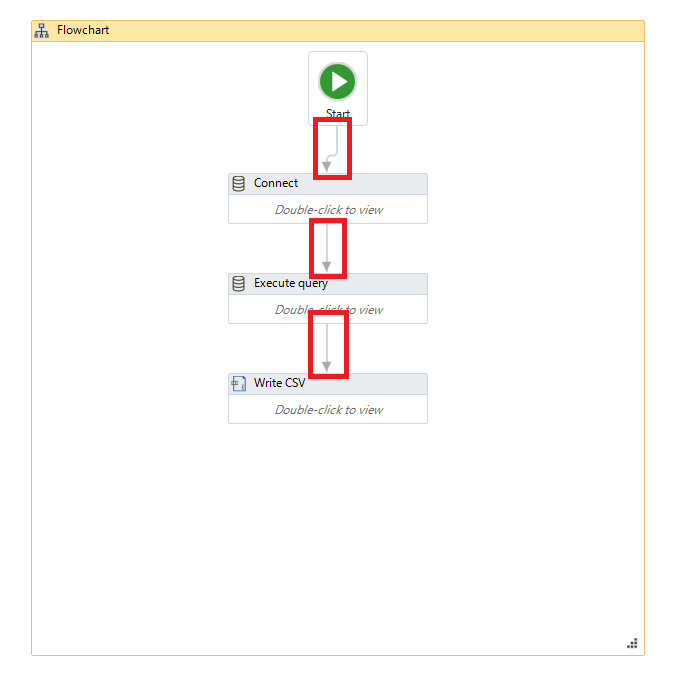
Click Run to extract RabbitMQ data and create a CSV file.
In this article, we used the CData API Driver for ODBC to create an automation flow that accesses RabbitMQ data in UiPath Studio. Download a free, 30-day trial of the ODBC Driver and start working with live RabbitMQ data in UiPath Studio today!