




Analyze Sage X3 Cloud Data in R via JDBC

Access Sage X3 Cloud data with pure R script and standard SQL on any machine where R and Java can be installed. You can use the CData JDBC Driver for Sage X3 Cloud and the RJDBC package to work with remote Sage X3 Cloud data in R. By using the CData Driver, you are leveraging a driver written for industry-proven standards to access your data in the popular, open-source R language. This article shows how to use the driver to execute SQL queries to Sage X3 Cloud and visualize Sage X3 Cloud data by calling standard R functions.
Install R
You can match the driver's performance gains from multi-threading and managed code by running the multithreaded Microsoft R Open or by running open R linked with the BLAS/LAPACK libraries. This article uses Microsoft R Open 3.2.3, which is preconfigured to install packages from the Jan. 1, 2016 snapshot of the CRAN repository. This snapshot ensures reproducibility.
Load the RJDBC Package
To use the driver, download the RJDBC package. After installing the RJDBC package, the following line loads the package:
library(RJDBC)
Connect to Sage X3 Cloud as a JDBC Data Source
You will need the following information to connect to Sage X3 Cloud as a JDBC data source:
- Driver Class: Set this to cdata.jdbc.sagex3cloud.SageX3CloudDriver
- Classpath: Set this to the location of the driver JAR. By default this is the lib subfolder of the installation folder.
The DBI functions, such as dbConnect and dbSendQuery, provide a unified interface for writing data access code in R. Use the following line to initialize a DBI driver that can make JDBC requests to the CData JDBC Driver for Sage X3 Cloud:
driver <- JDBC(driverClass = "cdata.jdbc.sagex3cloud.SageX3CloudDriver", classPath = "MyInstallationDir\lib\cdata.jdbc.sagex3cloud.jar", identifier.quote = "'")
You can now use DBI functions to connect to Sage X3 Cloud and execute SQL queries. Initialize the JDBC connection with the dbConnect function.
Sage X3 Cloud uses the OAuth 2.0 Client Credentials flow, and an X-API-Key is also required for API access. Set AuthScheme to OAuth and specify the following connection properties:
- URL: The base URL of your Sage X3 Cloud instance.
- OAuthAccessTokenUrl: The OAuth token endpoint (e.g., https://your-auth-domain/oauth/token).
- OAuthClientId: Your OAuth application client ID.
- OAuthClientSecret: Your OAuth application client secret.
- Audience: The API audience value for the token request.
- XAPIKey: The X-API-Key provided by your Sage X3 Cloud administrator.
- Folder: The Sage X3 folder name (e.g., SEED). This folder is used as the default schema.
- Folders (optional): A comma-separated list of Sage X3 folders (e.g., SEED,PERF). Each folder is exposed as a separate schema, so you can query across folders with the Schema.Table syntax.
The driver obtains an access token with the Client Credentials flow and sends it with the X-API-Key on every API request. With InitiateOAuth set to GETANDREFRESH (the default), the driver acquires and refreshes the token automatically.
Built-in Connection String Designer
For assistance in constructing the JDBC URL, use the connection string designer built into the Sage X3 Cloud JDBC Driver. Either double-click the JAR file or execute the jar file from the command-line.
java -jar cdata.jdbc.sagex3cloud.jar
Fill in the connection properties and copy the connection string to the clipboard.

Below is a sample dbConnect call, including a typical JDBC connection string:
conn <- dbConnect(driver,"jdbc:sagex3cloud:AuthScheme=OAuth;URL=https://x3server/;OAuthAccessTokenUrl=https://auth-domain/oauth/token;OAuthClientId=your_client_id;OAuthClientSecret=your_client_secret;Audience=https://api-audience;XAPIKey=your_api_key;Folder=SEED;")
Schema Discovery
The driver models Sage X3 Cloud APIs as relational tables, views, and stored procedures. Use the following line to retrieve the list of tables:
dbListTables(conn)
Execute SQL Queries
You can use the dbGetQuery function to execute any SQL query supported by the Sage X3 Cloud API:
bpcustomer <- dbGetQuery(conn,"SELECT BPCNUM, BPCNAM FROM BPCUSTOMER WHERE BPCNUM = 'MARTIN'")
You can view the results in a data viewer window with the following command:
View(bpcustomer)
Plot Sage X3 Cloud Data
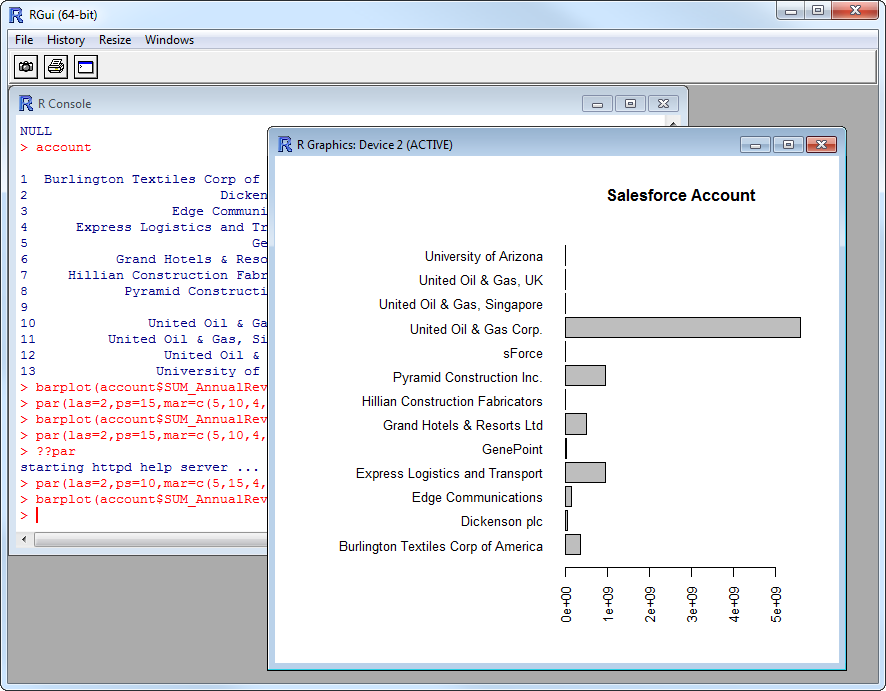
You can now analyze Sage X3 Cloud data with any of the data visualization packages available in the CRAN repository. You can create simple bar plots with the built-in bar plot function:
par(las=2,ps=10,mar=c(5,15,4,2))
barplot(bpcustomer$BPCNAM, main="Sage X3 Cloud BPCUSTOMER", names.arg = bpcustomer$BPCNUM, horiz=TRUE)
Ready to get started?
Download a free trial of the Sage X3 Cloud Driver to get started:
Download NowLearn more:
 Sage X3 Cloud JDBC Driver
Rapidly create and deploy powerful Java applications that integrate with Sage X3 Cloud.