




Connect to Sage X3 Cloud Data in DBeaver

NOTE: The Legacy ODBC driver was removed in DBeaver Community Edition 23.1. As an alternative, you can use a CData JDBC Driver (learn how here: How to Connect DBeaver to Sage X3 Cloud via JDBC). If you need to use ODBC Drivers, refer to the DBeaver Documentation.
The CData ODBC Driver for Sage X3 Cloud enables access to live data from Sage X3 Cloud under the ODBC standard, allowing you work with Sage X3 Cloud data in a wide variety of BI, reporting, and ETL tools and directly, using familiar SQL queries. This article shows how to manage Sage X3 Cloud data with visual tools in DBeaver like the query browser.
The CData ODBC drivers offer unmatched performance for interacting with live Sage X3 Cloud data in DBeaver due to optimized data processing built into the driver. When you issue complex SQL queries from DBeaver to Sage X3 Cloud, the driver pushes supported SQL operations, like filters and aggregations, directly to Sage X3 Cloud and utilizes the embedded SQL engine to process unsupported operations (often SQL functions and JOIN operations) client-side. With built-in dynamic metadata querying, you can manage and analyze Sage X3 Cloud data.
Connect to Sage X3 Cloud
If you have not already done so, provide values for the required connection properties in the data source name (DSN). You can configure the DSN using the Microsoft ODBC Data Source Administrator. This is also the last step of the driver installation. See the "Getting Started" chapter in the Help documentation for a guide to using the Microsoft ODBC Data Source Administrator to create and configure a DSN.
Sage X3 Cloud uses the OAuth 2.0 Client Credentials flow, and an X-API-Key is also required for API access. Set AuthScheme to OAuth and specify the following connection properties:
- URL: The base URL of your Sage X3 Cloud instance.
- OAuthAccessTokenUrl: The OAuth token endpoint (e.g., https://your-auth-domain/oauth/token).
- OAuthClientId: Your OAuth application client ID.
- OAuthClientSecret: Your OAuth application client secret.
- Audience: The API audience value for the token request.
- XAPIKey: The X-API-Key provided by your Sage X3 Cloud administrator.
- Folder: The Sage X3 folder name (e.g., SEED). This folder is used as the default schema.
- Folders (optional): A comma-separated list of Sage X3 folders (e.g., SEED,PERF). Each folder is exposed as a separate schema, so you can query across folders with the Schema.Table syntax.
The driver obtains an access token with the Client Credentials flow and sends it with the X-API-Key on every API request. With InitiateOAuth set to GETANDREFRESH (the default), the driver acquires and refreshes the token automatically.
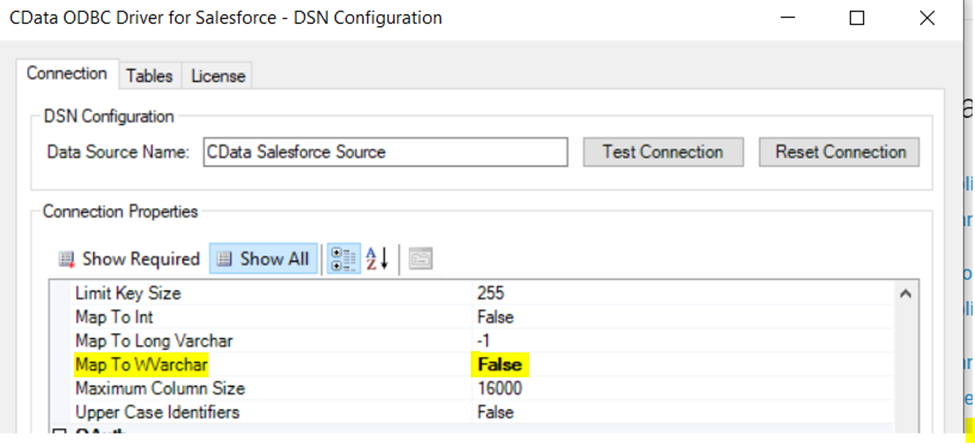
Finally, set the "Map To WVarchar connection property to False in the DSN Configuration window for the driver. This configuration will allow string types to be mapped to SQL_VARCHAR and prevent SQL_WVARCHAR types from being displayed as NULL.
Connecting to the Sage X3 Cloud ODBC Data Source in DBeaver
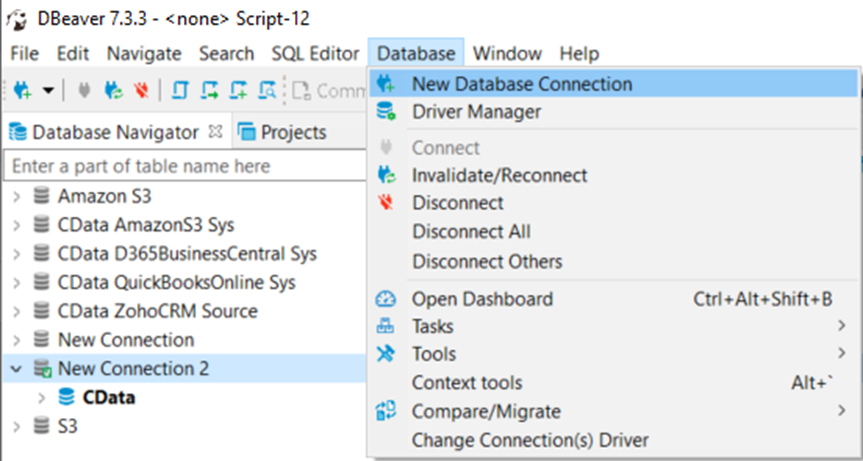
- Open the DBeaver application and in the Database menu, select the New Database Connection option.
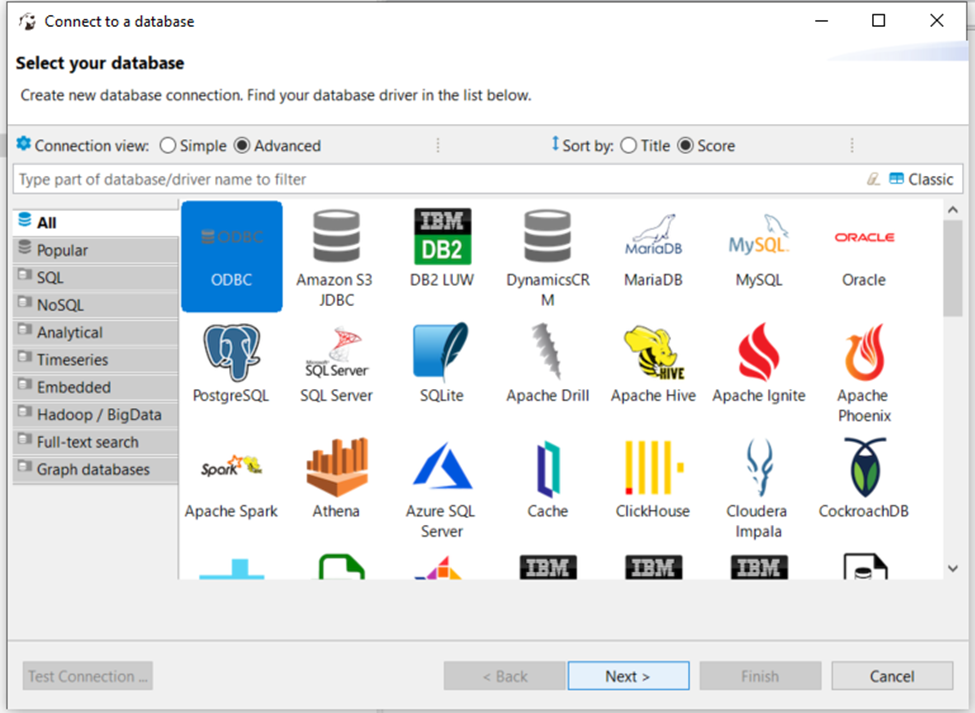
- In the 'Connect to a database' window, select ODBC and click Next.
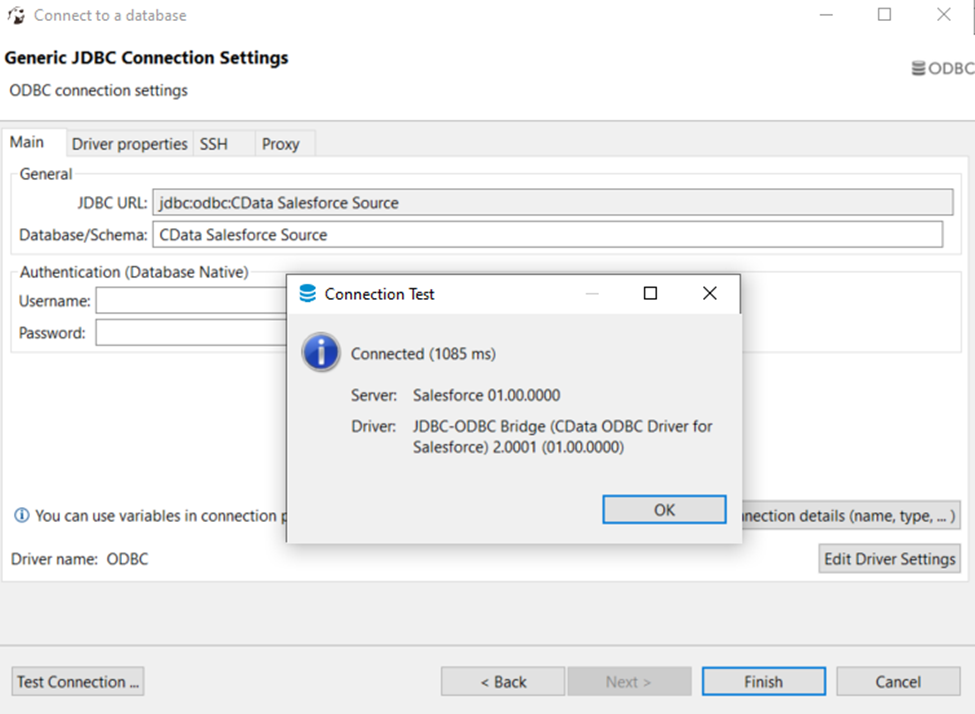
- In the Database/Schema field, enter the DSN name (CData Sage X3 Cloud Source by default). It will be automatically added to the JDBC URL as well.
- Click the Test Connection button. You should receive a 'Connected' message after DBeaver has detected the DSN, along with details about the driver if the connection is successful.
Query Sage X3 Cloud Data
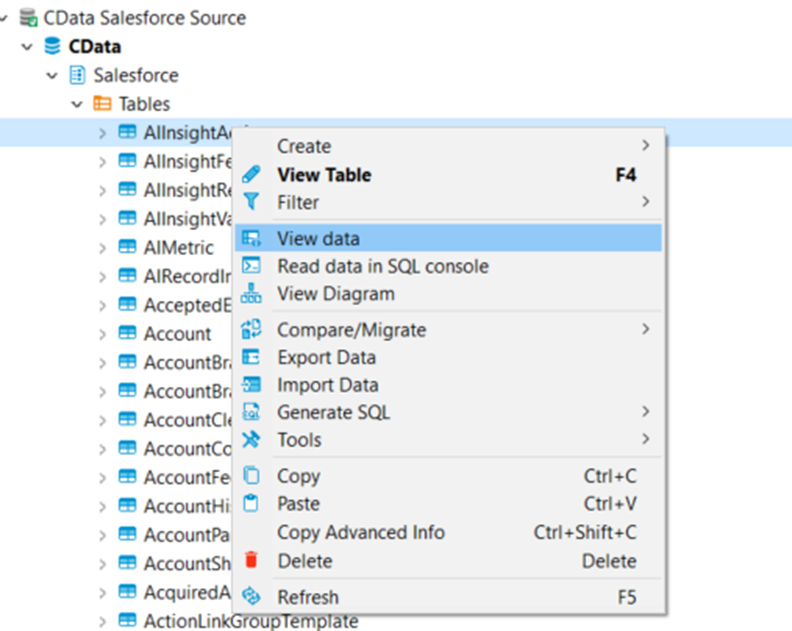
You can now query information from the tables exposed by the data source connection. You can expand the database structure in order to view all the tables. You can retrieve the table's data by right-clicking on a table name and selecting View data. The data will then be available in the Data tab.
Free Trial & More Information
At this point, you have connected to live Sage X3 Cloud data from DBeaver. For more information, visit the CData ODBC Driver page. Download a free, 30-day trial and start working live Sage X3 Cloud data DBeaver today.
Ready to get started?
Download a free trial of the Sage X3 Cloud ODBC Driver to get started:
Download NowLearn more:
 Sage X3 Cloud ODBC Driver
The Sage X3 Cloud ODBC Driver is a powerful tool that allows you to connect with live data from Sage X3 Cloud, directly from any applications that support ODBC connectivity.
Access Sage X3 Cloud data like you would a database - read, write, and update Sage X3 Cloud data through a standard ODBC Driver interface.