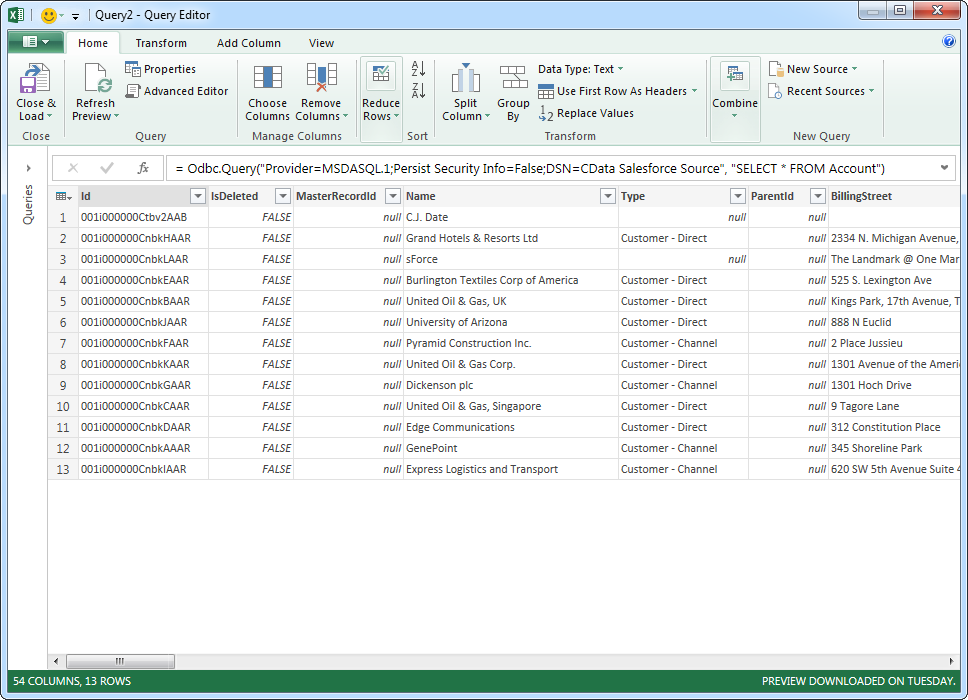
Use the CData ODBC Driver for Sentry in Microsoft Power Query

The CData ODBC Driver for Sentry enables you to link to Sentry data in Microsoft Power Query, ensuring that you see any updates. This article details how to use the ODBC driver to import Sentry data into Microsoft Power Query.
Connect to Sentry as an ODBC Data Source
If you have not already, first specify connection properties in an ODBC DSN (data source name). This is the last step of the driver installation. You can use the Microsoft ODBC Data Source Administrator to create and configure ODBC DSNs.
Using API Key Authentication
Sentry uses token-based authentication. To obtain an Auth Token:
- Log in to your Sentry account at https://sentry.io
- Navigate to Settings > Auth Tokens
- Click "Create New Token"
- Select the required scopes and click "Create Token"
- Copy the generated token (it will only be shown once)
After obtaining your Auth Token, set the following connection properties:
- AuthScheme: Set this to APIKey.
- APIKey: Set this to your Sentry Auth Token.
- OrganizationId: Set this to your Sentry organization slug or ID.
Example Connection String
Profile=C:\profiles\Sentry.apip;AuthScheme=APIKey;ProfileSettings="APIKey=your_auth_token;OrganizationId=your_org_slug";
Connecting to Sentry
Once the authentication is configured, you can connect to Sentry and query data from any of the available tables such as Organizations, Projects, Issues, and Events.
Import Sentry Data
Follow the steps below to import Sentry data using standard SQL:
-
From the ribbon in Excel, click Power Query -> From Other Data Sources -> From ODBC.
- Enter the ODBC connection string. Below is a connection string using the default DSN created when you install the driver:
Provider=MSDASQL.1;Persist Security Info=False;DSN=CData API Source
-
Enter the SELECT statement to import data with. For example:
SELECT , FROM UserOrganizations WHERE = ''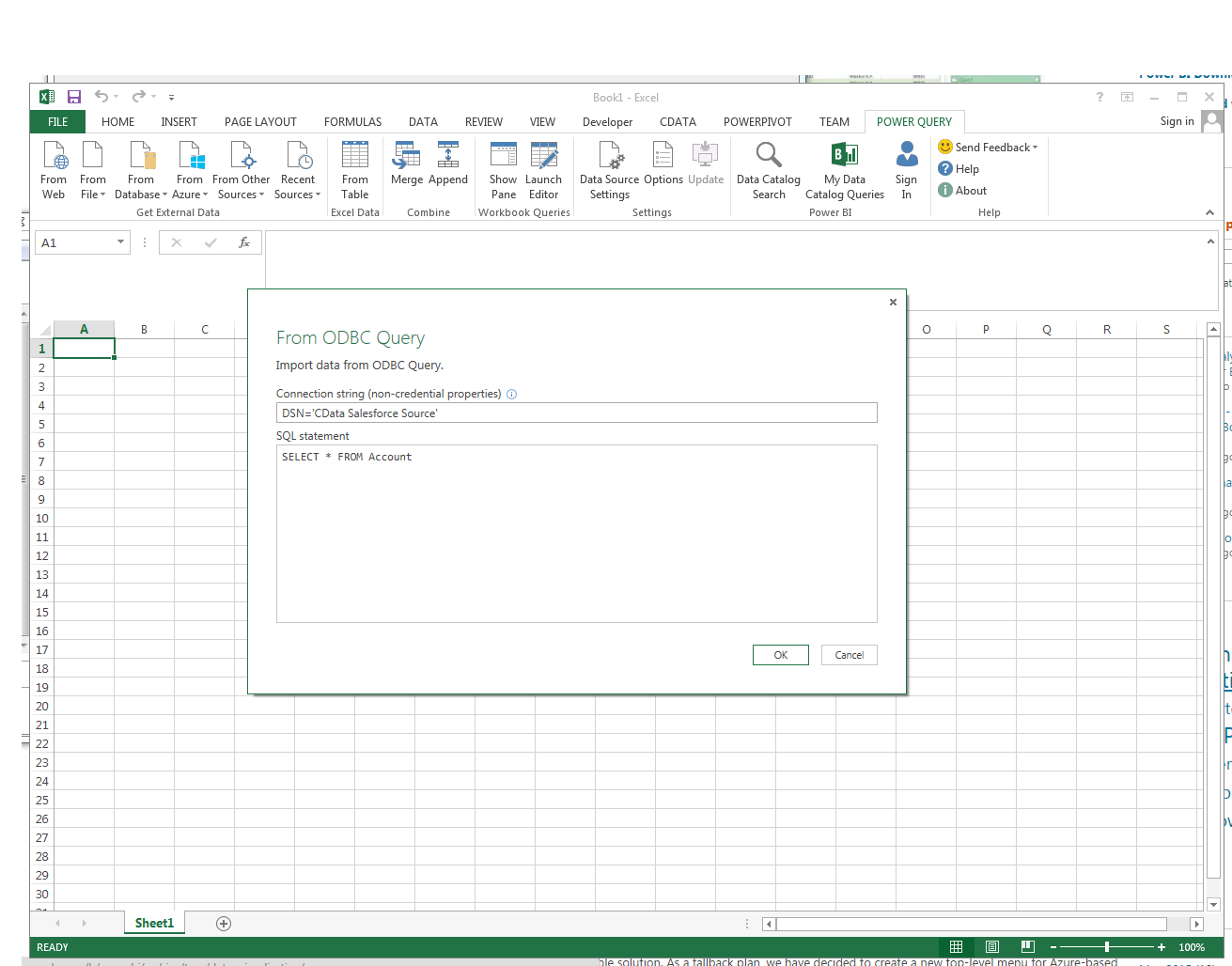
Enter credentials, if required, and click Connect. The results of the query are displayed in the Query Editor Preview. You can combine queries from other data sources or refine the data with Power Query formulas. To load the query to the worksheet, click the Close and Load button.