






Build Agents in Relevance AI with Access to Live SharePoint Data via CData Connect AI

Relevance AI is an AI automation and agent-building platform that enables organizations to create autonomous workflows powered by natural language reasoning. Users can visually design agents that interact with APIs, databases, and third-party systems to complete everyday business tasks or data operations.
By integrating Relevance AI with CData Connect AI through the built-in MCP (Model Context Protocol) Server, your agents can query, summarize, and act on live SharePoint data in real time. This connection bridges Relevance AI intelligent workflow engine with the governed enterprise connectivity of CData Connect AI ensuring every query runs securely against authorized sources without manual data export.
This article outlines the steps to configure SharePoint connectivity in Connect AI, register the CData MCP Server in Relevance AI, and build an agent that interacts with live SharePoint data.
About SharePoint Data Integration
Accessing and integrating live data from SharePoint has never been easier with CData. Customers rely on CData connectivity to:
- Access data from a wide range of SharePoint versions, including Windows SharePoint Services 3.0, Microsoft Office SharePoint Server 2007 and above, and SharePoint Online.
- Access all of SharePoint thanks to support for Hidden and Lookup columns.
- Recursively scan folders to create a relational model of all SharePoint data.
- Use SQL stored procedures to upload and download documents and attachments.
Most customers rely on CData solutions to integrate SharePoint data into their database or data warehouse, while others integrate their SharePoint data with preferred data tools, like Power BI, Tableau, or Excel.
For more information on how customers are solving problems with CData's SharePoint solutions, refer to our blog: Drivers in Focus: Collaboration Tools.
Getting Started
Step 1: Configure SharePoint Connectivity for Relevance AI
Connectivity to SharePoint from Relevance AI is made possible through CData Connect AI's Remote MCP Server. To interact with SharePoint data from Relevance AI, we start by creating and configuring a SharePoint connection in CData Connect AI.
- Log into Connect AI, click Sources, and then click Add Connection
- Select SharePoint from the Add Connection panel
-
Enter the necessary authentication properties to connect to SharePoint.
Set the URL property to the base SharePoint site or to a sub-site. This allows you to query any lists and other SharePoint entities defined for the site or sub-site.
The User and Password properties, under the Authentication section, must be set to valid SharePoint user credentials when using SharePoint On-Premise.
If you are connecting to SharePoint Online, set the SharePointEdition to SHAREPOINTONLINE along with the User and Password connection string properties. For more details on connecting to SharePoint Online, see the "Getting Started" chapter of the help documentation

- Click Save & Test
- Navigate to the Permissions tab and update user-based permissions



Add a Personal Access Token
A Personal Access Token (PAT) is used to authenticate the connection to Connect AI from Relevance AI. It is best practice to create a separate PAT for each integration to maintain granular access control.
- Click the gear icon () at the top right of the Connect AI app to open Settings
- On the Settings page, go to the Access Tokens section and click Create PAT
- Give the PAT a descriptive name and click Create
- Copy the token when displayed and store it securely. It will not be shown again

With the SharePoint connection configured and a PAT generated, Relevance AI can now connect to SharePoint data through the CData MCP Server.
Step 2: Configure Connectivity in Relevance AI
The CData Connect AI MCP endpoint and authorization details are registered within Relevance AI so that agents can call live data from Connect AI.
- Sign in to Relevance AI and create an account if you do not already have one
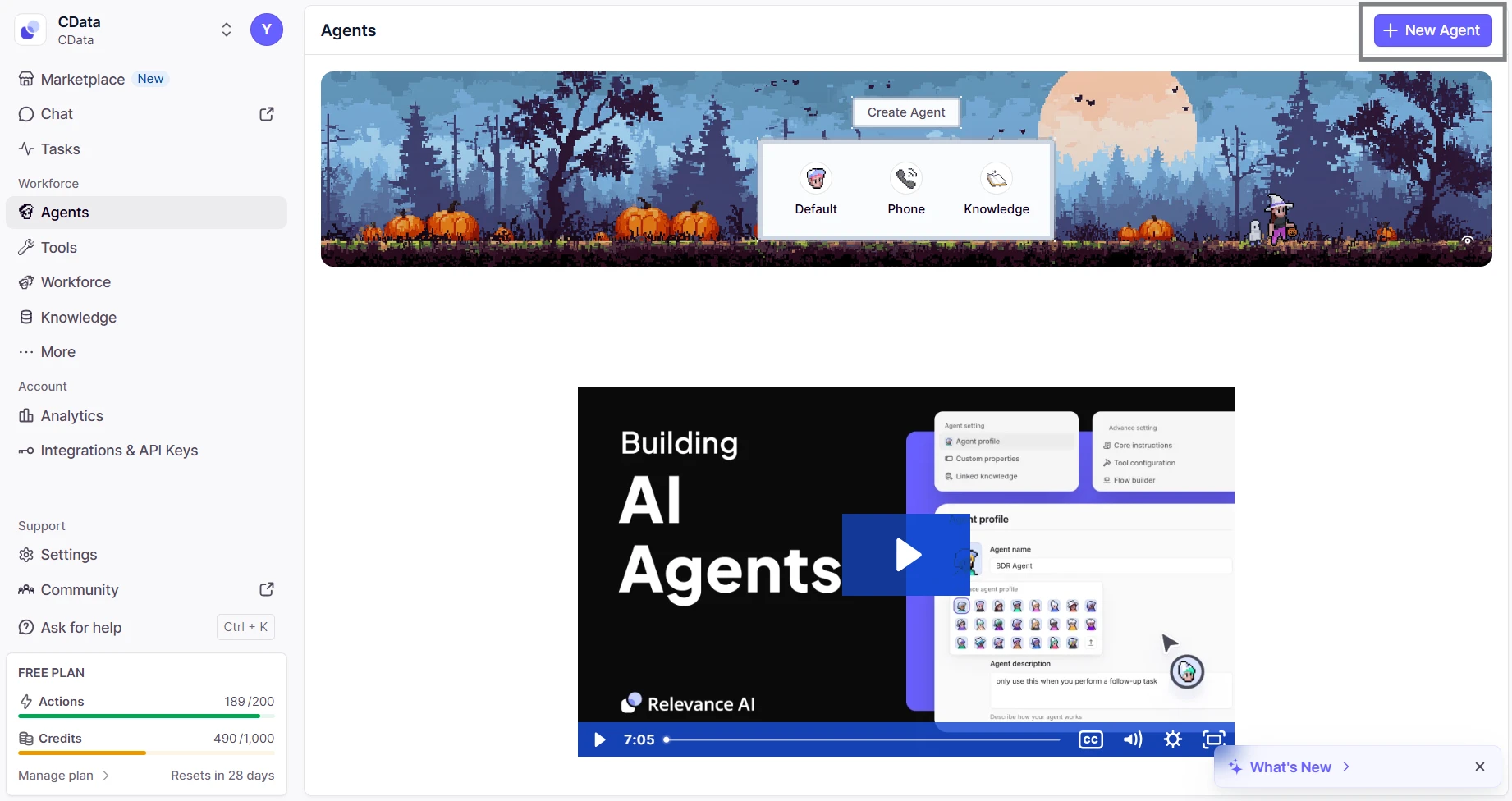
- From the sidebar, navigate to Agents and then click on New Agent
- Select Build from scratch and name the agent (eg; CData MCP Server)
- Inside the agent editor, select Advanced and then switch to the MCP Server tab
- Click + Add Remote MCP Tools
- In the dialog that appears, fill out the fields as follows:
- URL: https://mcp.cloud.cdata.com/mcp
- Label: Any custom label (eg; cdata_mcp_server)
- Authentication: Select Custom headers
- Add header key:value pair. Combine your email and PAT as email:PAT and encode that string in Base64 and then prefix with the word Basic
- Key: Authorization
- Value: Basic base64(email:PAT)


Click Connect to establish the connection. Relevance AI will verify your credentials and register the CData Connect AI MCP Server for use in agents.
Step 3: Build and Run a Relevance AI Agent with Live SharePoint Data
- Switch to the Run tab for your agent
- Enter a task for example, "List the five most recent incidents from ServiceNow"
- The agent will query Connect AI via the MCP endpoint and display live results from SharePoint data


With the connection complete, Relevance AI agents can now issue queries, retrieve records, and perform AI-driven tasks over live SharePoint data through CData Connect AI MCP Server.
Get CData Connect AI
To access 300+ SaaS, Big Data, and NoSQL sources directly from your cloud applications, try CData Connect AI today!
