






How to create an RPA flow for Stack Exchange Data in UiPath Studio

UiPath is a Robotic Process Automation (RPA) platform with rich features and an easy-to-use UI that enables non-developers to create process automation. By using UiPath Studio, you can build an RPA program just like drawing a diagram. With the CData API Driver for ODBC, users can embed Stack Exchange data in the workflow.
This article explains how to use the Stack Exchange ODBC Driver in UiPath Studio to create an RPA program that accesses Stack Exchange data.
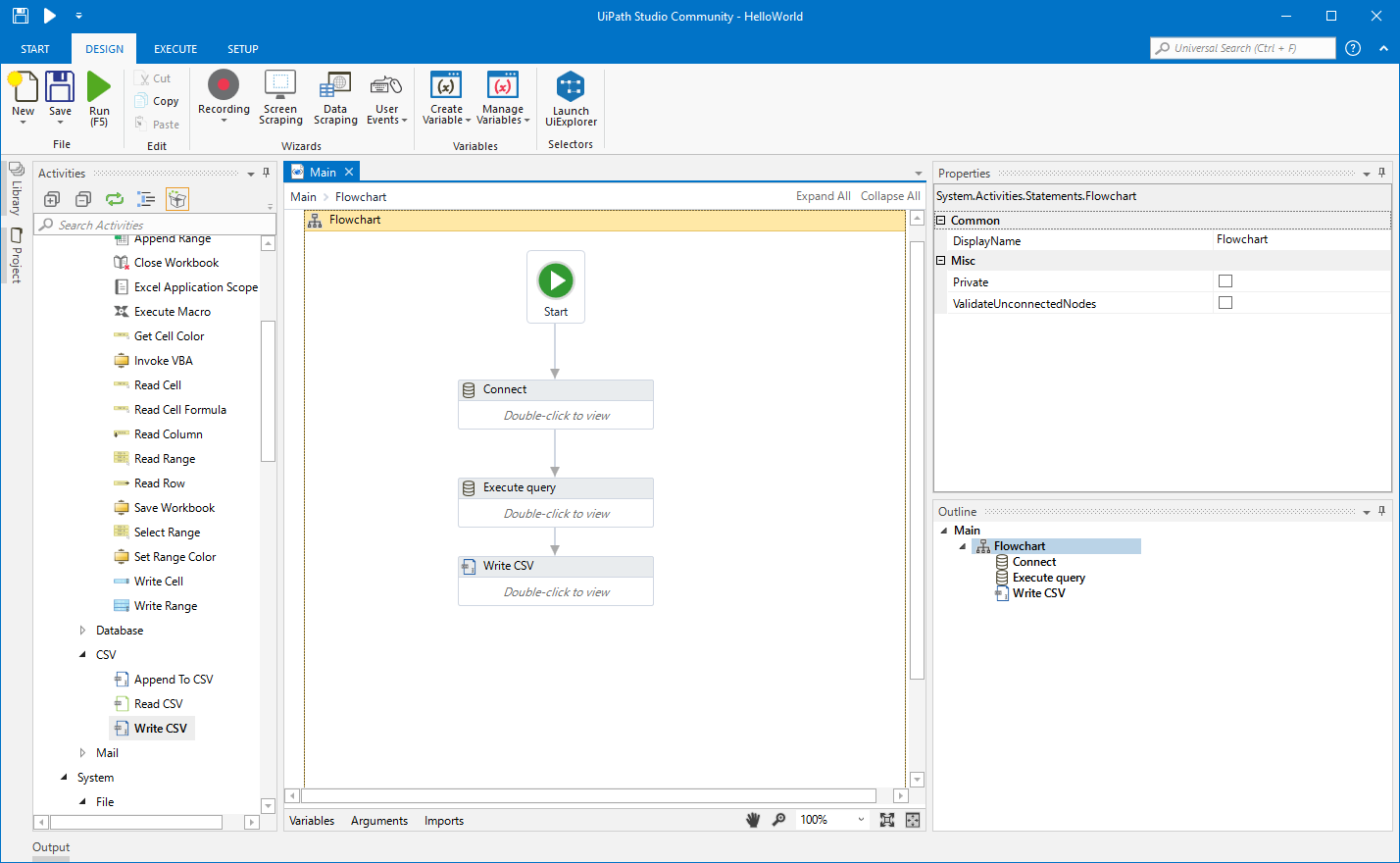
Configure the Connection to Stack Exchange
If you have not already, first specify connection properties in an ODBC DSN (data source name). This is the last step of the driver installation. You can use the Microsoft ODBC Data Source Administrator to create and configure ODBC DSNs.
Start by setting the Profile connection property to the location of the Stack Exchange Profile on disk (e.g. C:\profiles\StackExchange.apip). Next, set the ProfileSettings connection property to the connection string for Stack Exchange (see below).
Stack Exchange API Profile Settings
Register an application on StackApps to obtain an API Key. The Site property specifies which Stack Exchange site to query (e.g., stackoverflow).
Connect UiPath Studio to Stack Exchange Data
Now you are ready to use Stack Exchange data ODBC DSN in UiPath Studio with the following steps.
- From the Start page, click Blank to create a New Project.
- Click Manage Packages then search for and install UiPath.Database.Activities.
- Navigate to the Activities and drop a Flowchart (Workflow -> Flowchart -> Flowchart) onto the process.
- Drop a database Connect activity (App Integration -> Datbase -> Connect) after the Start activity.
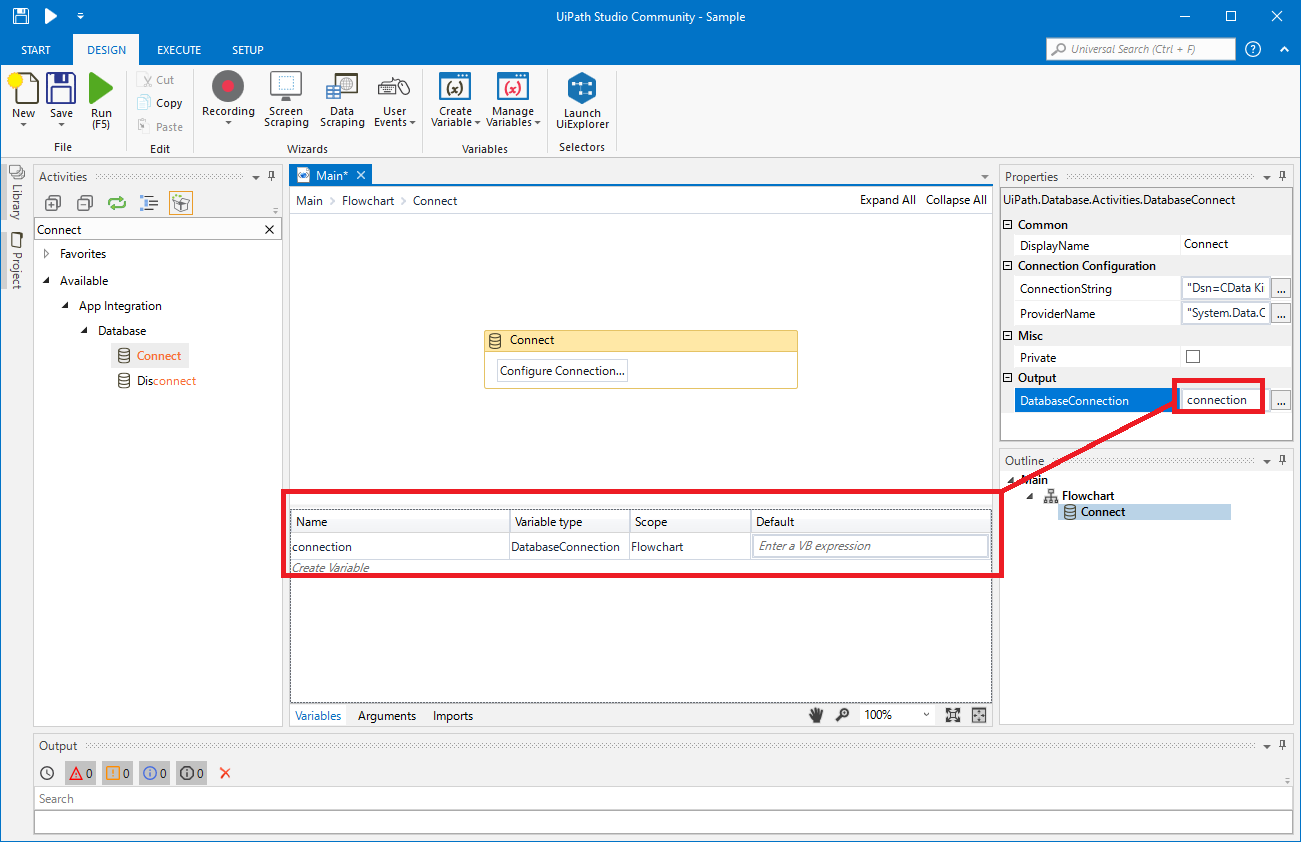
- Double-click the Connect activity and configure the Connection.

- Click the Connection Wizard
- Select "Microsoft ODBC Data Source"
- In Connection Properties, select your DSN (CData API Source) and click OK
- To store Connection info, create a variable and bind to Output in the Properties section. Choose DatabaseConnection in Output.
Create an Execute Query Activity
With the connection configured, we are ready to query Stack Exchange data in our RPA.
- From the Activities navigation, select Execute Query and drop it on the Flowchart.
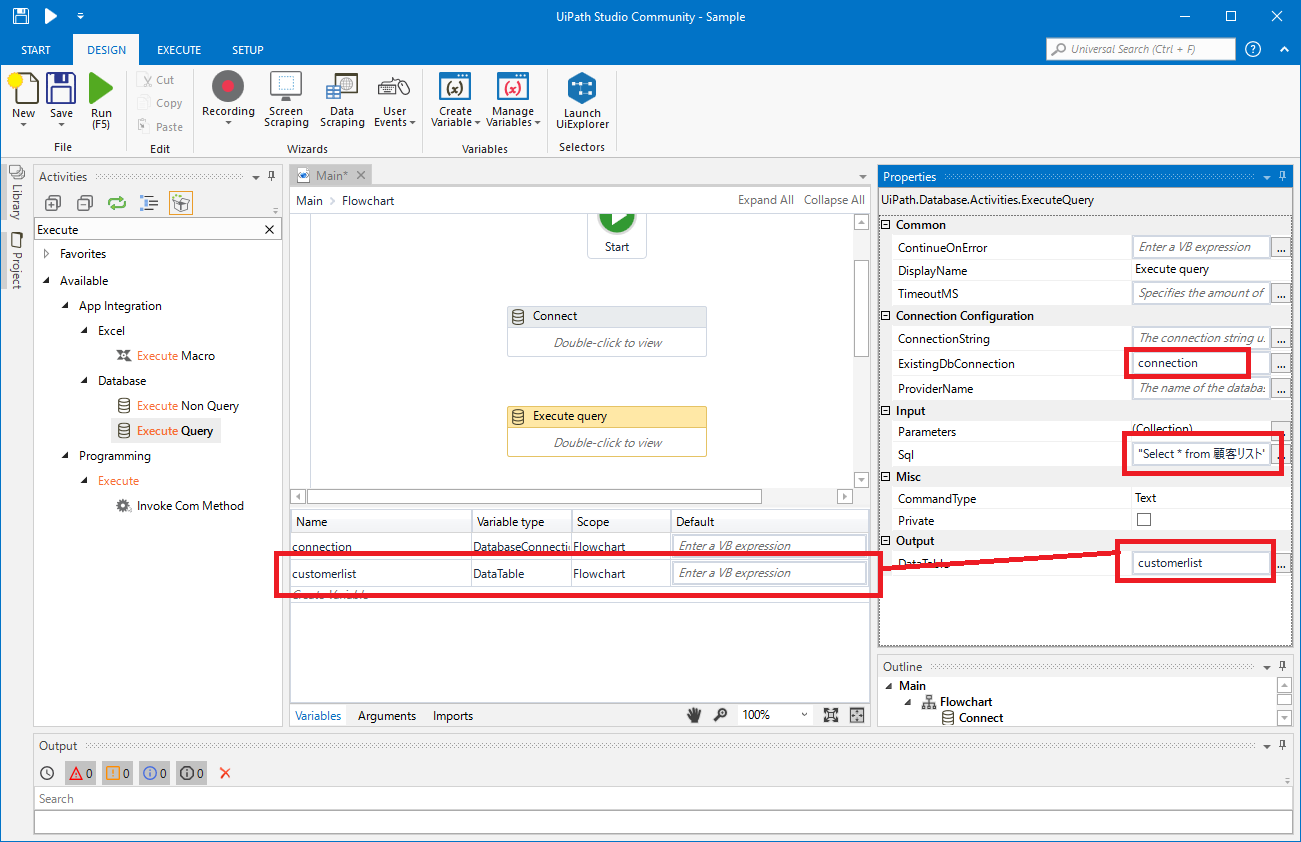
- Double-click the Execute Query activity and set the properties as follows:
- ExistingDbConnection: Your Connection variable
- Sql: SELECT statement like SELECT AnswerId, CreationDate FROM Answers WHERE IsAccepted = 'true'
- DataTable: Create and use a variable with the Type System.Data.DataTable
Create Write CSV Activity
With the Connection and Execute Query activities configured, we are ready to add a Write CSV activity to the Flowchart to replicate the Stack Exchange data.
- From the Activities navigation, select Write CSV and drop it after the Execute Query activity.
- Double-click the Write CSV activity and set the properties as follows:
- FilePath: Set to a file (new or existing) on disk (i.e.: C:\UiPath[id]-data.csv
- DataTable: Set to the DataTable variable you created earlier
Connect the Activities and Run the Flowchart
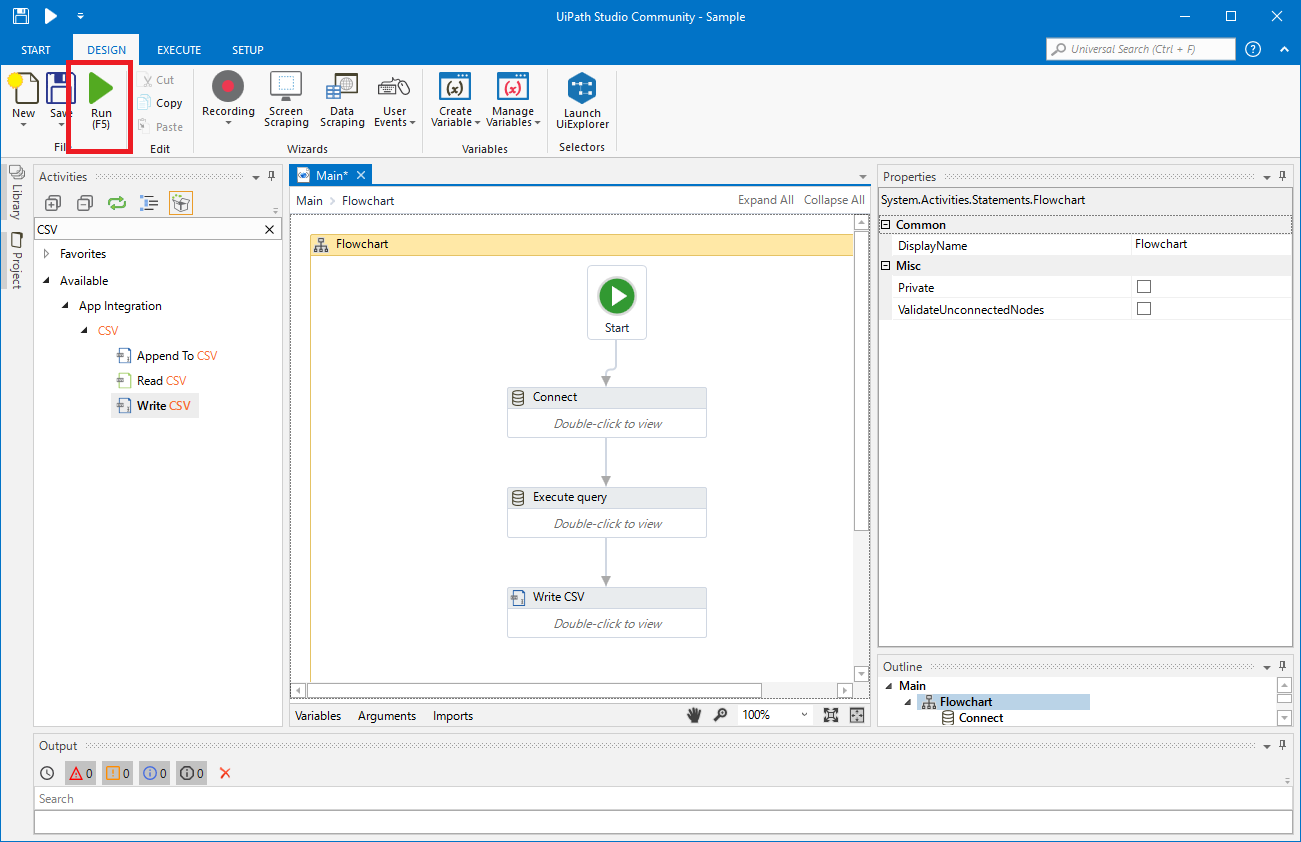
If they are not already connected, connect each Activity that you created to complete the RPA project for extracting Stack Exchange data and exporting it to CSV.
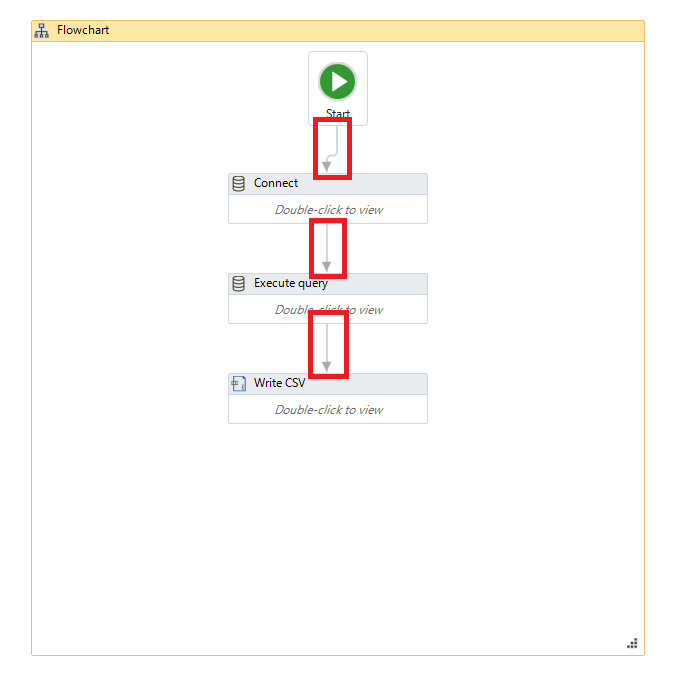
Click Run to extract Stack Exchange data and create a CSV file.
In this article, we used the CData API Driver for ODBC to create an automation flow that accesses Stack Exchange data in UiPath Studio. Download a free, 30-day trial of the ODBC Driver and start working with live Stack Exchange data in UiPath Studio today!