




Use the CData ODBC Driver for Talkdesk in MicroStrategy Desktop

MicroStrategy is an analytics and mobility platform that enables data-driven innovation. When paired with the CData ODBC Driver for Talkdesk, you gain database-like access to live Talkdesk data from MicroStrategy, expanding your reporting and analytics capabilities. In this article, we walk through adding Talkdesk as a data source in MicroStrategy Desktop and creating a simple visualization of Talkdesk data.
The CData ODBC Driver offers unmatched performance for interacting with live Talkdesk data in MicroStrategy due to optimized data processing built into the driver. When you issue complex SQL queries from MicroStrategy to Talkdesk, the driver pushes supported SQL operations, like filters and aggregations, directly to Talkdesk and utilizes the embedded SQL Engine to process unsupported operations (often SQL functions and JOIN operations) client-side. With built-in dynamic metadata querying, you can visualize and analyze Talkdesk data using native MicroStrategy data types.
Connect to Talkdesk as an ODBC Data Source
Information for connecting to Talkdesk follows, along with different instructions for configuring a DSN in Windows and Linux environments.
Talkdesk uses the OAuth 2.0 Client Credentials grant. There is no browser-based authorization step and no callback URL.
Set the following connection properties:
- AccountName: The name of your Talkdesk account.
- Region: The region where your Talkdesk instance is deployed. Supported values are US (default), EU, CA, AU, UK, and FedRamp.
- OAuthClientId: The Client Id assigned when you registered your custom OAuth application.
- OAuthClientSecret: The Client Secret assigned to your custom OAuth application.
Creating a Custom OAuth Application
- Log in to your Talkdesk account and select OAuth Clients from the navigation menu.
- Click Create OAuth Client and give the client a descriptive name.
- Set Grant Type to Client Credentials.
- Click Add scopes and select the scopes for the data you want to access.
- Click Create and copy the Client Id and Client Secret.
When you connect, the driver automatically requests an access token from Talkdesk, caches it, and refreshes it when it expires. Make sure the scopes selected for the application match the views you plan to query, or the token request can fail.
When you configure the DSN, you may also want to set the Max Rows connection property. This will limit the number of rows returned, which is especially helpful for improving performance when designing reports and visualizations.
Windows
If you have not already, first specify connection properties in an ODBC DSN (data source name). This is the last step of the driver installation. You can use the Microsoft ODBC Data Source Administrator to create and configure ODBC DSNs.
Linux
If you are installing the CData ODBC Driver for Talkdesk in a Linux environment, the driver installation predefines a system DSN. You can modify the DSN by editing the system data sources file (/etc/odbc.ini) and defining the required connection properties.
/etc/odbc.ini
[CData Talkdesk Sys]
Driver = CData ODBC Driver for Talkdesk
Description = My Description
AccountName = myAccount
Region = US
OAuthClientId = myClientId
OAuthClientSecret = myClientSecret
For specific information on using these configuration files, please refer to the help documentation (installed and found online).
Connect to and Visualize Talkdesk Data using MicroStrategy Desktop
In addition to connecting Talkdesk in MicroStrategy enterprise products, you can connect to Talkdesk in MicroStrategy Desktop. Follow the steps below to add Talkdesk data as a dataset and create visualizations and reports of Talkdesk data.
- Open MicroStrategy Desktop and create a new dossier.
- In the datasets panel, click New Data, select Databases, and select Type a Query as the Import Option.
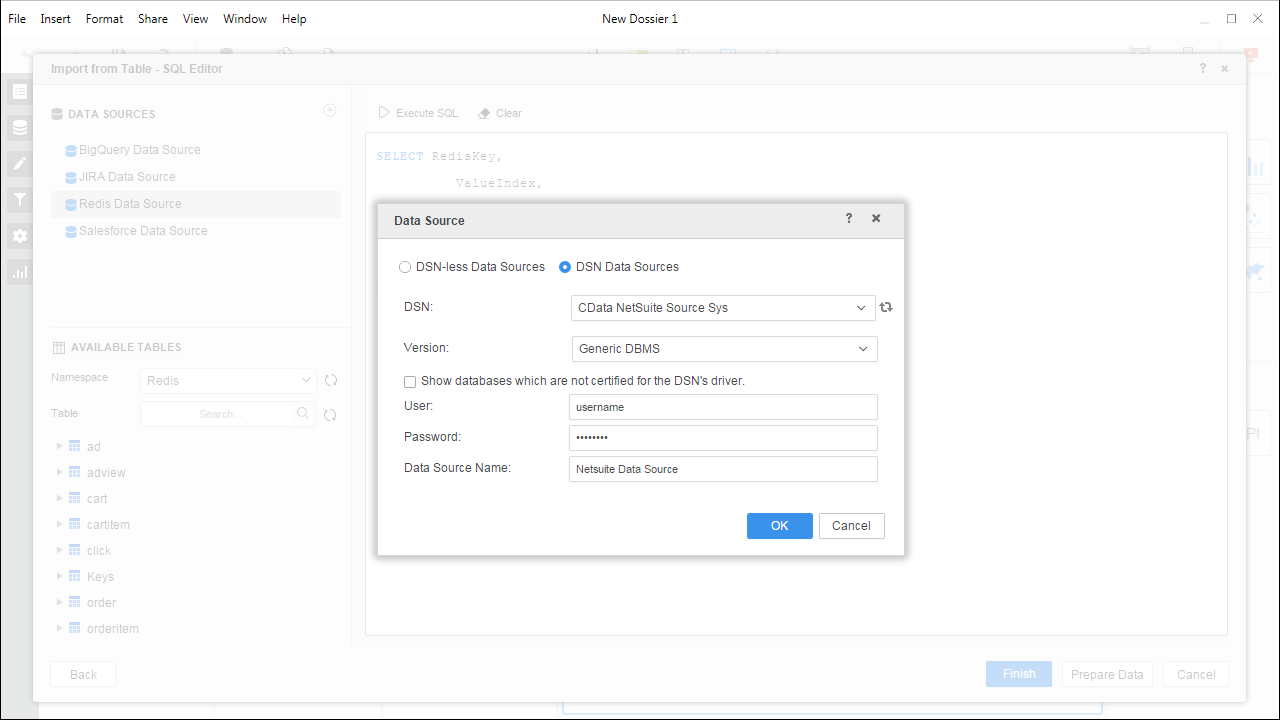
- Add a new data source and choose DSN data sources.
- Choose the DSN you previously configured (likely CData Talkdesk Sys) and select Generic DBMS in the Version menu.
- Set the User and Password properties for the DSN (or use placeholder values) and name the data source.
- Select the new database instance to view the tables. You may need to manually click the search icon in the Available Tables section to see the tables.
- Create a SQL query for the Talkdesk data (see below) and click Execute SQL to test the query.
SELECT * FROM Users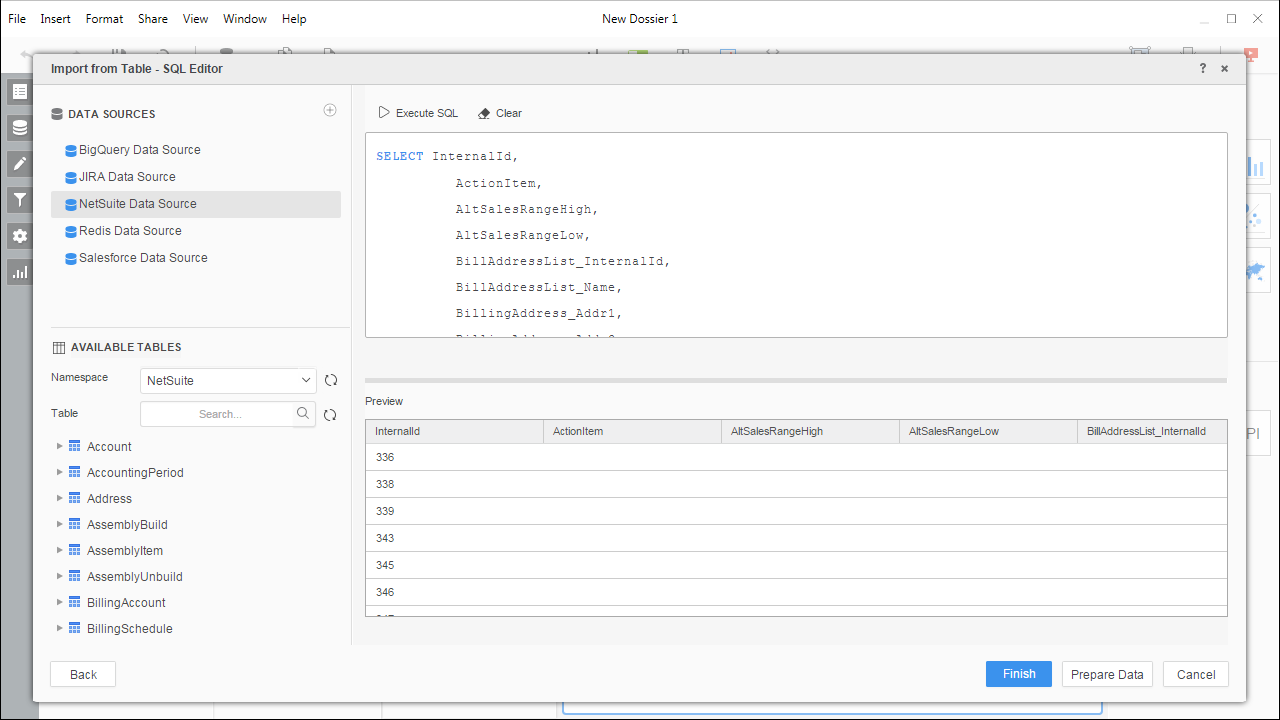 NOTE: Since we create a live connection, we can execute a SELECT * query and utilize the filtering and aggregation features native to the MicroStrategy products.
 - Click Finish and choose to connect live.
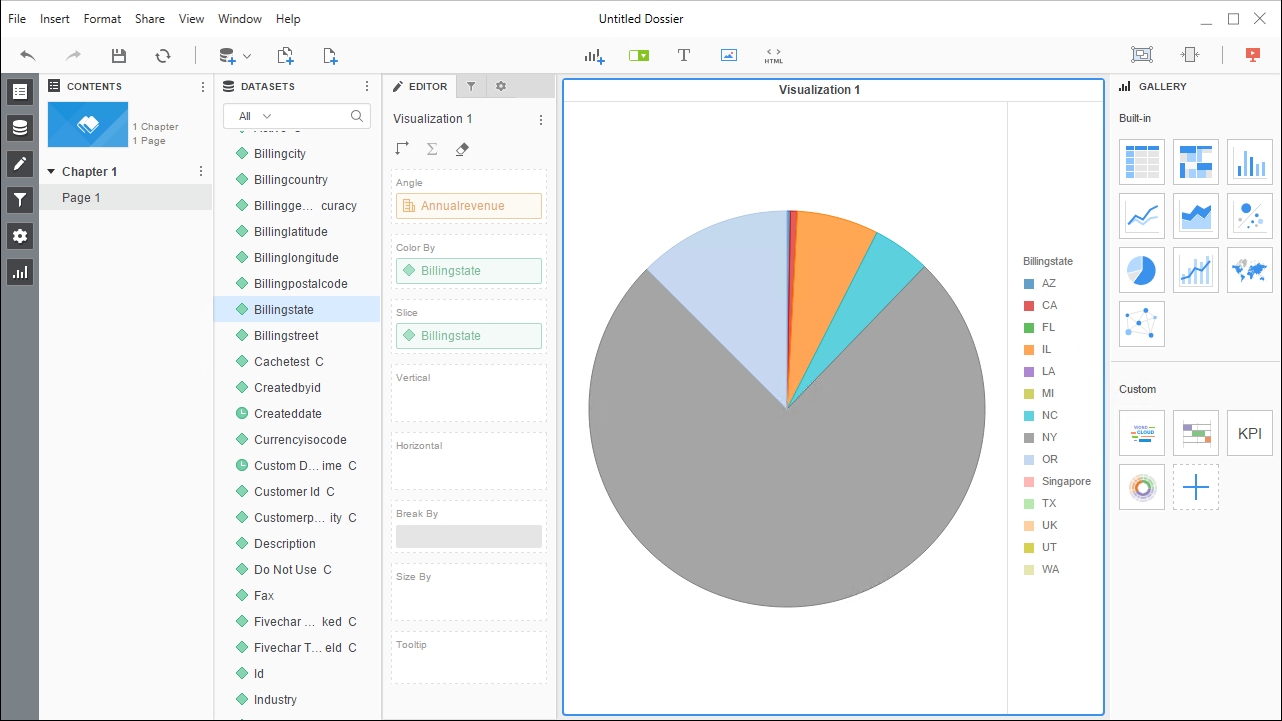
- Choose a visualization, choose fields to display (data types are discovered automatically through dynamic metadata discovery) and apply any filters to create a new visualization of Talkdesk data. Where possible, the complex queries generated by the filters and aggregations will be pushed down to Talkdesk, while any unsupported operations (which can include SQL functions and JOIN operations) will be managed client-side by the CData SQL Engine embedded in the driver.
- Once you are finished configuring the dossier, click File -> Save.
Using the CData ODBC Driver for Talkdesk in MicroStrategy Desktop, you can easily create robust visualizations and reports on Talkdesk data. Read our other articles on connecting to Talkdesk in MicroStrategy and connecting to Talkdesk in MicroStrategy Web for more examples.
Ready to get started?
Download a free trial of the Talkdesk ODBC Driver to get started:
Download NowLearn more:
 Talkdesk ODBC Driver
The Talkdesk ODBC Driver is a powerful tool that allows you to connect with live data from Talkdesk, directly from any applications that support ODBC connectivity.
Access Talkdesk data like you would a database - read Talkdesk Accounts, Attributes, BillingAccounts, Callbacks, Campaigns, Cases, Contacts, GuardianUsers, Invoices, Products, Subscriptions, Teams, Users, Wallets, etc. through a standard ODBC Driver interface.