




Access TimeCamp Data from MySQL in PHP

You can use the CData SQL Gateway and ODBC Driver for TimeCamp to access TimeCamp data from MySQL clients, without needing to perform an ETL or cache data. Follow the steps below to connect to TimeCamp data in real time through PHP's standard MySQL interfaces, mysqli and PDO_MySQL.
Connect to TimeCamp Data
If you have not already done so, provide values for the required connection properties in the data source name (DSN). You can use the built-in Microsoft ODBC Data Source Administrator to configure the DSN. This is also the last step of the driver installation. See the "Getting Started" chapter in the help documentation for a guide to using the Microsoft ODBC Data Source Administrator to create and configure a DSN.
Start by setting the Profile connection property to the location of the TimeCamp Profile on disk (e.g. C:\profiles\TimeCamp.apip). Next, set the ProfileSettings connection property to the connection string for TimeCamp (see below).
TimeCamp API Profile Settings
TimeCamp uses token-based authentication. To obtain an API Token:
- Log in to your TimeCamp account at https://app.timecamp.com
- Click your profile avatar in the top-right corner
- Select Profile Settings
- Copy the API token shown at the bottom of the page
After obtaining your API Token, set the following connection properties:
- AuthScheme: Set this to APIKey.
Set the following in the ProfileSettings connection property:
- APIKey: Set this to your TimeCamp API token.
Configure the SQL Gateway
See the SQL Gateway Overview to set up connectivity to TimeCamp data as a virtual MySQL database. You will configure a MySQL remoting service that listens for MySQL requests from clients. The service can be configured in the SQL Gateway UI.
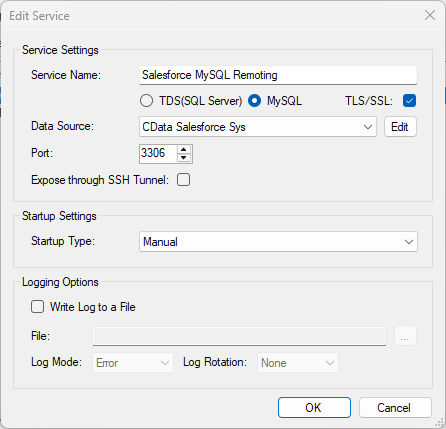
Connect in PHP
The following examples show how to use object-oriented interfaces to connect and execute queries. Initialize the connection object with the following parameters to connect to the virtual MySQL database:
- Host: Specify the remote host location where the service is running. In this case "localhost" is used for the remote host setting since the service is running on the local machine.
- Username: Specify the username for a user you authorized on the SQL Gateway's Users tab.
- Password: Specify the password for the authorized user account.
- Database Name: Specify the system DSN as the database name.
- Port: Specify the port the service is running on; port 3306 in this example.
mysqli
<?php
$mysqli = new mysqli("localhost", "user", "password", "CData API Sys","3306");
?>
PDO
<?php
$pdo = new PDO('mysql:host=localhost;dbname=CData API Sys;port=3306', 'user', 'password');
?>
Query in PHP
With the connection established, you can then access tables. The following steps walk through the example:
- Query the table; for example, GroupUsers. The results will be stored as an associative array in the $result object.
- Iterate over each row and column, printing the values to display in the PHP page.
- Close the connection.
mysqli
$result = $mysqli->query("SELECT UserId, Email FROM GroupUsers WHERE GroupId = '12345'");
while($row = $result->fetch_assoc()) {
  foreach ($row as $k=>$v) {
    echo "$k : $v";
    echo "<br>";
  }
}
$mysqli->close();
PDO
$result = $pdo->query("SELECT UserId, Email FROM GroupUsers WHERE GroupId = '12345'");
while($row = $result->fetch(PDO::FETCH_ASSOC)) {
  foreach ($row as $k=>$v) {
    echo "$k : $v";
    echo "<br>";
  }
}
$result = null;
$pdo = null;