Use the CData ODBC Driver for UKG Pro HCM in Microsoft Power Query

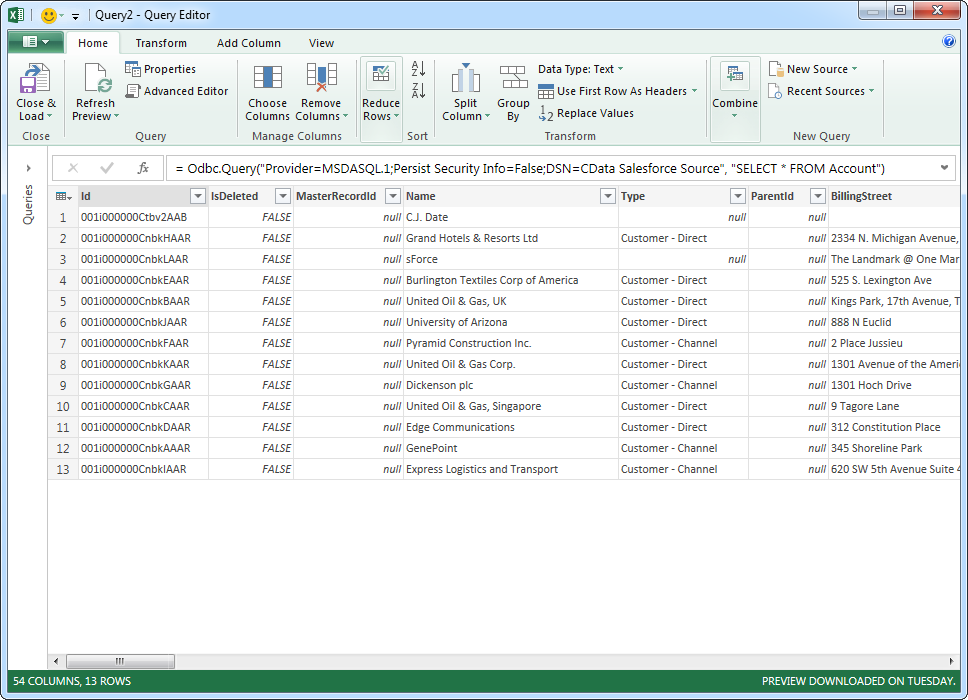
The CData ODBC Driver for UKG Pro HCM enables you to link to UKG Pro HCM data in Microsoft Power Query, ensuring that you see any updates. This article details how to use the ODBC driver to import UKG Pro HCM data into Microsoft Power Query.
Connect to UKG Pro HCM as an ODBC Data Source
If you have not already, first specify connection properties in an ODBC DSN (data source name). This is the last step of the driver installation. You can use the Microsoft ODBC Data Source Administrator to create and configure ODBC DSNs.
Start by setting the Profile connection property to the location of the UKGProHCM Profile on disk (e.g. C:\profiles\UKGProHCM.apip). Next, set the ProfileSettings connection property to the connection string for UKGProHCM (see below).
UKGProHCM API Profile Settings
UKG Pro HCM uses Basic authentication combined with a customer API key to authorize access to the API. To connect, you will need your UKG Pro HCM credentials and a customer API key issued by UKG.
Set the following connection properties to authenticate:
- AuthScheme: Set this to Basic.
- User: Set this to your UKG Pro HCM username.
- Password: Set this to your UKG Pro HCM password.
- ProfileSettings: Set this to a semicolon-separated list containing:
- Host: Your UKG Pro HCM tenant hostname (e.g., yourcompany.ultipro.com).
- CustomerAPIKey: Your UKG customer API key. This is passed as the US-CUSTOMER-API-KEY request header on each API call.
To obtain your customer API key, contact your UKG Pro HCM administrator or refer to the UKG Developer Portal at https://developer.ukg.com.
Import UKG Pro HCM Data
Follow the steps below to import UKG Pro HCM data using standard SQL:
-
From the ribbon in Excel, click Power Query -> From Other Data Sources -> From ODBC.
- Enter the ODBC connection string. Below is a connection string using the default DSN created when you install the driver:
Provider=MSDASQL.1;Persist Security Info=False;DSN=CData API Source -
Enter the SELECT statement to import data with. For example:
SELECT UserId, UserName FROM UserDetails WHERE UserStatus = 'A'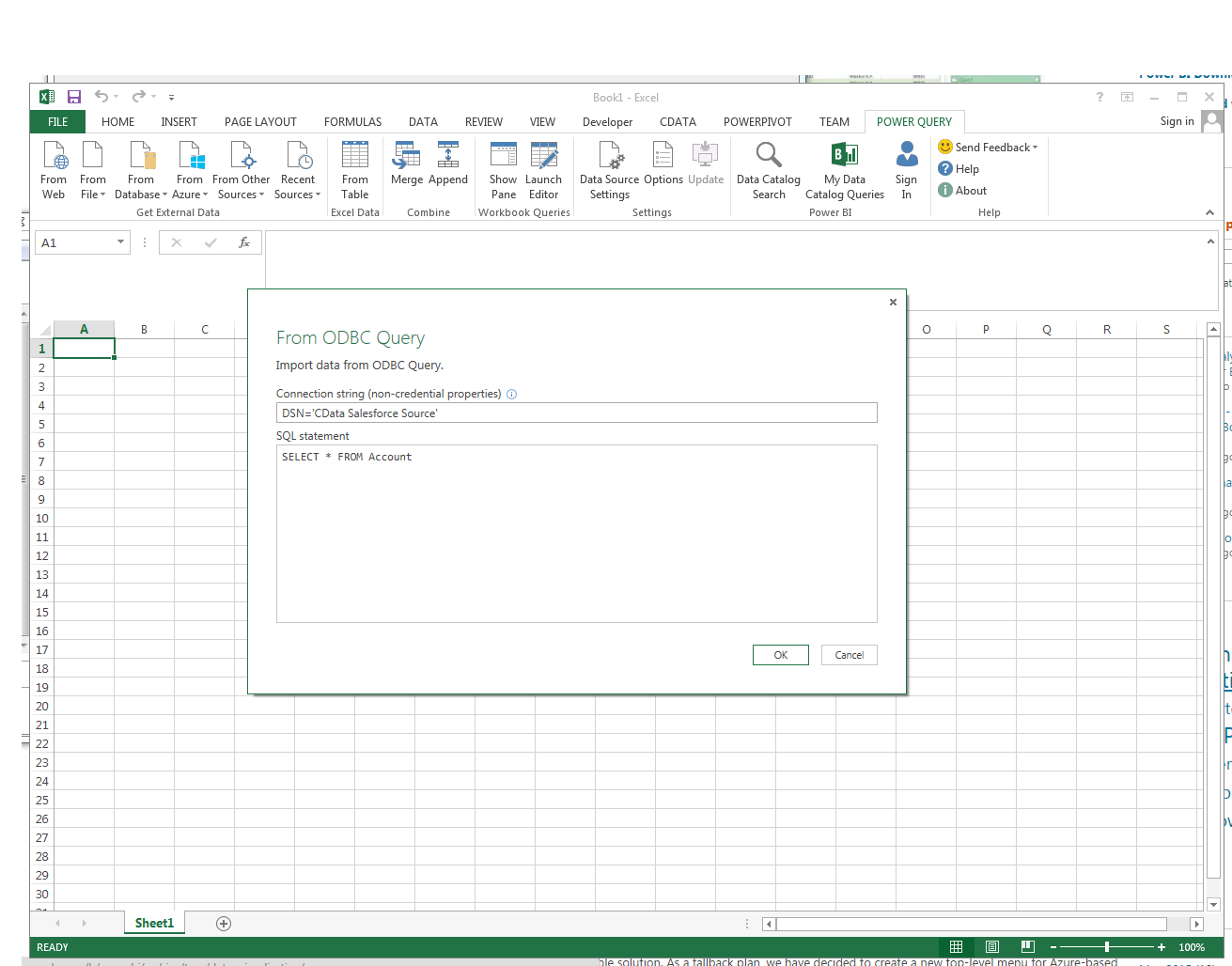
Enter credentials, if required, and click Connect. The results of the query are displayed in the Query Editor Preview. You can combine queries from other data sources or refine the data with Power Query formulas. To load the query to the worksheet, click the Close and Load button.