




DataBind Controls to UKG Pro WFM Data in C++Builder

The CData ODBC driver for UKG Pro WFM makes it easy to integrate connectivity to live UKG Pro WFM data with standard data access components in C++Builder. This article shows how to create a simple visual component library (VCL) application in C++Builder that connects to UKG Pro WFM data, executes queries, and displays the results in a grid. An additional section shows how to use FireDAC components to execute commands from code.
Create a Connection to UKG Pro WFM Data
If you have not already, first specify connection properties in an ODBC DSN (data source name). This is the last step of the driver installation. You can use the Microsoft ODBC Data Source Administrator to create and configure ODBC DSNs.
Start by setting the Profile connection property to the location of the UKGProWFM Profile on disk (e.g. C:\profiles\UKGProWFM.apip). Next, set the ProfileSettings connection property to the connection string for UKGProWFM (see below).
UKGProWFM API Profile Settings
UKG Pro Workforce Management uses OAuth 2.0 with the Resource Owner Password Credentials grant (grant_type=password) to authorize access to the API. Unlike most OAuth-based profiles, this does not use a browser redirect/authorization-code step: the driver exchanges your UKG Pro WFM username, password, client ID, and client secret directly for an access token.
Set the following connection properties to authenticate:
- AuthScheme: Set this to OAuthPassword.
- Host: Set this to the hostname of your UKG Pro Workforce Management datacenter/tenant (for example, yourcompany.mykronos.com). Do not include the protocol (https://) or a trailing slash.
- OAuthClientId: Set this to the client ID issued for your UKG Pro Workforce Management OAuth application.
- OAuthClientSecret: Set this to the client secret issued for your UKG Pro Workforce Management OAuth application.
- User: Set this to your UKG Pro Workforce Management username.
- Password: Set this to your UKG Pro Workforce Management password.
Access tokens are obtained from https://{Host}/api/authentication/access_token. Refresh tokens issued by UKG Pro Workforce Management expire after 7 days; if a refresh attempt fails because the refresh token itself has expired, the driver must re-authenticate with your User/Password credentials to obtain a new access token.
You can then follow the steps below to use the Data Explorer to create a FireDAC connection to UKG Pro WFM.
- In a new VCL Forms application, expand the FireDAC node in the Data Explorer.
- Right-click the ODBC Data Source node in the Data Explorer.
- Click Add New Connection.
- Enter a name for the connection.
- In the FireDAC Connection Editor that appears, set the DataSource property to the name of the ODBC DSN for UKG Pro WFM.
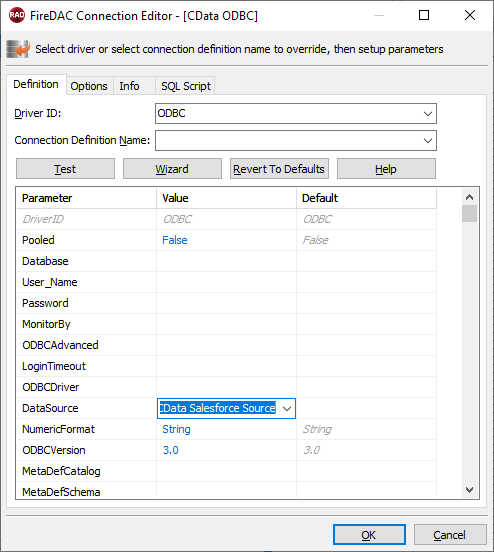
Create VCL Applications with Connectivity to UKG Pro WFM Data
Follow the procedure below to start querying UKG Pro WFM data from a simple VCL application that displays the results of a query in a grid.
-
Drop a TFDConnection component onto the form and set the following properties:
- ConnectionDefName: Select the FireDAC connection to UKG Pro WFM.
- Connected: Select True from the menu and, in the dialog that appears, enter your credentials.
-
Drop a TFDQuery component onto the form and set the properties below:
- Connection: Set this property to the TFDConnection component, if this component is not already specified.
SQL: Click the button in the SQL property and enter a query. For example:
SELECT PersonNumber, UserName FROM Employees WHERE PersonId = '12345'- Active: Set this property to true.
Drop a TDataSource component onto the form and set the following property:
- DataSet: In the menu for this property, select the name of the TFDQuery component.
-
Drop a TDBGrid control onto the form and set the following property:
- DataSource: Select the name of the TDataSource.
- Drop a TFDGUIxWaitCursor onto the form — this is required to avoid a run-time error.
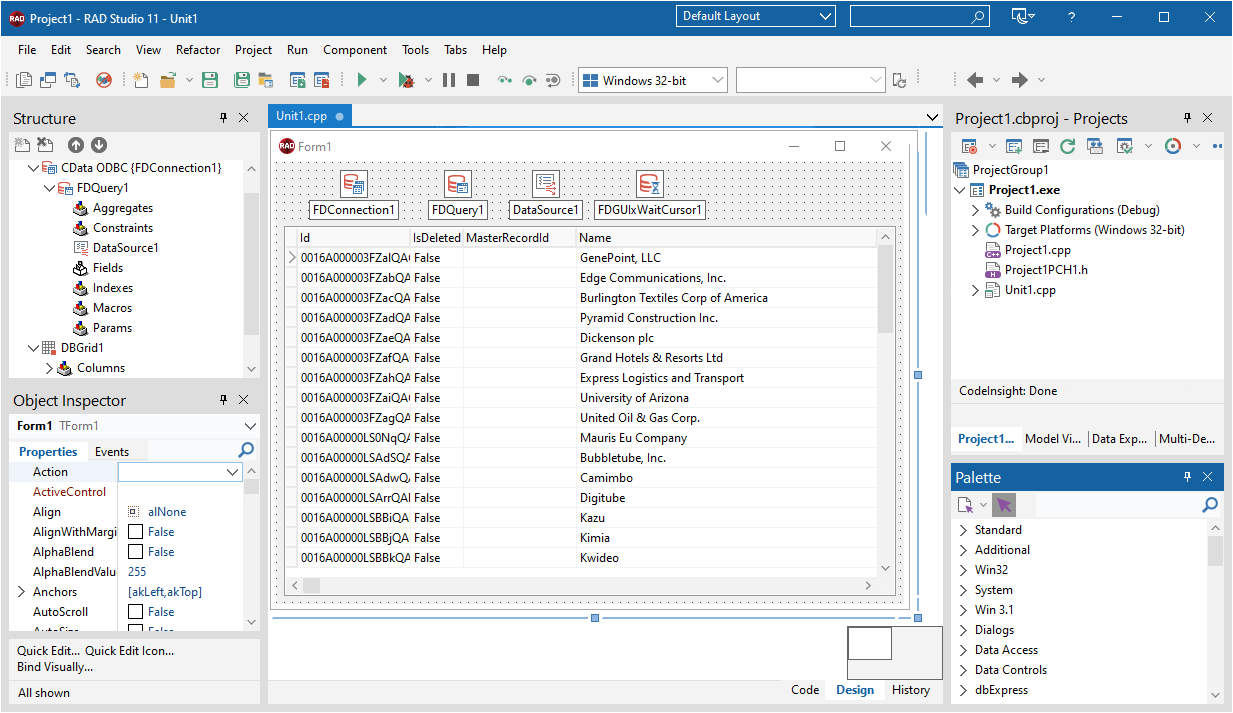
Execute Commands to UKG Pro WFM with FireDAC Components
You can use the TFDConnection and TFQuery components to execute queries to UKG Pro WFM data. This section provides UKG Pro WFM-specific examples of executing queries with the TFQuery component.
Connect to UKG Pro WFM Data
To connect to the data source, set the Connected property of the TFDConnection component to true. You can set the same properties from code:
FDConnection1->ConnectionDefName = "CData UKG Pro WFM ODBC Source";
FDConnection1->Connected = true;
To connect the TFDQuery component to UKG Pro WFM data, set the Connection property of the component. When a TFDQuery component is added at design time, its Connection property is automatically set to point to a TFDConnection on the form, as in the application above.
Create Parameterized Queries
To create a parameterized query, use the following syntax below:
FDQuery1->SQL->Text = "select * from Employees where personid = :PersonId";
FDQuery1->ParamByName("personid")->AsString = "12345";
FDQuery1->Open();
The example above binds a string-type input parameter by name and then opens the dataset that results.
Prepare the Statement
Preparing statements is costly in system resources and time. The connection must be active and open while a statement is prepared. By default, FireDAC prepares the query to avoid recompiling the same query over and over. To disable statement preparation, set ResourceOptions.DirectExecute to True; for example, when you need to execute a query only once.
Execute a Query
To execute a query that returns a result set, such as a select query, use the Open method. The Open method executes the query, returns the result set, and opens it. The Open method will return an error if the query does not produce a result set.
FDQuery1->SQL->Text = "select * from Employees where personid = :PersonId";
FDQuery1->ParamByName("personid")->AsString = "12345";
FDQuery1->Open();
Related Articles
Below you can find other articles for using the CData ODBC Driver with RAD Studio, Delphi, and C++ Builder.