




How to create an RPA flow for UKG Pro WFM Data in UiPath Studio

UiPath is a Robotic Process Automation (RPA) platform with rich features and an easy-to-use UI that enables non-developers to create process automation. By using UiPath Studio, you can build an RPA program just like drawing a diagram. With the CData API Driver for ODBC, users can embed UKG Pro WFM data in the workflow.
This article explains how to use the UKG Pro WFM ODBC Driver in UiPath Studio to create an RPA program that accesses UKG Pro WFM data.
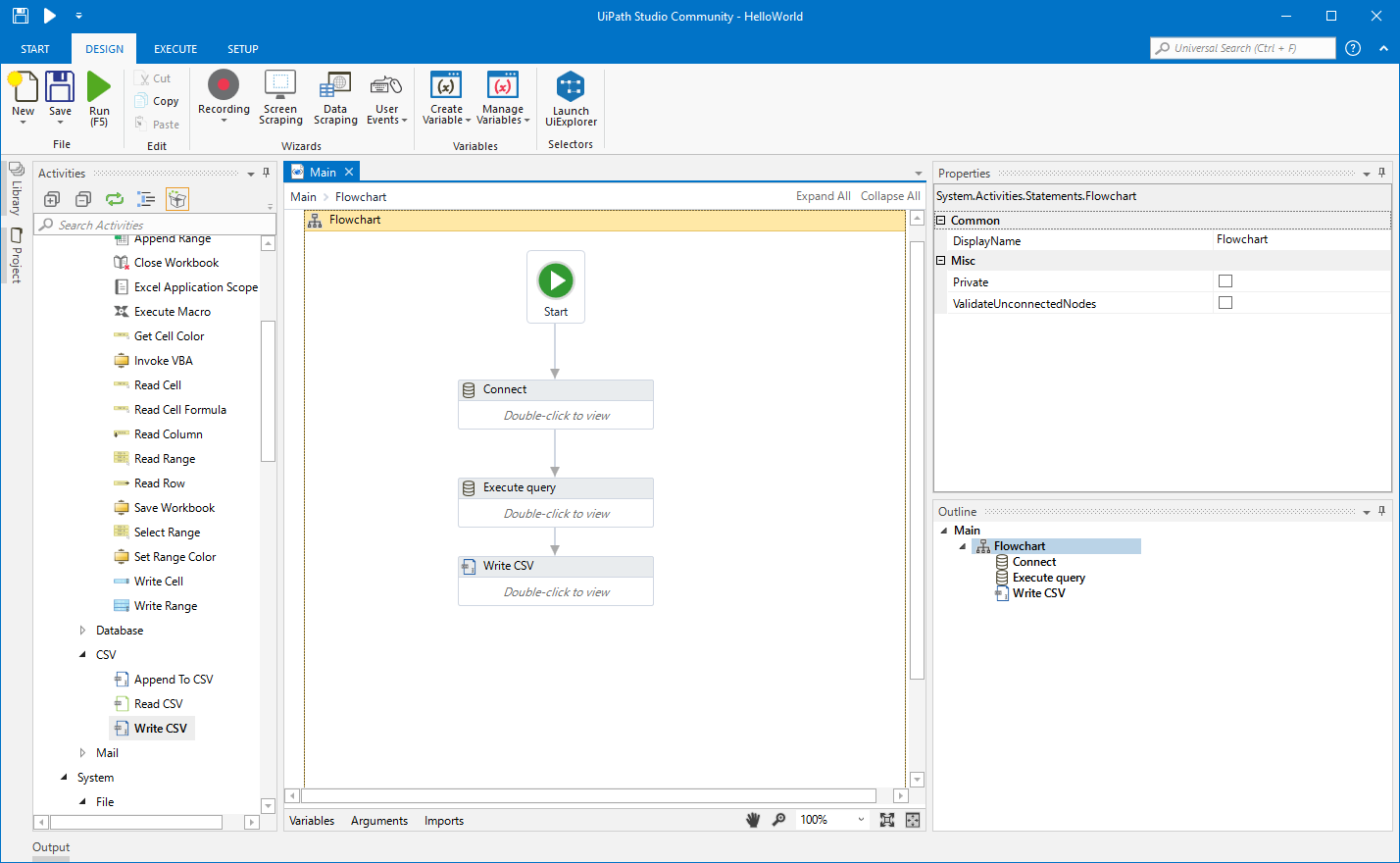
Configure the Connection to UKG Pro WFM
If you have not already, first specify connection properties in an ODBC DSN (data source name). This is the last step of the driver installation. You can use the Microsoft ODBC Data Source Administrator to create and configure ODBC DSNs.
Start by setting the Profile connection property to the location of the UKGProWFM Profile on disk (e.g. C:\profiles\UKGProWFM.apip). Next, set the ProfileSettings connection property to the connection string for UKGProWFM (see below).
UKGProWFM API Profile Settings
UKG Pro Workforce Management uses OAuth 2.0 with the Resource Owner Password Credentials grant (grant_type=password) to authorize access to the API. Unlike most OAuth-based profiles, this does not use a browser redirect/authorization-code step: the driver exchanges your UKG Pro WFM username, password, client ID, and client secret directly for an access token.
Set the following connection properties to authenticate:
- AuthScheme: Set this to OAuthPassword.
- Host: Set this to the hostname of your UKG Pro Workforce Management datacenter/tenant (for example, yourcompany.mykronos.com). Do not include the protocol (https://) or a trailing slash.
- OAuthClientId: Set this to the client ID issued for your UKG Pro Workforce Management OAuth application.
- OAuthClientSecret: Set this to the client secret issued for your UKG Pro Workforce Management OAuth application.
- User: Set this to your UKG Pro Workforce Management username.
- Password: Set this to your UKG Pro Workforce Management password.
Access tokens are obtained from https://{Host}/api/authentication/access_token. Refresh tokens issued by UKG Pro Workforce Management expire after 7 days; if a refresh attempt fails because the refresh token itself has expired, the driver must re-authenticate with your User/Password credentials to obtain a new access token.
Connect UiPath Studio to UKG Pro WFM Data
Now you are ready to use UKG Pro WFM data ODBC DSN in UiPath Studio with the following steps.
- From the Start page, click Blank to create a New Project.
- Click Manage Packages then search for and install UiPath.Database.Activities.
- Navigate to the Activities and drop a Flowchart (Workflow -> Flowchart -> Flowchart) onto the process.
- Drop a database Connect activity (App Integration -> Datbase -> Connect) after the Start activity.
- Double-click the Connect activity and configure the Connection.

- Click the Connection Wizard
- Select "Microsoft ODBC Data Source"
- In Connection Properties, select your DSN (CData API Source) and click OK
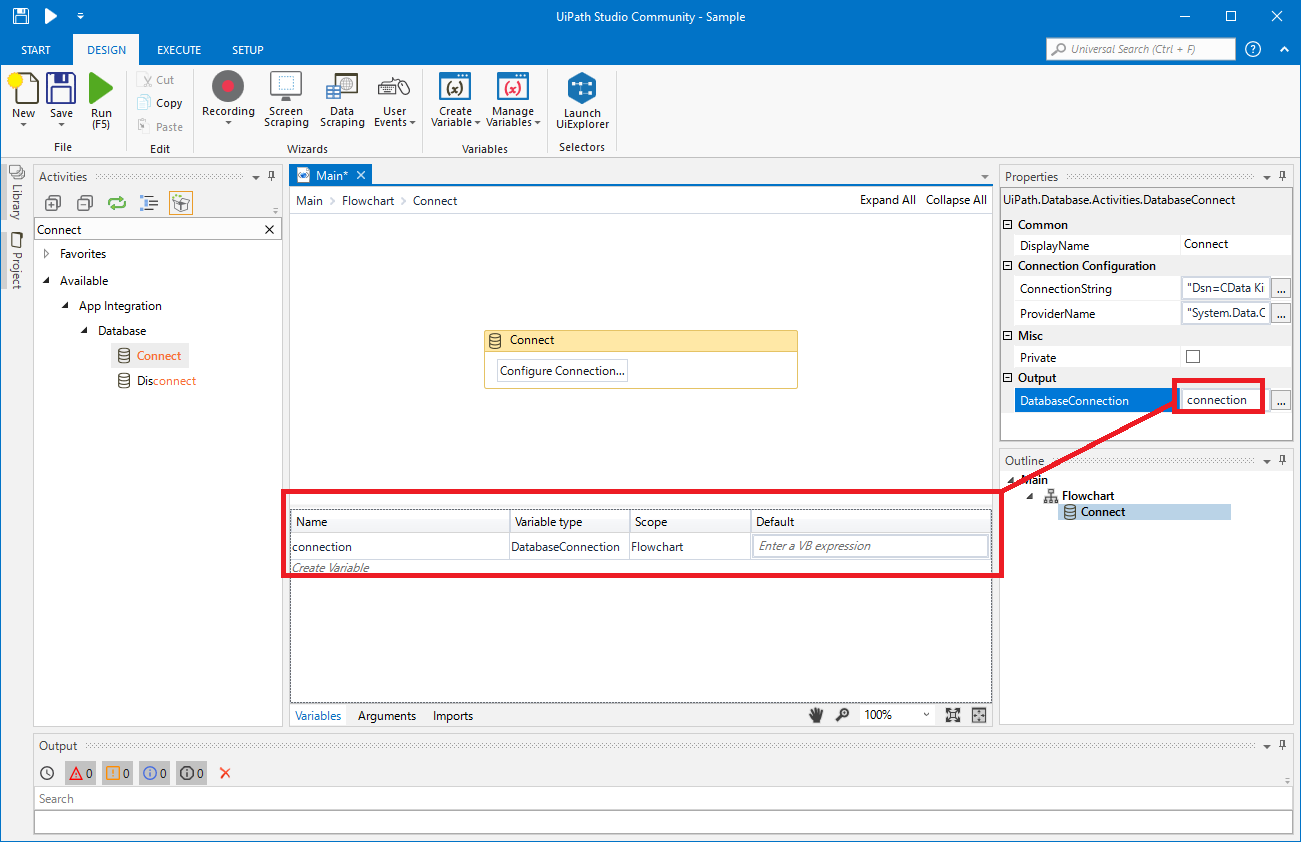
- To store Connection info, create a variable and bind to Output in the Properties section. Choose DatabaseConnection in Output.
Create an Execute Query Activity
With the connection configured, we are ready to query UKG Pro WFM data in our RPA.
- From the Activities navigation, select Execute Query and drop it on the Flowchart.
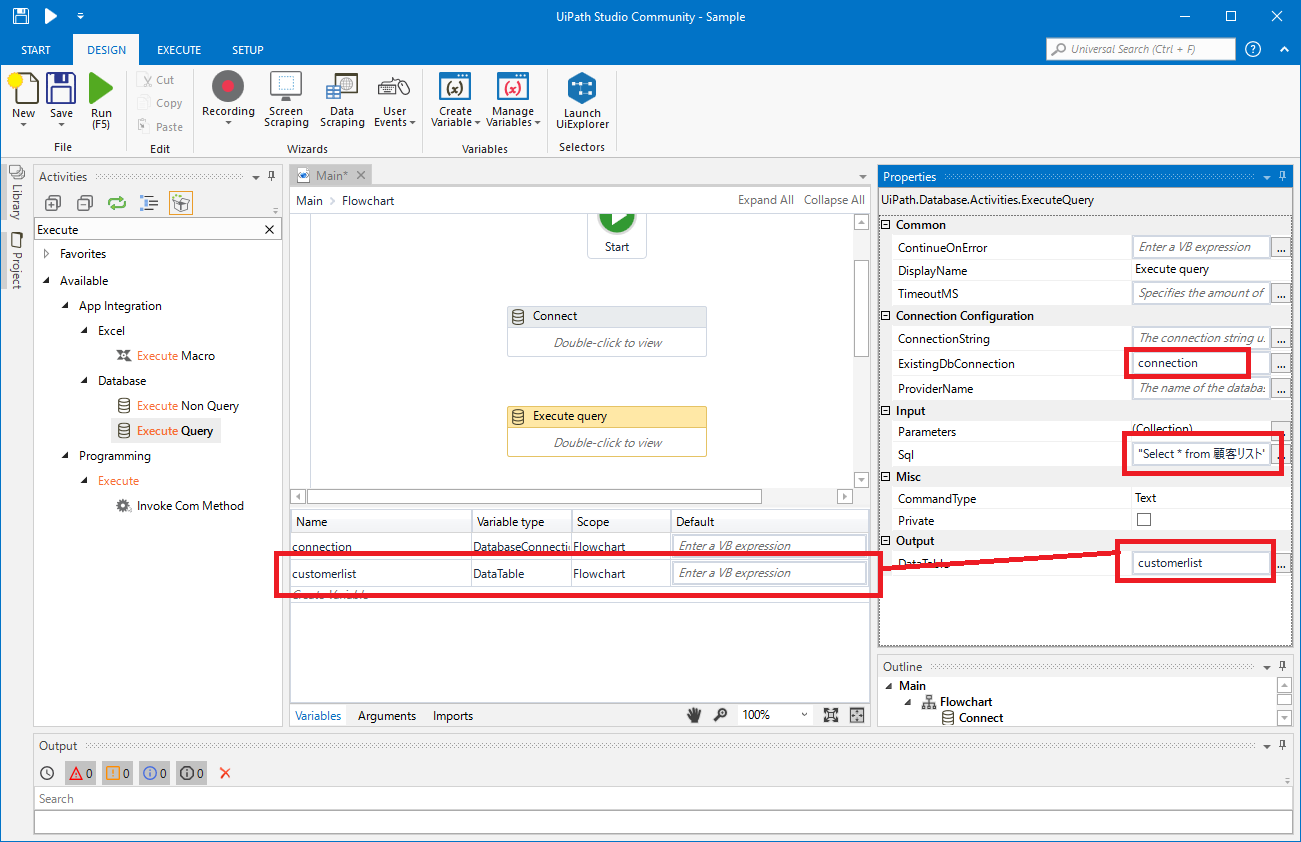
- Double-click the Execute Query activity and set the properties as follows:
- ExistingDbConnection: Your Connection variable
- Sql: SELECT statement like SELECT PersonNumber, UserName FROM Employees WHERE PersonId = '12345'
- DataTable: Create and use a variable with the Type System.Data.DataTable
Create Write CSV Activity
With the Connection and Execute Query activities configured, we are ready to add a Write CSV activity to the Flowchart to replicate the UKG Pro WFM data.
- From the Activities navigation, select Write CSV and drop it after the Execute Query activity.
- Double-click the Write CSV activity and set the properties as follows:
- FilePath: Set to a file (new or existing) on disk (i.e.: C:\UiPath[id]-data.csv
- DataTable: Set to the DataTable variable you created earlier
Connect the Activities and Run the Flowchart
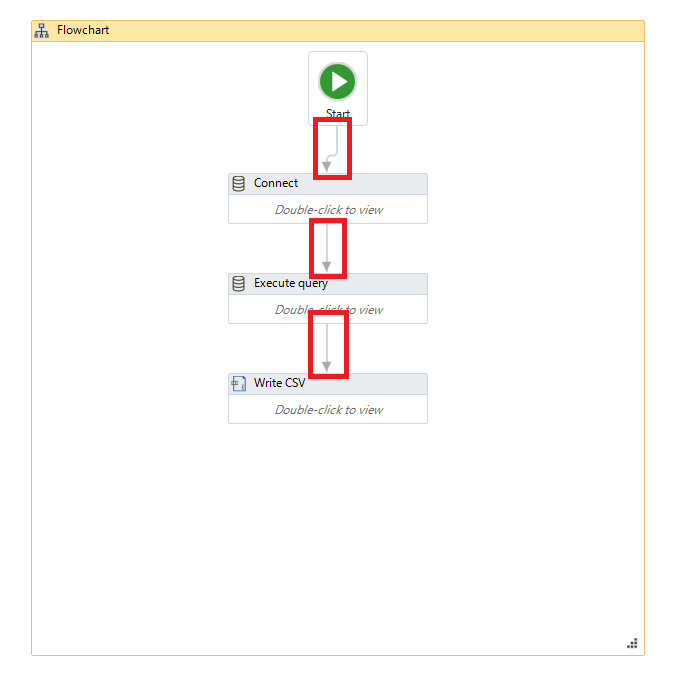
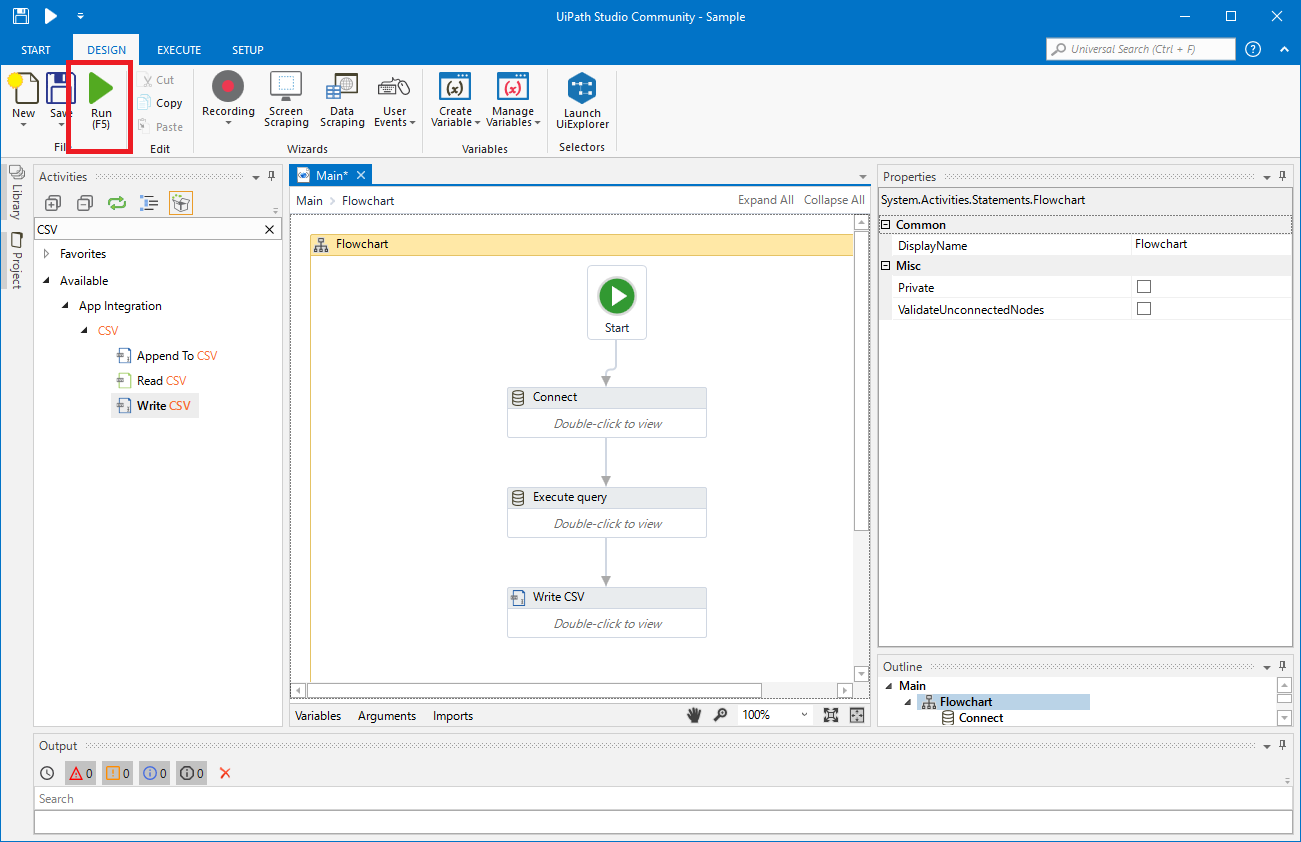
If they are not already connected, connect each Activity that you created to complete the RPA project for extracting UKG Pro WFM data and exporting it to CSV.
Click Run to extract UKG Pro WFM data and create a CSV file.
In this article, we used the CData API Driver for ODBC to create an automation flow that accesses UKG Pro WFM data in UiPath Studio. Download a free, 30-day trial of the ODBC Driver and start working with live UKG Pro WFM data in UiPath Studio today!