






Access Live Webex Data in Coginiti Pro

Coginiti Pro is a single tool for all your SQL data and analytics needs, designed specifically for data engineers, analysts, and data scientists. When paired with the CData API Driver for JDBC, Coginiti Pro can access and query live Webex data. This article describes how to connect to and query Webex data from Coginiti Pro.
With built-in optimized data processing, the CData API Driver for JDBC offers unmatched performance for interacting with live Webex data. When you issue complex SQL queries to Webex, the driver pushes supported SQL operations, like filters and aggregations, directly to Webex and utilizes the embedded SQL engine to process unsupported operations client-side (often SQL functions and JOIN operations). In addition, its built-in dynamic metadata querying allows you to work with and analyze Webex data using native data types.
Gather Connection Properties and Build a Connection String
Download the CData API Driver for JDBC installer, unzip the package, and run the JAR file to install the driver. Then gather the required connection properties.
To authenticate to Webex, and connect to your own data or to allow other users to connect to their data, you can use the OAuth standard.
Using OAuth Authentication
First, you will need to register an OAuth application with Webex. To do so, navigate to the Webex Developer Portal and create a new integration. Your OAuth application will be assigned a client id and a client secret.
After setting the following connection properties, you are ready to connect:
- AuthScheme: Set this to OAuth.
- InitiateOAuth: Set this to GETANDREFRESH. You can use InitiateOAuth to manage the process to obtain the OAuthAccessToken.
- OAuthClientId: Set this to the client_id that is specified in your app settings.
- OAuthClientSecret: Set this to the client_secret that is specified in your app settings.
- CallbackURL: Set this to the Redirect URI that is specified in your app settings.
- Scope: Set this in ProfileSettings to specify the OAuth scopes requested during authorization. Multiple scopes can be space-separated (e.g. ProfileSettings='Scope=spark:all spark:kms').
Example connection string:
Profile=C:\profiles\Webex.apip;Authscheme=OAuth;InitiateOAuth=GETANDREFRESH;OAuthClientId=your_client_id;OAuthClientSecret=your_client_secret;CallbackUrl=your_callback_url;ProfileSettings='Scope=your_scopes';
NOTE: To use the JDBC driver in Coginiti Pro, you may need a license (full or trial) and a Runtime Key (RTK). For more information on obtaining this license (or a trial), contact our sales team.
Built-in Connection String Designer
For assistance constructing the JDBC URL, use the connection string designer built into the Webex JDBC Driver. Double-click the JAR file or execute the jar file from the command line.
java -jar cdata.jdbc.api.jar

Fill in the connection properties (including the RTK) and copy the connection string to the clipboard.
Create a JDBC Data Source for Webex Data
- Open Coginiti Pro and in the File menu, select "Edit Drivers."
- In the newly opened wizard, click "Add" and select "Generic."
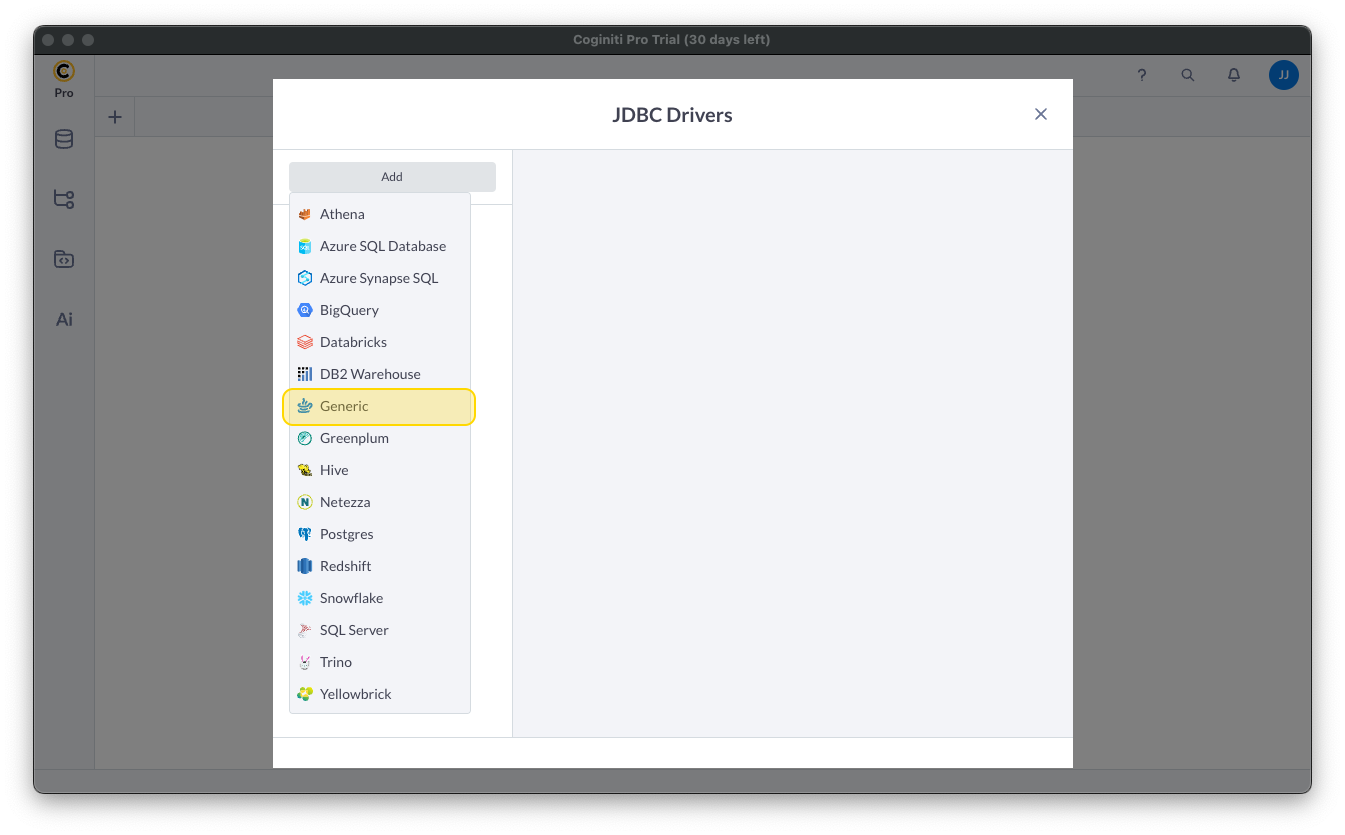
In the "JDBC Drivers" wizard, set the driver properties (below) and click "Create Driver."
- Set JDBC Driver Name to a useful name, like CData JDBC Driver for Webex.
- Click "Add Files" to add the JAR file from the "lib" folder in the installation directory (e.g. cdata.jdbc.api.jar)
- Select the Class Name: cdata.jdbc.api.APIDriver.
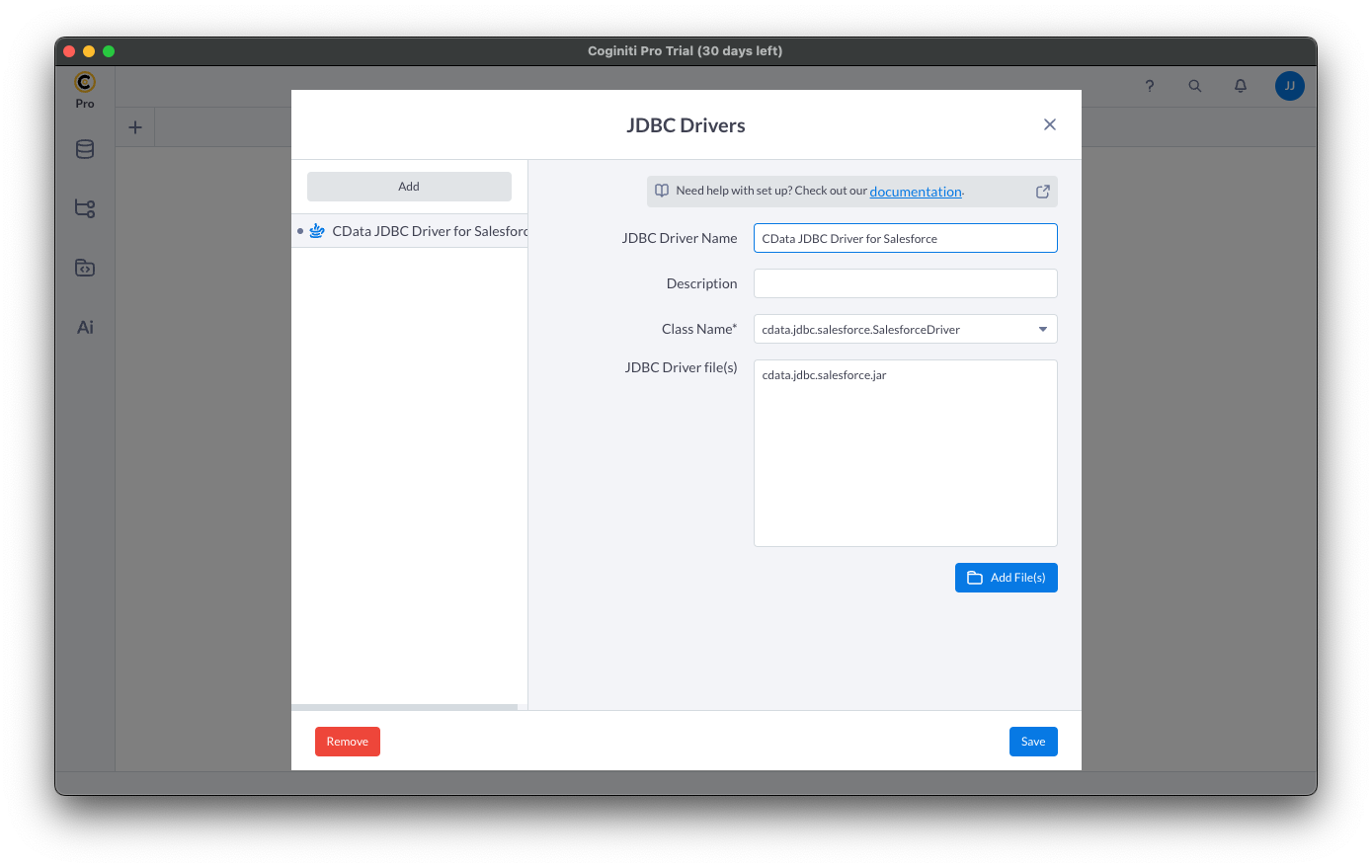
Create a Connection using the CData API Driver for JDBC
- In the File menu, click "Edit Connections."
- In the newly opened wizard, click "Add" and select "Generic."
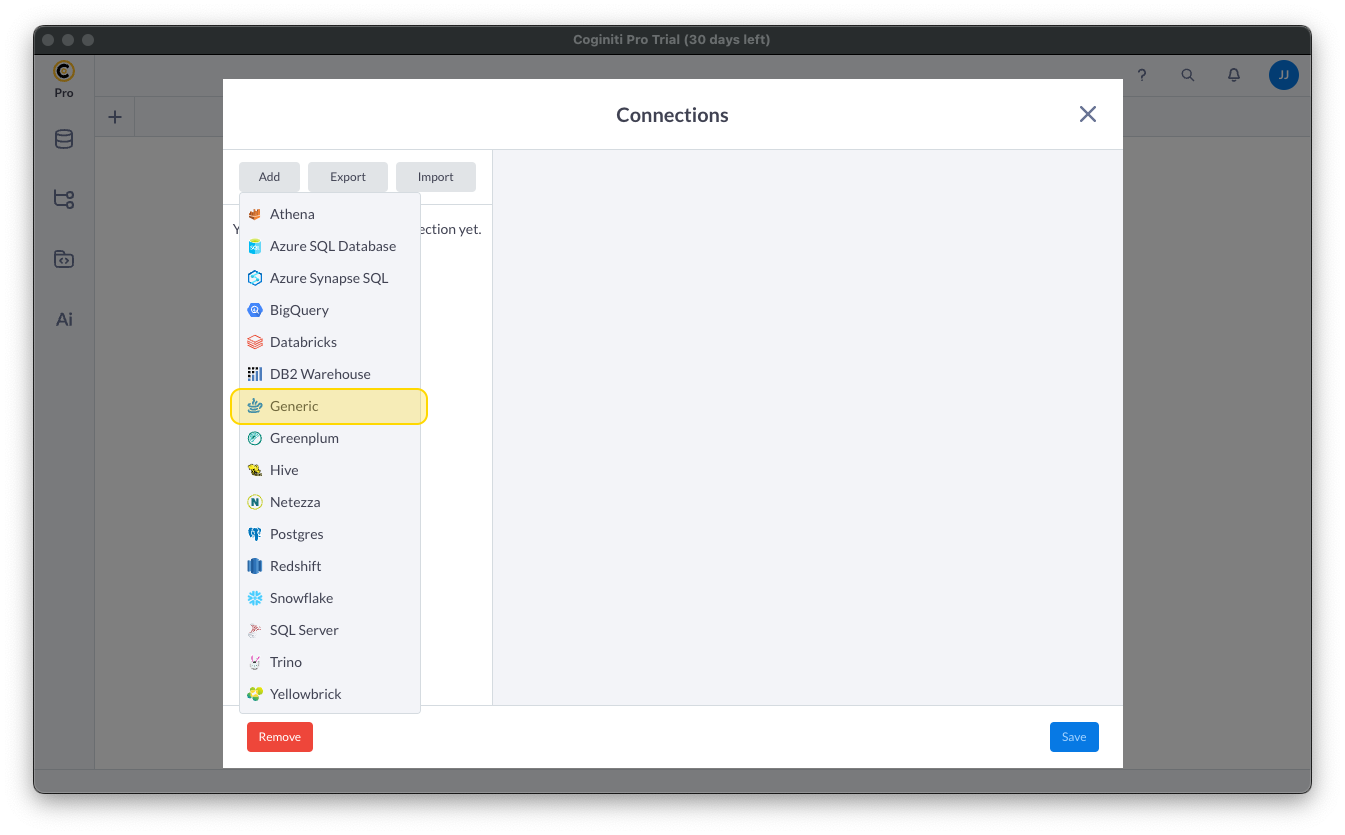
- In the "Connections" wizard, set the connection properties.
- Set Connection name to an identifying name.
- Set Database JDBC driver to the Driver you configured earlier.
- Set JDBC URL to the JDBC URL configured using the built-in connection string designer (e.g. jdbc:api:Profile=C:\profiles\Webex.apip;Authscheme=OAuth;InitiateOAuth=GETANDREFRESH;OAuthClientId=your_client_id;OAuthClientSecret=your_client_secret;CallbackUrl=your_callback_url;ProfileSettings='Scope=your_scopes';
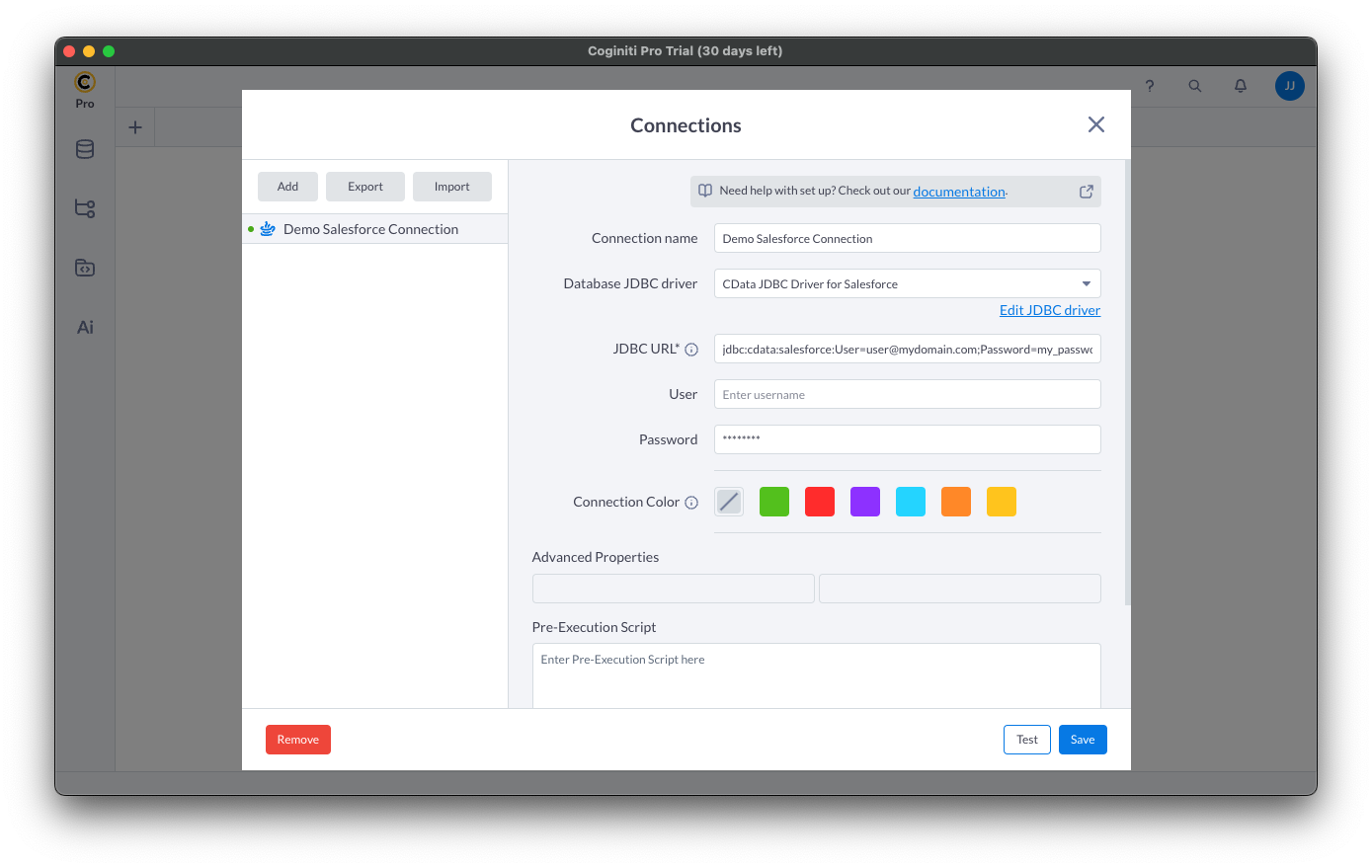
- Click "Test" to ensure the connection is configured properly. Click "Save."
Query Webex Using SQL
- Open the Connections tab by clicking on database icon: .
- Click the plus sign () to add a new query tab.
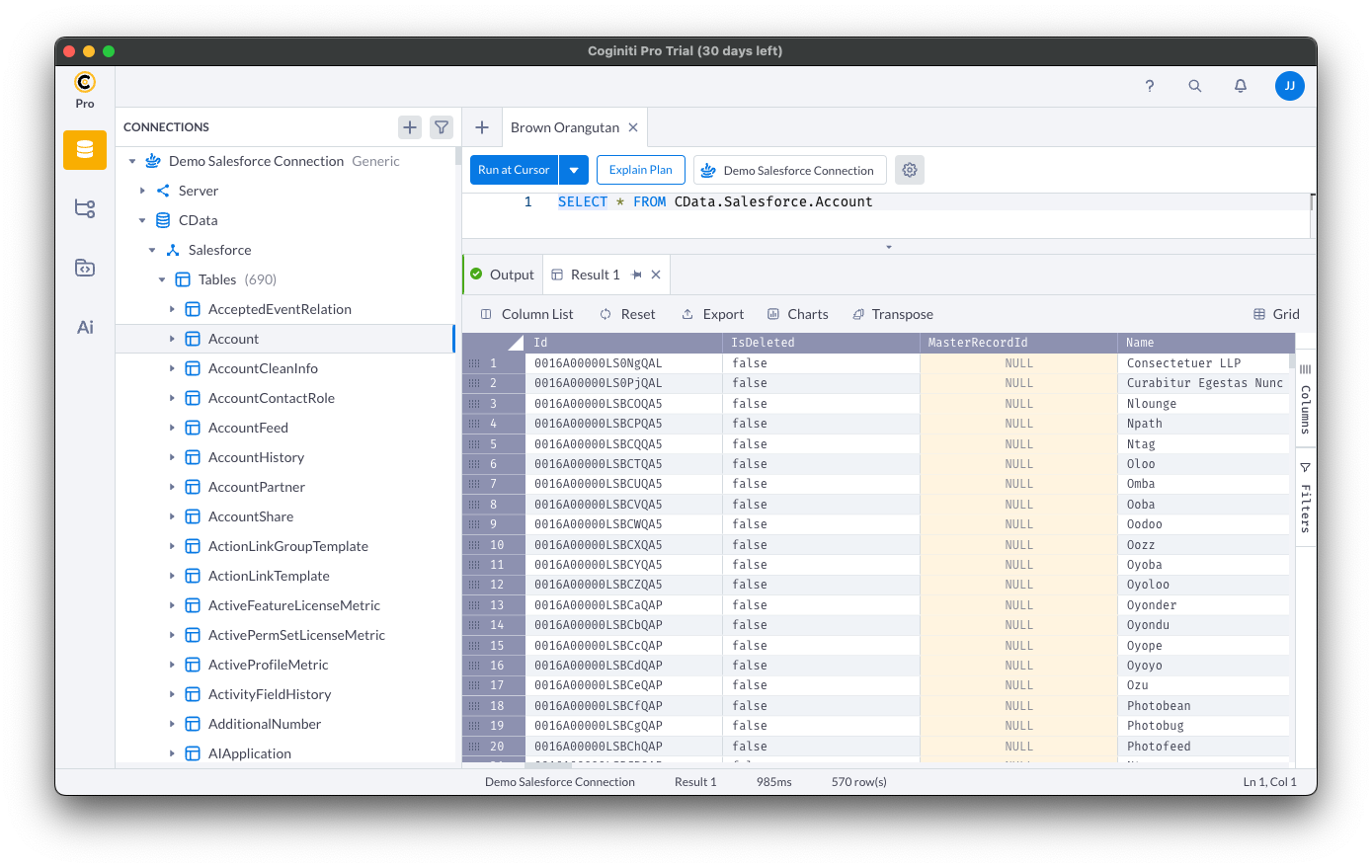
Once the query console is open, write the SQL script you wish to execute and click "Run at Cursor".
NOTE: You can use the explorer on the left to determine table/view names and column names.
Using the explorer
- In the "Select connection" field, select the connection you wish to query.
- Expand your newly created connection, expand the "CData" catalog, and expand the Webex catalog.
- Expand "Tables" or "Views" to find the entity you wish to query.
- Expand your selected entity to explore the fields (columns).
Free Trial & More Information
Download a free, 30-day trial of the CData API Driver for JDBC and start working with your live Webex data in Coginiti Pro. Reach out to our Support Team if you have any questions.