Visualize Webflow Data in TIBCO Spotfire through ODBC

This article walks you through using the CData ODBC Driver for Webflow in TIBCO Spotfire. You will use the data import wizard to connect to a DSN (data source name) for Salesforce and build on the sample visualizations to create a simple dashboard.
Connect to Webflow as an ODBC Data Source
If you have not already, first specify connection properties in an ODBC DSN (data source name). This is the last step of the driver installation. You can use the Microsoft ODBC Data Source Administrator to create and configure ODBC DSNs.
Authentication
Webflow uses OAuth 2.0 authentication to ensure secure access to sites, CMS collections, e-commerce data, and other resources. This authentication method allows you to securely connect to your Webflow workspace and manage resources with proper authorization.
OAuth 2.0 Setup and Configuration
Step 1: Create a Webflow OAuth Application
To set up OAuth authentication:
- Visit the Webflow Developer Portal
- Navigate to "Apps & Integrations" in your Webflow account
- Click "Register an App" to create a new OAuth application
- Configure the application name, description, and redirect URI (CallbackURL)
- Copy the Client ID and Client Secret for use in your connection
Required Connection Properties
- AuthScheme: Set this to OAuth (required)
- OAuthClientId: Client ID from your Webflow OAuth application (required)
- OAuthClientSecret: Client secret from your Webflow OAuth application (required)
- CallbackURL: Redirect URI specified in your OAuth application (required)
- InitiateOAuth: Set to GETANDREFRESH for automatic token management (recommended)
Required OAuth Scopes
The Webflow API Profile requires the following OAuth scopes:
- sites:read - Read access to site information and configuration
- pages:read - Read access to site pages
- cms:read - Read access to CMS collections and items
- forms:read - Read access to forms and form submissions
- assets:read - Read access to media assets and folders
- ecommerce:read - Read access to products, orders, and inventory
- authorized_user:read - Read access to the authorized user
When you configure the DSN, you may also want to set the Max Rows connection property. This will limit the number of rows returned, which is especially helpful for improving performance when designing reports and visualizations.
Create Visualizations of Webflow Tables
Follow the steps below to connect to the DSN and create real-time data visualizations:
- Click Data -> Add Data ...
- Click Other -> Load data with ODBC, OLE DB, or ADO.NET data provider.
- In the Data Source Type menu, select ODBC Data Provider and click Configure.
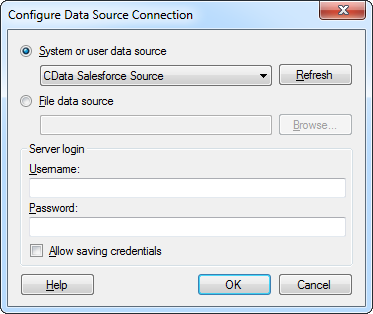
- Select the DSN.
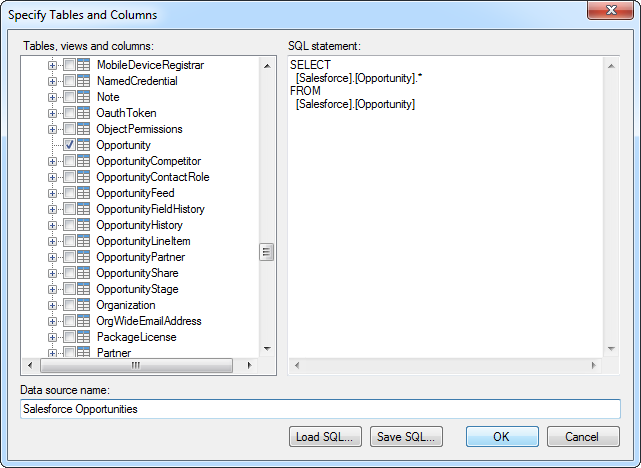
- Select the tables that you want to add to the dashboard. This example uses Sites. You can also specify an SQL query. The driver supports the standard SQL syntax.
- If you want to work with the live data, click the Keep Data Table External option. This option enables your dashboards to reflect changes to the data in real time.
If you want to load the data into memory and process the data locally, click the Import Data Table option. This option is better for offline use or if a slow network connection is making your dashboard less interactive.
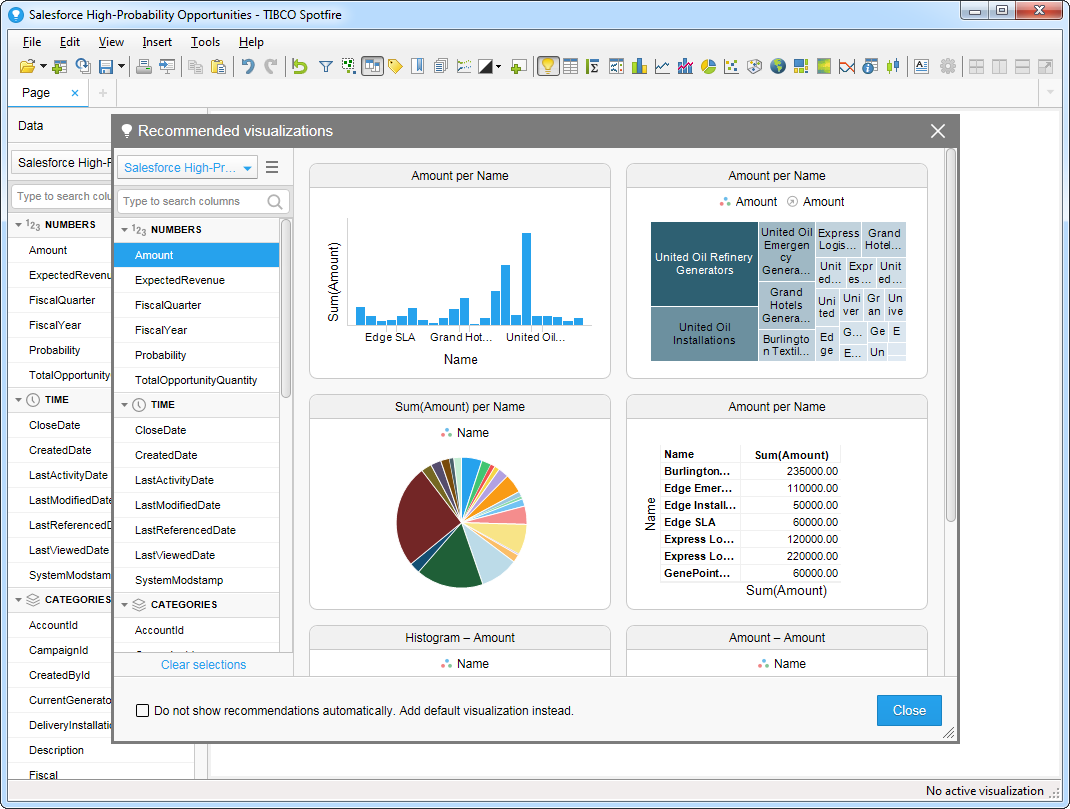
- After adding tables, the Recommended Visualizations wizard is displayed. When you select a table, Spotfire uses the column data types to detect number, time, and category columns. This example uses in the Numbers section and in the Categories section.
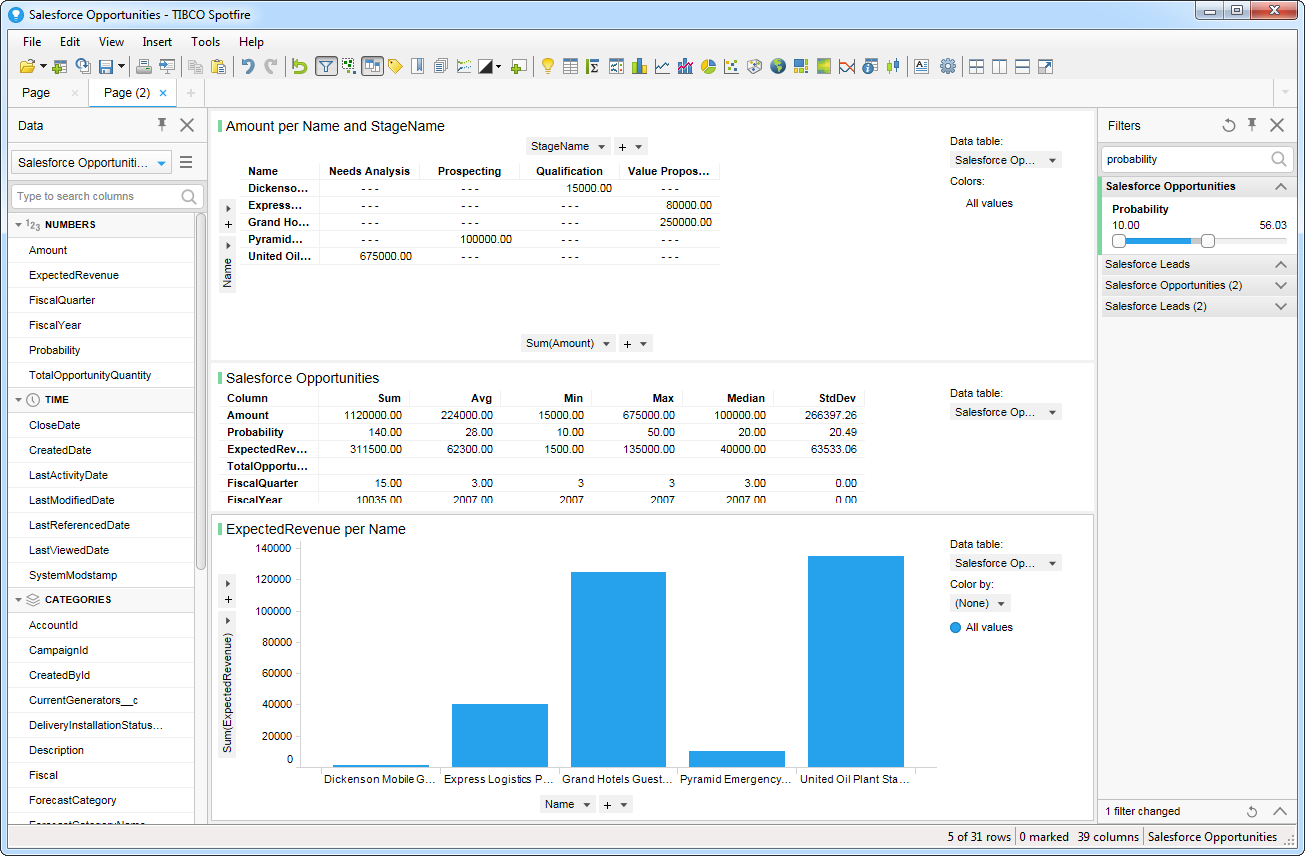
After adding several visualizations in the Recommended Visualizations wizard, you can make other modifications to the dashboard. For example, you can zoom in on high probability opportunities by applying a filter on the page. To add a filter, click the Filter button. The available filters for each query are displayed in the Filters pane.