




Viewing Yotpo Data in RAD Studio Data Explorer

Embarcadero RAD Studio provides a development environment for Delphi and C++Builder applications. With the CData ODBC Driver for Yotpo, you gain access to live Yotpo data within RAD Studio, abstracting the data into tables, views, and stored procedures that can be used to both retrieve Yotpo data. This article will walk through connecting to Yotpo using the Data Explorer.
Configure a Connection to Yotpo
If you have not already, first specify connection properties in an ODBC DSN (data source name). This is the last step of the driver installation. You can use the Microsoft ODBC Data Source Administrator to create and configure ODBC DSNs.
Start by setting the Profile connection property to the location of the Yotpo Profile on disk (e.g. C:\profiles\Yotpo.apip). Next, set the ProfileSettings connection property to the connection string for Yotpo (see below).
Yotpo API Profile Settings
To authenticate to Yotpo, you can use the OAuth 2.0 client credentials flow with your Yotpo AppKey and AppSecret.
To use the Yotpo API, you need a Yotpo store account with an AppKey and AppSecret. You can find these credentials in the Yotpo dashboard under Account Settings > Store.
After setting the following connection properties, you are ready to connect:
- AuthScheme: Set this to OAuthClient.
- InitiateOAuth: Set this to GETANDREFRESH. You can use InitiateOAuth to manage the process to obtain the OAuthAccessToken.
- OAuthClientId: Set this to your Yotpo AppKey.
- OAuthClientSecret: Set this to your Yotpo AppSecret.
Connecting to Yotpo Data Using Data Explorer
You can create a simple application for displaying Yotpo data by utilizing the CData FireDAC Components for Yotpo and a new VCL Forms Application:
- Open the Data Explorer in RAD Studio and expand FireDAC.
- Right-click the ODBC Data Source node in the Data Explorer.
- Click Add New Connection.
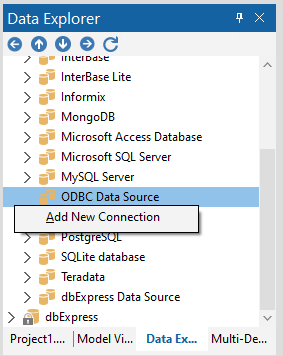
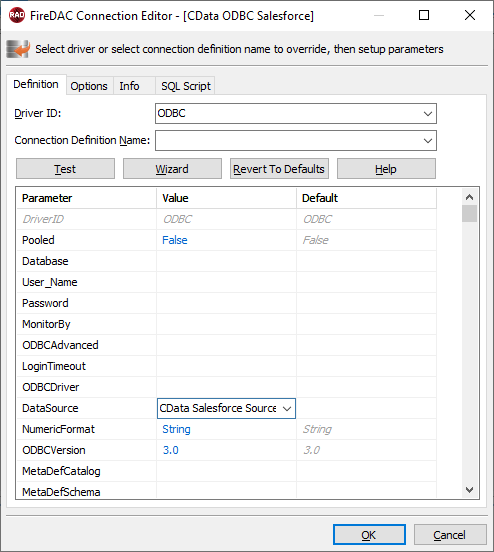
- Enter a name for the connection.
- In the FireDAC Connection Editor that appears, set the DataSource property to the name of the ODBC DSN for Yotpo.
- Back in the Data Explorer, expand the views for the connection.
Create a new VCL Forms application and drag a view (for example: ProductBottomLine) onto the form.
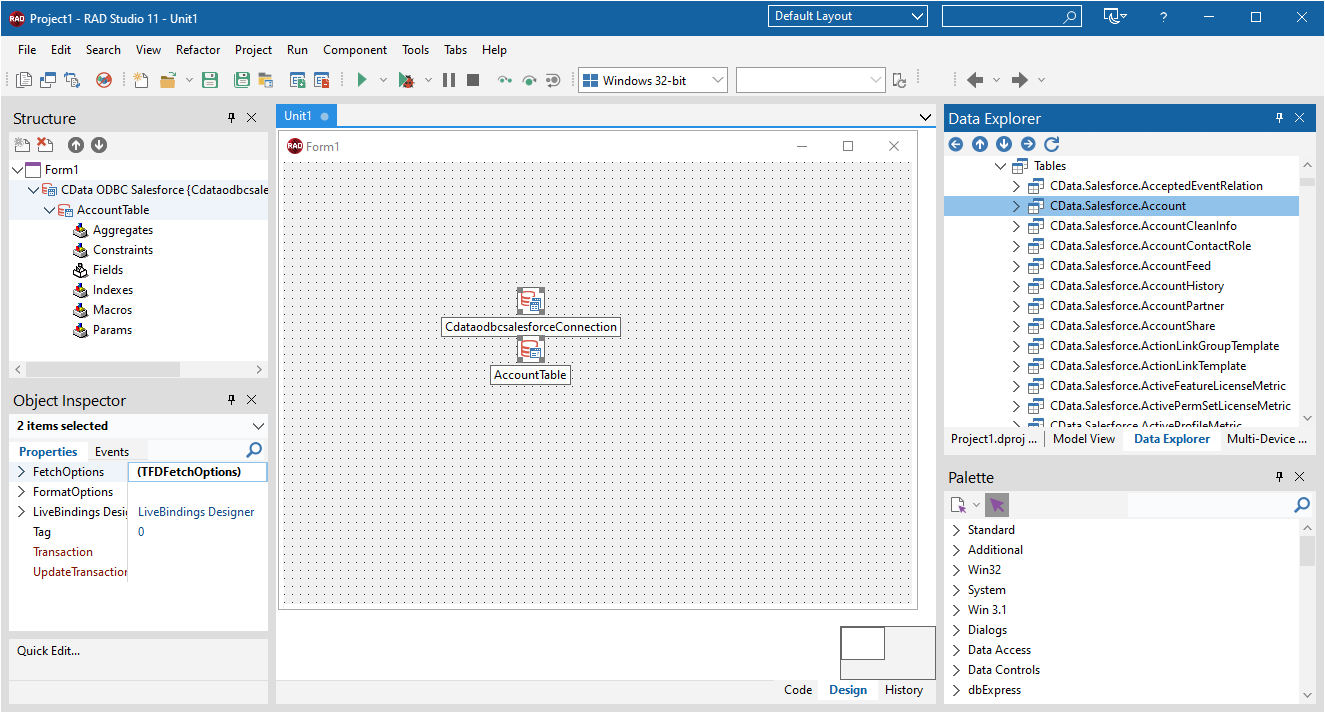
- Select the ProductBottomLineView object on the form and set the Active property to true.
Right-click on the object, bind visually, and link everything (*) to a new control (TStringGrid).
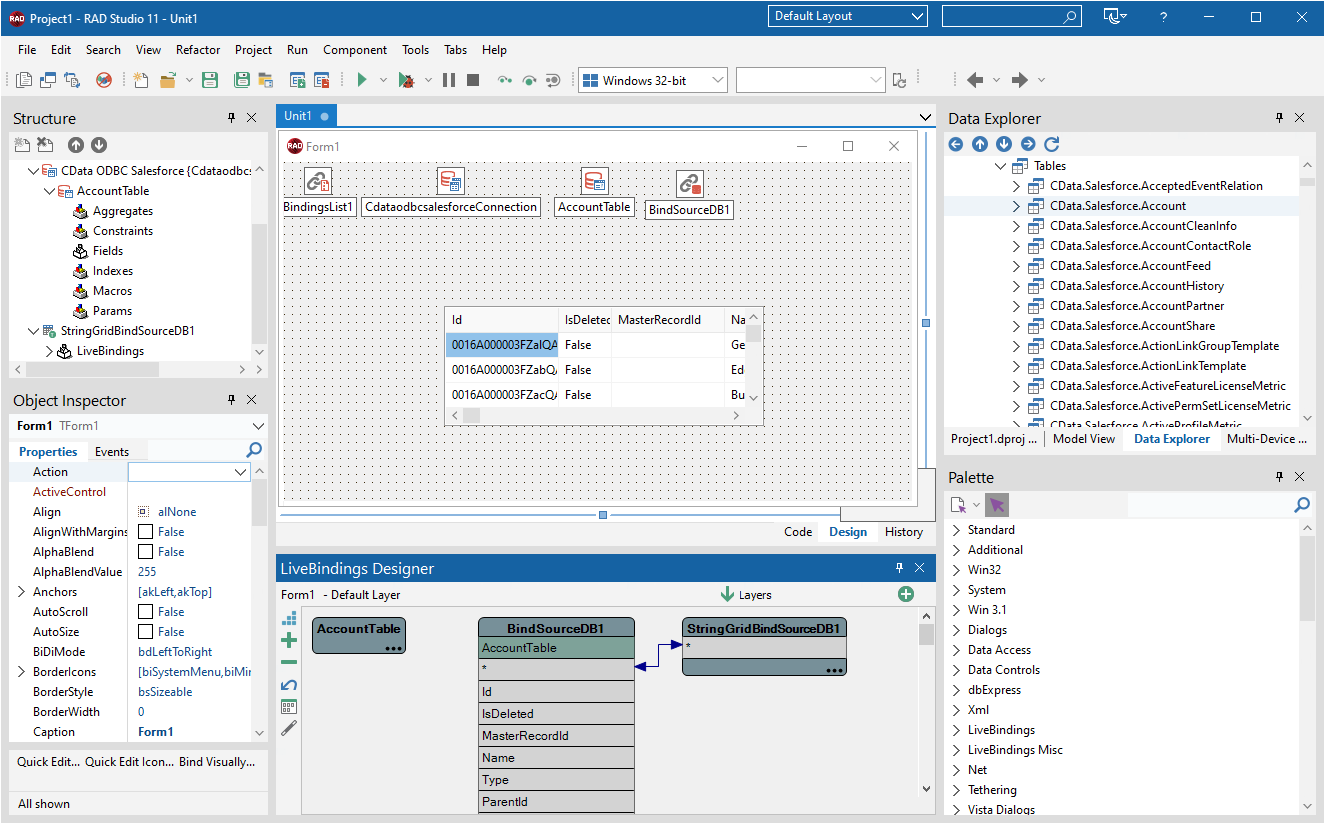
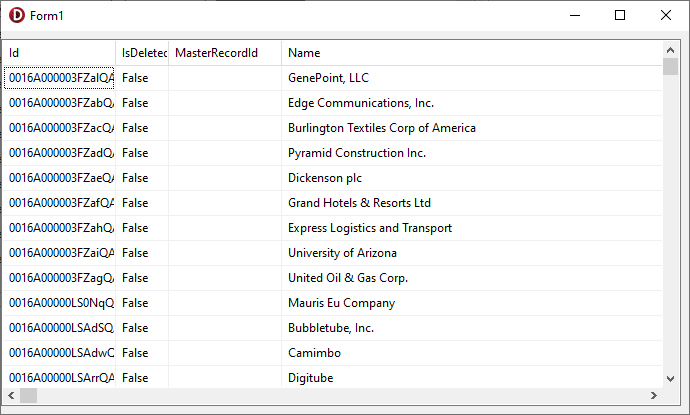
Arrange the TStringGrid on the form and run the application to see the ProductBottomLine data.
Related Articles
Below you can find other articles for using the CData ODBC Driver with RAD Studio, Delphi, and C++ Builder.