If you work with business finances, tracking invoices, managing vendor bills, or monitoring cash flow, you already know how much time goes into just getting the data. QuickBooks Online is a cloud-based accounting platform that holds all your financial data but turning it into useful answers still means exporting reports and searching through spreadsheets.
CData Connect AI changes that by connecting QuickBooks Online to Claude, which is Anthropic's AI assistant that reads, analyses, and answers questions about your data in natural language, because the two don't connect natively. Instead of searching for data manually, your team can simply ask for it and get answers directly from live QuickBooks records in real time.
Here's how to set it up in five simple steps.
Step 1: Create a CData Connect AI account
Before Claude can talk to your QuickBooks data, you need to connect it to CData Connect AI which is a managed MCP platform that gives AI models like Claude secure, real-time access to over 350 data sources without any data replication or complex coding.
Sign up for CData Connect AI account
Enter your email address and basic details
Click the verification link sent to your inbox, and your account is ready
Step 2: Connect your QuickBooks Online data source
With your Connect AI account in place, the next step is authenticating your QuickBooks Online data.
Navigate to Sources and click + Add Connection
Select QuickBooks Online from the + Add Connection panel
QuickBooks Online uses OAuth 2.0 to authenticate, click Sign in to authenticate
An OAuth 2.0 redirect to QuickBooks Online will prompt permission to access your financial data.
Once authenticated, click Save and Test
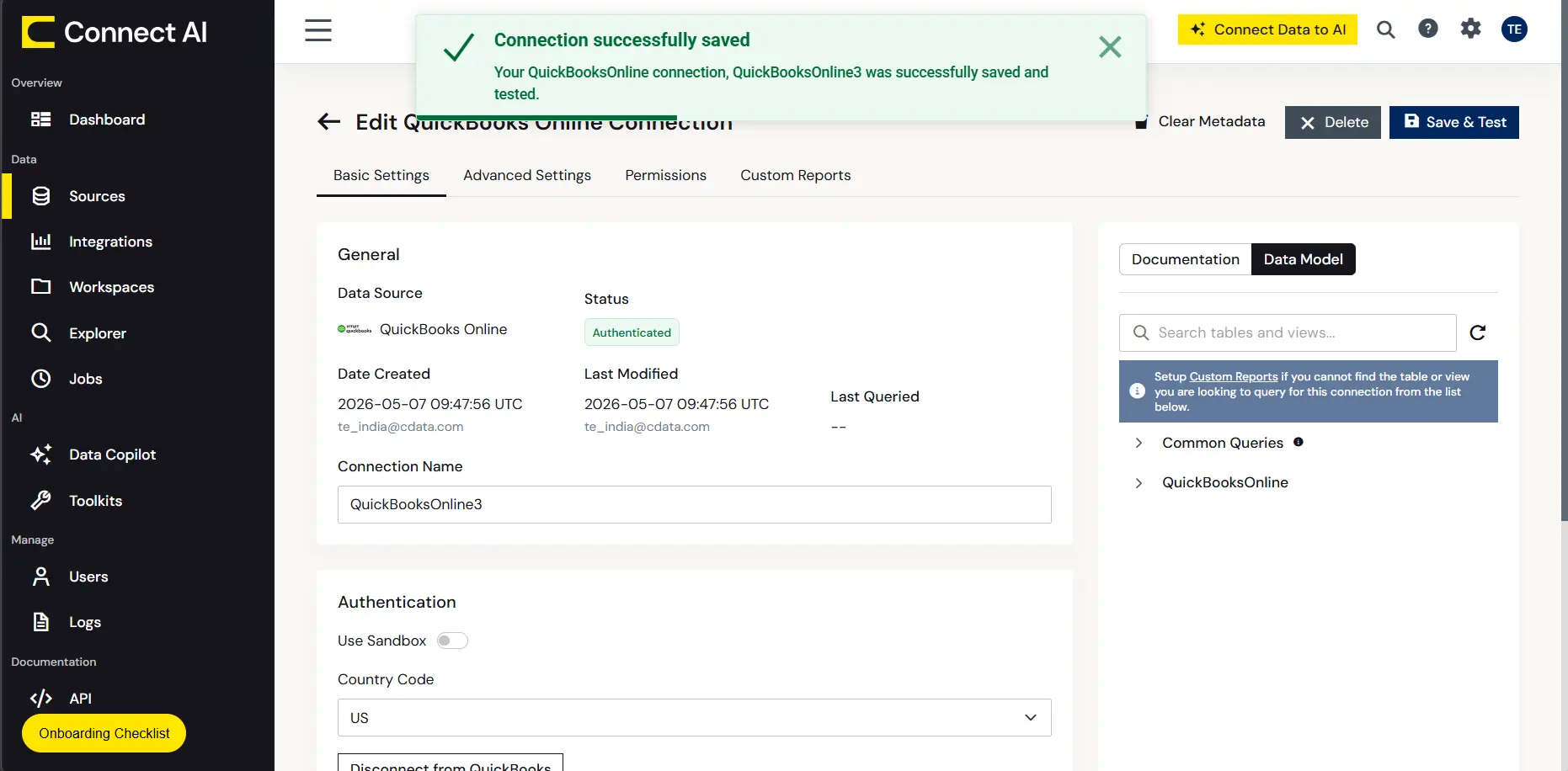
QuickBooks Online data source is now connected in Connect AI. It automatically inherits your QuickBooks user permissions. Claude will only see the data your QuickBooks account is authorized to access.
Step 3: Select QuickBooks data entities and configure permissions
Now that QuickBooks Online is connected, select the relevant financial data and organize it using Derived Views.
Navigate to Explorer and choose your QuickBooks connection
Select the financial entities relevant to the AI use cases like Invoices, Bills, Customers, Vendors, Payments, Accounts, Employees, and more
Save the selected entities as Derived Views
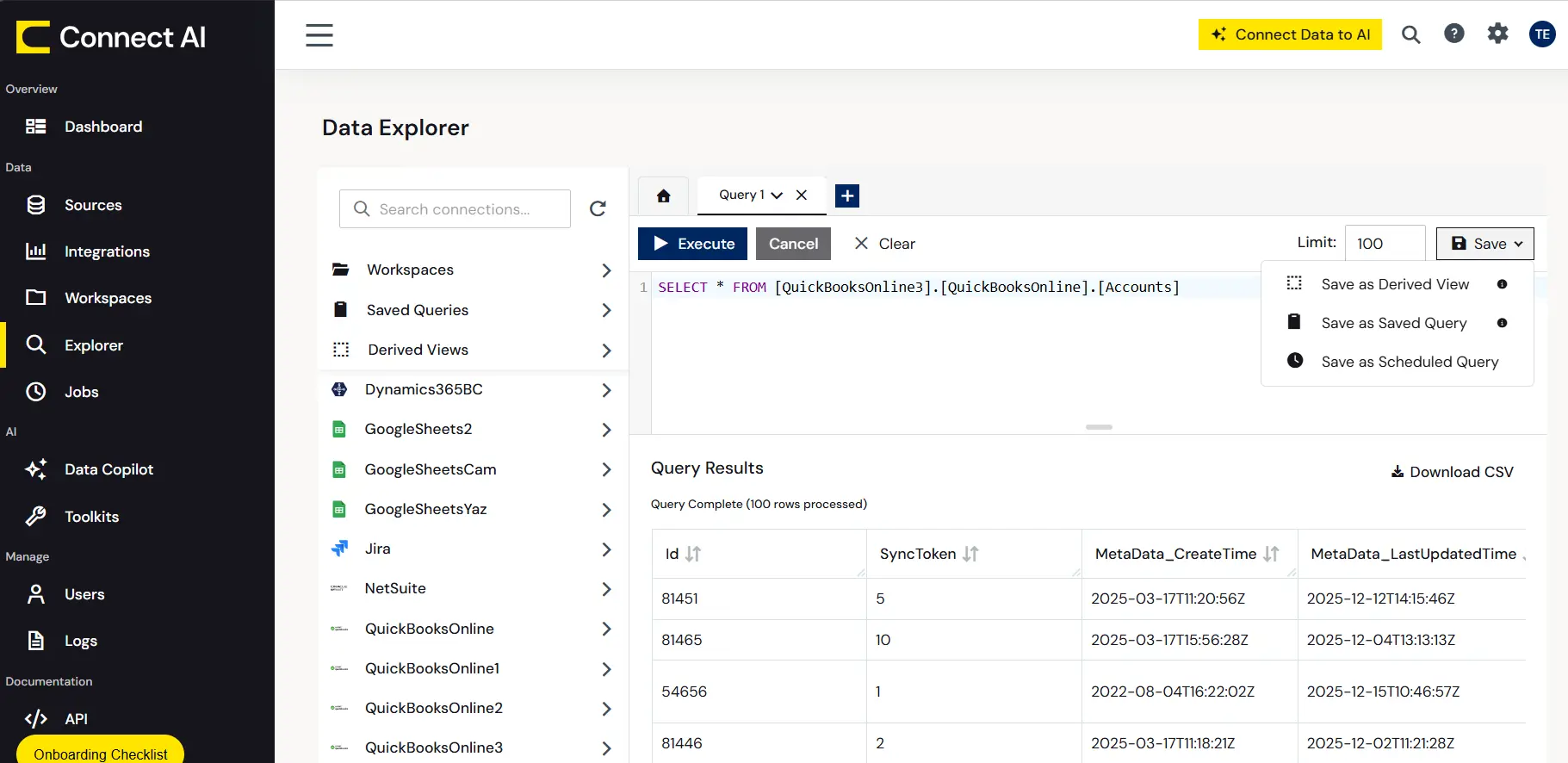
This way Claude only accesses the data that has the user's permission.
Step 4: Configure the Claude MCP connection
Open Claude and navigate to Settings
Go to Connectors and search for CData Connect AI
Click Connect and sign in to Connect AI account and accept the authentication process
Once connected, Claude can instantly access live QuickBooks data through the secure MCP connection
Connect AI MCP server automatically handles authentication, permission enforcement, and audit logging; no manual setup needed.
Step 5: Test and query your QuickBooks data with Claude
The integration is now active. Run the following test queries in Claude to confirm the setup:
Show me all outstanding invoices over $10,000
What were the top 5 customers by revenue last quarter?
Which vendors have unpaid bills past their due date?
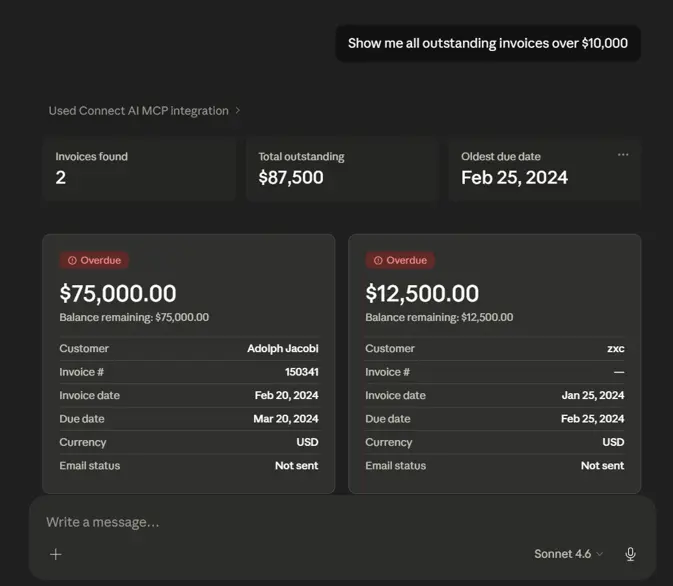
Benefits of integrating QuickBooks Online with Claude via Connect AI
This integration brings live QuickBooks data into Claude without additional infrastructure or complex configurations, delivering value for both finance and IT teams.
Benefit | What It Means |
On-demand financial analytics | Finance teams get answers directly from live QuickBooks data with no waiting for reports |
Reduced manual reporting | Claude handles financial queries instantly, eliminating time spent on data exports |
Inherited user permissions | Data governance is automatically enforced with no additional configuration |
Enterprise-grade security | SOC 2 compliant, OAuth 2.1 secured, and compatible with multiple AI models |
No data replication or ETL | Queries run directly against QuickBooks with no pipelines and no stale data |
Security and compliance considerations
Data security is built into every layer of this integration, from authentication to audit logging.
Connect AI inherits QuickBooks Online user permissions, ensuring Claude only accesses data within the authenticated user's allowed scope
All data in transit is encrypted, and OAuth 2.1 token validation is enforced on every request
Audit logging captures every query Claude submits, supporting SOX and other financial compliance requirements
Administrators can revoke Claude's access instantly from the Connect AI dashboard with no changes needed on the QuickBooks side
This way, finance and IT teams can move from manual reporting to conversational AI analytics in just five steps, with live QuickBooks data, enterprise-grade security, and no complex configurations.
Frequently asked questions
Can I connect QuickBooks Online directly to Claude?
No native direct integration exists, but CData Connect AI connects QuickBooks Online and Claude with enterprise-grade security and real-time data access; no coding required.
Do I need coding skills to set up this integration?
No, CData Connect AI uses a no-code interface for data source connection, entity selection, and MCP server configuration.
How is my financial data protected during integration?
CData uses encrypted connections, OAuth 2.1 authentication, inherited permissions, and full audit logging, so your data only flows to authorized AI models and users.
Can Claude analyze both real-time and historical QuickBooks data?
Yes, CData Connect AI queries live QuickBooks data on demand, so Claude always reflects the current state of your financials, including historical records.
What QuickBooks Online entities can Claude access?
CData exposes standard QuickBooks Online entities including Invoices, Bills, Customers, Vendors, Payments, Accounts, and more configurable per your access permissions.
Start querying QuickBooks data with CData Connect AI
Turn your QuickBooks data into conversations with CData Connect AI which supports hundreds of data sources and connects live financial data to Claude in minutes.
Start your free trial today!





