Xero is a cloud-based accounting platform used by small and medium-sized businesses around the world. It offers a complete suite of tools for invoicing, bank reconciliation, expense tracking, payroll, and financial reporting.
CData Connect AI is an enterprise integration platform that provides secure and governed access to live data through the Model Context Protocol, or MCP. It connects AI tools to business data in real time without creating copies or transferring information outside existing authentication and access controls. This ensures every query remains compliant, secure, and up to date.
Claude, developed by Anthropic, is an intelligent assistant that understands natural language and provides deep analytical insight. When connected to business data through Connect AI, Claude becomes a natural interface for querying, analyzing, and reporting on data without the need for technical knowledge or database queries.
Integrating Claude with Xero through Connect AI allows teams to access accurate business information instantly. Users can ask about invoice status, payments, or reconciliations in plain language and receive clear, actionable answers within seconds. This connection eliminates manual reporting, reduces time spent on data preparation, and helps organizations make confident decisions based on live information.
Understand prerequisites and scope
Understanding the prerequisites and defining the scope for integrating Xero with Claude through Connect AI is essential for a smooth setup and reliable performance. This section outlines the key requirements to prepare your environment for secure access to Xero data.
Before you begin integration, make sure your setup meets the following conditions:
Credentials and permissions: Ensure you have access to your Xero organization, valid API client credentials, and the necessary permissions to read invoices, payments, and contacts.
Data scope: Identify which data entities to connect to Claude, such as invoices, bank transactions, contacts, or payroll data, based on your specific business needs.
Authentication methods: Connect AI supports PKCE, OAuth, and OAuthClient authentication for Xero. Use PKCE for individual user authentication, OAuth for interactive authorization, and OAuthClient for service-level integrations that require automated access.
Governance: Connect AI uses existing authentication and access controls. It does not create copies of your data or external databases, ensuring that all interactions remain secure and compliant.
AI-driven accounting delivers real productivity gains for teams managing complex financial and operational workflows. The right setup ensures that your integration is secure, scalable, and ready to generate immediate value.
Setup your connection to Xero in Connect AI
Configuring your Xero connection properly in Connect AI ensures secure, reliable access to your financial data. This section provides step-by-step guidance for establishing the connection.
Steps to create a new connection:
Open the Sources page of the Connect AI dashboard and click + Add Connection.
Select Xero as the data source.
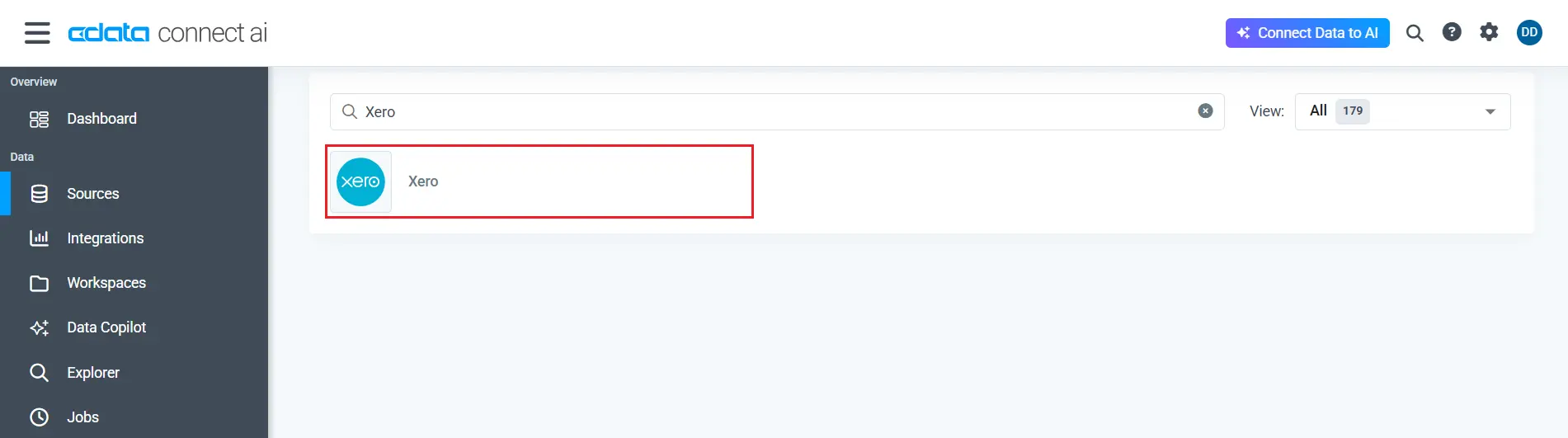
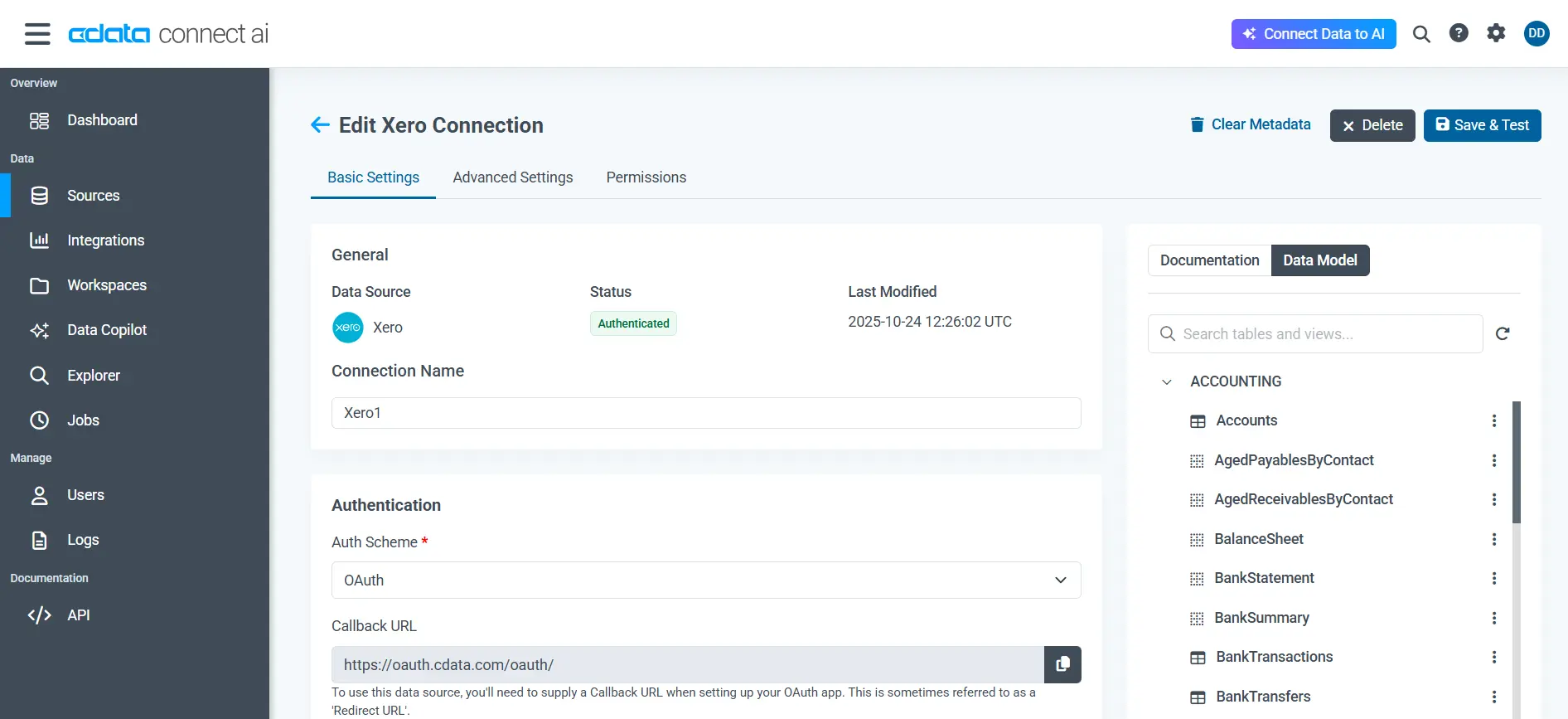
In the Auth Scheme, choose PKCE, OAuth, or OAuthClient, depending on your security policy.
Select the Xero Schema and optionally specify a Tenant ID if your organization manages multiple Xero instances.
Click Connect to Xero to make a connection.
Click Save & Test to save the connection.
Connect Claude to your Xero data
Enabling Claude to access your Xero data through Connect AI creates a seamless connection between AI and your business information. This section explains how to establish that connection securely.
Follow these steps:
Sign in to Claude.ai or create a new account.
Expand the left navigation menu.
In the bottom-left corner, click your user name and select Settings from the menu. The Settings screen appears.
In the Settings screen, click Connectors.
Click the button to Browse Connectors.
Search for "CData Connect AI" and click the listing.
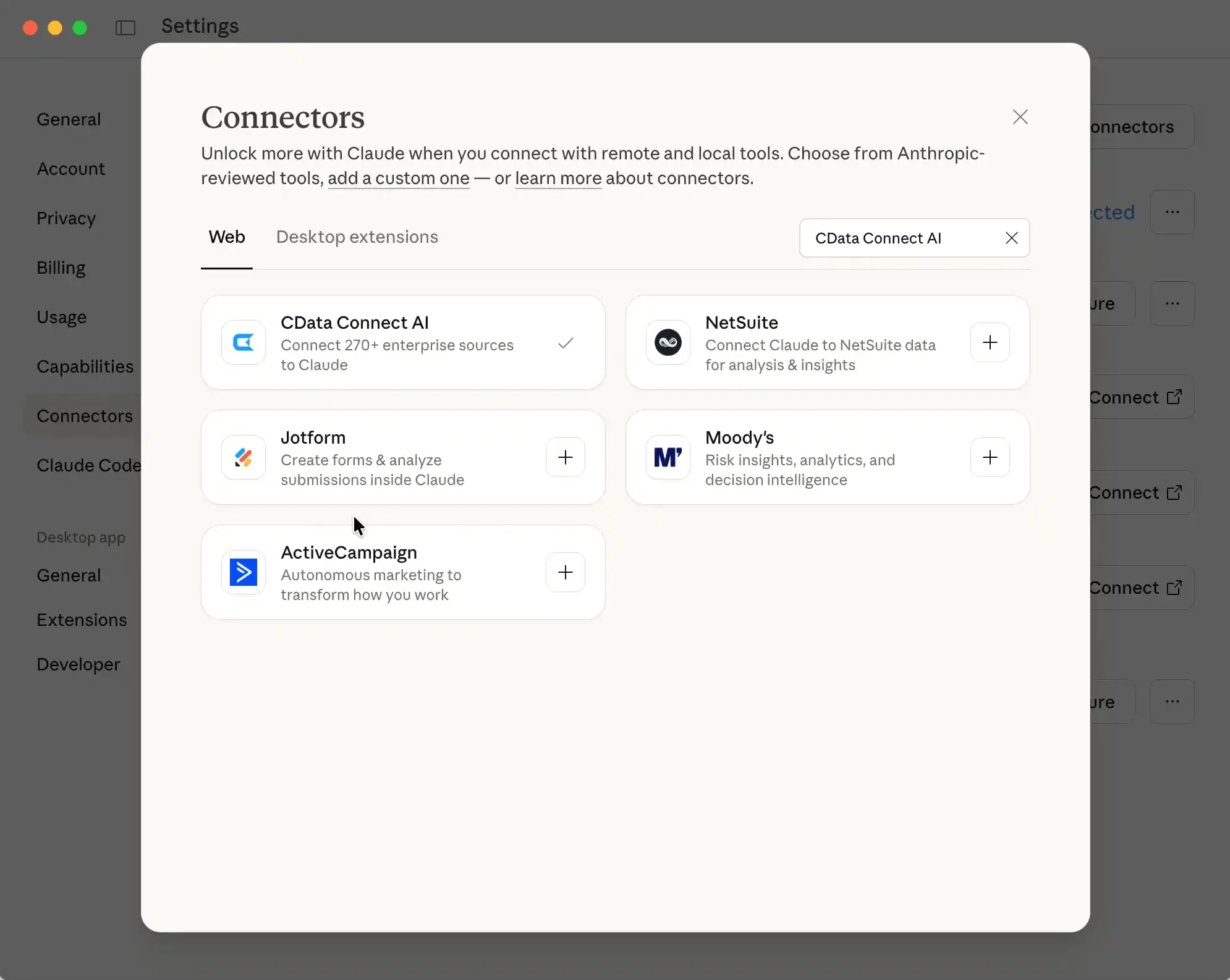
Click Connect and sign into your Connect AI account.
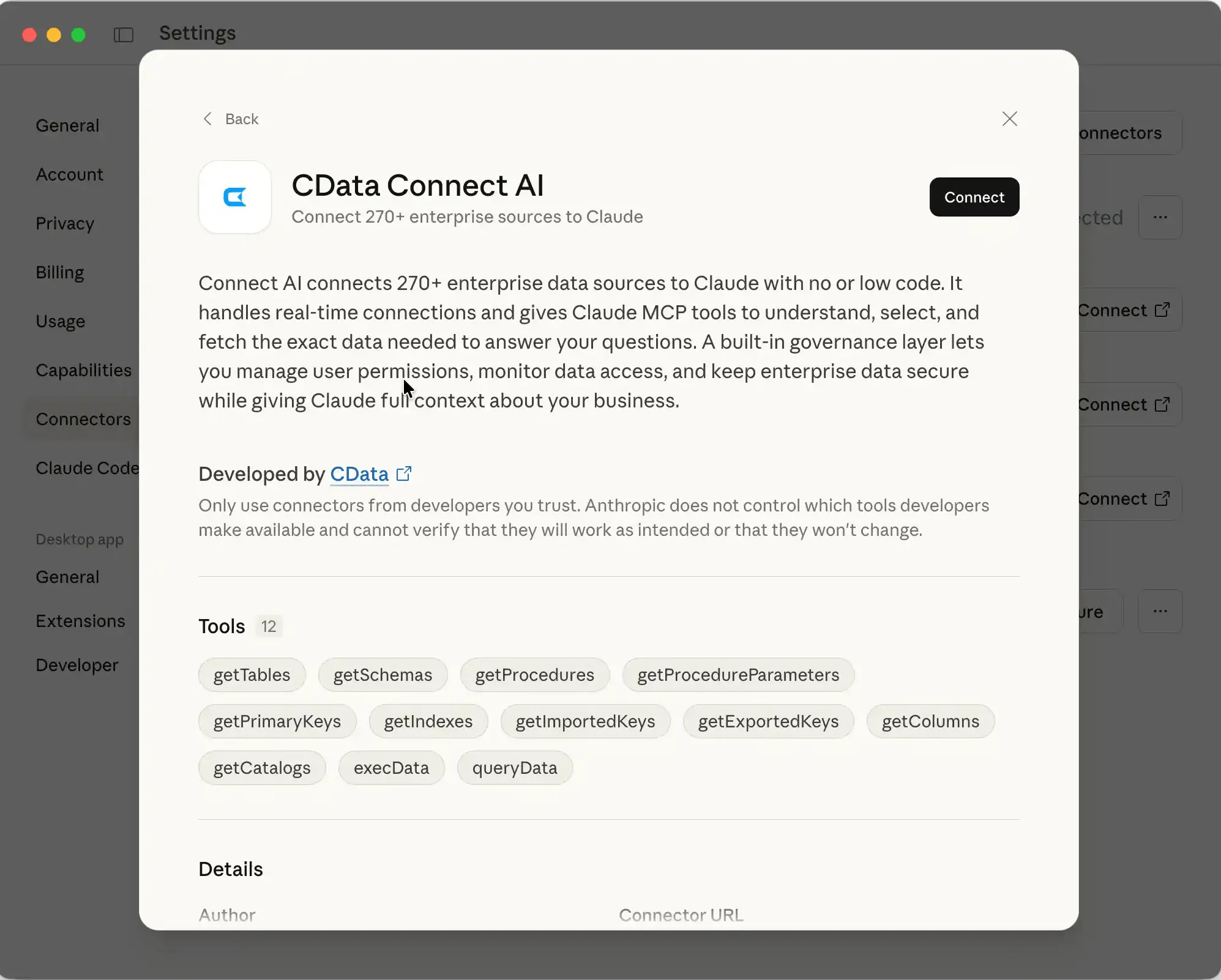
Once connected, Claude can interpret natural-language queries and, via the Connect AI MCP server connection to Xero, securely access live business data in real time.
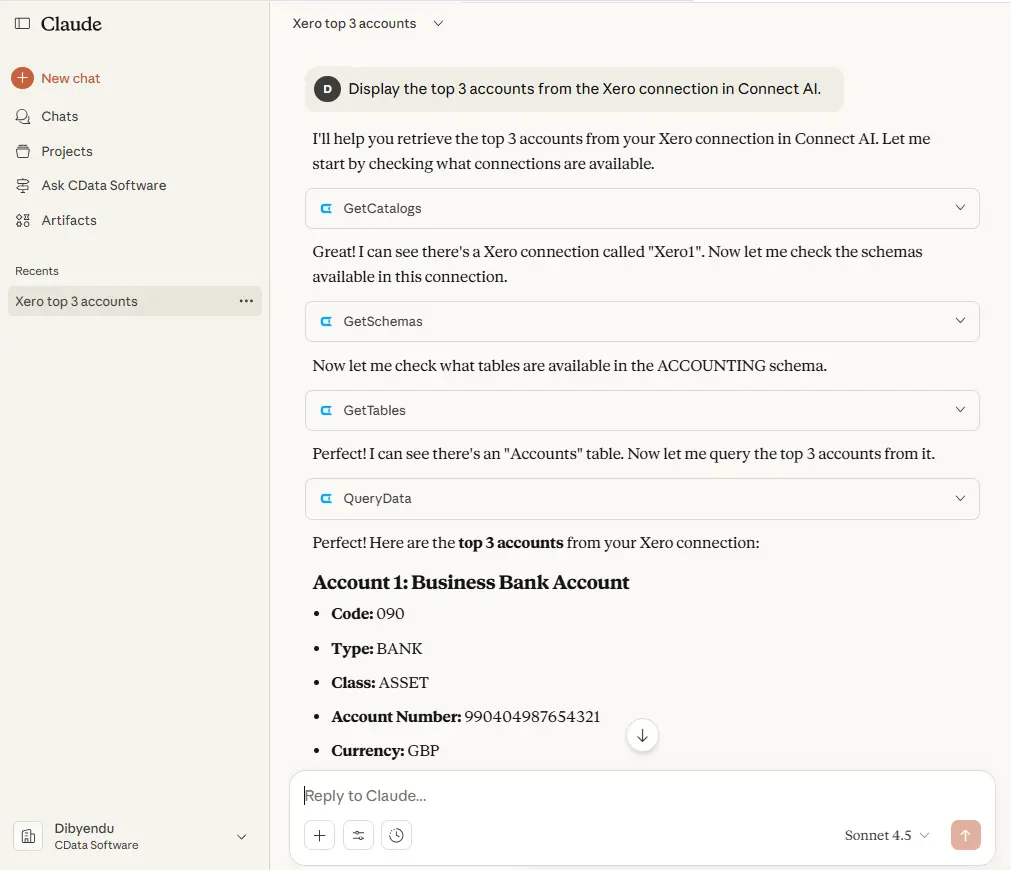
Query Xero with natural language
Using Claude to query live data from Xero through Connect AI enables fast, context-aware insights and supports better decision-making. Connect AI acts as a secure bridge between Claude and Xero, where the large language model (LLM) translates each natural language request into a structured query that is submitted Connect AI. This architecture allows Claude to retrieve accurate, real-time results directly from Xero while maintaining data governance and access controls.
Try these natural language queries:
“Show all unpaid invoices from last month.”
“What were the total payroll expenses for Q3?”
“List all customers with overdue payments over 30 days.”
“Compare revenue and expenses across business entities.”
Claude processes each question as a natural language request and sends it to Xero through Connect AI. Connect AI then translates the request into secure, real-time API calls to Xero and returns accurate results directly from the source. This approach eliminates the need for manual exports, spreadsheet transformations, or complex reporting tools.
To ensure accuracy, validate the responses against expected business data and adjust prompts to refine the quality of results over time.
With Claude and Connect AI, interacting with Xero data becomes conversational, immediate, and insight-driven.
Scale and optimize your integration
Troubleshooting issues and planning for scale are essential for maintaining efficiency as your business grows. This section offers strategies for addressing common problems and scaling the setup.
Monitor performance: Use Connect AI’s dashboard to track query response times and API usage.
Audit and governance: Enable audit logs for prompts, tool calls, and Claude responses to ensure compliance readiness.
Scale for growth: For high query volumes, enable caching and query batching.
Continuous improvement: Gather feedback from finance teams and refine scopes for faster answers and fewer data calls.
Firms are seeing 300%+ ROI within 3 months of adopting AI automation through increased capacity and error reduction. (Old Windsor Technology)
Frequently asked questions
How to connect Xero to Claude?
To connect Xero to Claude, first create a connection in Connect AI using OAuth authentication, then browse Connect AI connector in Claude.ai.
Will Claude copy my Xero data out of our environment?
No, Connect AI queries data in real-time through secure APIs without copying it. Your data stays within your existing infrastructure and never leaves your trusted boundaries.
Can I restrict Claude to specific Xero tenants or objects?
Yes, you can specify a Tenant Id when configuring your connection to limit access to a single Xero organization, and tool permissions can be configured in Claude.ai.
What should I do if OAuth fails during setup?
If OAuth fails, verify the credentials entered, check authentication permissions, ensure pop-up blockers aren't interfering, and review the connection logs in Connect AI for specific error messages.
How do I handle rate limits and performance?
Connect AI implements intelligent caching and query batching. For high-volume scenarios, optimize queries with date ranges, enable result caching, and consider scheduled queries during off-peak hours.
Talk to your Xero data and get real-time answers with Connect AI
Start querying your Xero data with natural language in minutes. Connect AI makes it simple to connect Claude to your accounting platform.
Sign up for a 14-day free trial of CData Connect AI and connect Claude to your Xero data today! For enterprise environments, CData also offers dedicated deployment support and managed configuration options.





