Connecting Jira to AI and querying for sprint updates, blocked work, and team performance metrics often means navigating dashboards, crafting complex filters, or writing JQL — tasks that slow down decision-making and distract your team from more important work.
But with CData Connect AI, it’s as simple as clicking a few buttons. You can connect Jira to Claude in minutes and start asking plain-language questions to surface real-time insights from your live project data.
In this blog post, we’ll show you how to integrate Jira with Claude AI using Connect AI — creating a seamless interface between your project data and Anthropic’s powerful, LLM-based assistant.
This article outlines how to bring together three essential technologies to unlock AI-powered project visibility:
Jira – The project management and issue tracking tool
Connect AI – The secure, real-time integration platform
Claude – The natural language intelligence layer
Atlassian’s Jira
Jira is Atlassian’s leading platform for Agile project management and issue tracking. It’s the most widely adopted solution among software development teams, known for its scalability, flexibility, and robust customization options.
Jira empowers teams with sprint planning, epic and backlog management, custom workflows, project roadmaps, and seamless team collaboration. Its powerful feature set makes it the go-to platform for managing high-velocity software projects and complex enterprise initiatives.
CData Connect AI
CData Connect AI is a no-code enterprise integration platform designed specifically for AI-driven data access. It enables secure, governed, real-time connectivity to business systems using the open Model Context Protocol (MCP).
Unlike traditional ETL tools, Connect AI does not move or copy your data. It queries live data where it resides at the source, while maintaining your organization’s existing authentication and access controls.
This makes it the ideal bridge between enterprise tools like Jira and AI platforms like Claude — enabling natural language interaction with your data, without compromising security or compliance.
Anthropic’s Claude
Claude is a conversational AI assistant developed by Anthropic and powered by its proprietary large language models (LLMs), designed for safe, trustworthy, and context-aware interaction.
When integrated through Connect AI, Claude can securely interpret and query your live Jira data. Users can ask natural language questions about tickets, sprints, team velocity, and more — with no need for technical setup, SQL, or JQL.
Claude turns Jira into an intelligent interface for project oversight, automating insights, surfacing blockers, and enabling rapid, AI-powered decision-making.
Why connect Claude to Jira
Connecting Claude to Jira through CData Connect AI brings a transformative layer of intelligence to your project management workflows. Instead of digging through dashboards or building custom reports, teams can surface the insights they need — instantly and conversationally.
This integration empowers project managers, developers, and stakeholders with:
Instant project status updates without switching tools or navigating dashboards
Natural language queries to explore sprint velocity, team capacity, and burn-down progress
Automated identification of blocked work and workflow bottlenecks across teams
Cross-project portfolio analysis to monitor trends, dependencies, and performance across initiatives
Faster reporting for executives and stakeholders, reducing time spent compiling status updates
With Claude, your team can spend less time filtering data and more time acting on it — accelerating delivery and improving decision-making.
Prerequisites and scope of connecting Jira to Claude
Before integrating Jira with Claude via Connect AI, it’s essential to understand what’s required for a successful setup. Clarifying your integration scope and confirming the right permissions ensures a smooth deployment and optimal performance.
To get started, you’ll need the following:
Jira access credentials with appropriate permissions to read issues, projects, sprints, and workflows
A Connect AI account with access to the dashboard and MCP configuration settings
Defined data scope based on your use case — such as project-level insights, sprint tracking, or cross-team reporting
Authentication method selected based on your Jira deployment:
OAuth – Best for Jira Cloud environments
API Token – Ideal for secure, programmatic access
Basic Auth – Suitable for legacy setups
SSO – For organizations using federated identity providers
By scoping the integration around your business needs — whether it’s tracking sprint velocity, identifying blockers, or generating stakeholder reports — you’ll ensure Claude can deliver targeted, contextual responses.
Once prerequisites are in place, the next step is configuring your Jira connection in Connect AI.
Set up your Jira connection in Connect AI
Properly configuring your Jira connection in CData Connect AI is the foundation for secure, real-time access to your project data. Whether you’re using Jira Cloud or a self-hosted instance, Connect AI simplifies setup with guided workflows and built-in enterprise-grade security.
Essentially, the integration process involves two steps:
Adding your Jira connection in Connect AI
Adding a CData Connect AI connector in Claude
Once both are complete, Claude can begin querying your Jira data using natural language.
Add a connection to Jira in Connect AI
Follow these steps to connect your Jira environment within the Connect AI platform:
Log into the Connect AI dashboard and navigate to the Sources section on the left
Click + Add Connection, then select Jira from the list of available connectors
Enter your Jira instance URL — this could be a cloud-based or on-premises URL
Choose your authentication method, based on your Jira deployment:
OAuth – Recommended for Jira Cloud environments
API Token – Ideal for secure, direct programmatic access
Basic Auth – Suitable for legacy or testing environments
SSO – For organizations using federated identity providers
Complete the authentication flow and test the connection to confirm access

Troubleshoot your Jira connection in Connect AI
If the connection fails, double-check:
Your credentials and token expiration
That your user has sufficient read access
That the Jira instance is reachable from Connect AI
Connect Claude to your Jira data
Enabling Claude to access your Jira data through the Model Context Protocol (MCP) creates a seamless, secure bridge between AI and your project data — all without moving or duplicating information. MCP is an open, standardized framework designed specifically to enable AI systems like Claude to interact with enterprise data while maintaining strict governance, access control, and compliance policies.
This architecture ensures that Claude communicates with Connect AI securely, respecting your organization’s authentication settings and permissions — delivering intelligent insights without compromising control.
Steps to connect Claude to to your Jira data:
Sign in to Claude.ai or create a new account.
Expand the left navigation menu.
In the bottom-left corner, click your user name and select Settings from the menu. The Settings screen appears.
In the Settings screen, click Connectors.
Click the button to Browse Connectors.
Search for "CData Connect AI" and click the listing.
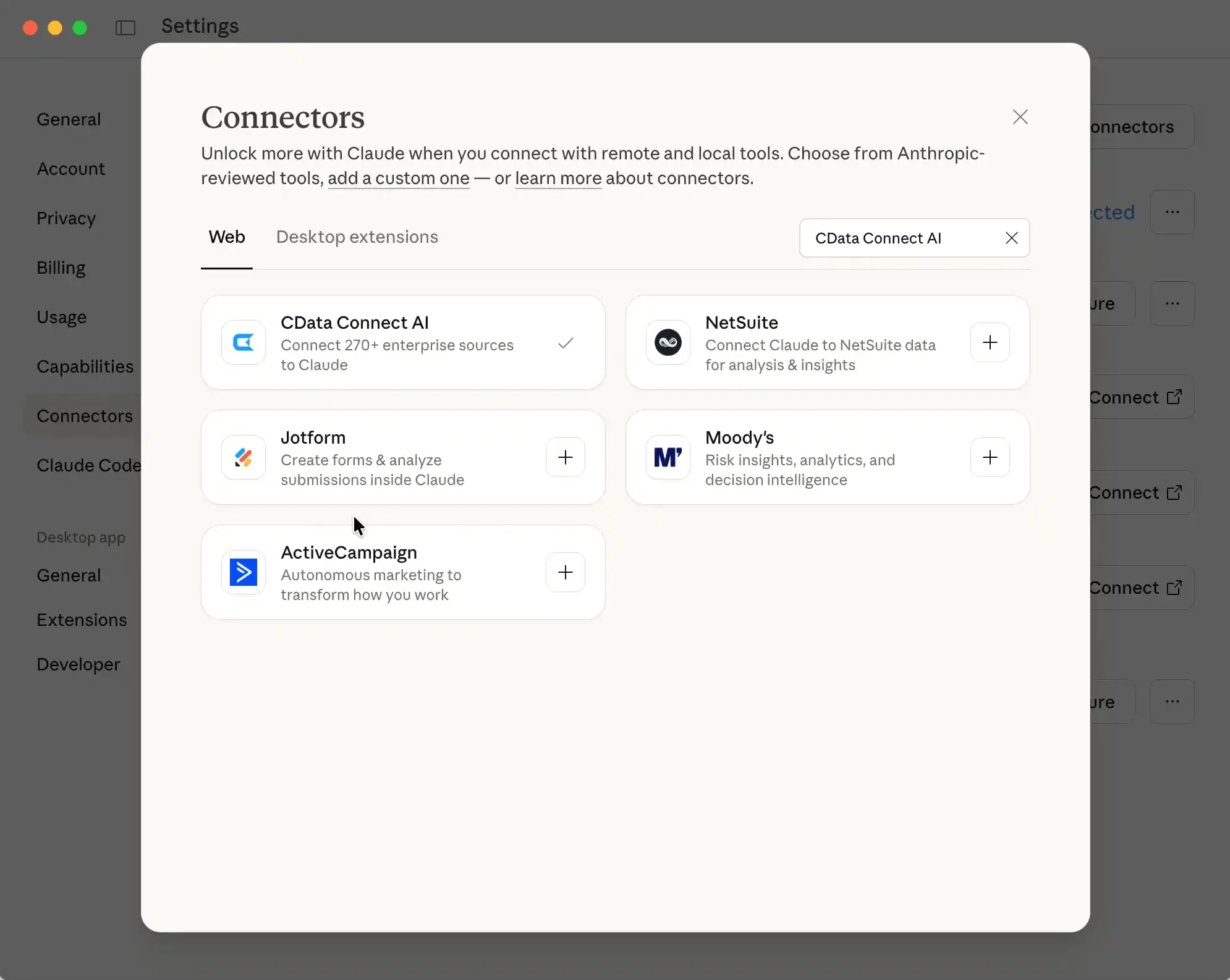
Click Connect and sign into your Connect AI account.
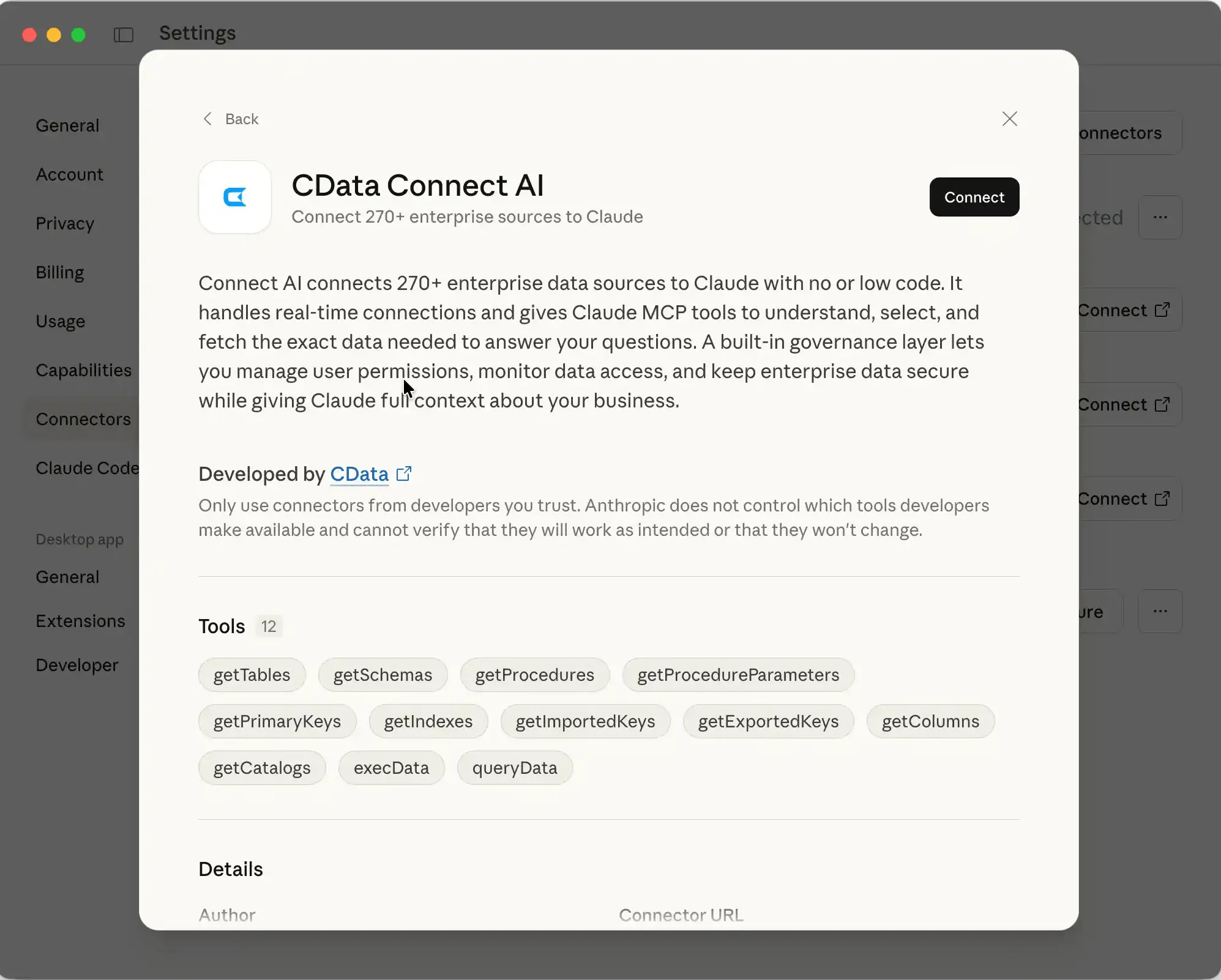
After connecting, Claude opens a new chat
Query the Jira data in natural language
With Claude connected to Jira via Connect AI, users can query live project data conversationally — without writing JQL, navigating dashboards, or setting up reports. This empowers teams to make fast, data-driven decisions directly from natural language interactions.
In the new chat window, begin typing your query using plain language.
Here are some example prompts to get started:
“Quick burn-down analysis of the last quarter.”
“What’s the status of ticket [TICKET NAME, e.g., PROJ-123]?”
“Which tasks in the current sprint are still unresolved?”
“Are there any blockers flagged in the Engineering project?”
“Compare sprint velocity across the last three sprints.”

Through Connect AI, Claude understands Jira’s data model — including projects, sprints, workflows, issue types, and custom fields — by translating enterprise data into a structured format that Claude can interpret using natural language. It recognizes ticket IDs, field names, and labels, enabling flexible, intuitive queries without technical complexity.
Best practices:
Use specific terms like sprint names, ticket IDs, or field labels for precise results
Reference custom fields using their display names (e.g., “priority,” “severity”)
Ask follow-up questions to refine or validate responses
Use queries during meetings or status reviews to pull live data in real time
This natural language interface eliminates the friction of writing queries or switching tools, giving teams a faster, smarter way to access the insights that keep projects on track.
Scale and optimize your integration
After setting up your Jira-to-Claude connection, it’s important to maintain performance and plan for scale as your usage grows.
Troubleshoot common issues
No data returned – Check user permissions and tool access in Claude
Missing or incorrect results – Ensure tokens are valid and custom fields are mapped in Connect AI
Slow responses – Monitor system load and optimize connector usage
Auth errors – Confirm correct authentication method and scope settings
Best practices for scaling
Use dedicated integration accounts for better control
Monitor performance through Connect AI’s dashboard
Set up feedback loops with users to improve accuracy
Enable audit logging to maintain compliance and visibility
Maintain governance
Assign connector ownership and review permissions regularly
Align Claude tool access with team roles
Use metadata and tags to organize and manage at scale
With a few simple strategies, your integration can scale smoothly — staying secure, efficient, and aligned with your organization’s needs.
Frequently asked questions
How do I connect Jira to Claude?
To connect Jira to Claude, first create a connection in CData Connect AI using your preferred authentication method (OAuth, API Token, or SSO). Then, browse Connect AI connector in Claude.ai.
What is the Model Context Protocol (MCP)?
MCP is an open, standardized protocol that allows AI applications to securely query enterprise data and tools — similar to how a human would — without moving the data.
Can I restrict Claude to specific Jira projects?
Yes. Claude adheres to Jira's native permission model. Use a dedicated Jira user account with scoped access to specific projects, and configure those permissions in Connect AI.
How do I query Jira custom fields?
Custom fields are available in Connect AI's Data Model tab. Simply refer to them by their display names in Claude — the platform automatically maps them to the correct field IDs.
What should I do if Claude becomes unresponsive?
Check your internet connection, verify your Connect AI credentials are still active, and make sure pop-up blockers or browser settings aren't interfering with the connector.
Talk to your Jira data today with Connect AI
Start asking questions of your Jira data — in plain language — in just a few minutes. CData Connect AI makes it fast and secure to bring LLM-powered intelligence to your issue tracking and project management workflows.
Sign up for a free trial — no credit card required
Set up your Jira connection and start querying with Claude in minutes
Enterprise-ready options available for custom deployments, audit controls, and compliance
Ready to get started? Try Connect AI now





