ServiceNow is an enterprise-grade platform for IT Service Management (ITSM), IT Operations Management (ITOM), and workflow automation. It centralizes service processes across incident, change, and problem management, giving teams complete visibility into IT operations.
Connect AI extends ServiceNow's capabilities by securely bridging ServiceNow with AI platforms through the Model Context Protocol (MCP). Instead of copying data or exposing APIs directly, Connect AI provides real-time, governed access to live ServiceNow data, honoring existing authentication, SSO, and access controls.
Claude, from Anthropic, is an advanced AI assistant designed for natural language understanding and reasoning. When connected through Connect AI, Claude becomes an intuitive layer over your ITSM data enabling teams to query, analyze, and summarize ServiceNow information conversationally.
By connecting Claude to ServiceNow through Connect AI, organizations can instantly turn ITSM data into insights. IT teams can ask questions like “Show incidents impacting priority services” or “Summarize SLA trends this quarter” and get real-time answers. This integration reduces reporting effort, speeds decisions, and gives teams a smarter, conversational way to manage IT operations.
This blog is part of a broader series that explores how enterprises can connect their data sources to Claude AI through CData Connect AI. The series highlights how organizations can achieve secure, governed, and conversational access to business data all within a simple no-code or low-code environment.
Understanding prerequisites and scope
Before configuring the integration, it’s important to define your requirements and confirm that your ServiceNow environment is ready for connection. Connect AI provides secure, governed access to ServiceNow data through the MCP, ensuring real-time querying while keeping data in place.
Here’s what you need to get started:
Required credentials and permissions
A ServiceNow account with API access and appropriate table permissions
Administrator rights if you’re configuring OAuth or SSO authentication
A Connect AI account with an existing ServiceNow account or permissions to create connections
Data scope
Determine which ServiceNow modules you plan to connect, such as Incidents, Change Requests, Service Catalog, CMDB, or Knowledge Base
Start with a limited dataset for testing before expanding to cross-functional analytics
Authentication methods
Basic Authentication: For testing or restricted access environments
OAuth / OAuth Password: For secure, token-based authentication with configurable scopes
SSO (Single Sign-On): Ideal for enterprises using identity providers like OKTA, OneLogin, ADFS, or PingFederate
Integration setup scope
Define specific business goals such as automated SLA reporting, incident analysis, or real-time change tracking.
Align permissions and roles accordingly to ensure smooth operation
Set up your ServiceNow connection in Connect AI
Proper configuration in Connect AI ensures a secure, seamless flow of data between ServiceNow and Claude. This step establishes the connection parameters and validates authentication. You can also
Follow these steps:
Create a new connection
In your Connect AI dashboard, navigate to the Sources tab
Click + Add Connection and choose ServiceNow from the connector list using the Connect AI ServiceNow connector
Enter connection details
In the connection form, enter your ServiceNow instance URL (e.g., https://yourinstance.service-now.com)
Select the appropriate authentication method; Basic, OAuth, or SSO
Authenticate and test
For OAuth, you need to provide the Client ID, Client Secret, and Callback URL
Test the connection to ensure credentials and permissions are valid
Once verified, the connection appears in your dashboard as Authenticated
Connect Claude to your ServiceNow data
Once the connection is authenticated, you can link Claude to your ServiceNow data through the Model Context Protocol (MCP).
Here’s how to connect:
Sign in to Claude.ai or create a new account.
Expand the left navigation menu.
In the bottom-left corner, click your user name and select Settings from the menu. The Settings screen appears.
In the Settings screen, click Connectors.
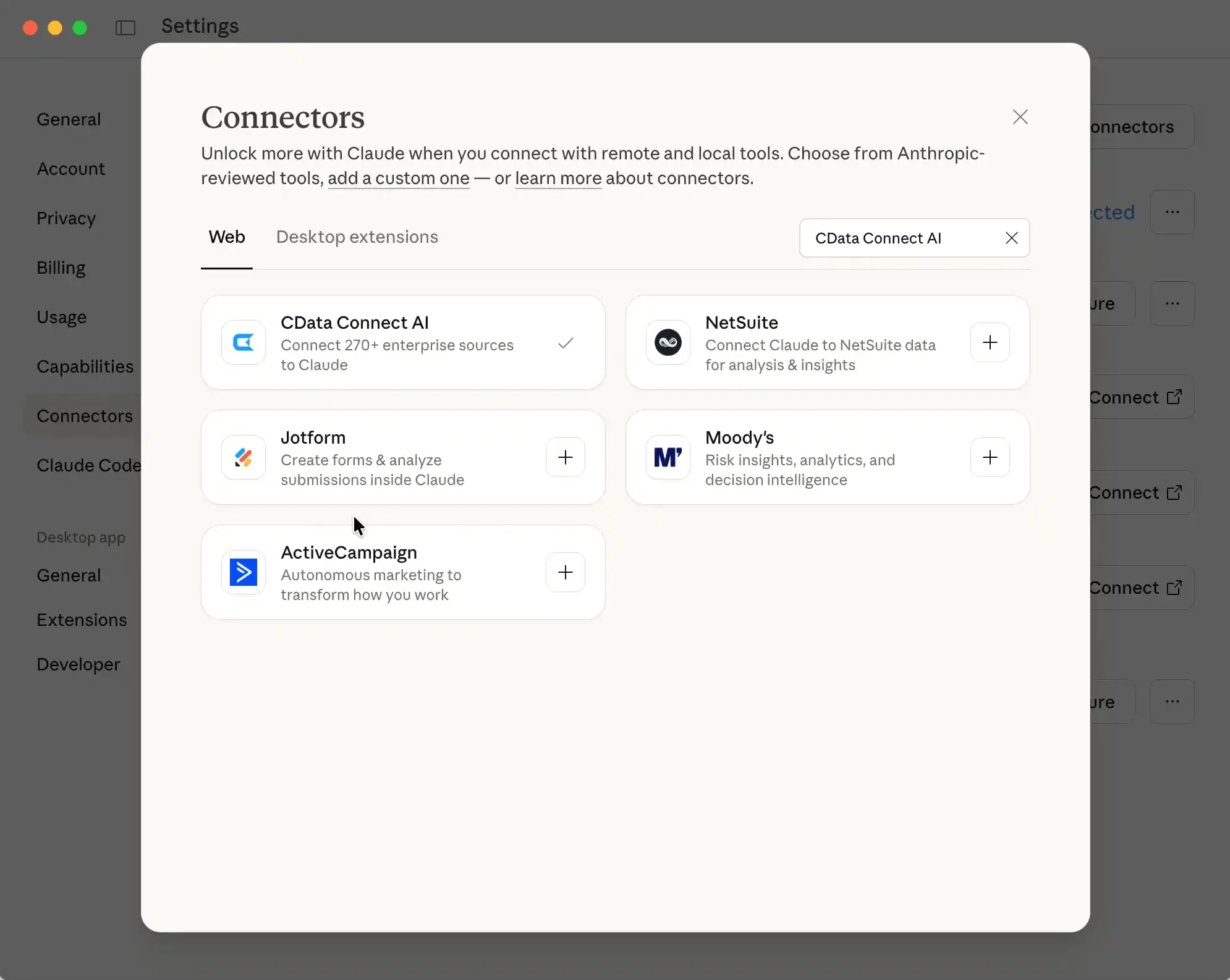
Click the button to Browse Connectors.
Search for "CData Connect AI" and click the listing.
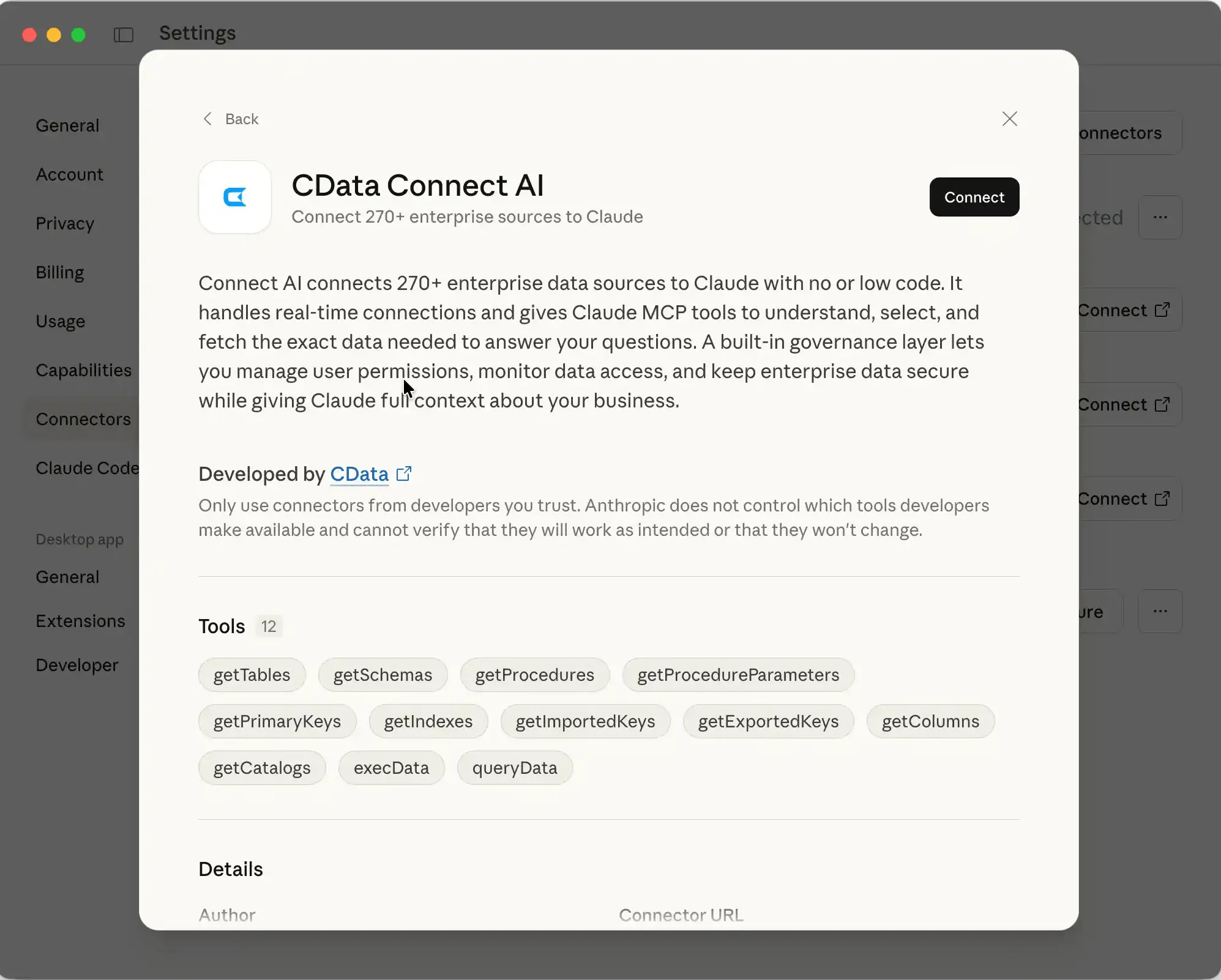
Click Connect and sign into your Connect AI account.
After connecting, Claude opens a new chat
Query ServiceNow with natural language
Now that Claude can access your ServiceNow data, you can start making natural language queries that replace complex dashboard navigation.
Here are some practical examples and tips:
Ask operational questions directly
“Show me all open incidents by assignment group.”
“What’s the average resolution time for P1 tickets this month?”
“List change requests awaiting approval.”
Validate responses
Claude provides transparent, step-by-step context on how data is retrieved via Connect AI
Always cross-check results against ServiceNow reports for initial validation
Use domain-specific phrasing
Claude understands ITSM terms like SLA, CMDB, Service Catalog, Priority, and Change Request
For custom tables, use their friendly names. Claude automatically maps them to technical table names.
Best practices
Combine related queries for richer insights, e.g., “Show SLA breaches by department and root cause.”
You can also visit the CData Prompt Library to find a curated library of ready-to-use AI prompts

Scale and optimize your integration
As your organization grows, scaling and optimizing the Claude–ServiceNow connection ensures consistent performance, security, and compliance.
Follow these best practices:
Monitor system performance
Troubleshoot common issues
If queries return empty results, confirm that Claude has permission for those specific ServiceNow tables
Ensure your ServiceNow API is enabled and that the instance URL uses HTTPS. Review the ServiceNow REST API documentation for endpoint details
Review audit logs in Connect AI for API or authentication failures
Plan for scale
Maintain governance and compliance
Enable audit logs for prompts, tool calls, and responses
Regularly review ACLs and permissions in ServiceNow to ensure alignment with enterprise policies
Frequently asked questions
How to connect ServiceNow to Claude?
Create a ServiceNow connection in Connect AI using your preferred authentication method (Basic, OAuth, or SSO). Then browse Connect AI connector in Claude.ai.
Do I need a ServiceNow admin role to set this up?
Yes, admin access is typically required to configure OAuth applications or verify table-level permissions.
How is data kept in place and secured?
Connect AI queries data in real time through ServiceNow's REST APIs without copying it. Your data remains in ServiceNow, and access adheres to existing ACLs and security policies.
Can I query ServiceNow custom tables?
Yes, custom tables appear in Connect AI's Data Model tab alongside standard ServiceNow tables. Use their natural names in queries—Claude automatically maps them.
What if my company enforces SSO/OAuth only?
Connect AI supports major identity providers including OKTA, ADFS, OneLogin, and PingFederate. Configure the SAML properties in your ServiceNow connection.
Talk to your ServiceNow data today with Connect AI
You can start exploring your ServiceNow ITSM data through natural language in minutes. Connect AI makes it effortless to connect Claude and unlock real-time insights across your organization without moving or replicating data.
Sign up for a 14-day free trial, the setup takes just minutes. Explore prebuilt connectors for 300+ enterprise systems. Get enterprise support and deployment options for large-scale integrations.





