LinkedIn is the world’s largest professional network, connecting more than a billion members worldwide. It offers a complete suite of tools for modern business and career growth, including professional profiles, company pages, job postings, content publishing, and advertising.
CData Connect AI is an enterprise integration solution that provides governed, real-time access to live business data using the Model Context Protocol (MCP). It links AI tools like Claude directly to source systems without duplicating or transferring data, ensuring every interaction stays secure, compliant, and up to date.
Claude, created by Anthropic, is an advanced AI assistant designed to interpret natural language and deliver meaningful, data-driven insights. When integrated with enterprise systems through Connect AI, Claude acts as an intuitive interface for exploring, analyzing, and reporting business data—no coding or technical skills needed.
Integrating Claude with LinkedIn via Connect AI gives teams instant access to engagement and performance metrics. Users can ask questions about follower growth, post engagement, or job application trends in plain language and receive insights within seconds. This connection eliminates manual reporting, saves time, and empowers marketing, recruiting, and business development teams to make smarter, data-driven decisions.
This blog is part of a comprehensive series exploring how to connect enterprise data sources to Claude AI using CData Connect AI. The series showcases how organizations can enable secure, governed, and natural language access to business-critical information with a no-code or low-code setup.
Understand prerequisites and scope
To ensure a smooth setup and optimal performance, it’s important to understand the prerequisites and scope for integrating LinkedIn with Claude through Connect AI.
Credentials and permissions: You’ll need a LinkedIn Developer account, OAuth credentials, and access to the Marketing Developer Platform for analytics and ads data.
Data types available: Claude can query company pages, analytics, follower insights, job postings, and network performance data.
Integration scope: Define use cases based on business goals marketing for engagement tracking, recruiting for applicant analysis, and business development for audience growth.
API access and OAuth scopes: Connect AI uses LinkedIn’s OAuth 2.0 with scopes such as:
Set up your LinkedIn connection in Connect AI
Configuring your LinkedIn connection properly in Connect AI ensures secure, reliable access to your professional network data.
Steps to create a new connection:
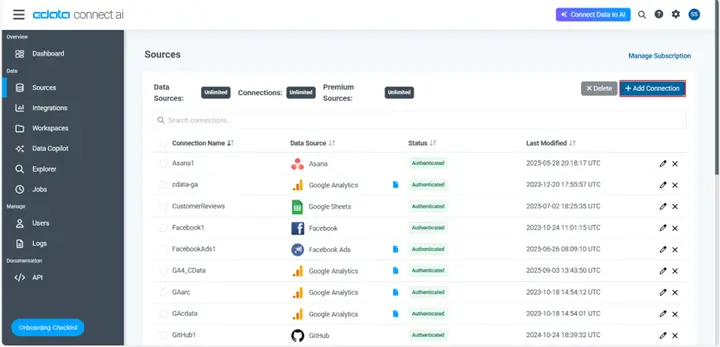
Open the Sources page of the Connect AI dashboard and click + Add Connection
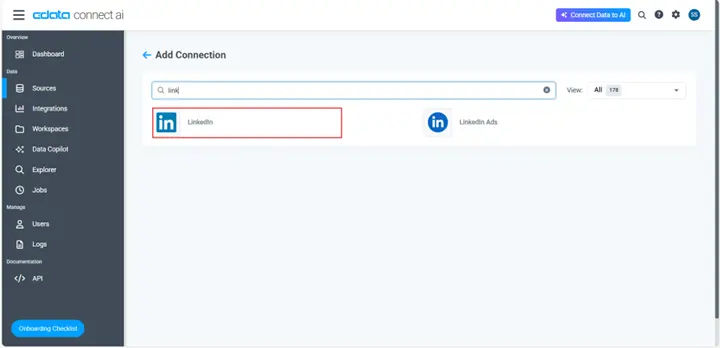
Select LinkedIn as the data source
Configure OAuth settings and optionally specify a Company Id (the number visible in your LinkedIn page URL)
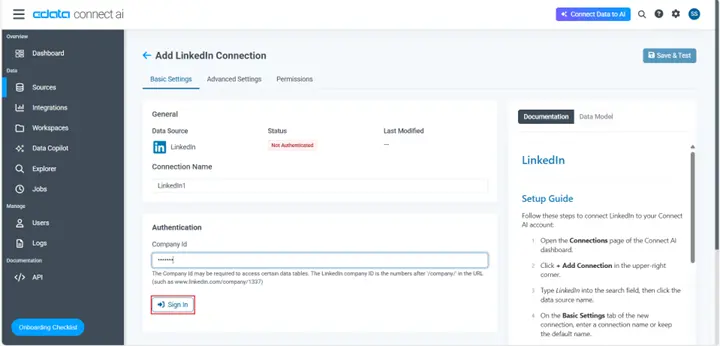
Click "Sign In" and follow the OAuth authorization flow to authenticate and grant access
Test the connection to confirm successful setup
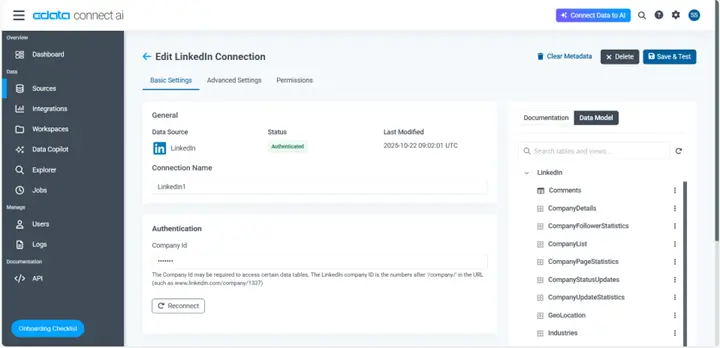
Troubleshooting tips:
Ensure your LinkedIn account has Marketing Developer Platform access
Verify OAuth scopes are correctly configured
Check that the Company Id is accurate
Connect Claude to your LinkedIn data
Enabling Claude to access your LinkedIn data through the Model Context Protocol creates a seamless bridge between AI and professional network information.
Follow these steps to add a CData Connect AI connector in Claude:
Sign in to Claude.ai or create a new account.
Expand the left navigation menu.
In the bottom-left corner, click your user name and select Settings from the menu. The Settings screen appears.
In the Settings screen, click Connectors.
Click the button to Browse Connectors.
Search for "CData Connect AI" and click the listing.
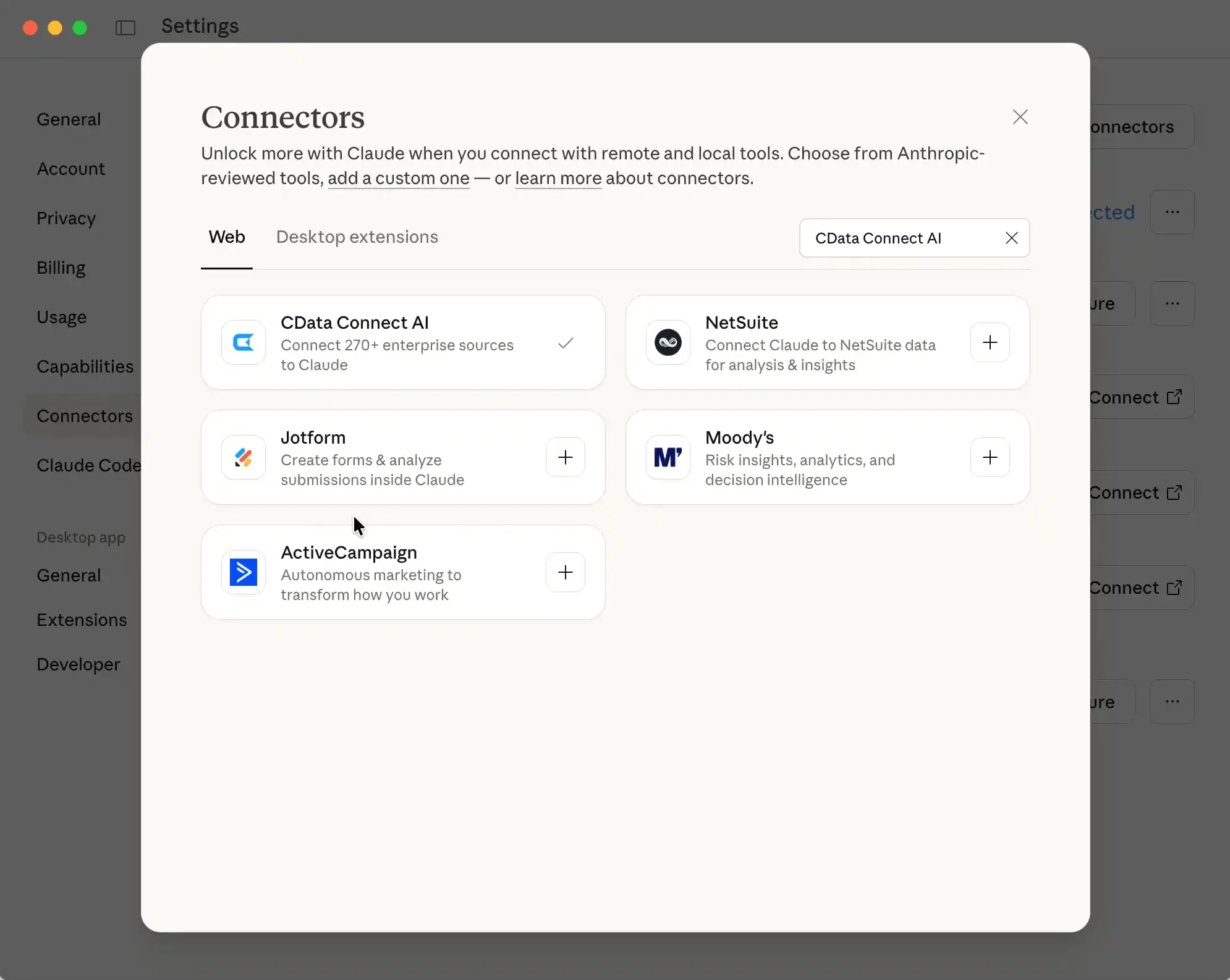
Click Connect and sign into your Connect AI account.
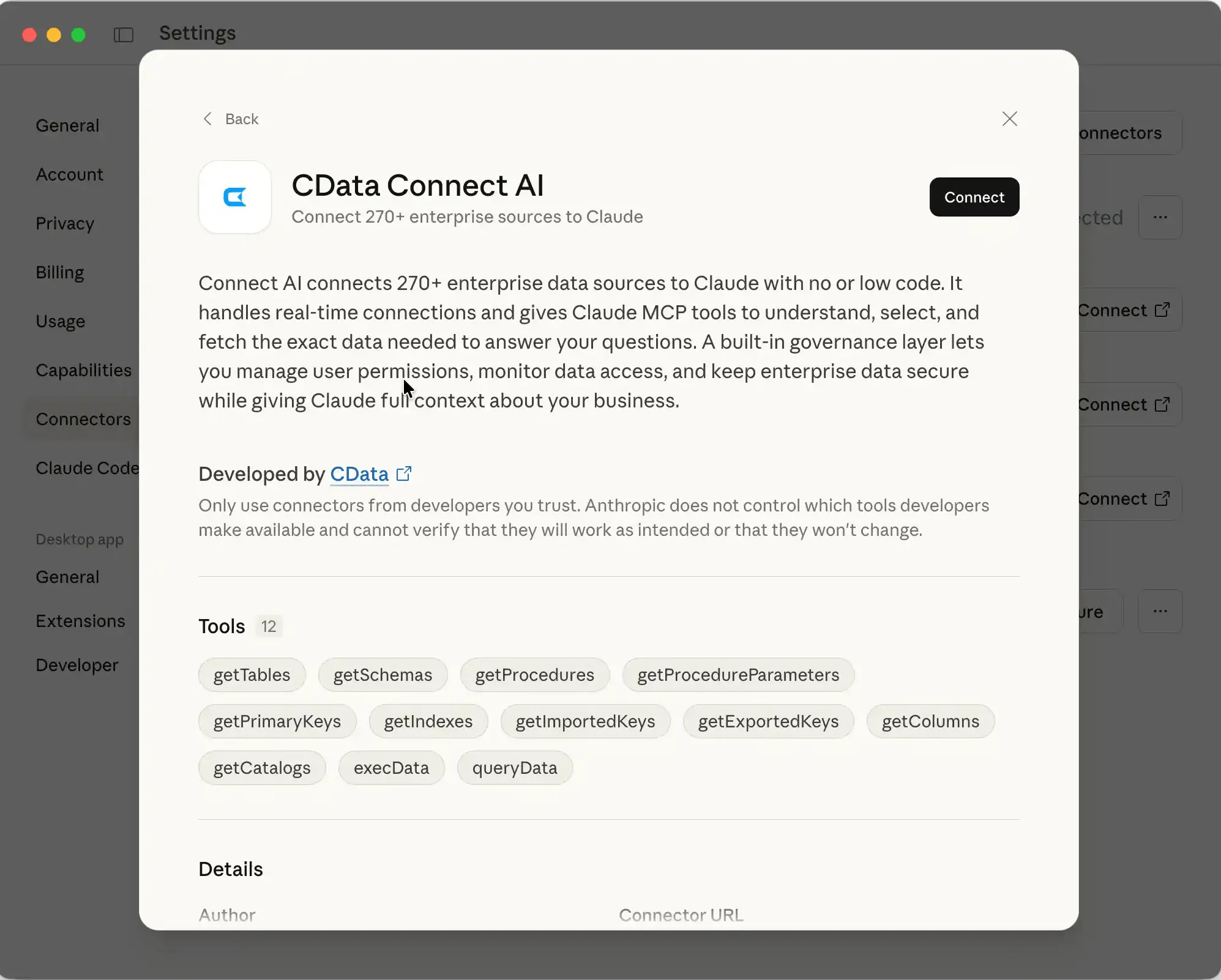
After connecting, Claude opens a new chat
Query LinkedIn with natural language
Utilizing Claude to query live data from LinkedIn allows for dynamic decision-making and actionable insights.
Ask Claude questions like:
“Show company page engagement for this month.”
“Which posts had the highest interactions?”
“How many new followers did we gain last week?”
Validate responses against LinkedIn analytics for accuracy. Keep in mind API rate limits and data access restrictions that may affect query frequency or detail.
Scale and optimize your integration
Troubleshooting any issues that arise during integration and planning for scale are essential for maintaining efficiency as your usage grows.
Common issues and solutions:
Authorization errors: Reauthenticate your LinkedIn account or refresh OAuth tokens
Rate limits: Stagger or batch large queries to prevent interruptions
Data discrepancies: Verify permissions and API scopes
Best practices for scaling:
Monitor system performance and manage query frequency
Enable audit logs for prompts, tool calls, and responses to ensure transparency
Follow governance and GDPR compliance standards when handling LinkedIn data
Frequently asked questions
How to connect LinkedIn to Claude?
To connect LinkedIn to Claude, first create a connection in Connect AI using OAuth authentication and optionally specify a Company Id, then browse Connect AI connector in Claude.ai.
Can Claude connect directly to LinkedIn without a connector?
No, Claude requires Connect AI as an intermediary connector to integrate with LinkedIn, ensuring secure data access management and compliance with LinkedIn's API policies.
Is posting or messaging via Claude allowed on LinkedIn?
No, LinkedIn's API policies don't support autonomous content posting or direct messaging through third-party applications. Claude can help analyze performance and draft content, but posting must be done through LinkedIn's official interfaces.
Which OAuth scopes do I need for LinkedIn Ads or company pages?
For company pages, you need r_organization_social scope. For LinkedIn Ads, you need r_ads (read) or rw_ads (read/write) scopes. These typically require Marketing Developer Platform access.
How do I revoke access if something goes wrong?
To revoke access, go to your LinkedIn account settings under "Account" and manage your authorized applications to remove the Connect AI integration, or disconnect the connector in your Connect AI dashboard.
Talk to your LinkedIn data today with Connect AI
Start exploring your LinkedIn company data with natural language in just minutes. CData Connect AI makes it effortless to connect Claude to your LinkedIn platform and unlock instant, data-driven insights.
Sign up for a 14-day free trial of CData Connect AI and connect Claude to your LinkedIn data today! For enterprise environments, CData also offers dedicated deployment support and managed configuration options.




