Odoo is a modular, open-source ERP platform designed to serve businesses of all sizes, from small startups to global enterprises. With integrated applications for CRM, sales, inventory management, manufacturing, accounting, HR, and e-commerce, it offers a comprehensive, all-in-one business management solution trusted worldwide.
Connect AI from CData is the first managed Model Context Protocol (MCP) platform built for AI workloads. It provides secure, governed, real-time access to over 300 enterprise data sources without copying data while preserving source semantics, relationships, and user permissions. Built on CData’s enterprise grade connectivity stack, Connect AI enables AI assistants like Claude to interact with live business data through natural language, transforming AI into a secure, context-aware enterprise tool.
Claude is an advanced AI assistant developed by Anthropic, designed to understand natural language queries and deliver intelligent, conversational responses. When integrated with enterprise data through Connect AI, Claude becomes a powerful interface for querying, analyzing, and reporting on business information all without needing SQL knowledge or technical expertise. This makes it easy for users across the organization to access real-time insights directly from complex data systems using simple, natural language prompts.
Why connect Claude to Odoo?
Connecting Claude to Odoo through CData Connect AI unlocks real-time business intelligence by live-querying data across CRM, Sales, Inventory, Accounting, and HR, no need for complex pipelines or custom reports. Claude instantly pulls cross departmental insights from live Odoo data, helping identify issues like sales gaps, supply chain risks, and overdue payments. Instead of navigating multiple modules, business leaders can ask questions in natural language to get unified visibility and reduce user friction. It provides faster, better-informed decisions across the entire operation.
This blog is part of a comprehensive series exploring how to connect enterprise data sources to Claude AI using CData Connect AI. The series showcases how organizations can enable secure, governed, and natural language access to business-critical information with a no-code or low-code setup.
Understand prerequisites and scope
To integrate Odoo with Claude using CData Connect AI, it’s important to define the prerequisites and scope for a smooth, secure setup.
Credentials & permissions: User need API credentials an Odoo user account with proper security groups, an API key or token, and permissions to read/write the required Odoo models.
Data types: Claude can access live Odoo data across CRM, sales, inventory, manufacturing, accounting, and HR modules. Select data domains based on user business needs.
Integration scope: Limit access to specific modules, regions, or business units to manage performance, security, and adoption.
Authentication: Odoo supports API token or service account access via REST/JSON RPC endpoints. This ensures clear, auditable permissions beyond standard username-password logins.
Properly setting up access ensures Claude delivers intelligent insights from live Odoo data with full control and security. For more details, refer to the official CData Connect AI logging and auditing documentation
Set up your Odoo connection in Connect AI
Configuring your Odoo connection properly in Connect AI ensures secure, reliable access to your ERP data.
Step 1: Generate an API token in your Odoo instance
Log into Odoo and navigate to the user profile, click Preferences, and open the API Keys section
Create a new key, label it, and copy it securely
Ensure the user has only the roles required for integration (principle of least privilege)
Step 2: Create a new connection in the Connect AI dashboard
Go to the Connections page and click "+ Add Connection"
Select Odoo as the data source type.
Enter the Odoo base URL, database name, username (or service user), and the API token.
Choose read-only or write access based on use case. For detailed instructions and screenshots, refer to the official CData Connect AI Odoo setup guide
Troubleshooting tips
For authentication errors, check the database name, URL path, and API token validity.
Confirm the user has the right security groups.
On self-hosted Odoo, verify XML RPC or the REST module is enabled.
Ensure network and firewall settings allow access from Connect
Tips for reliability
Connect Claude to your Odoo data
Enabling Anthropic Claude to access your Odoo data through the MCP creates a bridge between AI and ERP insights, empowering smarter, faster decisions. The MCP serves as the secure middleware that connects Claude to CData Connect AI, allowing the model to query live Odoo data safely and contextually.
Follow these steps to add a CData Connect AI connector in Claude:
Sign in to Claude.ai or create a new account.
Expand the left navigation menu.
In the bottom-left corner, click your user name and select Settings from the menu. The Settings screen appears.
In the Settings screen, click Connectors.
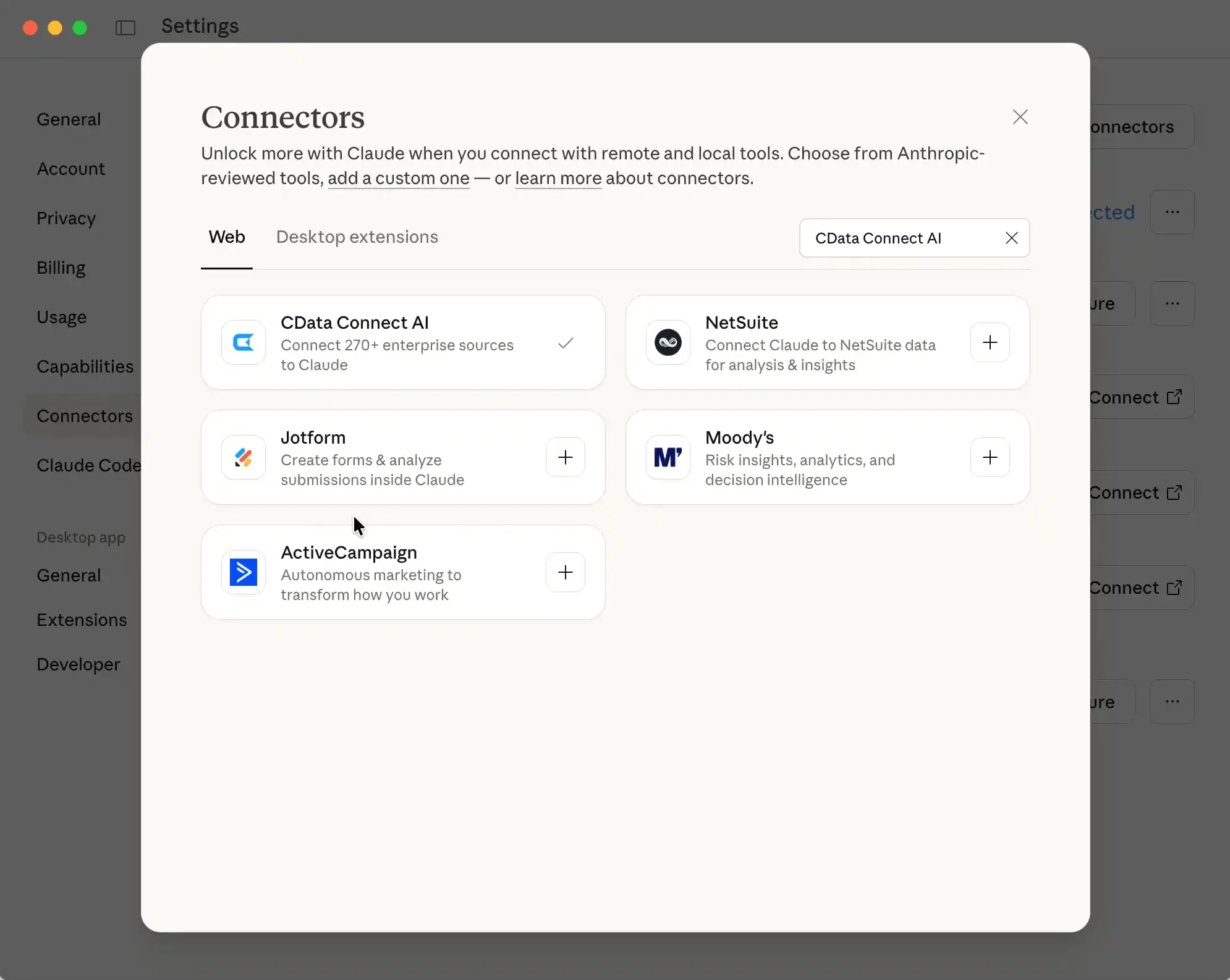
Click the button to Browse Connectors.
Search for "CData Connect AI" and click the listing.
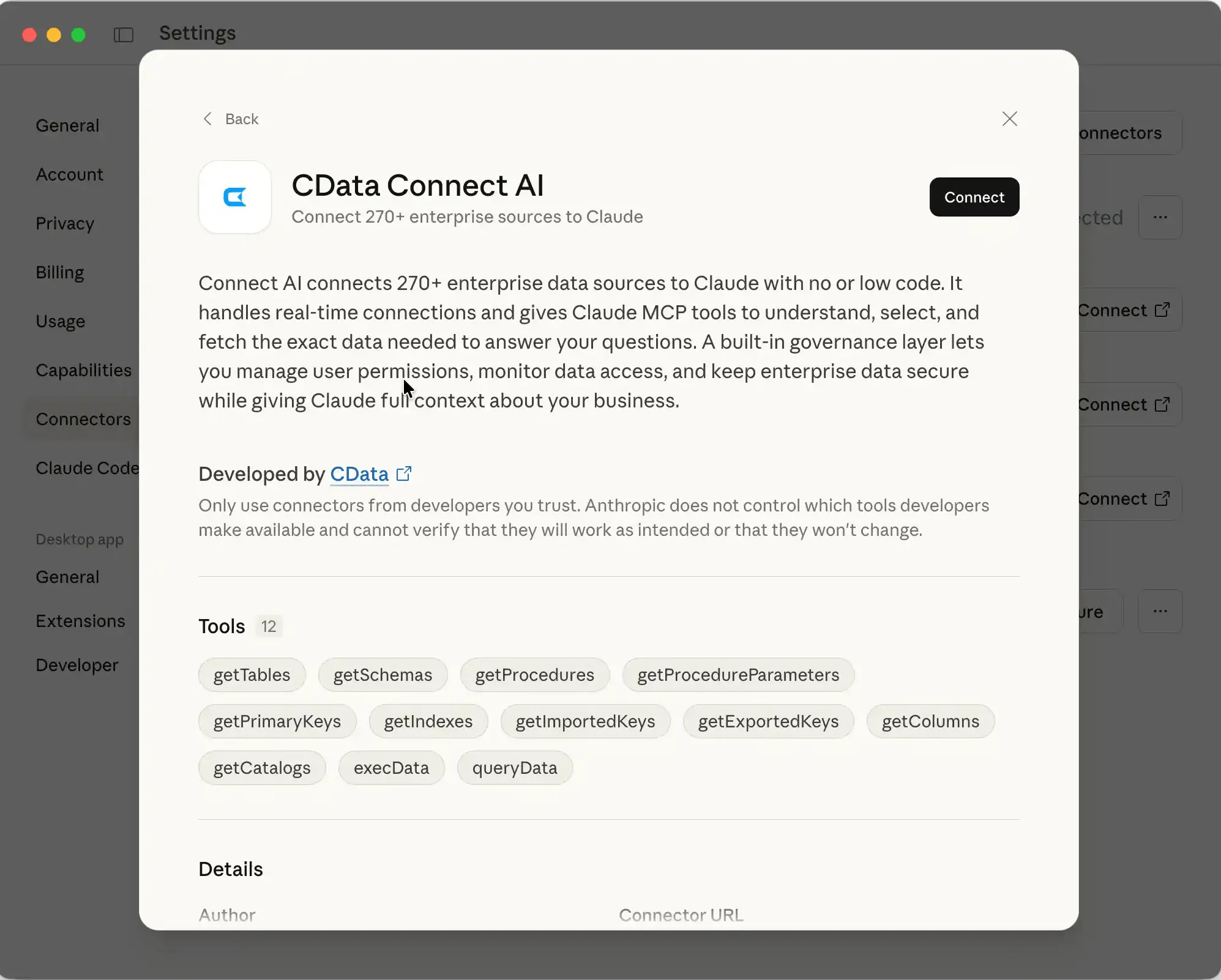
Click Connect and sign into your Connect AI account.
After connecting, Claude opens a new chat
Query Odoo with natural language
Using Claude to query live data from Odoo enables real-time decision-making and actionable insights, eliminating manual report creation. Claude interprets natural language queries and translates them into structured data requests via the MCP connected to CData Connect AI. This allows business users to extract Odoo information conversationally, no SQL needed.
See how this works in the official CData integration guide for Claude and Odoo.
How to use Claude to query Odoo
Craft effective queries with clear intent:
Use natural language prompts that are concise and goal oriented.
Example prompts:
“Show me this month’s top 10 customers by revenue.”
“List pending sales orders over $10,000.”
“What’s the current stock for Product X?”
“Summarize total expenses by category for Q3.”
Validate responses:
Compare Claude’s answers with existing Odoo dashboards or reports.
Cross-check totals, dates, and record counts to ensure accuracy.
Follow best practices for reliable results:
Reference Odoo models (e.g., sale.order, res.partner, account.move) when designing prompts.
For custom modules, provide short schema descriptions so Claude can interpret fields correctly.
Use consistent terminology across queries, such as “customer,” “sales order,” or “invoice.”
Scale and optimize your integration
To maintain performance and reliability as the integration grows, it’s important to plan for scalability, address common issues, and enforce governance.
Troubleshoot smartly: Resolve common integration issues by checking API credentials, security group permissions, and network connectivity.
Scale strategically: As the data volumes and Odoo module usage increase, monitor connection performance and optimize query efficiency.
Implement monitoring & feedback loops: Continuously track system performance and user interactions to identify bottlenecks and improve over time.
Prioritize governance: Use dedicated roles, enforce audit logging, and apply least privilege access with well-defined security groups to maintain control and compliance.
Proper planning ensures the Claude and Odoo setup remains efficient, secure, and responsive as the business evolves.
Frequently asked questions
How to connect Odoo to Claude?
To connect Odoo to Claude, first generate an API token in your Odoo instance, create a connection in CData Connect AI with your Odoo credentials, then browse Connect AI connector in Claude.ai.
Can I restrict Claude to specific Odoo modules?
Yes, Odoo's security model is enforced at the database level. Create a dedicated Odoo user with access only to specific security groups, then use that user's API token in Connect AI.
What should I do if Claude can't see Odoo tools?
Verify the API connection in Connect AI, check that your Odoo user has appropriate permissions, ensure the connection status shows as Authenticated, and review tool settings in Claude.ai.
Can I query Odoo custom modules with Claude?
Yes, custom models appear in Connect AI's Data Model tab alongside standard Odoo models. You can query custom fields and relationships using natural language.
How do I handle authentication errors?
If authentication fails, verify your API token hasn't been revoked, check that the database name is correct, ensure your base URL is accessible, and confirm XML-RPC is enabled for self-hosted instances.
Talk to your Odoo data today with Connect AI
Start querying your Odoo data with natural language in minutes. Connect AI makes it simple to connect Claude to your accounting platform.
Sign up for a 14-day free trial of CData Connect AI and connect Claude to your Odoo data today! For enterprise environments, CData also offers dedicated deployment support and managed configuration options.




