Connecting Microsoft SharePoint with Snowflake turns everyday documents into live, analytics-ready data. Teams can explore insights in real time, apply AI models, and make smarter decisions with speed and accuracy.
While the 2024 release of the Snowflake Connector for SharePoint simplified this process, with the CData Sync no-code platform, you can build automated data pipelines in just minutes; no heavy scripting or engineering effort required.
For organizations that need even greater flexibility, CData Sync supports enterprise-grade replication not just from SharePoint, but from 100+ other SaaS, database, and file sources directly into Snowflake. In this article, we will explore a few steps that you need to build a secure, scalable integration.
Assess data and security requirements
Before you connect anything, a short discovery phase helps both IT and business stakeholders align on what data to move and how to protect it.
What to inventory:
File types: documents, spreadsheets, PDFs, images
Metadata fields: file name, author, modified date, custom tags
Version history: whether to retain or flatten versions
Must-capture items:
Security considerations:
OAuth scopes: request only the Files.Read.All scope for least privilege
Permission inheritance: ensure parent library permissions propagate correctly
Compliance: validate against GDPR and SOC 2/ISO 27001 standards
Definitions:
OAuth: a secure standard for delegated authentication.
CDC (change data capture): a technique for syncing only new or updated records.
Permission hierarchy: the layered structure of who can access what within SharePoint.
Once requirements are documented, you’re ready to configure the connector.
Configure the CData SharePoint connector
The CData Sync SharePoint connector makes establishing a secure connection straightforward:
Install & launch: Download the connector and open CData Sync
Add source: Choose Microsoft SharePoint as the source type
Authenticate: Use OAuth 2.0 or Kerberos to authenticate securely
Select objects: Pick lists, document libraries, and metadata fields to replicate
Validate & save: Test the connection and confirm schema detection
CData Sync supports SharePoint Online and on-premises SharePoint Server with enterprise-grade security (OAuth, Kerberos, fine-grained ACLs). For detailed instructions, refer to CData Sync - Microsoft SharePoint.
With the connector live, the next step is configuring Snowflake as your target.
Set up Snowflake as the replication destination
Inside Snowflake, create a dedicated environment for SharePoint data.
Run SQL commands to create the database, schema, and role, then grant privileges in the worksheet.
CREATE DATABASE sharepoint_db;
CREATE SCHEMA sharepoint_schema;
CREATE ROLE sharepoint_loader;
GRANT USAGE ON DATABASE sharepoint_db TO ROLE sharepoint_loader;
GRANT USAGE, CREATE TABLE ON SCHEMA sharepoint_db.sharepoint_schema TO ROLE sharepoint_loader;
GRANT INSERT ON ALL TABLES IN SCHEMA sharepoint_db.sharepoint_schema TO ROLE sharepoint_loader;
Best practices:
Use a dedicated warehouse for ETL jobs
Enable automatic clustering for better query performance
Apply data masking policies to sensitive columns like user emails
Snowflake’s best-practice data loading guide provides more recommendations.
Define replication queries and map schemas
CData Sync’s preview feature lets you inspect available SharePoint tables before mapping.
Schema mapping checklist:
SharePoint Column | Snowflake Column | Notes |
FileName | FILE_NAME | Rename to align with Snowflake naming standards |
ModifiedDate | LAST_MODIFIED | Used as watermark column for incremental sync |
Permissions | PERMISSIONS_JSON | Preserve as JSON to enable Row-Access-Policy enforcement |
CData Sync automatically pushes filters down to SharePoint, ensuring efficient extraction without extra tuning.
With schemas mapped, you can now start scheduling jobs.
Schedule incremental sync jobs
Set up incremental updates in Sync to avoid full reloads and keep data fresh.
Configuring incremental updates:
In your job, enable incremental updates for selected tables
Choose the watermark column (e.g., ModifiedDate)
Run a test sync to confirm only new/changed rows are pulled
Save and schedule your job
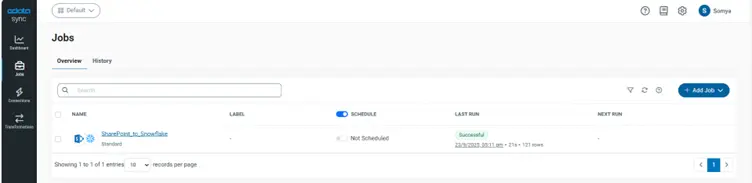
Scheduling options:
Time-based: every 15 minutes, hourly, nightly
Chained jobs: trigger after another ETL task finishes
API-triggered: call Sync’s REST endpoint programmatically
For detailed steps, see the CData Sync Jobs documentation.
Tip: Keep under 900 API calls per 60 seconds by batching data and using watermarks to avoid duplicates.
Once scheduling is live, you’re ready to monitor performance.
Monitor performance and enforce permissions
Monitoring ensures ongoing reliability.
Use CData Sync’s built-in dashboard to watch job status, row counts, error rates, and latency in real time
In Snowflake, query ACCOUNT_USAGE.QUERY_HISTORY or Snowsight History to validate job completion times and row counts
Verifying permissions:
Query the PERMISSIONS_JSON column in Snowflake to confirm that user/group ACLs from SharePoint are stored correctly
Create row access policies to enforce row-level security
Attach the policy to your replicated table
This ensures Snowflake respects the same access rules as SharePoint.
This step ensures your governance model remains intact as your data grows.
Troubleshoot issues and plan for scaling
Even with automation, issues can arise.
Issue | Symptom | Fix |
Connection timeout | Job fails to start | Check firewall/proxy settings, re-authenticate OAuth or Kerberos, verify Snowflake region URL |
API throttling | HTTP 429 or rate-limit errors | Reduce batch size, add retry logic, honor 900 calls/60s limit |
Schema drift | Missing column or "invalid column name" errors | Re-run schema discovery in Sync, remap new columns, redeploy job |
Job stalls | Sync job hangs or partial loads | Review Sync logs, restart job with adjusted batch size or concurrency |
Scaling roadmap:
Start with a single warehouse
Add multi-cluster warehouses for concurrent analytics
Use bulk load mode when data exceeds 10 TB
Frequently asked questions
How do I authenticate the SharePoint connector securely?
Use OAuth 2.0 with Azure AD tenant credentials; configure the connector to request only the Files.Read.All scope and store the refresh token in an encrypted vault.
Can I use incremental (CDC) replication instead of full loads?
Yes—enable the connector's Incremental Sync mode, which tracks file modifications via SharePoint's LastModified timestamp and only transfers changed rows.
What are the limits on data volume or API calls?
The Snowflake SharePoint connector allows up to 900 API calls per 60 seconds; for large volumes, batch requests and back-off logic prevent throttling.
How are SharePoint permission hierarchies preserved in Snowflake?
Permissions are ingested as a JSON column that captures user and group ACLs; Snowflake Row-Access-Policies can then enforce the same read-only constraints.
What should I do if a replication job fails or stalls?
Review the connector's log file for error codes, check Snowflake's QUERY_HISTORY for aborted statements, and restart the job after adjusting the batch size or API throttling settings.
How can I optimize query performance in Snowflake?
Enable query push-down, cluster on frequently filtered columns, and use Snowflake's result-set caching to reduce compute costs.
What are the next steps after the initial integration is live?
Validate data quality, set up automated monitoring alerts, and expand the pipeline to include additional SharePoint libraries or external data sources.
Start your SharePoint to Snowflake integration journey with CData
To modernize your document analytics pipeline, focus on data discovery, secure connector configuration, schema alignment, and continuous monitoring. CData Sync provides a no-code, enterprise-ready way to replicate SharePoint data with support for permissions, incremental updates, and governance across cloud, on-premises, or hybrid environments.
Sign up for a free trial today and start building your SharePoint-to-Snowflake pipeline with confidence.





