AI assistants are only as useful as the data they can reach. For most enterprise teams, that's still a bottleneck: Claude is powerful, but it's sitting outside the walls of your data infrastructure, working with whatever someone manually hands it.
Connecting Claude to live SQL Server data removes that bottleneck. With the right setup, Claude queries your tables directly, respects your access controls, and gives your team real-time answers without anyone playing data courier in between.
This guide explores how to set that up using CData Connect AI, which handles the Model Context Protocol (MCP) connectivity, security, and governance layer between Claude and your SQL Server environment, so your team doesn't have to build it from scratch.
Overview of CData Connect AI
CData Connect AI is an enterprise-grade, managed MCP platform that gives AI models like Claude secure, governed access to live business data. It connects to 350+ data sources, from databases like SQL Server and Snowflake to SaaS applications like Salesforce and NetSuite, and works across multiple AI models including Claude, ChatGPT, and Microsoft Copilot.
Three things define how it works:
No-code setup: Connect your data sources through a guided interface with no custom engineering required.
Query pushdown: SQL operations run at the source, so Claude works with filtered, relevant results rather than pulling entire datasets.
Inherited governance: Access controls from your existing SQL Server environment carry over automatically. A user who can't access certain tables in SQL Server won't see that data through Claude either.
There's no separate permission layer to build or maintain, which makes IT and compliance sign-off significantly easier.
Key features enabling real-time SQL Server and Claude connectivity
The integration between SQL Server and Claude becomes genuinely useful at enterprise scale because of a few specific capabilities:
Live data access: Claude queries your actual SQL Server data in real time. No snapshots, no ETL jobs, no sync lag.
Full SQL pushdown: Connect AI pushes complete SQL operations, including filters, JOINs, and aggregations, directly to SQL Server. The heavy lifting happens at the source, not inside Claude's context window.
Permission inheritance: Access controls defined in your SQL Server environment carry over automatically. Claude works within your existing security model, not around it.
Cloud and on-premises support: Whether your SQL Server instance lives in Azure, AWS, or on your own hardware, Connect AI handles the connectivity through a consistent interface.
Workflow automation: Beyond answering questions, Claude can trigger actions, generate reports, and initiate downstream processes based on query results.
Preparing your environment for integration
Before you touch any configuration, spend a few minutes on a checklist. The setup itself is straightforward. What slows teams down is realizing mid-way through that credentials aren't scoped correctly, or the right account tier isn't in place.
What you need in place:
SQL Server access with credentials scoped to the data Claude should reach
A CData Connect AI account with an active license
A Claude account with access to Claude's Connectors section, available on Pro, Team, and Enterprise plans
A decision on access scope: whether Claude starts with read-only access or write operations are in scope from day one
It's also worth making a quick inventory of which databases and tables you're opening up to Claude and who owns them. That context makes permission configuration significantly faster and saves you from scoping too broadly on the first attempt.
Step 1: Installing and configuring CData Connect AI
Start by setting up your Connect AI account. The platform is cloud-hosted, so there's no software to install.
Complete the initial account setup and add team members who need access to manage connections.
If your organization uses SSO, configure your identity provider here. Connect AI supports standard OAuth and enterprise SSO, so user identities flow through into every agent interaction.
If your SQL Server instance is on-premises, set up the CData Connect Gateway. It creates a secure, outbound-only tunnel between your network and Connect AI — no firewall changes required, and your data stays within your network.
For most SQL Server integrations, cloud deployment gets you to a working connection in minutes.
Step 2: Setting up Connect AI in Claude
From your Claude settings, navigate to the Connectors section and search for "CData Connect AI."
Authenticate with your Connect AI credentials.
Once connected, the integration is available to everyone in your organization using Claude under the same account.
Note: After connection, under Connectors, it appears as "Connect AI MCP."
This matters for teams because governance policies apply consistently across all Claude users. If someone's SQL Server permissions don't include a particular table, Claude won't return that data for them regardless of how they ask.
Step 3: Connecting SQL Server data sources securely
From your Connect AI dashboard, go to Sources and click + Add Connection.
Search for SQL Server from the connector list and select it.
Enter your connection details: server address, database name, authentication method (SQL Server auth or Windows auth), and credentials.
Note: The SQL Server connector also supports CData Connect Gateway, which acts as a bridge between your on-premises data and Connect AI.
Set the access scope. Define which databases, schemas, and tables this connection exposes.
Click Save and Test to validate the connection.
Once the test passes, your SQL Server data is available through Connect AI's Remote MCP Server. The connection is encrypted, authenticated, and logged from end to end. For multiple SQL Server instances, repeat this process for each one.
Step 4: Performing live SQL queries with Claude
With the connection live, open Claude and start querying. Connect AI handles the translation between natural language and SQL, so users don't need to write queries manually. Prompts your team can use right away:
"Show me all orders placed in the last 30 days with a value over $10,000."
"What's the average resolution time for support tickets created this quarter?"
"List the top 10 customers by total revenue in the North America region."
Claude generates the SQL, sends it to SQL Server through the Connect AI MCP endpoint (https://mcp.cloud.cdata.com/mcp), and returns results in a readable format. JOINs and aggregations run at the SQL Server level, not inside Claude's context window.
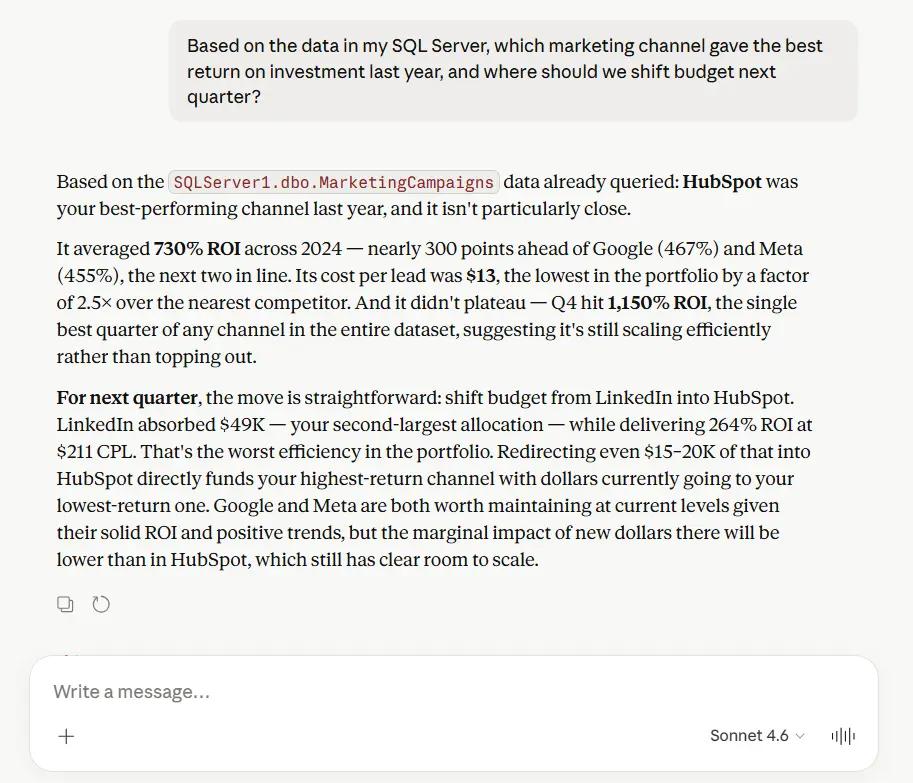
A few tips for consistent results:
Be specific about time ranges. "Last 90 days" lands better than "recent."
Name the tables or data domains you're asking about if your schema isn't self-explanatory.
Save recurring report prompts as templates for reproducible output.
Step 5: Testing and optimizing data interactions
Run queries you already know the answers to and check that Claude's output matches. Key things to check:
Response time on complex queries with JOINs across large tables
Accuracy of aggregations versus source data
Behavior when a query returns zero results
Permission boundaries working as configured
If performance is slow, the fixes are usually on the SQL Server side:
Add indexes to frequently queried columns.
Review query execution plans in SQL Server Management Studio.
Avoid exposing views that do expensive computation at query time.
On the Connect AI side, confirm query pushdown is enabled so large result sets are processed at the source.
Security and compliance considerations in integration
Governed access means data access is restricted, monitored, and limited to approved actions. Claude can't query a table a user isn't authorized to see, can't run write operations unless explicitly enabled, and can't exfiltrate data outside the audit trail.
CData Connect AI enforces this through:
End-to-end encryption for all data in transit
Permission inheritance from your existing SQL Server access controls
Audit logging for every query, including user identity and timestamp
Policy enforcement that limits what operations Claude can perform at the connection level
For organizations in regulated industries, Connect AI's compliance posture aligns with SOC 2, ISO 27001, and GDPR standards.
Benefits of using Connect AI to power SQL Server and Claude workflows
Capability | CData Connect AI | Traditional ETL/Replication |
Data freshness | Live, near real-time | Batch, often hours behind |
Setup time | Minutes | Days to weeks |
Coding required | None | Significant |
Permission model | Inherits existing controls | Requires separate configuration |
Governance | Built-in audit logging | Custom or none |
Multi-source support | 350+ data sources | Per-source pipelines |
Connect AI closes the gap between when something happens in SQL Server and when Claude knows about it, without your team building custom data infrastructure to get there.
Advanced use cases and automation opportunities
SQL Server is often the starting point. Once Claude has governed access to your SQL Server data, extending it to other sources follows the same pattern. Real-world scenarios where teams go further:
Cross-system reporting: Combine SQL Server transaction data with Salesforce CRM records for customer health reports that include both purchase history and relationship context.
Supply chain monitoring: Query inventory and order data in real time, then trigger alerts or workflow actions when thresholds are crossed.
Finance automation: Run period-close queries against financial tables, generate formatted summaries, and route them for approval from a single Claude prompt.
Connect AI also supports stored procedures, batch updates, and custom entity integrations for teams ready to go deeper.
Troubleshooting common integration challenges
Connection errors on setup: Usually a credentials issue or a firewall blocking outbound connections. Confirm SQL Server allows connections from Connect AI's IP ranges.
Permission denied errors: The authenticated user lacks SELECT rights on the target table. Verify permissions in SQL Server directly, then check that Connect AI is using the correct credentials.
Slow query responses: Query pushdown may not be enabled, or the query hits an unindexed column. Review the execution plan in SQL Server Management Studio (SSMS) and check connection settings in Connect AI.
Claude returning outdated data: Caching may be enabled. Adjust the cache duration in Connect AI's settings for your SQL Server source.
For anything not covered here, explore the CData Community forum and SQL Server documentation for Connect AI to know more.
Frequently asked questions
How do I integrate Claude with SQL Server using CData Connect AI?
To integrate Claude with SQL Server using CData Connect AI, log into Connect AI, set up the custom connector for Claude, and securely connect to your SQL Server data source — all steps are accessible through guided configuration in the Connect AI platform.
What data sources can Claude access through CData Connect AI?
Claude can securely access 350+ enterprise data sources via CData Connect AI, including SQL Server, Salesforce, Azure DevOps, Google Calendar, NetSuite, and more.
How does CData ensure security and compliance in AI integrations?
CData uses policy enforcement, permission inheritance, audit logging, and encryption to secure data access, ensuring that AI integrations meet enterprise security and compliance standards.
Can Claude perform actions on SQL Server data, or only answer queries?
Claude can both answer queries and, with proper permissions, perform actions such as updates or workflow triggers on SQL Server data using Connect AI MCP.
Start querying live SQL Server data with Claude
CData Connect AI handles connectivity, security, and governance so you don't have to. Start a 14-day free trial and run your first live query for SQL Server data in Claude today.





