Discover how to connect live HubSpot data to Power BI using CData Connect AI to empower fast, governed connectivity with no coding. HubSpot is a leading CRM platform that supports both marketing and sales teams with critical customer and campaign data. When combined with Power BI using Connect AI, users gain immediate and trusted insights without the burden of building and maintaining pipelines.
Try It Free
Why connect HubSpot and Power BI
Visualizing HubSpot data in Power BI can unlock valuable insights into tracking lead progression, sharing pipeline health, and acting on overall campaign engagement. However, Power BI does not offer a native connector for HubSpot, which leaves many users dependent on manual exports or fragile scripts.
Organizations are often searching for reliable ways to connect to live HubSpot data in Power that enable automated refreshes and scalable reporting. A lack of native connectivity poses challenges for teams that need to monitor sales activity and campaign performance. Relying on outdated exports or custom solutions poses the risk of making decisions based on stale or inaccurate data.
The business case for unifying marketing and sales data
Combining HubSpot's Marketing Hub and Sales Hub data in Power BI enables powerful closed-loop analytics. Marketing teams can see which campaigns drive closed deals, while sales teams gain immediate context from campaign engagement. Unifying this data provides:
Pipeline Clarity: Improve spend allocation by linking campaign influence to deals closed.
Faster decision making: Eliminate the lag of manually exporting and then unifying the data.
Shared KPIs: Align around a single source of truth for MQL -> SQL -> Closed Won metrics.
Many organizations are continuing to seek out guides for HubSpot-to-Power BI Integration to unify these datasets. Searching for a solution that provides live access data for persistent refreshes, ensuring their sales and marketing teams have the resources they need to make data-driven decisions and drive results.
Common pitfalls of exports and custom scripts
Exporting CSV files directly from HubSpot or creating custom scripts to connect to HubSpot data can introduce several challenges when building pipelines that are performant and can scale:
Data staleness: Reports and analyses will only be as current as the last export run. When your data isn’t live and can’t be automatically updated, the impact and accuracy of reports can deteriorate.
Manual entry errors: Formatting inconsistencies or missing rows can introduce inaccurate data, leading to incorrect insights, pipeline errors, or broken dashboards.
Schema changes: HubSpot’s schema can change unexpectedly, breaking created reports or stale custom scripts.
Breaking API changes: The HubSpot API can make changes quickly that can break connections and kill your data pipeline. OAuth updates or breaking changes like API Key deprecation can make existing scripts obsolete.
No governance: Manual steps lack the ability to audit and control data access. This results in no way to track who accessed which data when, and no permissions controls to prevent unauthorized access to data.
Limited scalability: Exports and custom scripts cannot keep up as organizations scale. As data volume increases, large file exports can become unusable, and custom scripts that lack proper paging and caching can cause significant performance issues.
Data silos: Isolated spreadsheets and exports prevent organizations from having a unified view across multiple functions and systems.
Instead, a governed, no-code platform like CData Connect AI can drastically reduce the risk of encountering these pitfalls while providing organizations with live and accurate data from HubSpot directly in Power BI.
Benefits of governed, no-code, live connectivity
Using a governed, no-code solution like CData Connect AI, organizations can unlock benefits such as:
No data movement: Query live HubSpot data directly in Power BI without building and maintaining ETL/ELT pipelines.
No-code setup: Authenticate and connect via an easy-to-use UI with no coding needed.
Enterprise governance: Connect securely with single sign-on (SSO) support, robust access controls, audit logs, and field-level security.
Broad connectivity: Blend HubSpot data with data from other sources like Salesforce, SQL Server, spreadsheets, and many more.
Now that you understand best practices for connecting to HubSpot from Power BI, let's see how it's done with CData Connect AI.
How to connect HubSpot to Power BI step by step
Step 1: Create a HubSpot Private App Token
You can generate a HubSpot Private App Token by following the steps below:
In your HubSpot account, click the Settings icon in the main navigation bar.
In the left sidebar menu, navigate to Integrations > Private Apps.
Click Create private app.
On the Basic Info tab, configure the details of your application (name, logo, and description).
On the Scopes tab, select Read or Write for each scope you want your private application to be able to access. This determines the data the driver has access to retrieve.
After you are done configuring your application, click Create app in the top right. Review the information about your application’s access token, click Continue creating, and then Show token.
Step 2: Add HubSpot to CData Connect AI
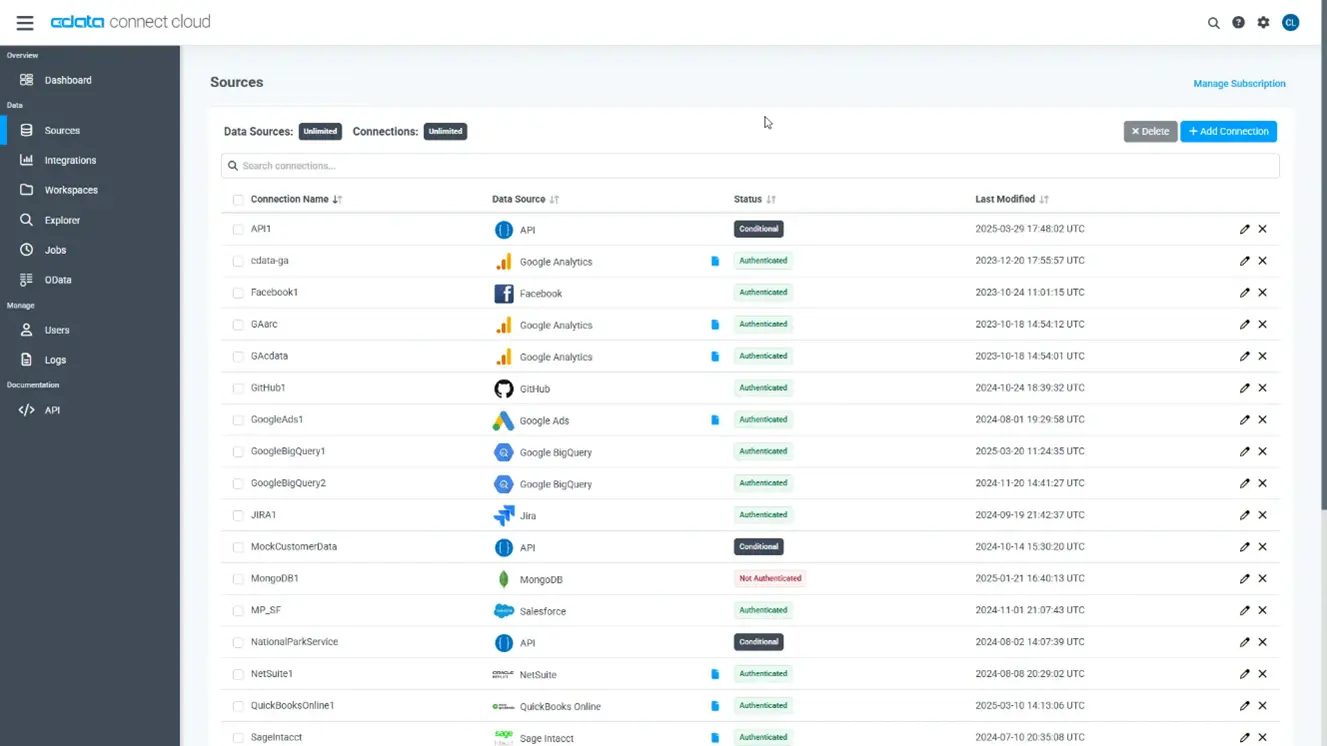
Log into Connect AI, click Sources, and then click + Add Connection
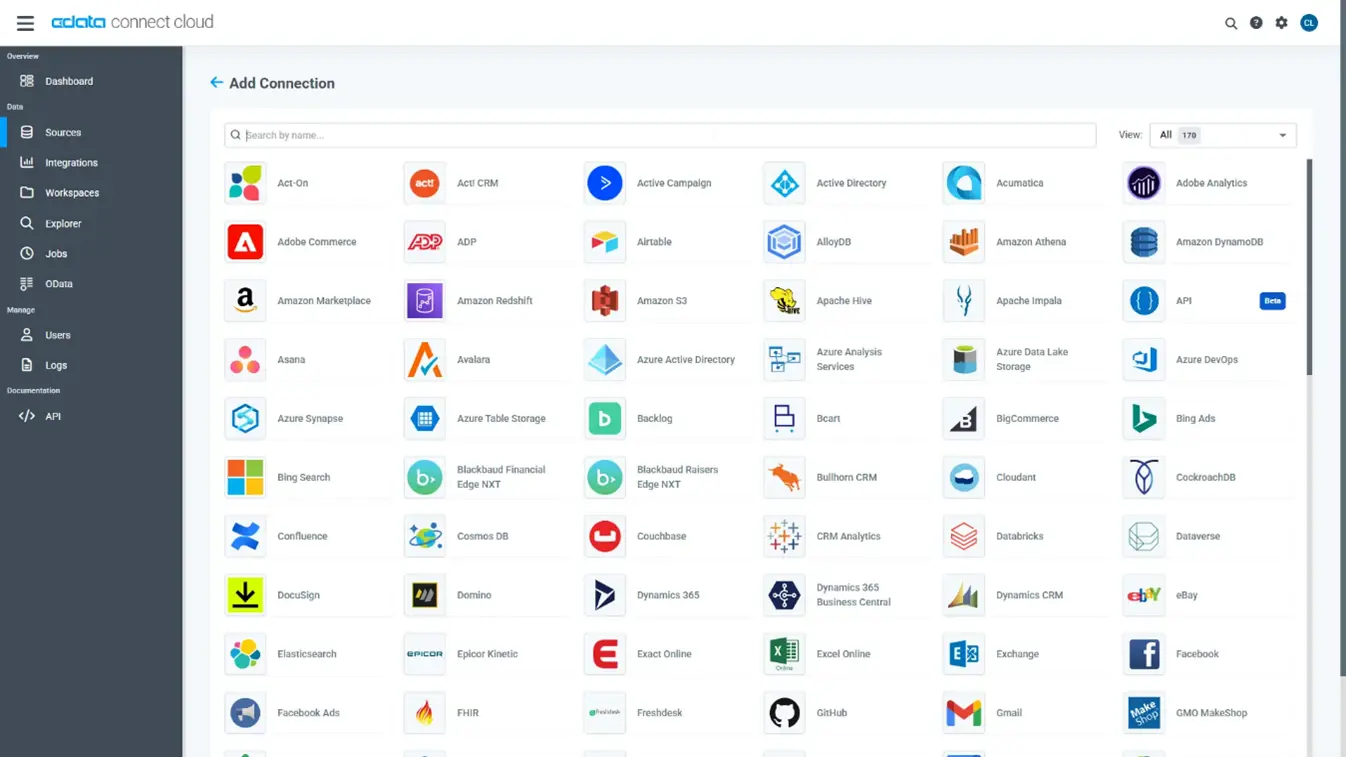
Select "HubSpot" from the Add Connection panel
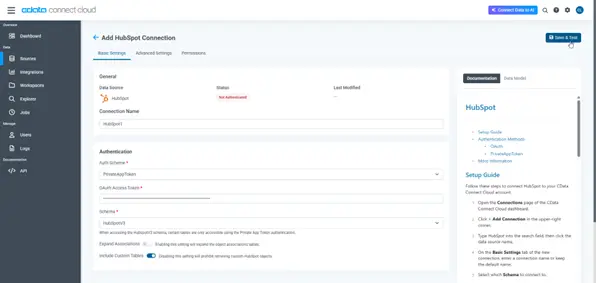
Set the necessary connection properties and click Save & Test to authenticate and save the connection with HubSpot
With the connection configured, you are ready to connect to HubSpot data from Power BI.
Step 3: Connect from Power BI
Once you connect to HubSpot in Connect AI, you can create a dataset in Power BI Desktop and publish the dataset to the Power BI service.
Open Power BI Desktop and click Get Data -> Online Services -> CData Connect AI and click Connect
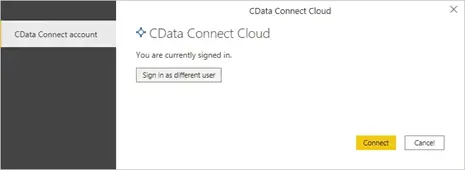
Click Sign in and authenticate with your CData Connect AI account
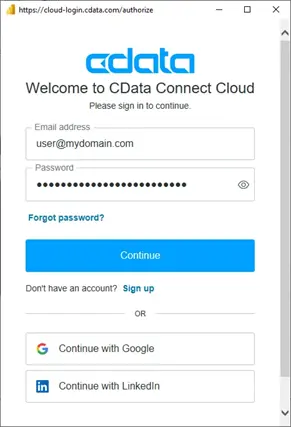
After signing in, click Connect
Select tables in the Navigator dialog and click Load to establish the connection to your HubSpot data from Power BI
Step 4: Publish to Power BI Service and schedule refresh
In Power BI Desktop, click Publish (from the Home menu) and select a Workspace
Log in to PowerBI.com
Click Workspaces and select the Workspace the dataset was published to
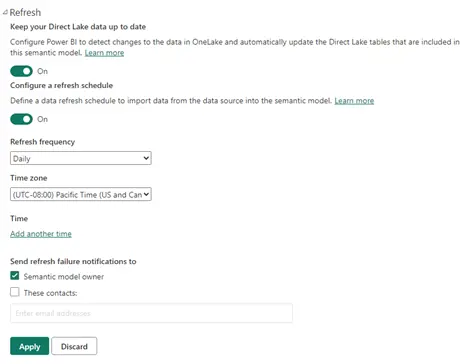
Open the dataset and navigate to File> Settings. Under Data Source, click Edit Credentials.
Click Sign inand enter your CData Connect AI credentials when prompted.
On the same page, you can now select Refresh and configure a refresh schedule
With your HubSpot data connected to Power BI, we can explore the different modes of connectivity available in Power BI.
Get real-time HubSpot data in Power BI
Power BI offers two modes of connection for data sources, Import and DirectQuery. When looking to visualize data in Power BI, it is important to understand the differences in these connectivity modes to choose the best option for the business use case:
Import: Power BI loads data into the model and caches it to create a point-in-time snapshot of the data
DirectQuery: Power BI queries the data source directly at run-time, rather than using a cached dataset.
DirectQuery vs Import mode in Power BI
| Freshness | Transformations | Refresh Requirements | Data Size | Schema Changes |
DirectQuery | Data is always queried live | Limited modeling | None, data is always live | No restrictions | Changes to the source data are automatically reflected |
Import | Data is imported and cached; freshness is based on the refresh schedule | Full modeling capabilities with Power Query | Scheduled or on-demand refresh | Limit of 1 GB | Data is cached, requiring a full refresh to reflect changes |
Secure access with SSO and role-based permissions
Using CData Connect AI to integrate real-time HubSpot data with Power BI ensures compliance through layered security that spans both the connection and analytics platforms. Connect AI enforces governance directly at the connection level by supporting critical security concepts such as SSO(Single-Sign-On) for unified credential management across systems, and role-based access control (RBAC) for authorization based on a user’s role, while Power BI adds RLS (Row-level security) at the analytics layer.
The result of this combination is a trusted data environment where end users can self-serve modeling and analytics without compromising on security. With governance and least-privileged data access built into the connectivity and analysis platforms, organizations can trust their data is safe and their pipelines meet compliance mandates such as HIPAA, GDPR, or SOC 2.
Model HubSpot data for analytics
Effective data analysis and modeling transform raw HubSpot data into optimized structures for smarter reporting and high-performance queries. Understanding core object roles and their relationships to other objects leads to cleaner modeling.
Core HubSpot tables/views
Contacts: Lead-specific records with lifecycle stage, lead source, and email engagement metrics.
Companies: Accounts with domain, industry, and firmographic details.
Deals: Opportunities with deal amount, stage, pipeline, and close dates.
Products: The goods and services being sold.
Line Items: A product that is attached to a Deal.
Owners: Users in your organization.
Engagements: Calls, emails, meetings, notes, and tasks for touchpoint analysis.
Build relationships between core tables
Proper relationship modeling can enable cross-entity analysis while maintaining query performance with optimized JOINs. For example:
Other ways to connect HubSpot and Power BI
| CSV Export/Import | Data Warehouse Replication | Custom Script | CData Connect AI |
Setup Effort | Low setup with ongoing maintenance | Depends on the replication tool and data warehouse used | High development with ongoing maintenance | Minimal setup with no maintenance |
Data Freshness | Stale data that is hours to days old | Not real-time because the data must be replicated before it is used in Power BI | Real-time data is possible, but requires manual development and maintenance | Live/Real-time data with no coding |
Governance | None | Based on the replication tool being used | Limited based on the depth of development | Enterprise-grade governance |
Best Use Case | Ad-hoc analysis, small teams | Data teams looking to centralize data from various sources before reporting and analysis | Technical team with narrow/specific requirements | Scalable reporting for business teams |
Frequently asked questions
Do I need an on-premises data gateway?
No, CData Connect AI works natively with Power BI Service.
Which private app scopes do I need in HubSpot?
Grant read scopes for Contacts, Companies, Deals, Tickets, Owners, and Activities to cover most CRM reporting needs.
What's the best refresh method?
Use Import mode with incremental refresh. Use DirectQuery mode for real-time visuals.
Can I blend HubSpot data with SQL or Salesforce data?
Yes, expose each source via CData Connect AI and model relationships in Power BI to blend data without replication.
Does DirectQuery support complex DAX measures and transformations?
DirectQuery restricts some transformations and advanced DAX, so use Import for heavy modeling.
Will my data be moved or stored outside HubSpot when using CData Connect AI?
No, Connect AI queries HubSpot live without replication, enforcing governed, on-demand access.
Are HubSpot custom objects and custom properties supported?
Yes, CData Connect AI exposes custom properties and objects so you can include them in your Power BI model.
Does this approach work with Power BI row-level security and SSO?
Yes, apply RLS in Power BI and enforce SSO and RBAC in CData Connect AI for end-to-end governance.
Start analyzing your live HubSpot data
Expand your HubSpot reporting with live data access that provides zero-code setup, enterprise-grade security, and broad connectivity to various systems. CData Connect AI provides a unified interface that gives you real-time access to hundreds of cloud applications and services.
Get a free trial to learn how CData can help solve your HubSpot reporting challenges.





