








Analyze Adobe Experience Manager Data in Infragistics Reveal

Reveal, an offering from Infragistics, serves as a data visualization tool that seamlessly integrates with CData Connect AI. Together, they empower users to deliver dynamic dashboards using real-time data from a diverse range of data sources, including Adobe Experience Manager data. In this article, we will guide you through the process of connecting to Adobe Experience Manager via Connect AI and subsequently linking Connect AI with Infragistics Reveal to construct a straightforward dashboard.
Connect to Adobe Experience Manager from Infragistics Reveal
To work with live Adobe Experience Manager data in Infragistics Reveal, we need to connect to Adobe Experience Manager from Connect AI, provide user access to the connection, and create a Workspace for the Adobe Experience Manager data.
Connect to Adobe Experience Manager from Connect AI
CData Connect AI uses a straightforward, point-and-click interface to connect to data sources.
- Log into Connect AI, click Sources, and then click Add Connection
- Select "Adobe Experience Manager" from the Add Connection panel
-
Enter the necessary authentication properties to connect to Adobe Experience Manager.
The driver connects to Adobe Experience Manager (AEM) instances that expose the JCR repository over WebDAV. It supports both on-premises AEM and AEM as a Cloud Service deployments.
To establish a connection, set the following properties:
- URL: The WebDAV-enabled JCR server URL.
- AEM as a Cloud Service: https://author-pXXXXX-eXXXXX.adobeaemcloud.com/crx/server
- Local development: http://localhost:4502/crx/server
- User: Your AEM username.
- Password: Your AEM password.
Note: Tables are dynamically generated based on the JCR repository structure. Ensure that the configured user has sufficient permissions to access the required content paths in the AEM repository.

- URL: The WebDAV-enabled JCR server URL.
- Click Save & Test
-
Navigate to the Permissions tab in the Add Adobe Experience Manager Connection page and update the User-based permissions.



Add a Personal Access Token
When connecting to Connect AI through the REST API, the OData API, or the Virtual SQL Server, a Personal Access Token (PAT) is used to authenticate the connection to Connect AI. It is best practice to create a separate PAT for each service to maintain granularity of access.
- Click on the Gear icon () at the top right of the Connect AI app to open the settings page.
- On the Settings page, go to the Access Tokens section and click Create PAT.
-
Give the PAT a name and click Create.

- The personal access token is only visible at creation, so be sure to copy it and store it securely for future use.
Configure Adobe Experience Manager Endpoints for Infragistics Reveal
After connecting to Adobe Experience Manager, create a workspace for your desired table(s).
-
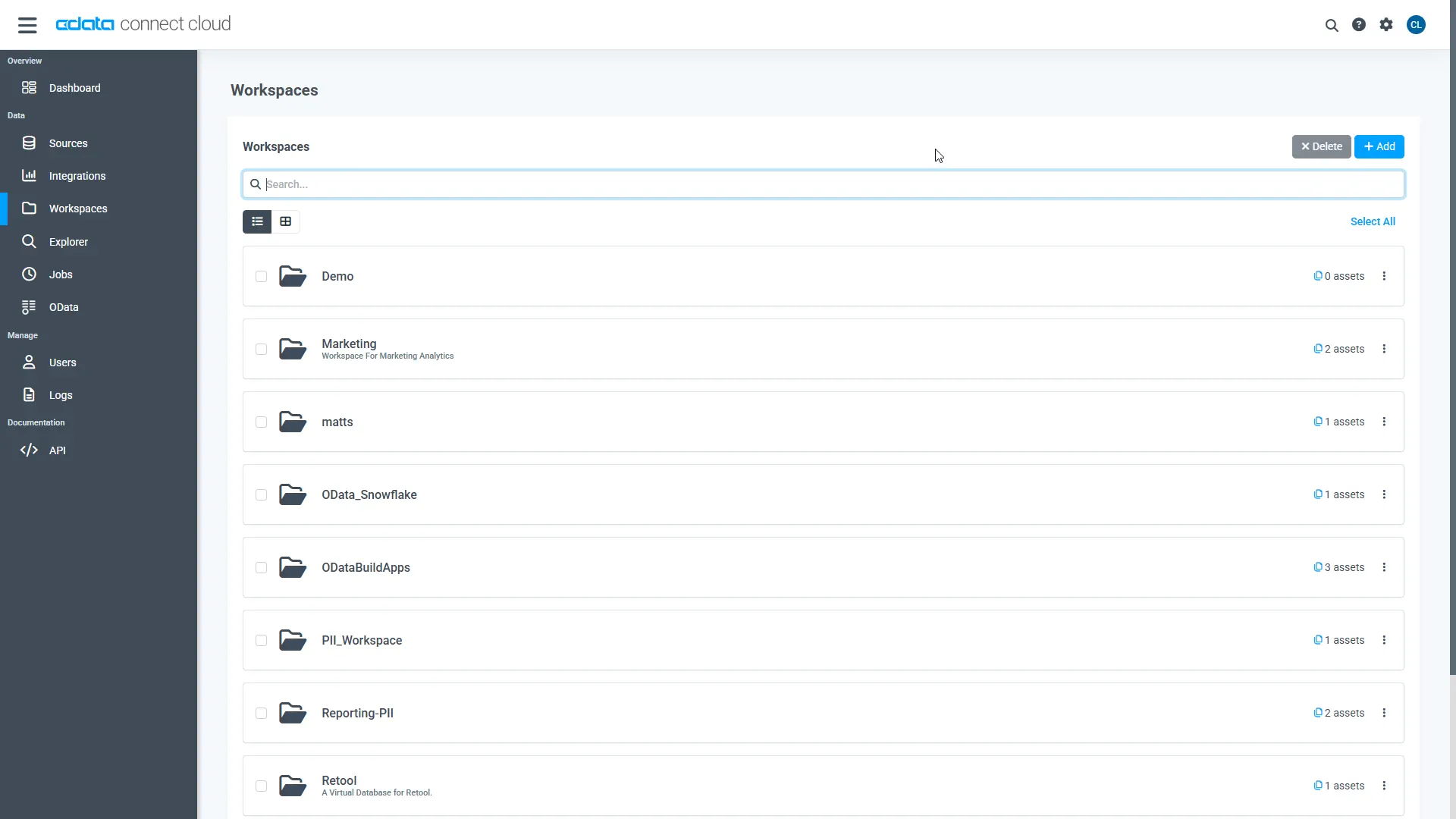
Navigate to the Workspaces page and click Add to create a new Workspace (or select an existing workspace).
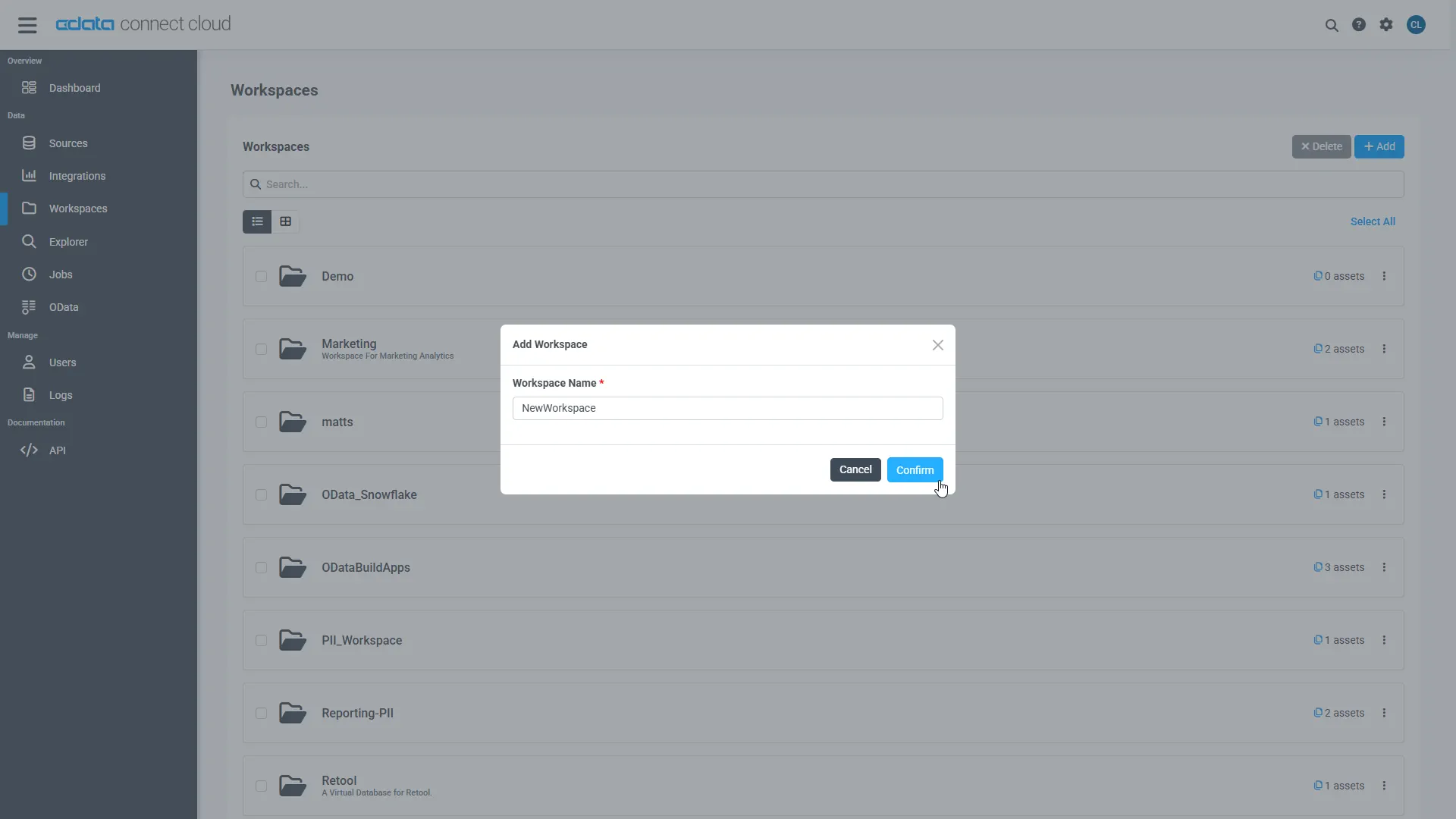
- Click Add to add new assets to the Workspace.
-
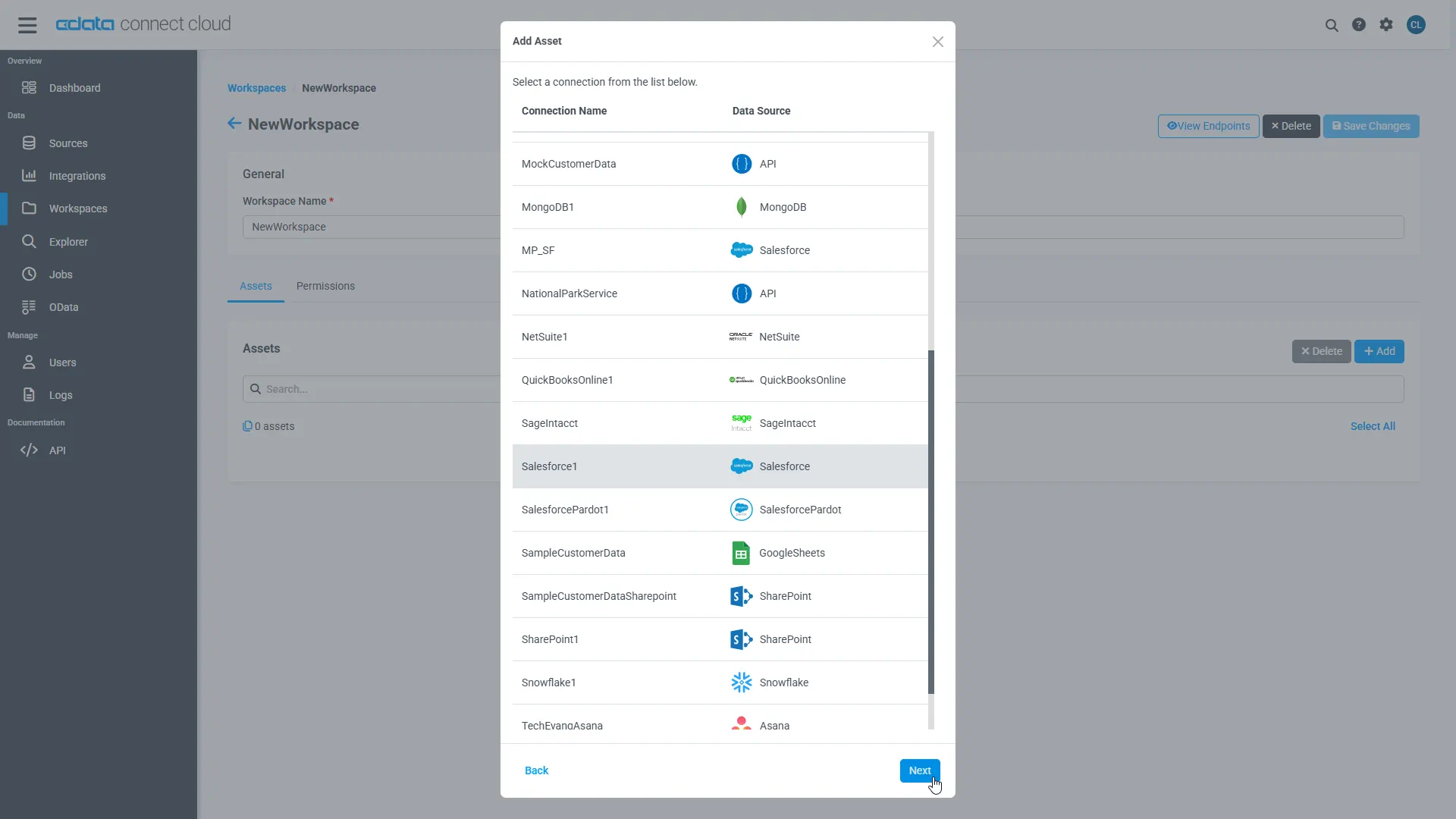
Select the Adobe Experience Manager connection (e.g. AdobeExperienceManager1) and click Next.
-
Select the table(s) you wish to work with and click Confirm.
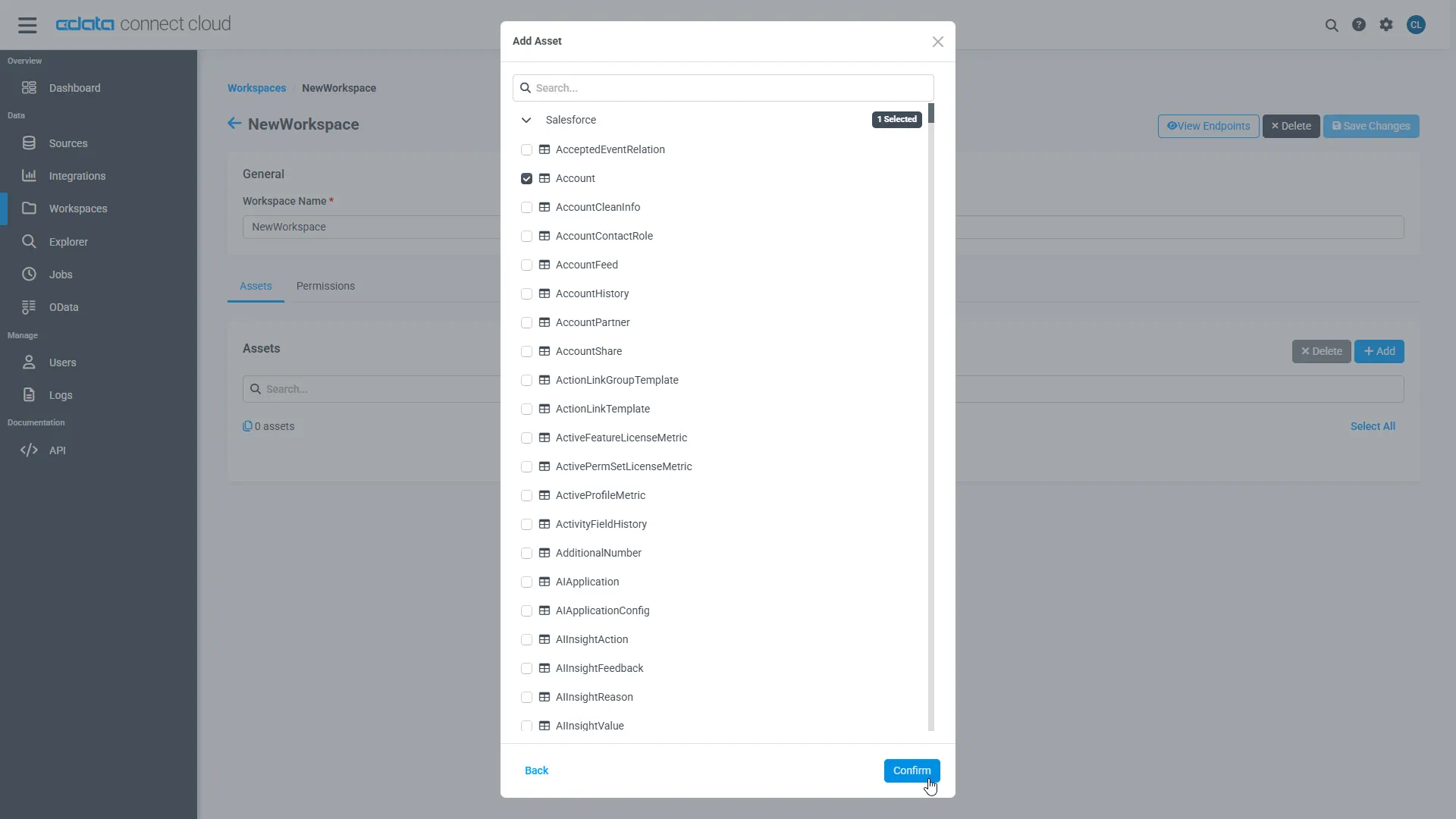
- Make note of the OData Service URL for your workspace, e.g. https://cloud.cdata.com/api/odata/{workspace_name}
With the connection, PAT, and Workspace configured, you are ready to connect to Adobe Experience Manager data from Infragistics Reveal.
Create a Dashboard in Reveal
With Connect AI configured, we can visualize Adobe Experience Manager data in Reveal.
- Log into Reveal and click Dashboards -> New
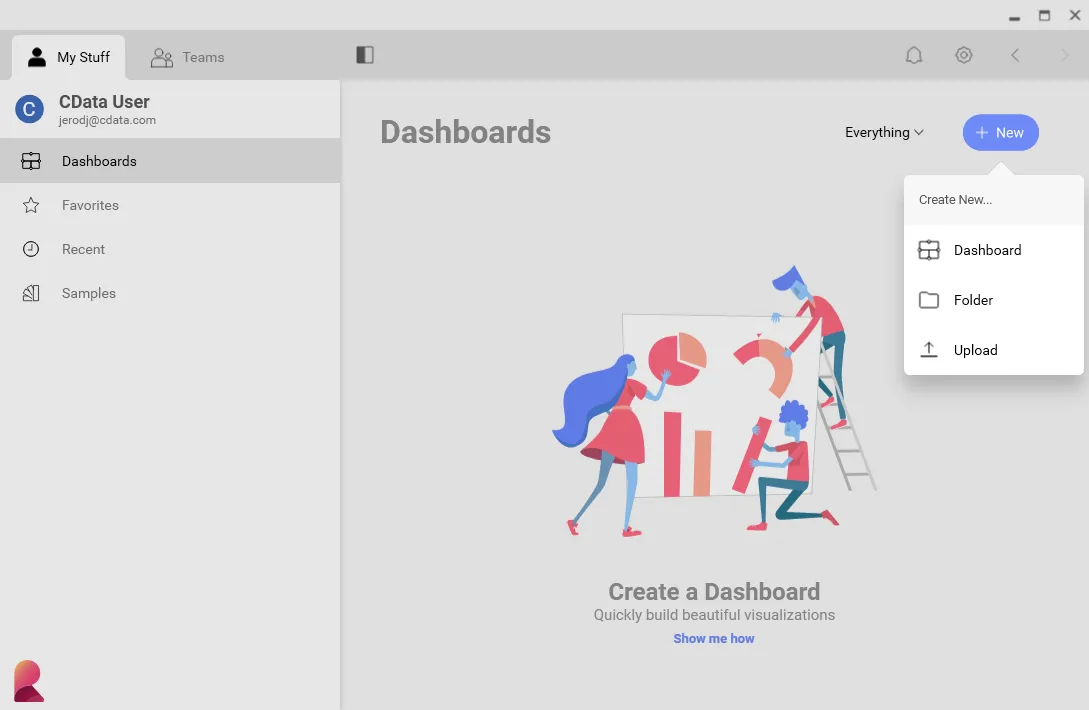
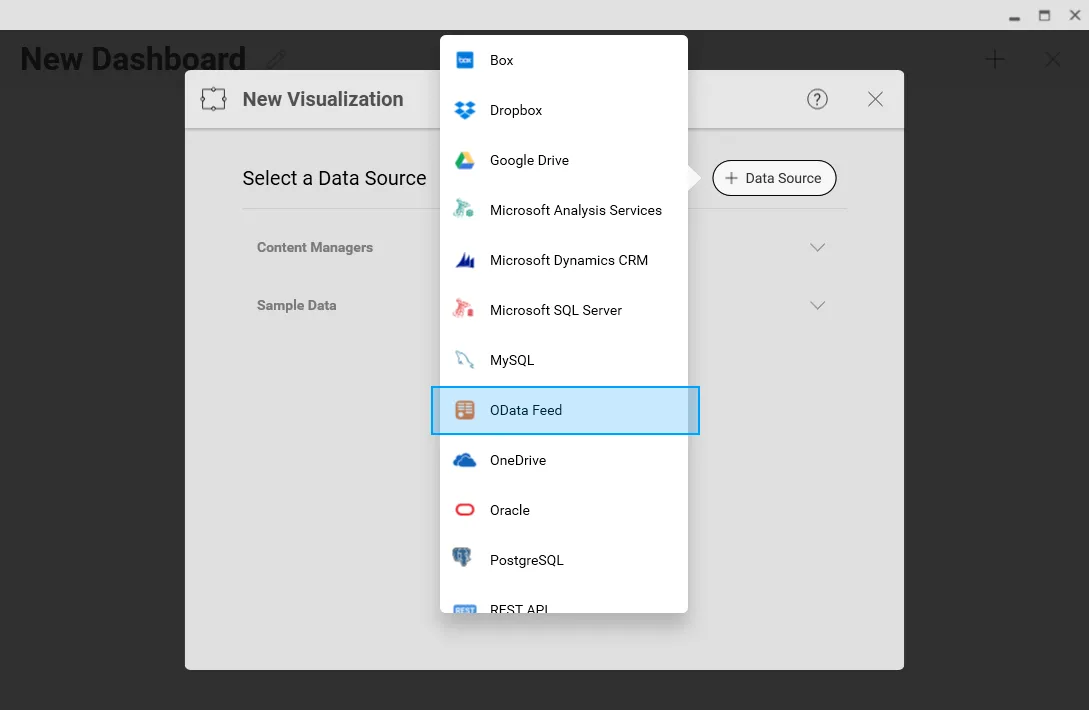
- Click Data Sources -> OData Feed
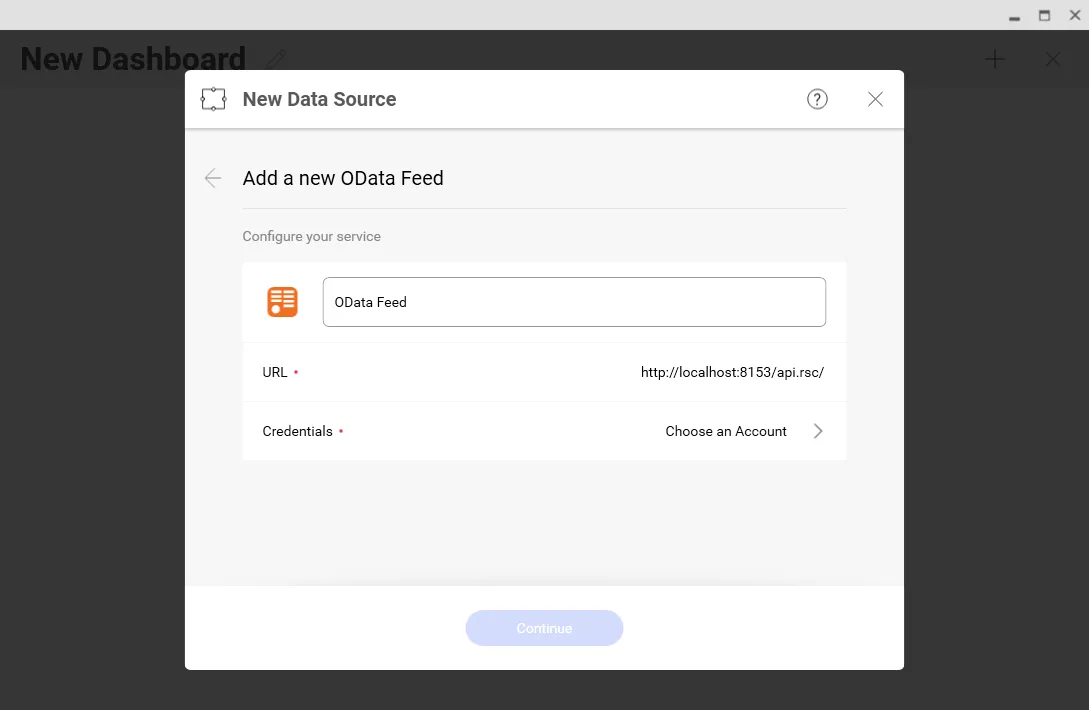
- Specify the Connect AI OData API endpoint URL (found on the OData page): https://cloud.cdata.com/api/odata/{workspace_name}
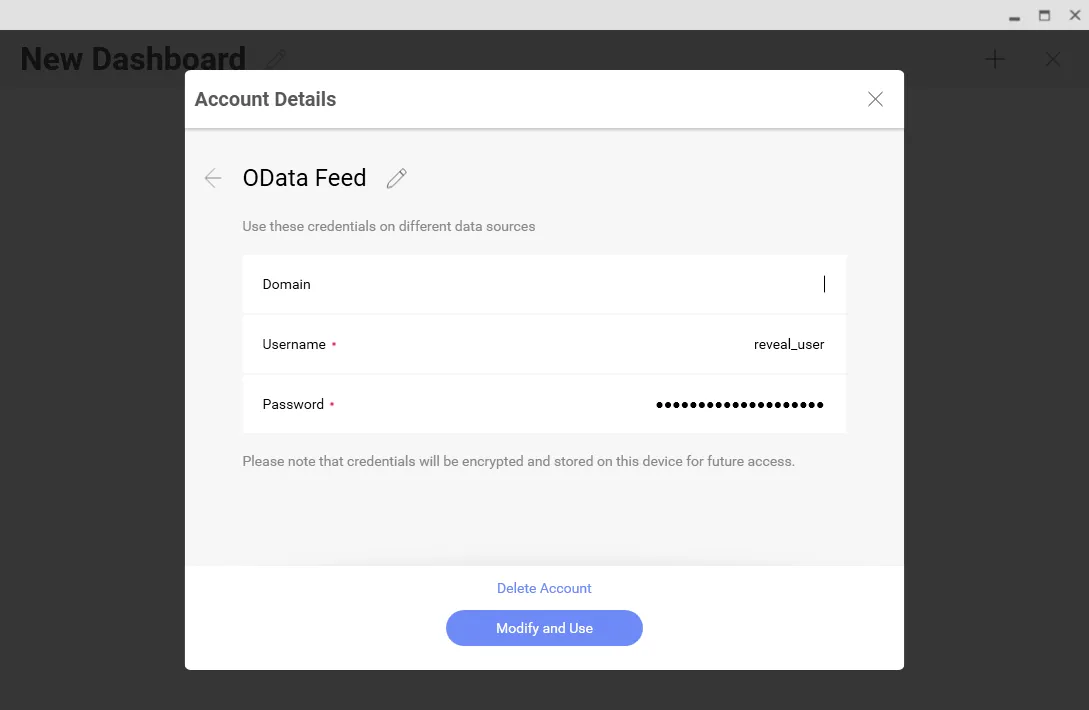
- Select Generic Credentials and
- Set Username to a Connect AI username (e.g. [email protected])
- Set Password to the PAT for the user
- Select the entity you wish to visualize
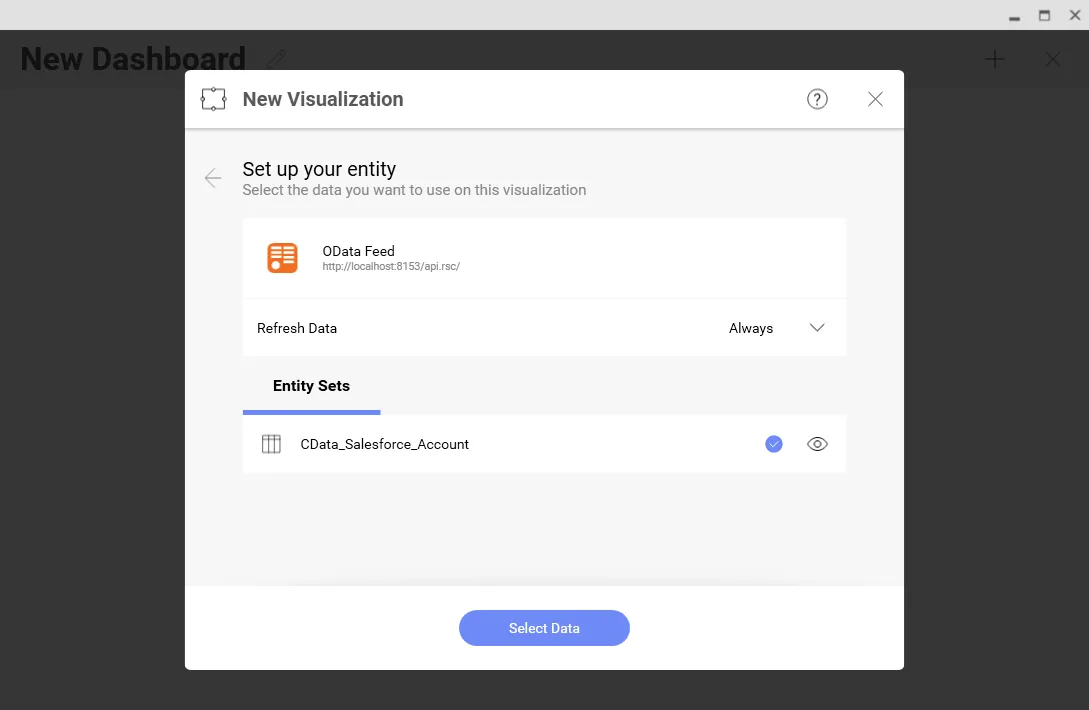
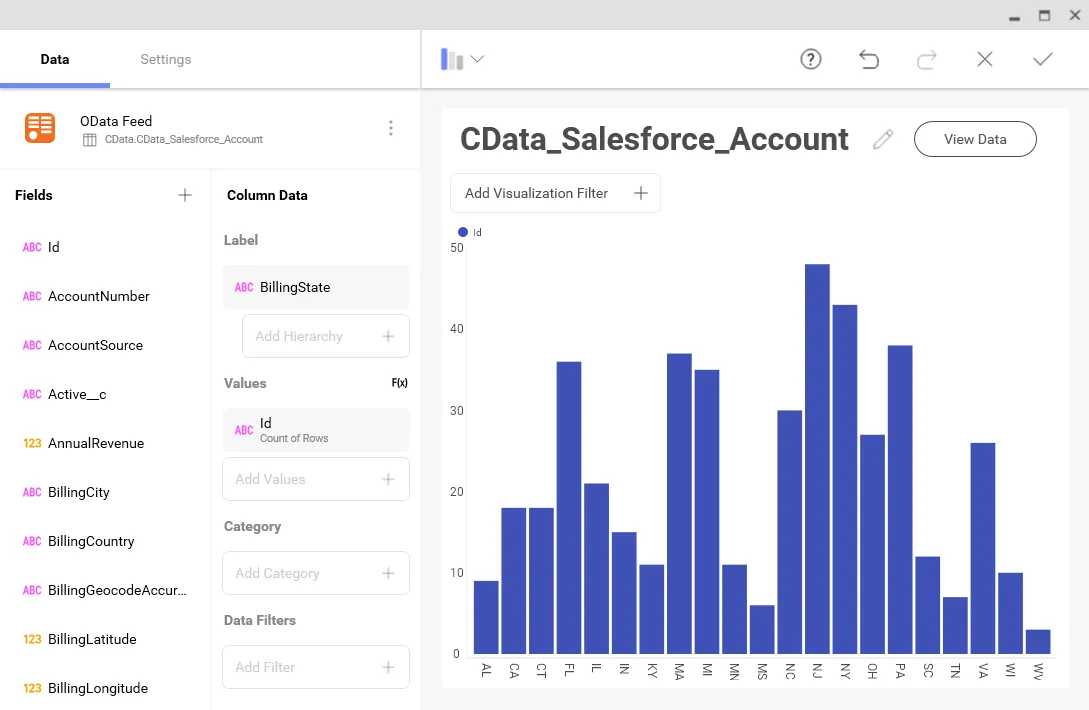
- Select fields and choose a chart type
More Information & Free Trial
At this point, you have created a simple dashboard from live Adobe Experience Manager data. For more information on creating OData feeds from Adobe Experience Manager (and more than 100 other sources), visit the Connect AI page. Sign up for a free trial and start working live Adobe Experience Manager data in tools that consume OData APIs.