








Create Anaplan-Connected Enterprise Applications in OutSystems

OutSystems is a low-code platform which provides the tools for companies to developer, deploy, and manage omnichannel enterprise applications. When paired with CData Connect AI, you get instant, cloud-to-cloud access to Anaplan data for business applications. This article shows how to create a virtual database for Anaplan in Connect AI and build a simple app from Anaplan data in OutSystems.
The CData Connect AI provides a pure cloud-to-cloud interface for Anaplan, allowing you to build reports from live Anaplan data in OutSystems — without replicating the data to a natively supported database. As you create applications to work with data, OutSystems generates SQL queries to gather data. Using optimized data processing out of the box, CData Connect AI pushes all supported SQL operations (filters, JOINs, etc.) directly to Anaplan, leveraging server-side processing to quickly return the requested Anaplan data.
Configure Anaplan Connectivity for OutSystems
Connectivity to Anaplan from OutSystems is made possible through CData Connect AI. To work with Anaplan data from OutSystems, we start by creating and configuring a Anaplan connection.
- Log into Connect AI, click Sources, and then click Add Connection
- Select "Anaplan" from the Add Connection panel
-
Enter the necessary authentication properties to connect to Anaplan.
Authenticating to Anaplan
The driver supports authenticating with Basic, Certificate, or OAuth. In every case, set Region to the region where your Anaplan account data is hosted (e.g., US1, which is the default).
Using Basic Authentication
Set AuthScheme to Basic, then supply your Anaplan User and Password. If your workspace uses single sign-on (SSO), you must be assigned as an Exception User to use Basic authentication.
Using Certificate Authentication
Set AuthScheme to Certificate, then supply the Certificate, CertificateType, and PrivateKey properties (and the matching CertificatePassword / PrivateKeyPassword if either is encrypted). The certificate must be a CA-issued X.509 certificate registered with your Anaplan tenant administrator.
Using OAuth Authentication
Register a custom OAuth application in Anaplan, then set the following properties:
- OAuthClientId: The client Id assigned when you registered your custom OAuth application.
- OAuthClientSecret: The client secret assigned when you registered your custom OAuth application.
- CallbackURL: The redirect URI defined when you registered your application.
- InitiateOAuth: Set to GETANDREFRESH to have the driver manage the OAuth token exchange and refresh automatically.
See the Getting Started chapter of the help documentation for a guide to creating a custom OAuth app and using OAuth.

- Click Save & Test
-
Navigate to the Permissions tab in the Add Anaplan Connection page and update the User-based permissions.



Add a Personal Access Token
When connecting to Connect AI through the REST API, the OData API, or the Virtual SQL Server, a Personal Access Token (PAT) is used to authenticate the connection to Connect AI. It is best practice to create a separate PAT for each service to maintain granularity of access.
- Click on the Gear icon () at the top right of the Connect AI app to open the settings page.
- On the Settings page, go to the Access Tokens section and click Create PAT.
-
Give the PAT a name and click Create.

- The personal access token is only visible at creation, so be sure to copy it and store it securely for future use.
With the connection configured and a PAT generated, you are ready to connect to Anaplan data from OutSystems.
Connect to Anaplan from OutSystems
The steps below outline connecting to CData Connect AI from OutSystems to create a new Anaplan database connection.
- Open OutSystems Service Studio
- Click the gear icon to open Environment Management in the Service Center
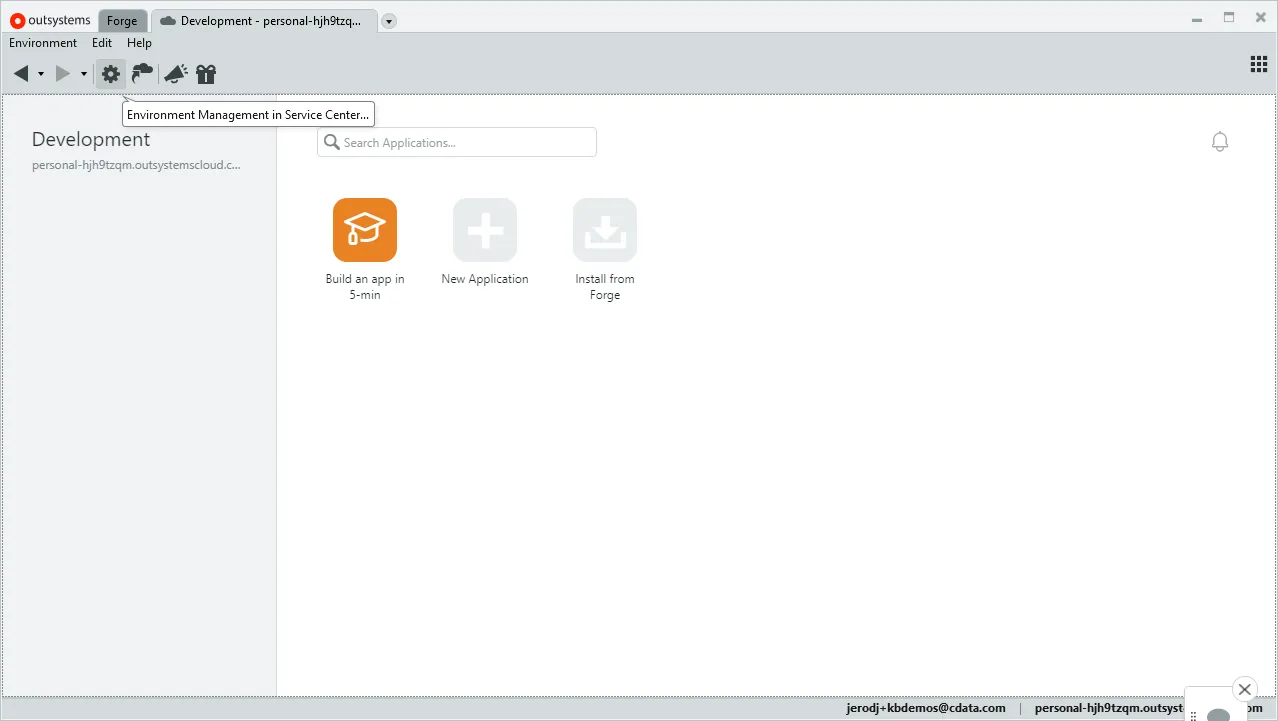
- Click Administration and select "Database Connections"
- Click "New Database Connection"
- Configure the database connection:
- Name: name the connection (e.g. CData Connect AI Anaplan)
- DBMS: SQL Server / Azure SQL
- Username: a Connect AI user (e.g. [email protected])
- Password: the PAT for the Connect AI user
- Server: tds.cdata.com,14333
- Schema: the name of your Anaplan connection (e.g. Anaplan1)
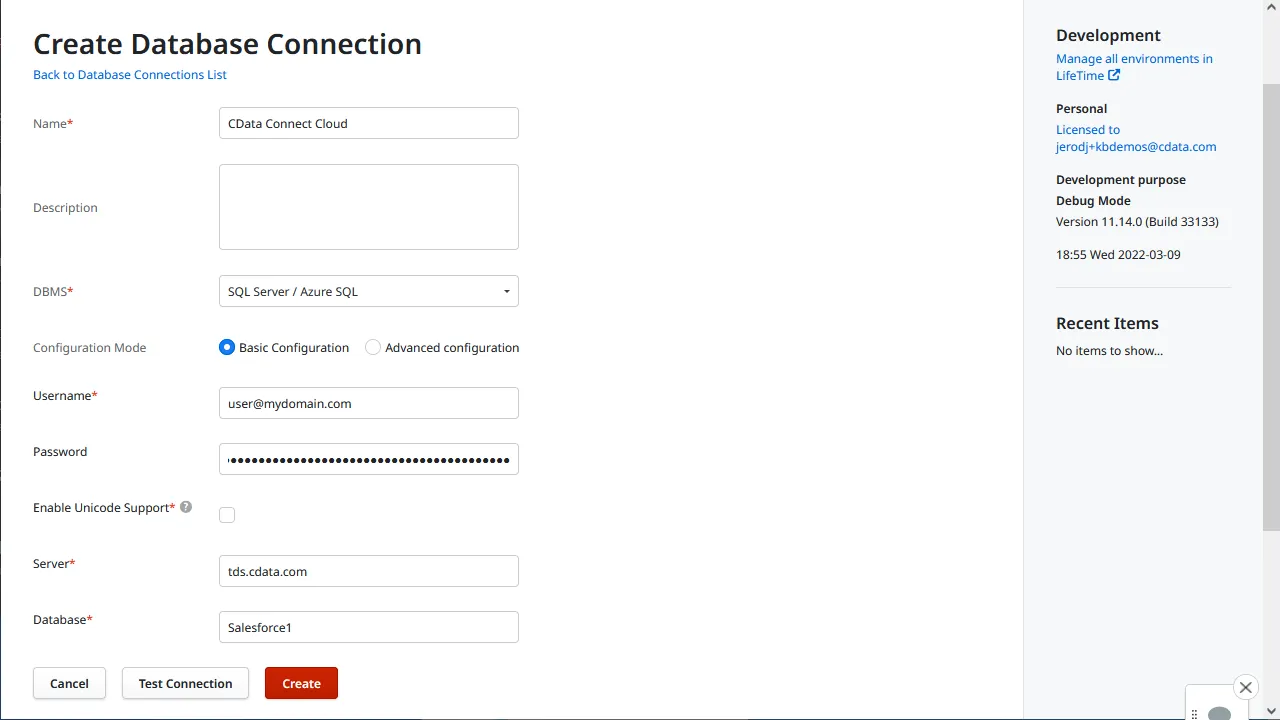
- Click "Test Connection"
- Click "Create"
Map Anaplan Tables or Views to Entities in an Extension Module
Once you create the database connection for Anaplan, you can create an extension that maps the tables or views to OutSystems entities. If you have not already done so, create an Application in Service Studio.
- Open the Service Studio and open the existing Application
- Click "Add Module," set the "Module Name" (e.g. anaplan_db_extension), set "Module Type" to "Extension," and click "Create Module"
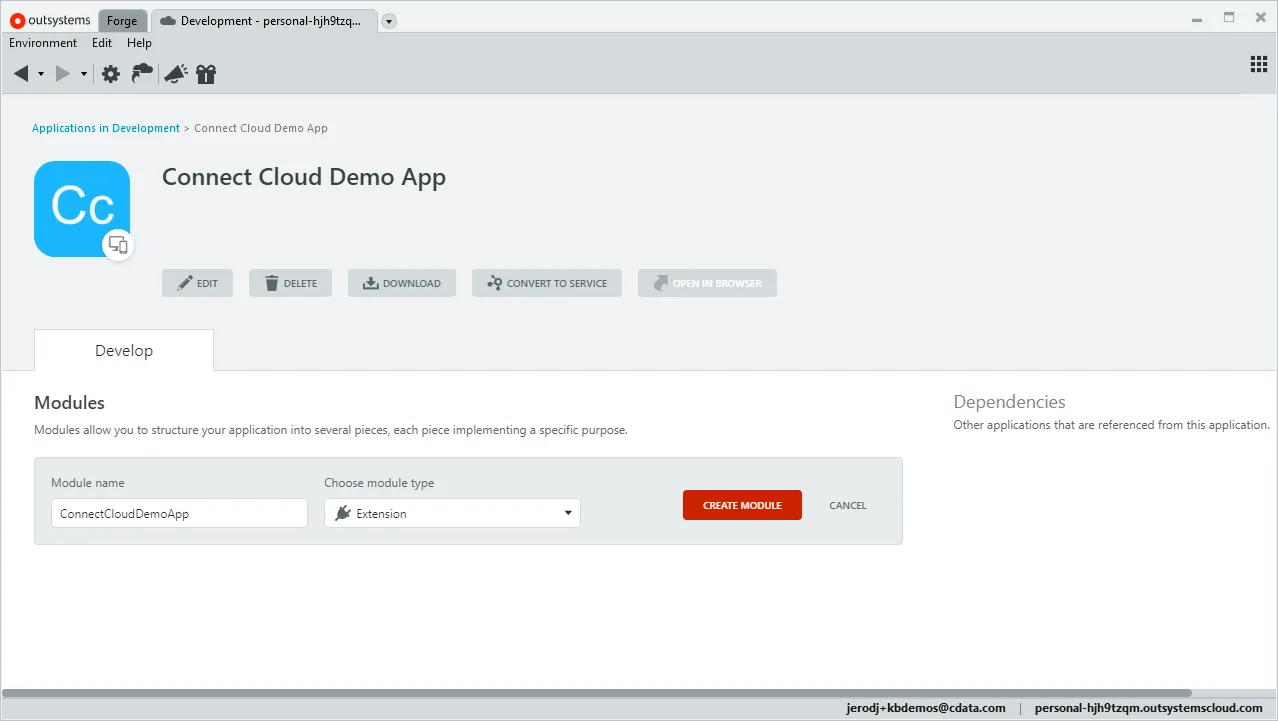
- In Integration Studio, connect to your environment
- Right-click "Entities" in the extension tree and select "Connect to External Table or View..."
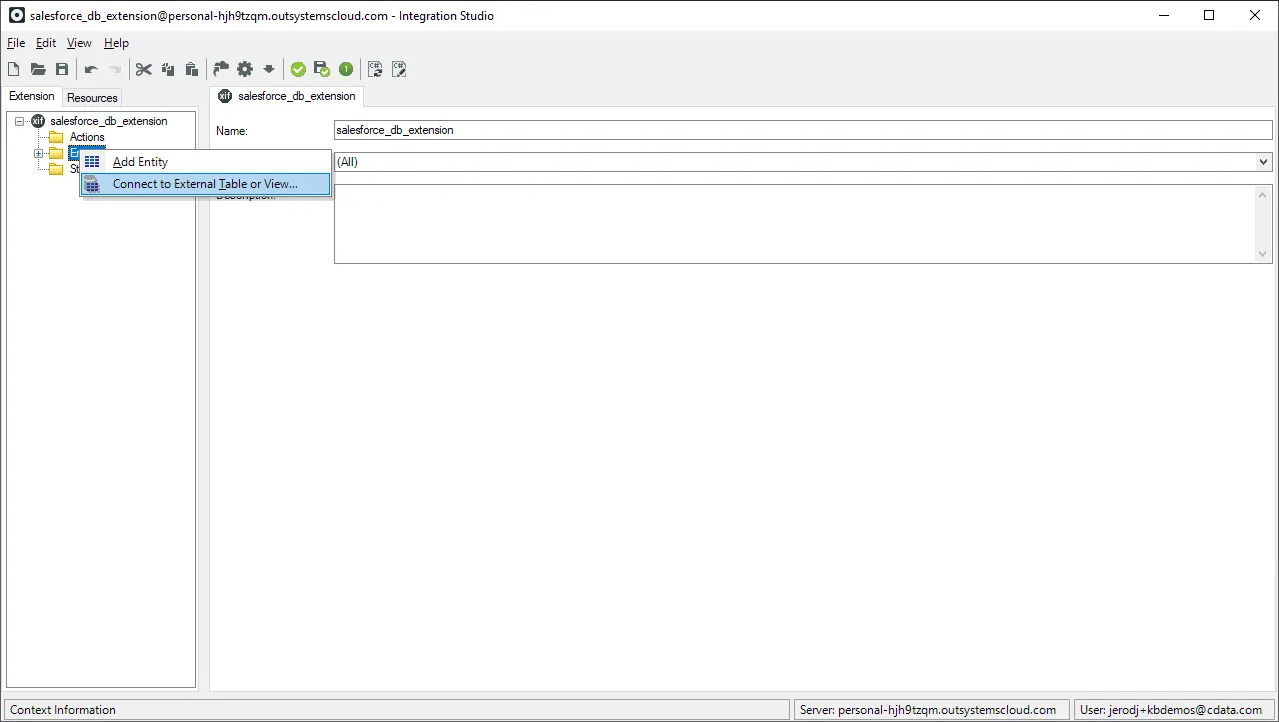
- Follow the steps in the wizard, selecting the tables and views you wish to work with
- In the Integration Studio, click "1-Click Publish"
- In the "1-Click Publish" wizard, click "Configure" when the process completes
- In the Service Center, associate the logical database name of the extension to the database connection that the extension will use and click "Apply"
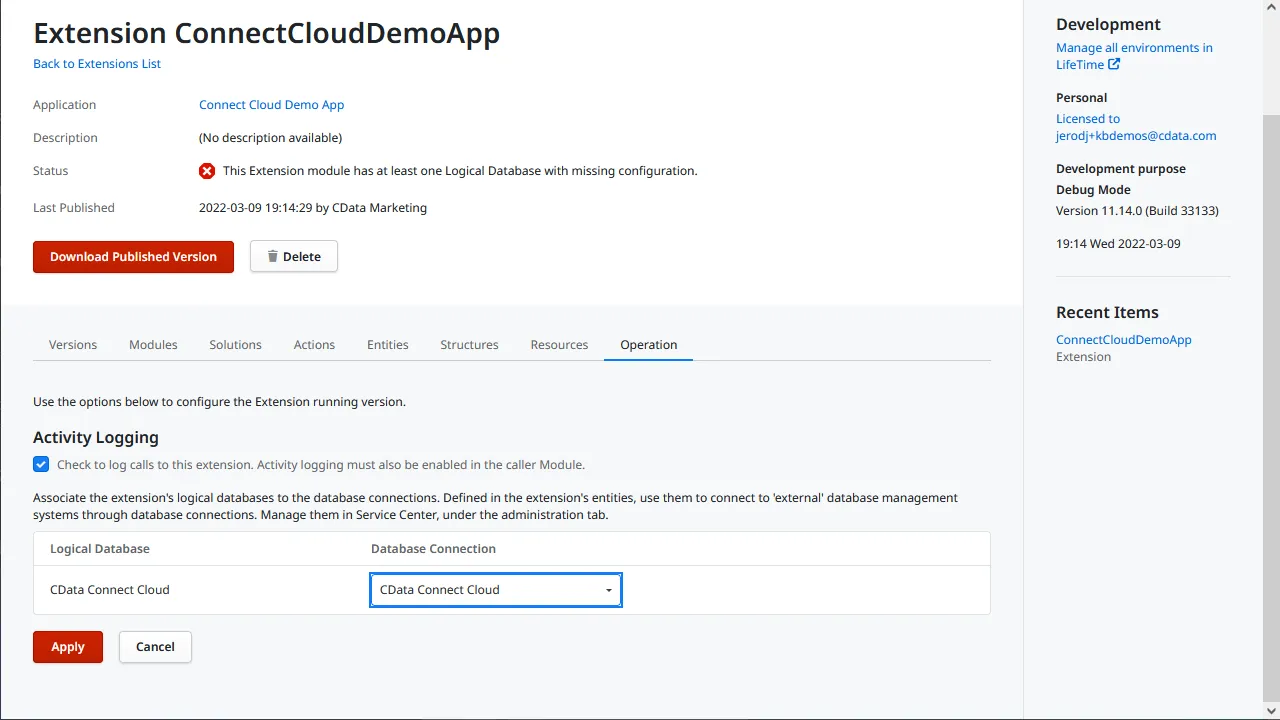
- In the Service Center, associate the logical database name of the extension to the database connection that the extension will use and click "Apply"
- In your application, click "Manage Dependencies..."
- Add a dependency to the Extension and select the Entities that you will use in your application
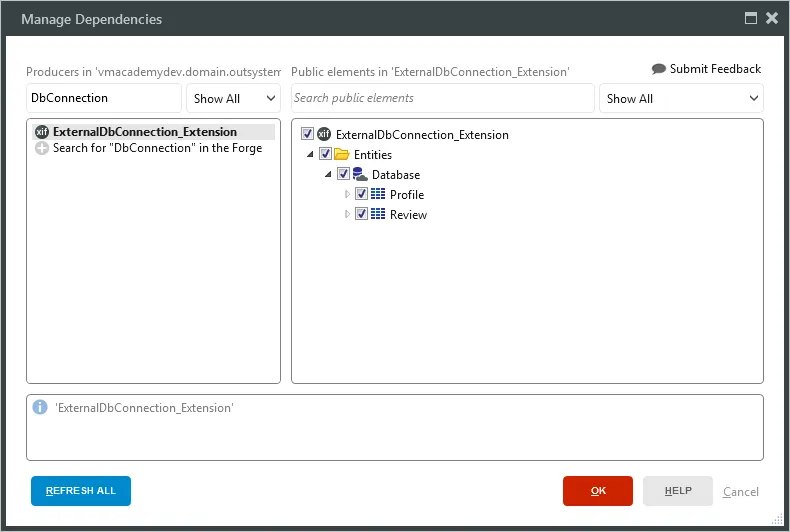
At this point, you can access and work with Anaplan data just like you would with the standard OutSystems entities.
Get CData Connect AI
With Connect AI and OutSystems, you can easily build Anaplan-connected applications. Request a free trial of Connect AI and start working with Anaplan data in OutSystems today.