








Import Anaplan Data into the Power BI Service for Visualizations

Power BI transforms your company's data into rich visuals for you to collect and organize so you can focus on what matters to you. When paired with CData Connect AI, you get access to Anaplan data for visualizations, dashboards, and more. This article shows how to connect to Anaplan in CData Connect AI, publish a dataset from Power BI Desktop to the Power BI Service and then create reports on Anaplan data in the Power BI service.
Configure Anaplan Connectivity for Power BI Service
Connectivity to Anaplan from Power BI Service is made possible through CData Connect AI. To work with Anaplan data from Power BI Service, we start by creating and configuring a Anaplan connection.
- Log into Connect AI, click Sources, and then click Add Connection
- Select "Anaplan" from the Add Connection panel
-
Enter the necessary authentication properties to connect to Anaplan.
Authenticating to Anaplan
The driver supports authenticating with Basic, Certificate, or OAuth. In every case, set Region to the region where your Anaplan account data is hosted (e.g., US1, which is the default).
Using Basic Authentication
Set AuthScheme to Basic, then supply your Anaplan User and Password. If your workspace uses single sign-on (SSO), you must be assigned as an Exception User to use Basic authentication.
Using Certificate Authentication
Set AuthScheme to Certificate, then supply the Certificate, CertificateType, and PrivateKey properties (and the matching CertificatePassword / PrivateKeyPassword if either is encrypted). The certificate must be a CA-issued X.509 certificate registered with your Anaplan tenant administrator.
Using OAuth Authentication
Register a custom OAuth application in Anaplan, then set the following properties:
- OAuthClientId: The client Id assigned when you registered your custom OAuth application.
- OAuthClientSecret: The client secret assigned when you registered your custom OAuth application.
- CallbackURL: The redirect URI defined when you registered your application.
- InitiateOAuth: Set to GETANDREFRESH to have the driver manage the OAuth token exchange and refresh automatically.
See the Getting Started chapter of the help documentation for a guide to creating a custom OAuth app and using OAuth.

- Click Save & Test
-
Navigate to the Permissions tab in the Add Anaplan Connection page and update the User-based permissions.



With the connection configured, you are ready to connect to Anaplan data from the Power BI service.
Publish a Dataset from Power BI Desktop
Once you connect to Anaplan in Connect AI, you can create a dataset in Power BI desktop and publish the dataset to the Power BI service.
- Open Power BI Desktop and click Get Data -> Online Services -> CData Connect AI and click "Connect"
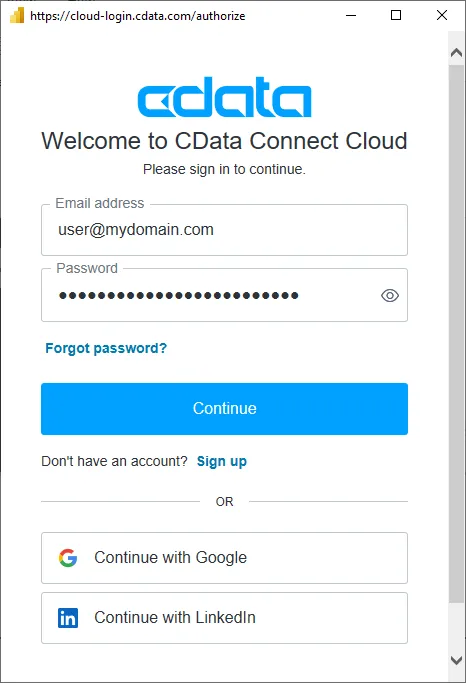
- Click "Sign in" and authenticate with your CData Connect AI account
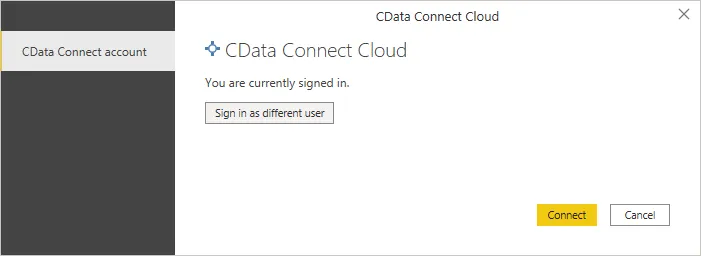
- After signing in, click "Connect"
- Select tables in the Navigator dialog
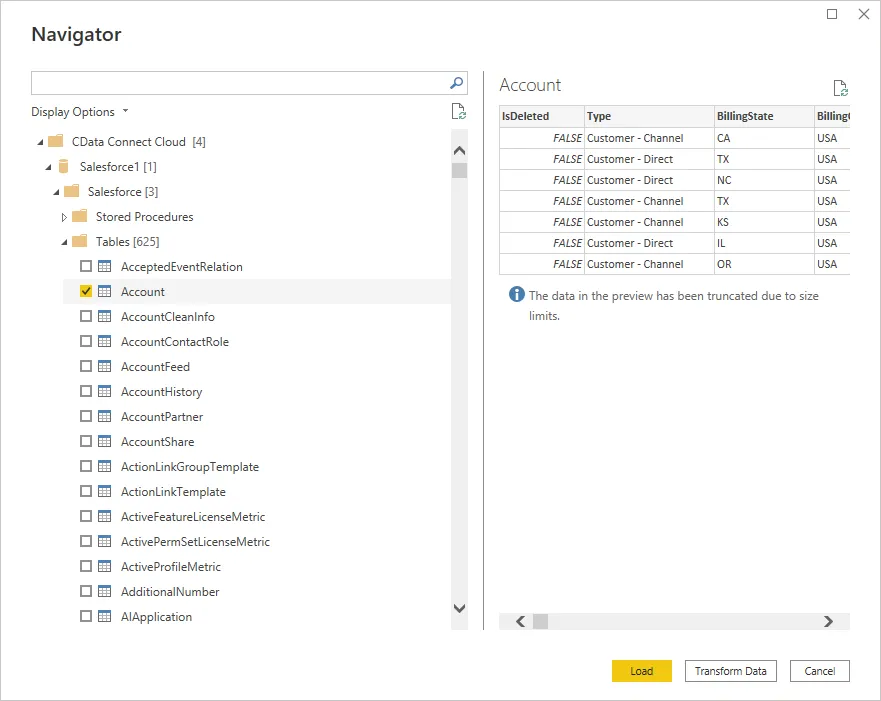
- Click Load to establish the connection to your Anaplan data from Power BI
- Define any relationships between the selected entities on the Relationships tab.
- Click Publish (from the Home menu) and select a Workspace.
Build Reports and Dashboards on Anaplan Data in the Power BI Service
Now that you have published a dataset to the Power BI service, you can create new reports and dashboards based on the published data:
- Log in to PowerBI.com.
- Click Workspaces and select a workspace.
- Click Create and select Report.
- Select the published dataset for the report.
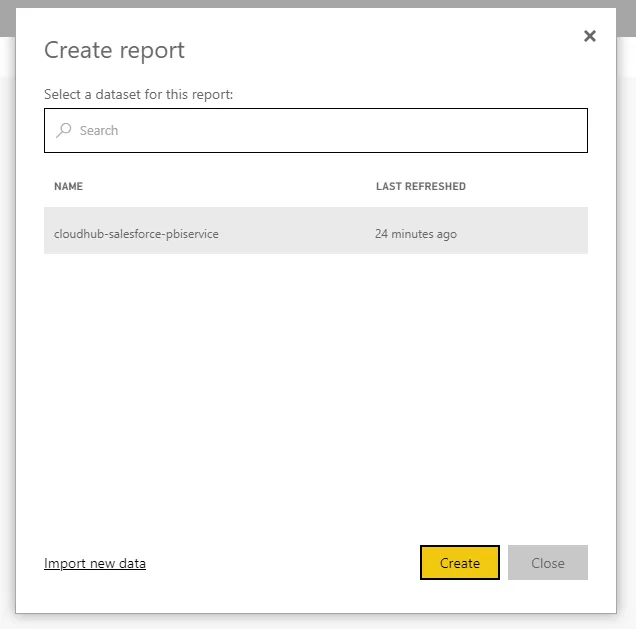
- Choose fields and visualizations to add to your report.
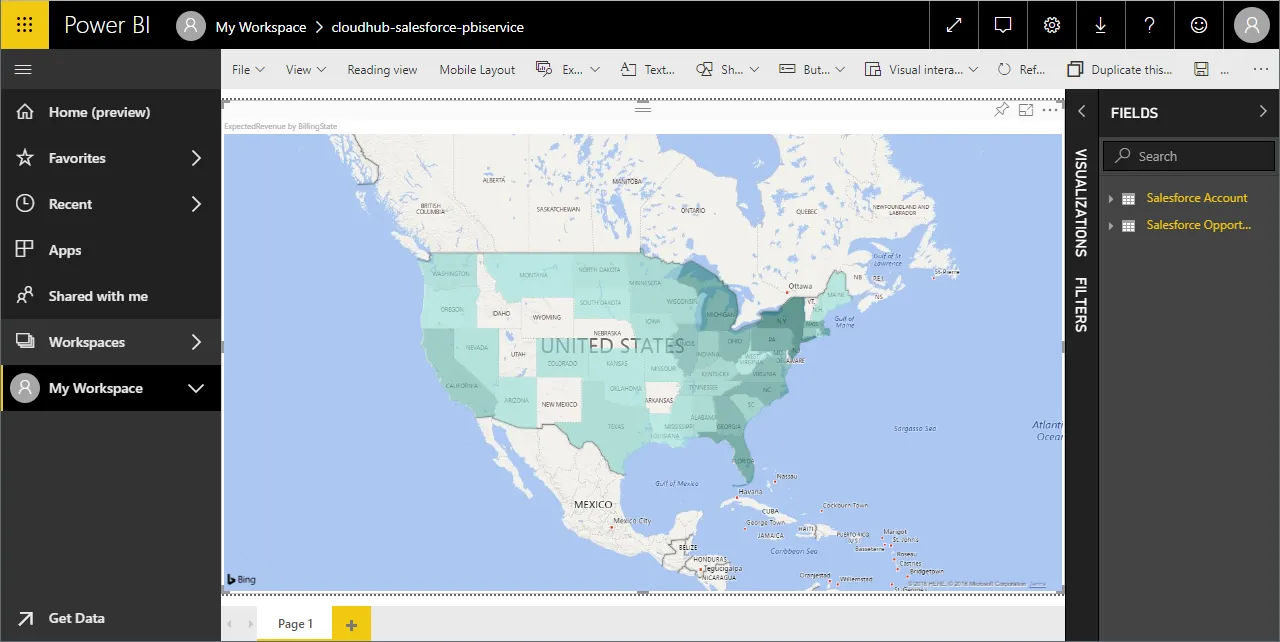
Live Access to Anaplan Data from Cloud Applications
Now you have a direct connection to live Anaplan data from the Power BI service. You can create more data sources and new visualizations, build reports, and more — all without replicating Anaplan data.
To get live data access to hundreds of SaaS, Big Data, and NoSQL sources directly from your cloud applications, sign up for a free trial of CData Connect AI.