








Use Claude to Talk to Your Azure Data Catalog Data via CData Connect AI

Claude is a family of advanced large language models (LLMs) built by Anthropic, an AI research company founded in 2021. These models power the Claude conversational assistant and developer tools.
CData Connect AI offers a dedicated cloud-to-cloud interface for connecting to Azure Data Catalog data. The CData Connect AI Remote MCP Server enables secure communication between Claude and Azure Data Catalog. This allows you to ask questions and take actions on your Azure Data Catalog data using Claude, all without the need for data replication to a natively supported database. With its inherent optimized data processing capabilities, CData Connect AI efficiently channels all supported SQL operations, including filters and JOINs, directly to Azure Data Catalog. This leverages server-side processing to swiftly deliver the requested Azure Data Catalog data.
Step 1: Configure Azure Data Catalog Connectivity for Claude
Connectivity to Azure Data Catalog from Claude is made possible through CData Connect AI Remote MCP. To interact with Azure Data Catalog data from Claude, we start by creating and configuring a Azure Data Catalog connection in CData Connect AI.
- Log into Connect AI, click Sources, and then click Add Connection
- Select "Azure Data Catalog" from the Add Connection panel
-
Enter the necessary authentication properties to connect to Azure Data Catalog.
You can optionally set the following to read the different catalog data returned from Azure Data Catalog.
Connect Using OAuth Authentication
You must use OAuth to authenticate with Azure Data Catalog. OAuth requires the authenticating user to interact with Azure Data Catalog using the browser. For more information, refer to the OAuth section in the help documentation.

- Click Save & Test


Step 2: Connect Claude to CData Connect AI
Follow these steps to add a CData Connect AI connector in Claude:
- Sign in to Claude.ai or create a new account.
- Expand the left navigation menu.
- In the bottom-left corner, click your user name and select Settings from the menu. The Settings screen appears.
- In the Settings screen, click Connectors.
- Click the button to Browse Connectors.
- Search for "CData Connect AI" and click the listing.
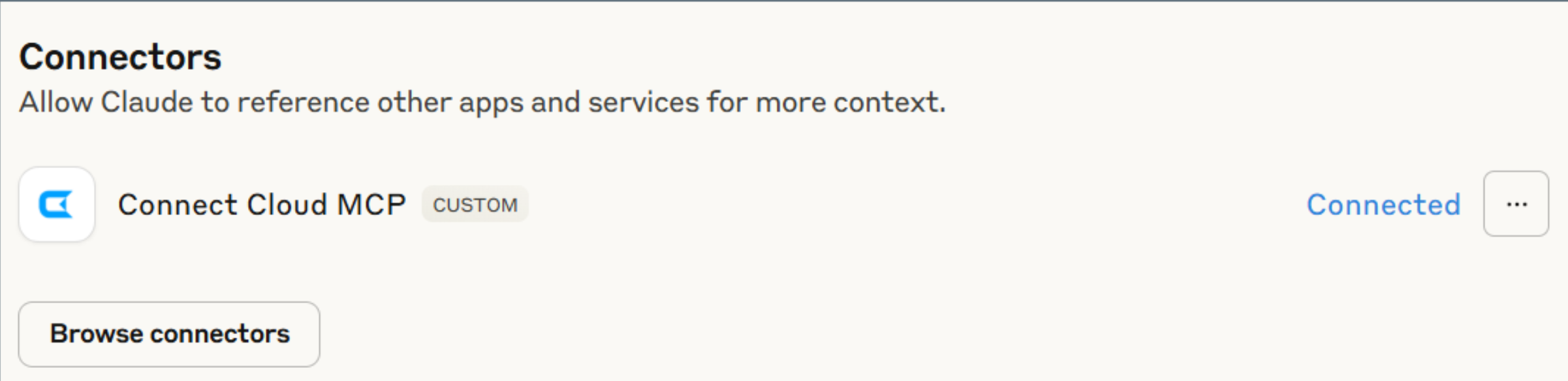
- Click "Connect" and sign into your Connect AI account.
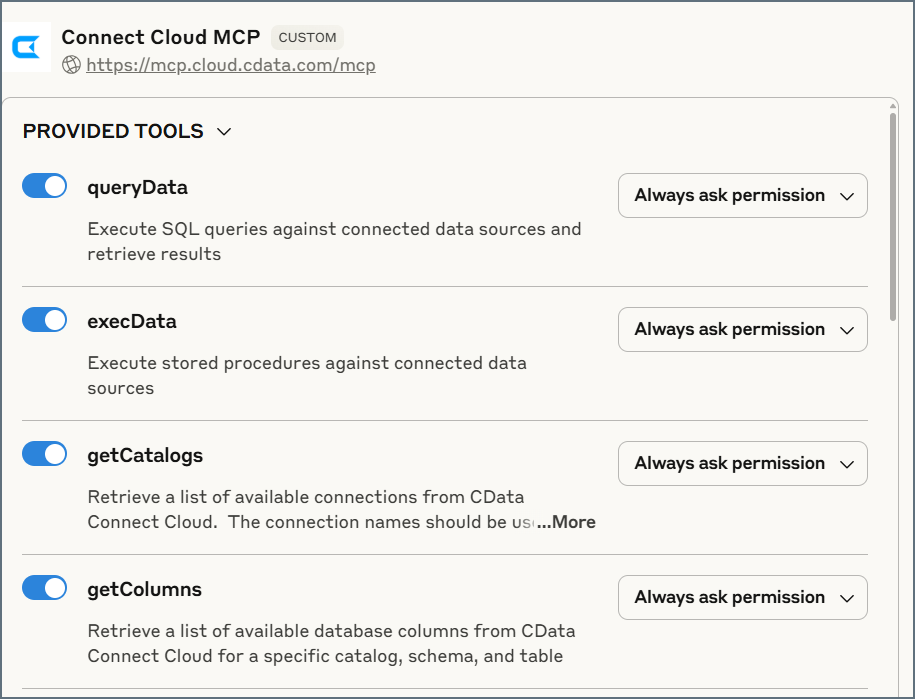
- After connecting, Claude opens a new chat.
Step 3: Explore Live Azure Data Catalog Data with Claude
- You can now start exploring your data with natural language prompts. Claude outlines the steps it uses to retrieve data from the source in CData Connect AI. Refer to CData's prompt library for prompt ideas.
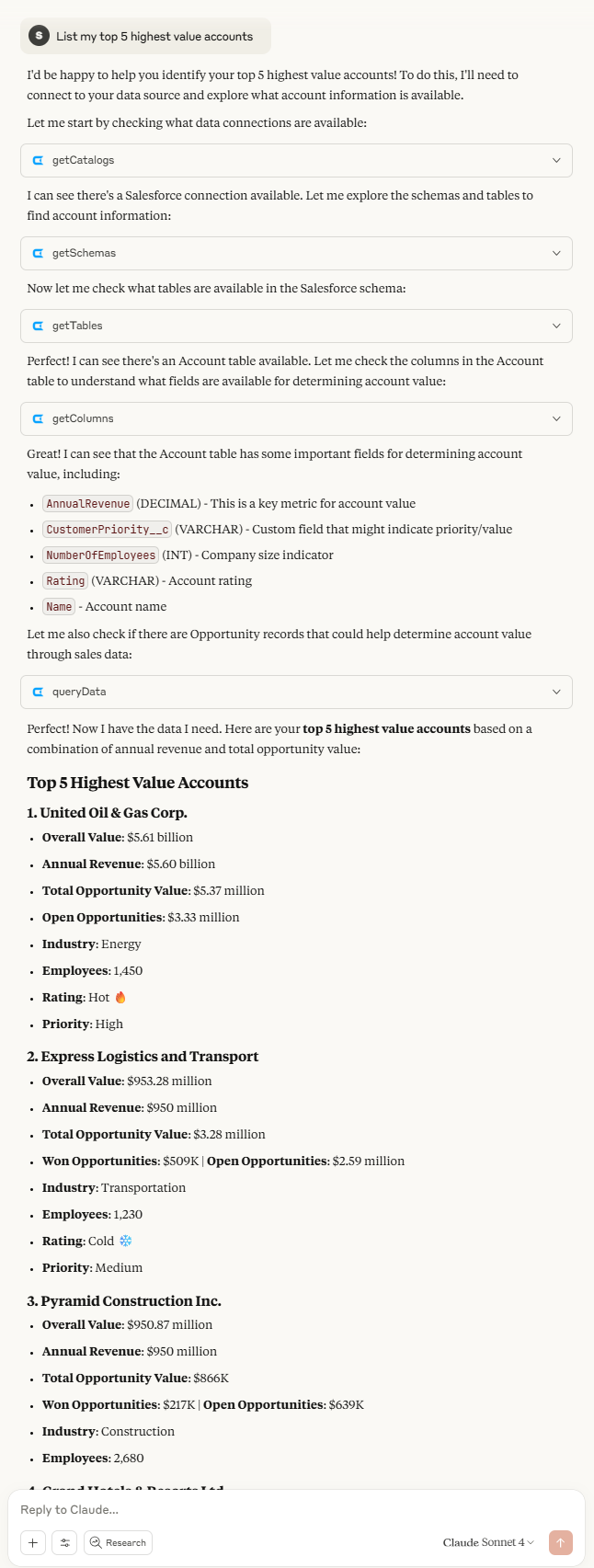
NOTE: Claude's setup process is subject to change. Refer to Claude's documentation for the latest setup information.
Get CData Connect AI
To get live data access to hundreds of SaaS, Big Data, and NoSQL sources directly from your cloud applications, try CData Connect AI today!