




LINQ to Claude Compliance Data

This article illustrates using LINQ to access tables within the Claude Compliance via the CData ADO.NET Data Provider for Claude Compliance. To achieve this, we will use LINQ to Entity Framework, which facilitates the generation of connections and can be seamlessly employed with any CData ADO.NET Data Providers to access data through LINQ.
See the help documentation for a guide to setting up an EF 6 project to use the provider.
- In a new project in Visual Studio, right-click on the project and choose to add a new item. Add an ADO.NET Entity Data Model.
- Choose EF Designer from Database and click Next.
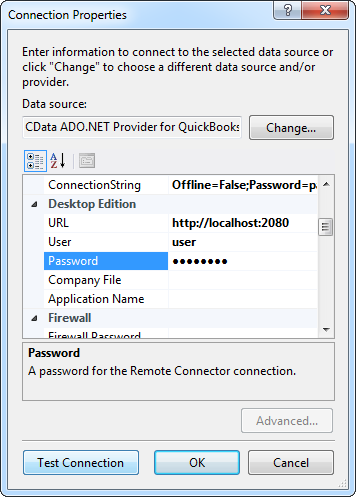
- Add a new Data Connection, and change your data source type to "CData Claude Compliance Data Source".
Enter your data source connection information.
The driver connects to Claude Compliance using a Compliance Access Key, the only supported authentication method. Set the following connection property:
- APIKey: The Compliance Access Key you created.
Creating a Compliance Access Key
- Enable the Compliance API for your organization.
- Sign in to claude.ai as a primary owner or organization owner and open Organization settings > API > Keys.
- Select Create Key and assign only the scopes your integration needs:
- read:compliance_activities for Activities and the typed activity views.
- read:compliance_org_data for organizations, roles, groups, and settings.
- read:compliance_user_data for users, chats, files, projects, and downloads.
- delete:compliance_user_data for the explicit Delete stored procedures.
- Create the key and copy it when it appears. The key starts with sk-ant-api01- and is shown only once.
Optionally, set OrganizationUUID to limit organization-scoped views (such as OrganizationUsers and ComplianceRoles) to a single linked organization. If it is left empty, those views default to the first available organization and do not include data from all linked organizations.
Below is a typical connection string:
APIKey=your_compliance_access_key;- If saving your entity connection to App.Config, set an entity name. In this example we are setting ClaudeComplianceEntities as our entity connection in App.Config.
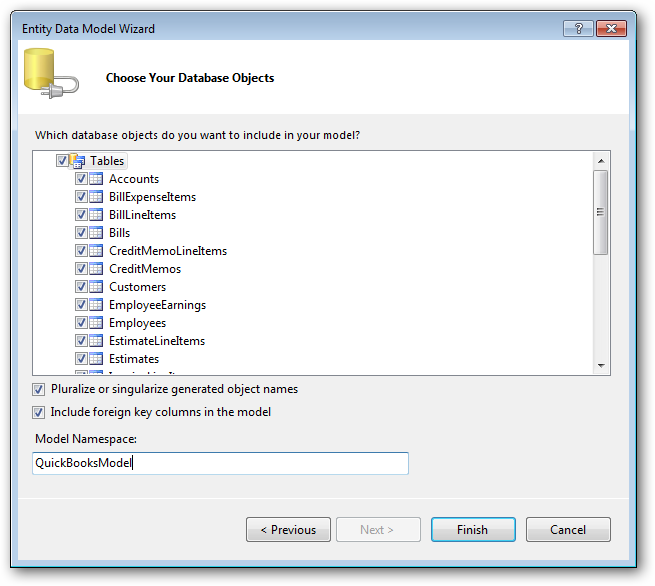
- Enter a model name and select any tables or views you would like to include in the model.
Using the entity you created, you can now perform select commands. For example:
ClaudeComplianceEntities context = new ClaudeComplianceEntities();

var projectsQuery = from projects in context.Projects
  select projects;

foreach (var result in projectsQuery) {
  Console.WriteLine("{0} {1} ", result.Id, result.Id);
}
See "LINQ and Entity Framework" chapter in the help documentation for example queries of the supported LINQ.
Ready to get started?
Download a free trial of the Claude Compliance Data Provider to get started:
Download NowLearn more:
 Claude Compliance ADO.NET Provider
Rapidly create and deploy powerful .NET applications that integrate with Claude Compliance data including Activities, Chats, ChatMessages, CodeArtifacts, ComplianceRoles, Organizations, OrganizationUsers, Projects, and more!