








How to connect Amazon QuickSight to Discord Data

Amazon QuickSight allows users to build interactive dashboards in the cloud. When paired with CData Connect AI, you get cloud-to-cloud access to Discord data for visualizations, dashboards, and more. This article shows how to connect to Discord in Connect AI and build dashboards in Amazon QuickSight with access to Discord data.
CData Connect AI provides a pure cloud-to-cloud interface for Discord, allowing you to allowing build visualizations from Discord data in Amazon QuickSight. By importing your Discord data into the Amazon QuickSight "Super-fast, Parallel, In-memory Calculation Engine" (SPICE), you can leverage the powerful data processing features of the Amazon ecosystem to build responsive dashboards. And with the ability to schedule refreshes of the data stored in SPICE, you control how up-to-date your dashboards are.
Configure Discord Connectivity for Amazon QuickSight
Connectivity to Discord from Amazon QuickSight is made possible through CData Connect AI. To work with Discord data from Amazon QuickSight, we start by creating and configuring a Discord connection.
- Log into Connect AI, click Sources, and then click Add Connection
- Select "Discord" from the Add Connection panel
-
Enter the necessary authentication properties to connect to Discord.
Start by setting the Profile connection property to the location of the Discord Profile on disk (e.g. C:\profiles\Discord.apip). Next, set the ProfileSettings connection property to the connection string for Discord (see below).
Discord API Profile Settings
Visit the Discord Developer Portal, create or select an application, and navigate to the OAuth2 section to obtain your Client ID and Client Secret.

- Click Save & Test
-
Navigate to the Permissions tab in the Add Discord Connection page and update the User-based permissions.



Add a Personal Access Token
When connecting to Connect AI through the REST API, the OData API, or the Virtual SQL Server, a Personal Access Token (PAT) is used to authenticate the connection to Connect AI. It is best practice to create a separate PAT for each service to maintain granularity of access.
- Click on the Gear icon () at the top right of the Connect AI app to open the settings page.
- On the Settings page, go to the Access Tokens section and click Create PAT.
-
Give the PAT a name and click Create.

- The personal access token is only visible at creation, so be sure to copy it and store it securely for future use.
With the connection configured and a PAT generated, you are ready to connect to Discord data from Amazon QuickSight.
Import Discord Data into SPICE and Create Interactive Dashboards
The steps below outline creating a new data set based on the connection to Discord in Connect AI, importing the dataset into SPICE, and building a simple visualization from the data.
- Log into Amazon QuickSight and click "Manage data."
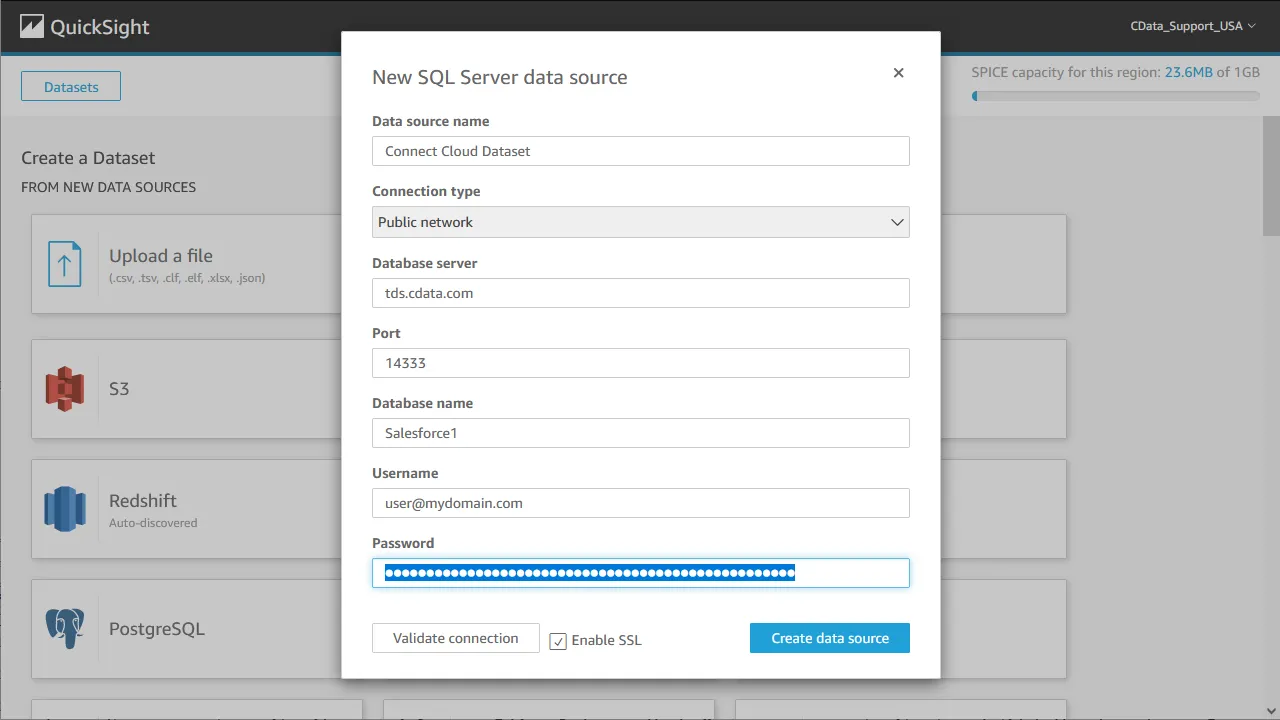
- Click "Now data set," select SQL Server as the data source, configure the connection to your Connect AI instance, and click "Create data source."
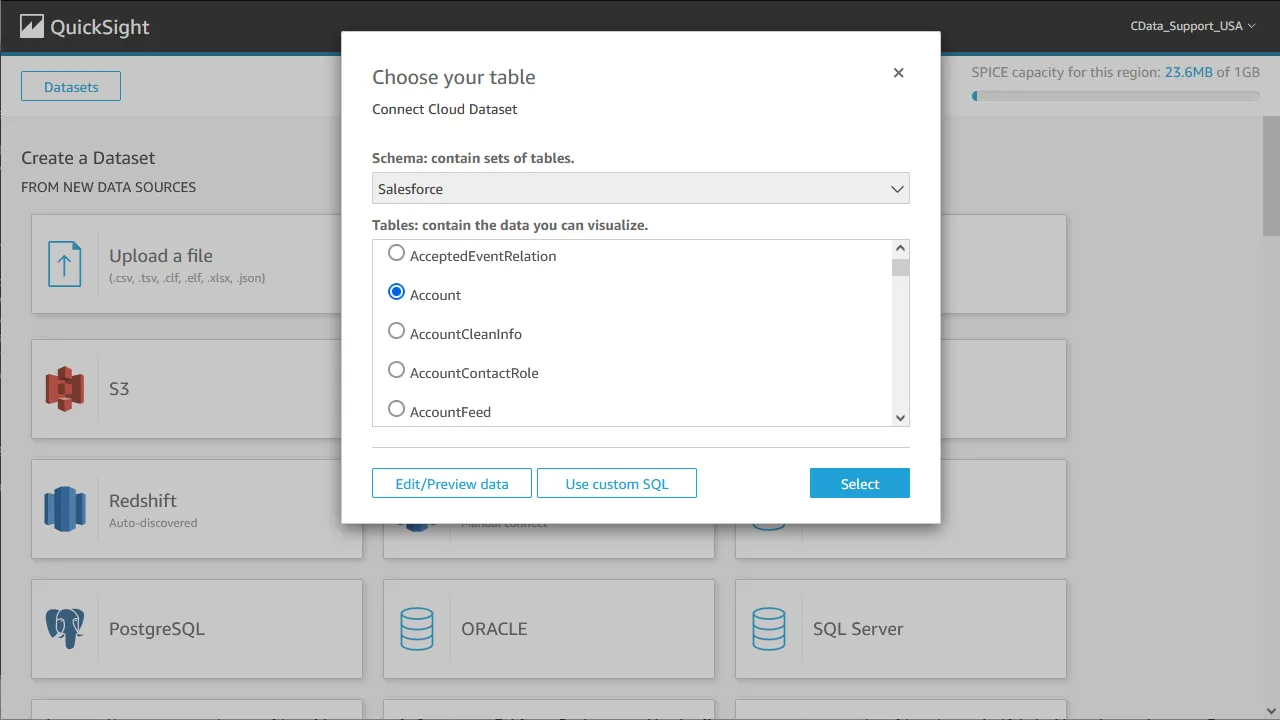
- Select a table to visualize (or subait a custom SQL query for your data).
- Click "Edit/Preview data" to customize the data set.
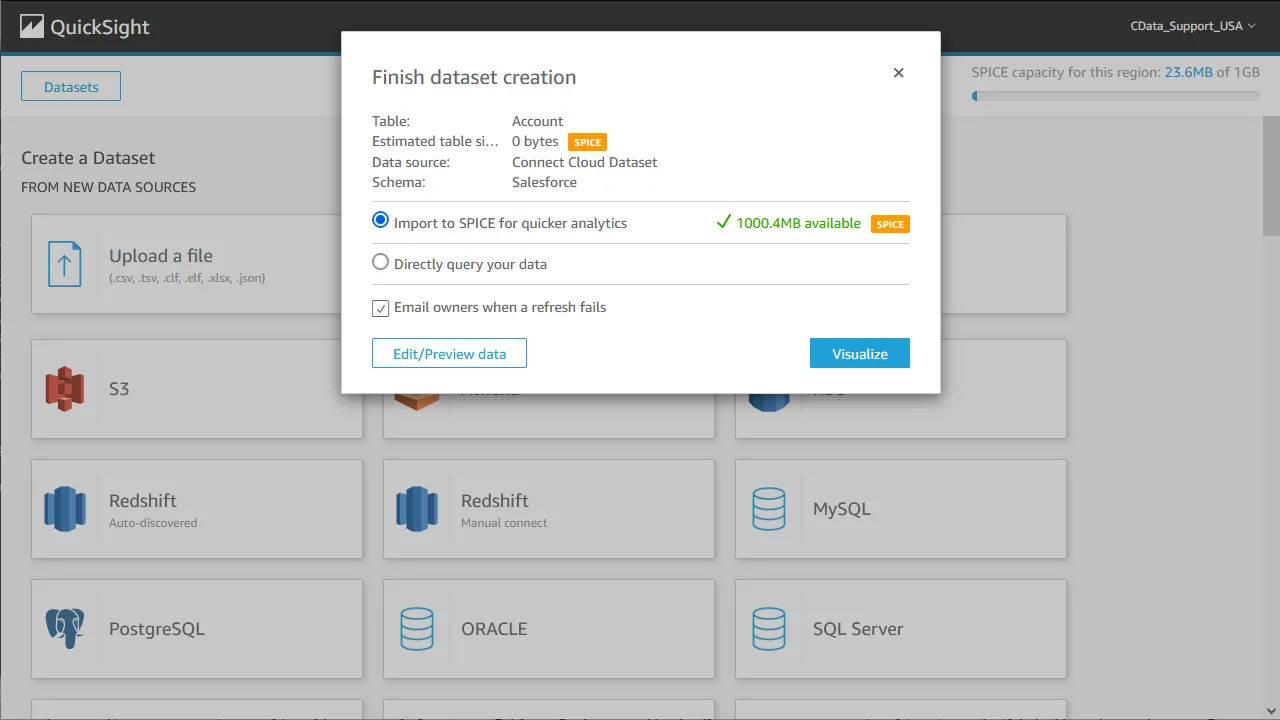
- Select "Import to SPICE for quicker analytics" and click "Visualize."
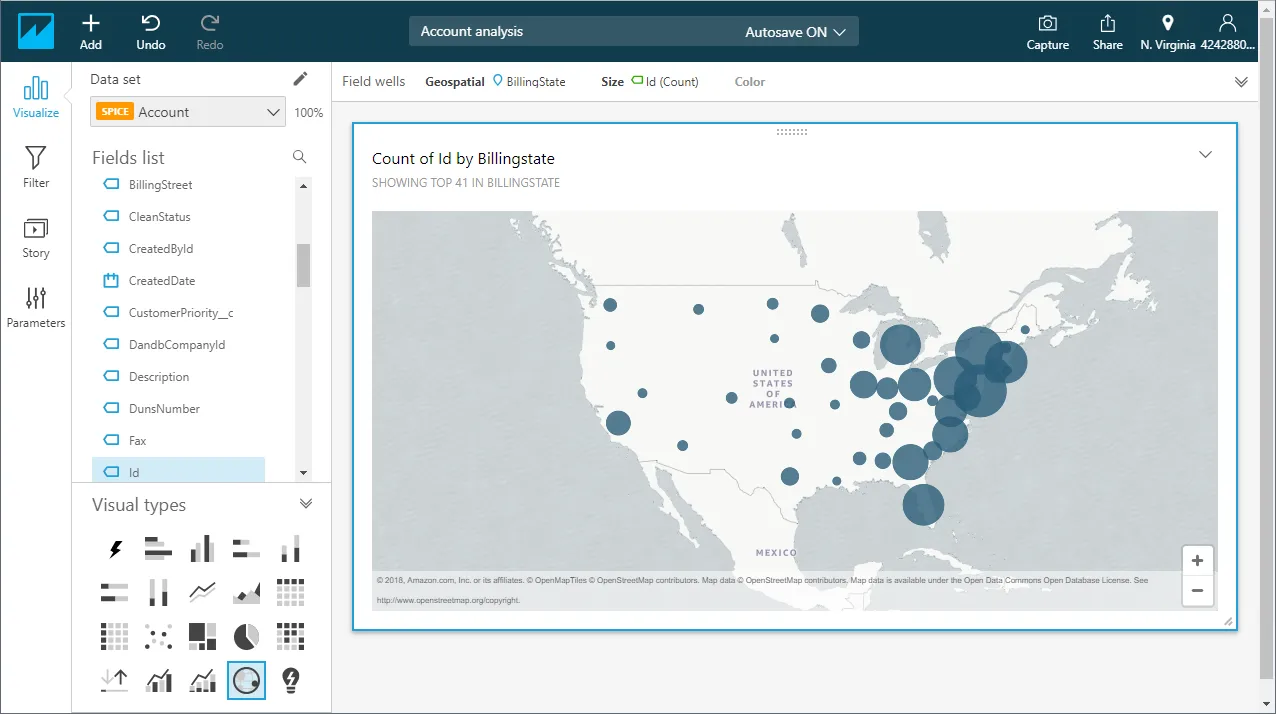
- Select fields to visualize and a visual type.
Schedule Refreshes for SPICE Data Sets
QuickSight users can schedule refreshes for data sets that are imported into SPICE, ensuring that data being analyzed is only as old as the most recent refresh.
- Navigate to the QuickSight home page.
- Click "Manage data."
- Select the data set you wish to refresh.
- Click "Schedule refresh."
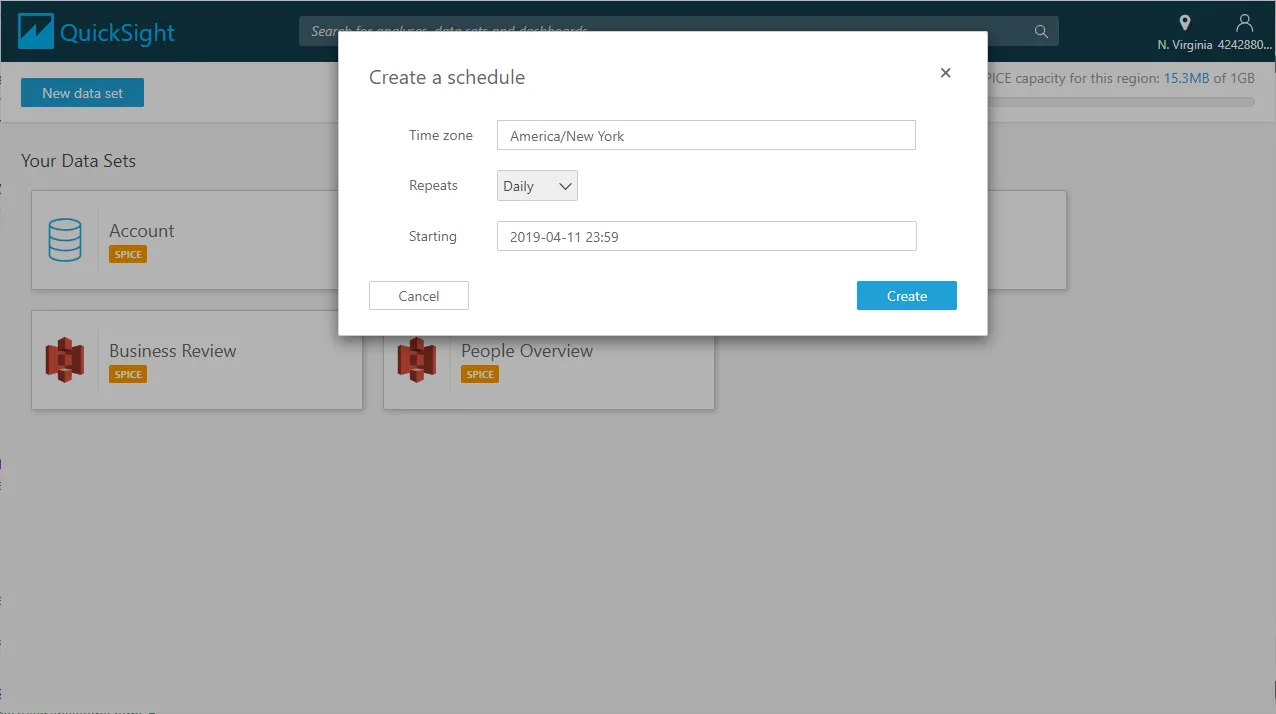
- Click Create, configure the refresh settings (time zone, repeat frequency, and starting datetime), and click Create.
Live Access to Discord Data from Cloud Applications
At this point, you have a direct, cloud-to-cloud connection to Discord data from your Amazon QuickSight dashboard. You can create new visualizations, build interactive dashboards, and more. For more information on gaining live access to data from more than 100 SaaS, Big Data, and NoSQL sources from cloud applications like Amazon QuickSight, refer to our Connect AI page.