








Access Live GetResponse Data in Google Sheets through Connect Spreadsheets

Looking for Connect AI instructions?
Your Connect AI account includes Connect Spreadsheets, so you can use the instructions below. You can expect minor differences when referencing the Connect Spreadsheet platform, but the principles still apply!
Google Sheets is a web-based spreadsheet program provided by Google. When integrated with Connect Spreadsheets by CData, you can effortlessly gain access to GetResponse data directly within Google Sheets for tasks such as data analysis, collaboration, calculations, and more. This article offers a comprehensive guide on connecting to GetResponse within Connect Spreadsheets and accessing live GetResponse data seamlessly within Google Sheets.
Connect Spreadsheets is the easiest way to get all your live data into Microsoft Excel and Google Sheets - no more downloading, wrangling, and uploading files again. Just connect to your data, select the dataset you'd like to see, and import it into your spreadsheet.
This setup requires a Connect Spreadsheets account and the Connect Spreadsheets Add-On for Google Sheets. To get started, sign up a free Connect Spreadsheets account and install the free Connect Spreadsheets Google Sheets Add-On.
Configure GetResponse Connectivity for Google Sheets
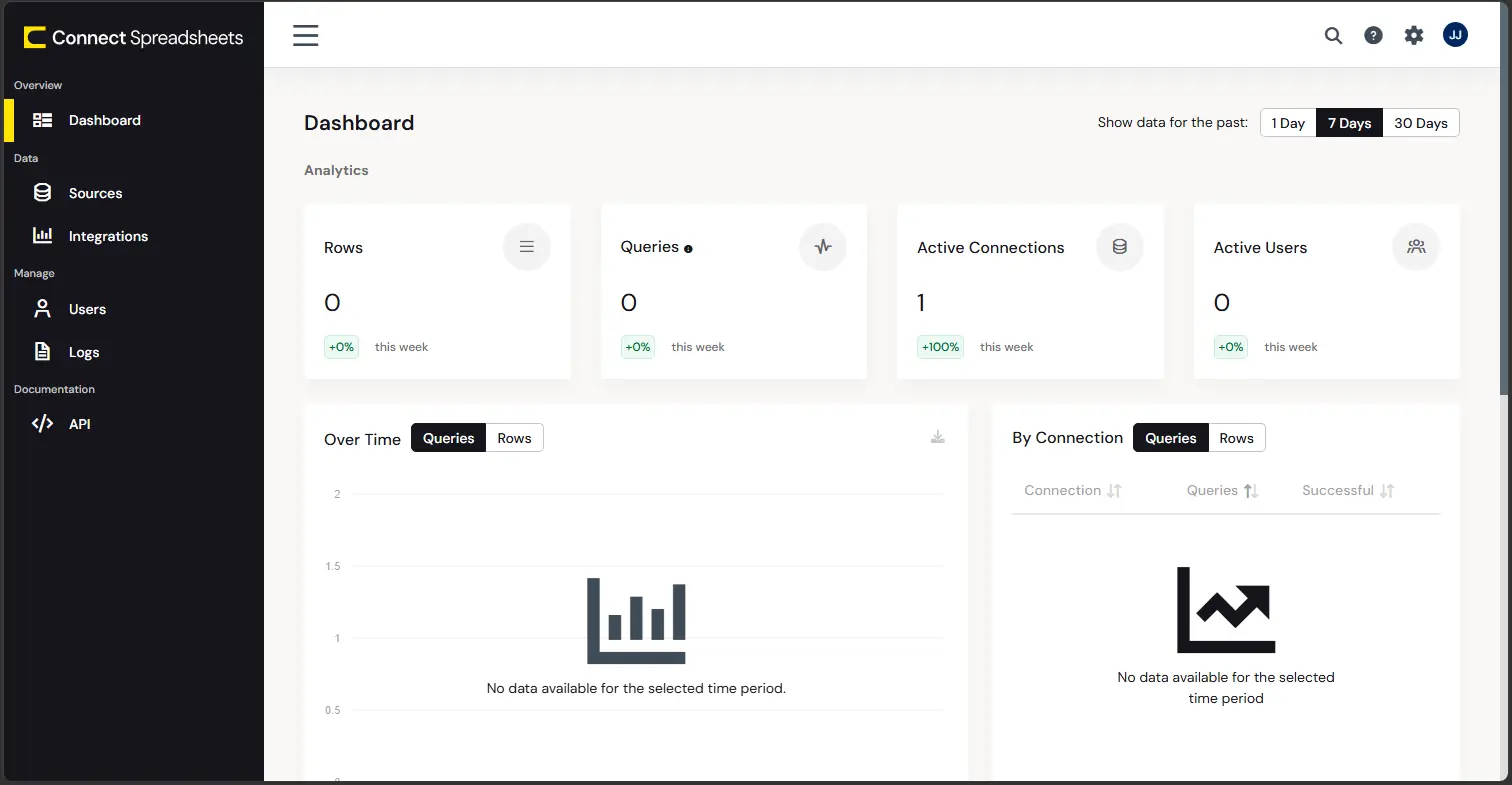
Connectivity to GetResponse from Google Sheets is made possible through Connect Spreadsheets. To work with GetResponse data from Google Sheets, we start by creating and configuring a GetResponse connection.
- Log into Connect Spreadsheets, click Sources and click Add Connection
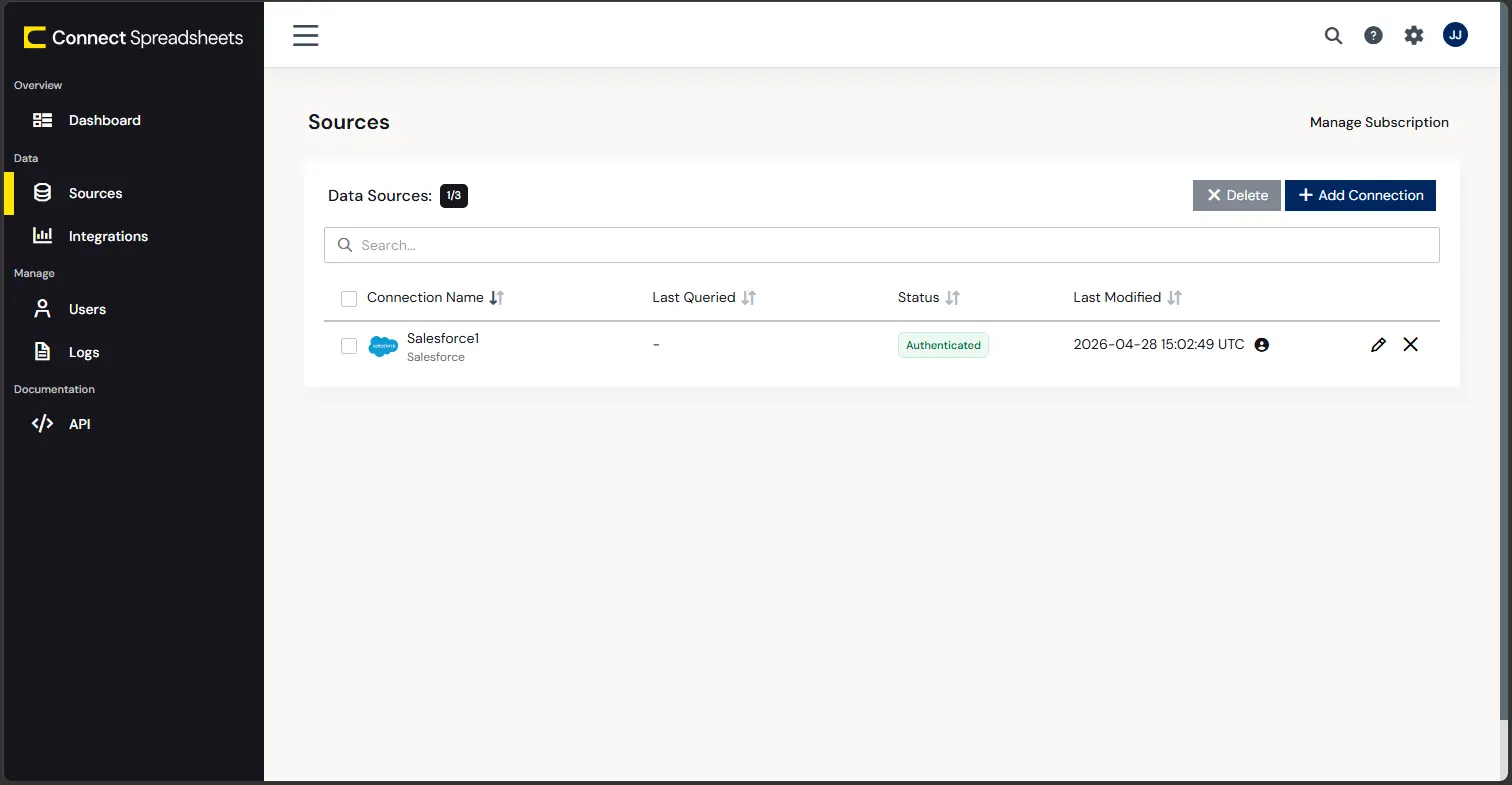
- Select "GetResponse" from the Add Connection panel
-
Enter the necessary authentication properties to connect to GetResponse.
Start by setting the Profile connection property to the location of the GetResponse Profile on disk (e.g. C:\profiles\GetResponse.apip). Next, set the ProfileSettings connection property to the connection string for GetResponse (see below).
GetResponse API Profile Settings
Retrieve your API key from your GetResponse account under My Account > Use GetResponse API.
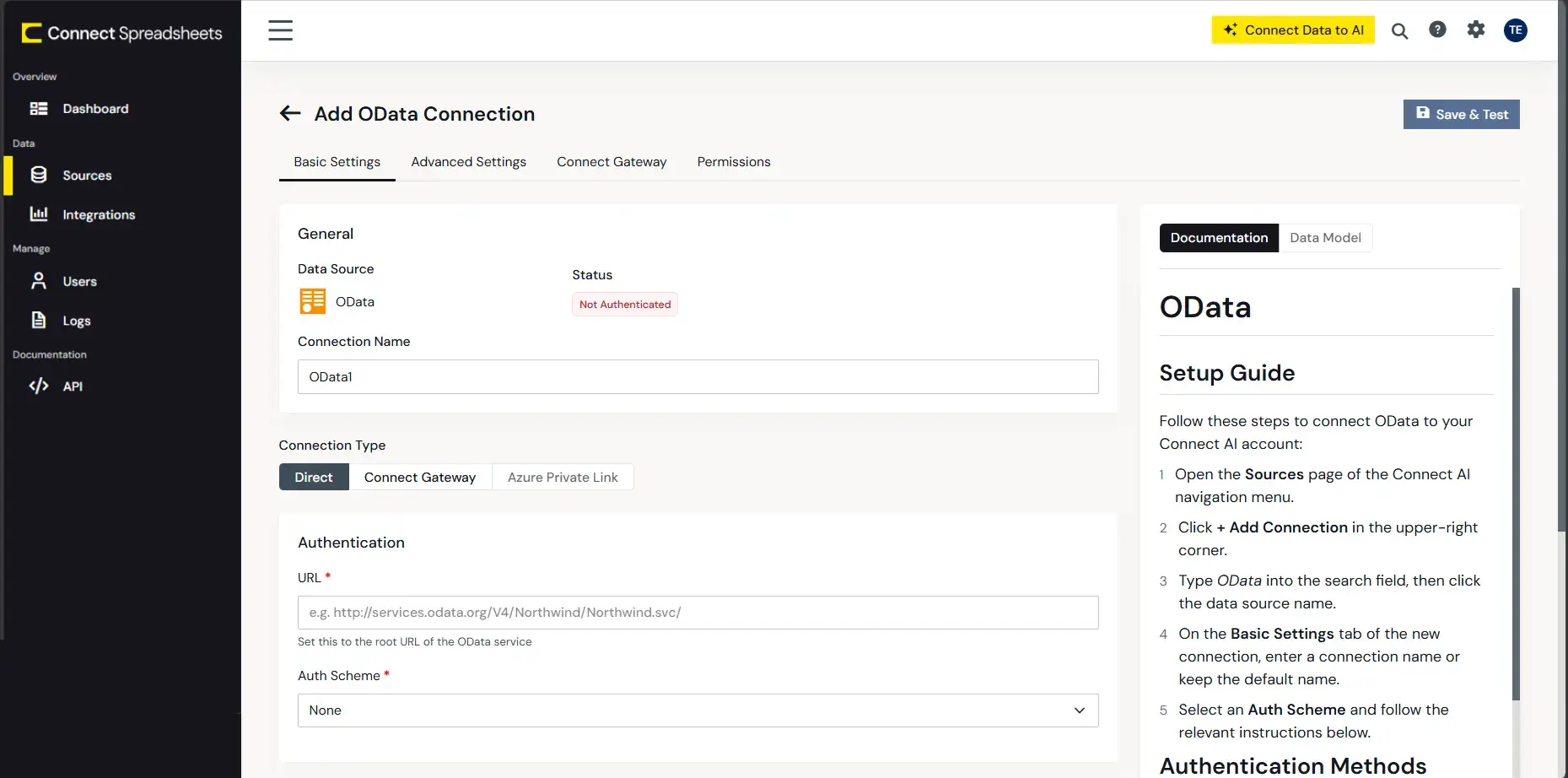
- Click Create & Test
With the connection configured, you are ready to connect to GetResponse data from Google Sheets.
Access Live GetResponse Data from Google Sheets
The steps below outline connecting to Connect Spreadsheets from Google Sheets to access live GetResponse data.
- Log into Google Sheets, create a new sheet (or open an existing one).
- Click Add-ons and click Get Add-ons (if you have already installed the Add-on, jump to step 5).
- Search for Connect Spreadsheets Add-On and install the Add-on.
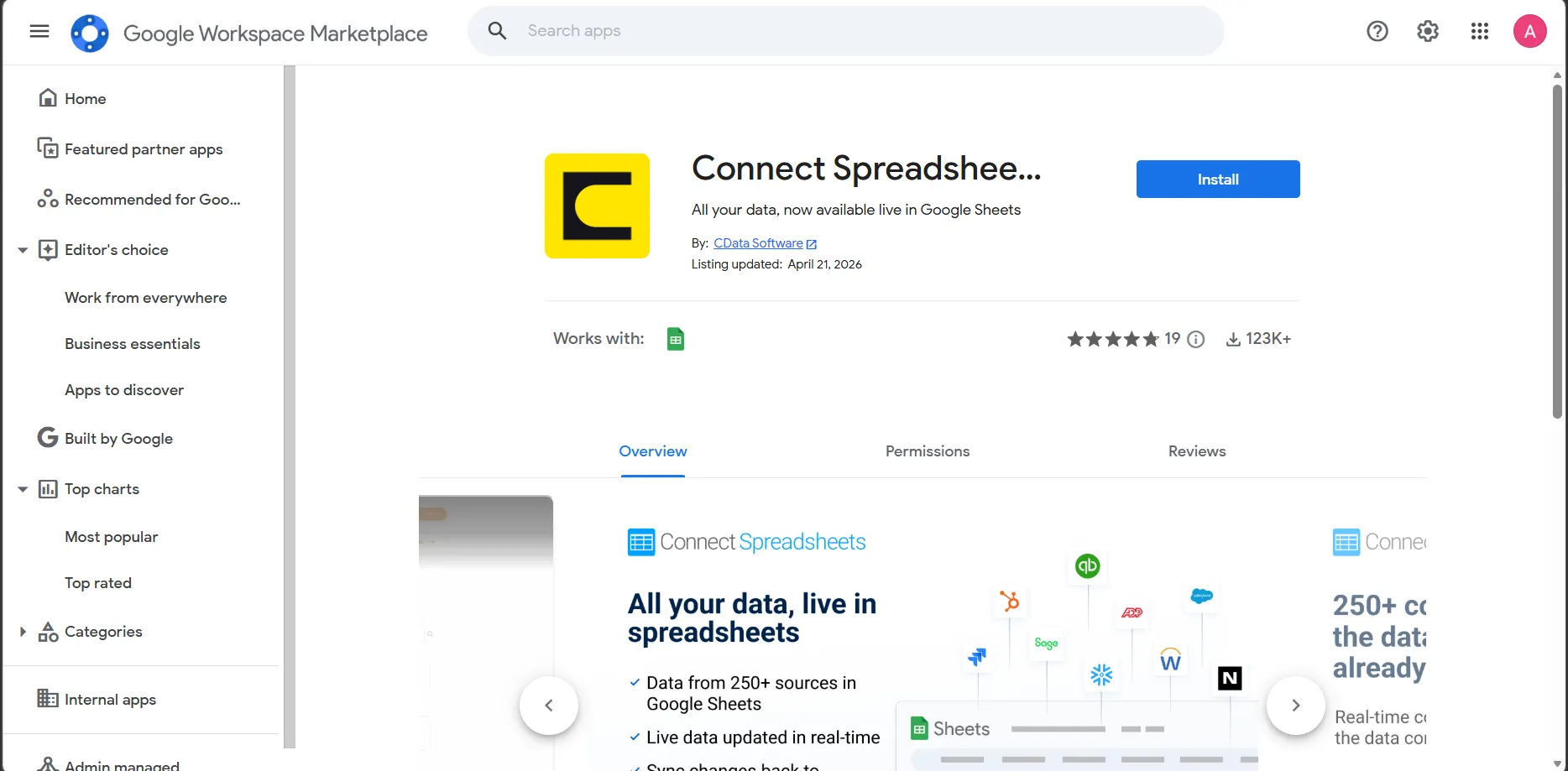
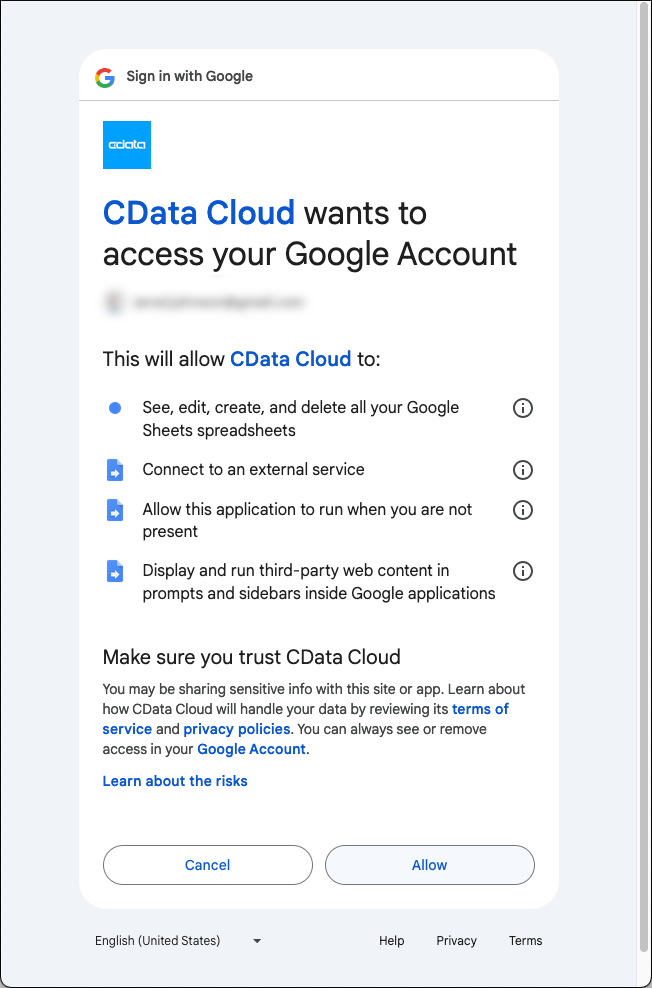
- Authorize the Add-On.
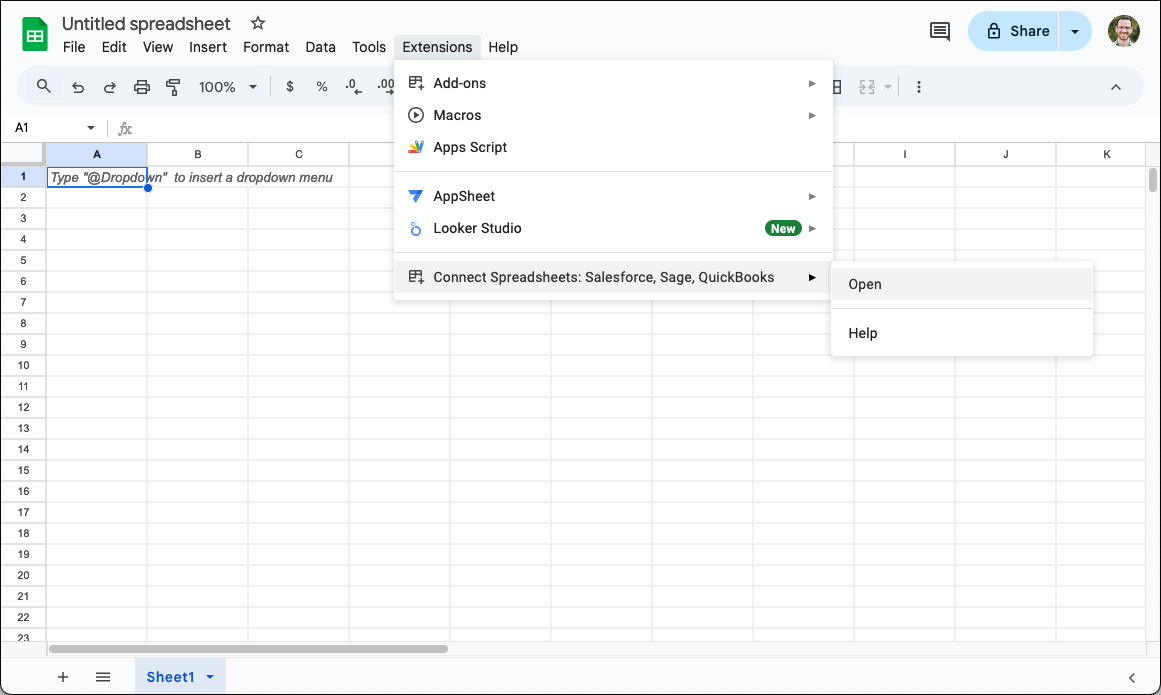
- Back in Google Sheets, click Add-ons and open the Connect Spreadsheets Add-On.
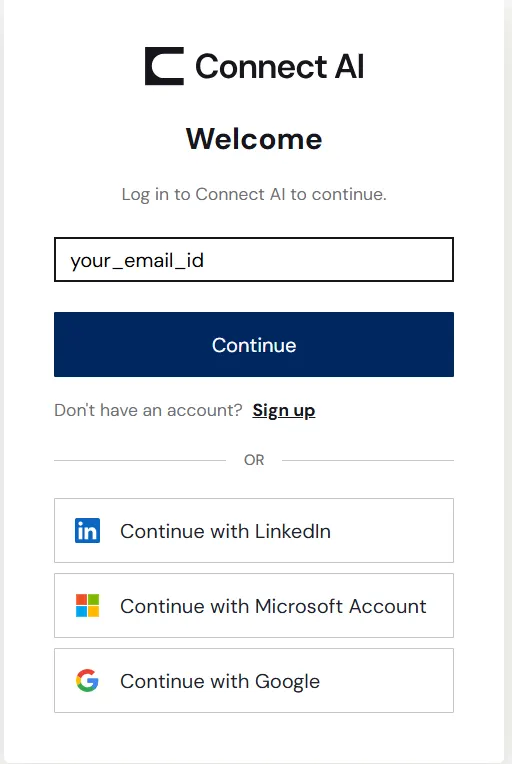
- In the Add-On panel, click "Log in" to sign into and authenticate with your Connect Spreadsheets account
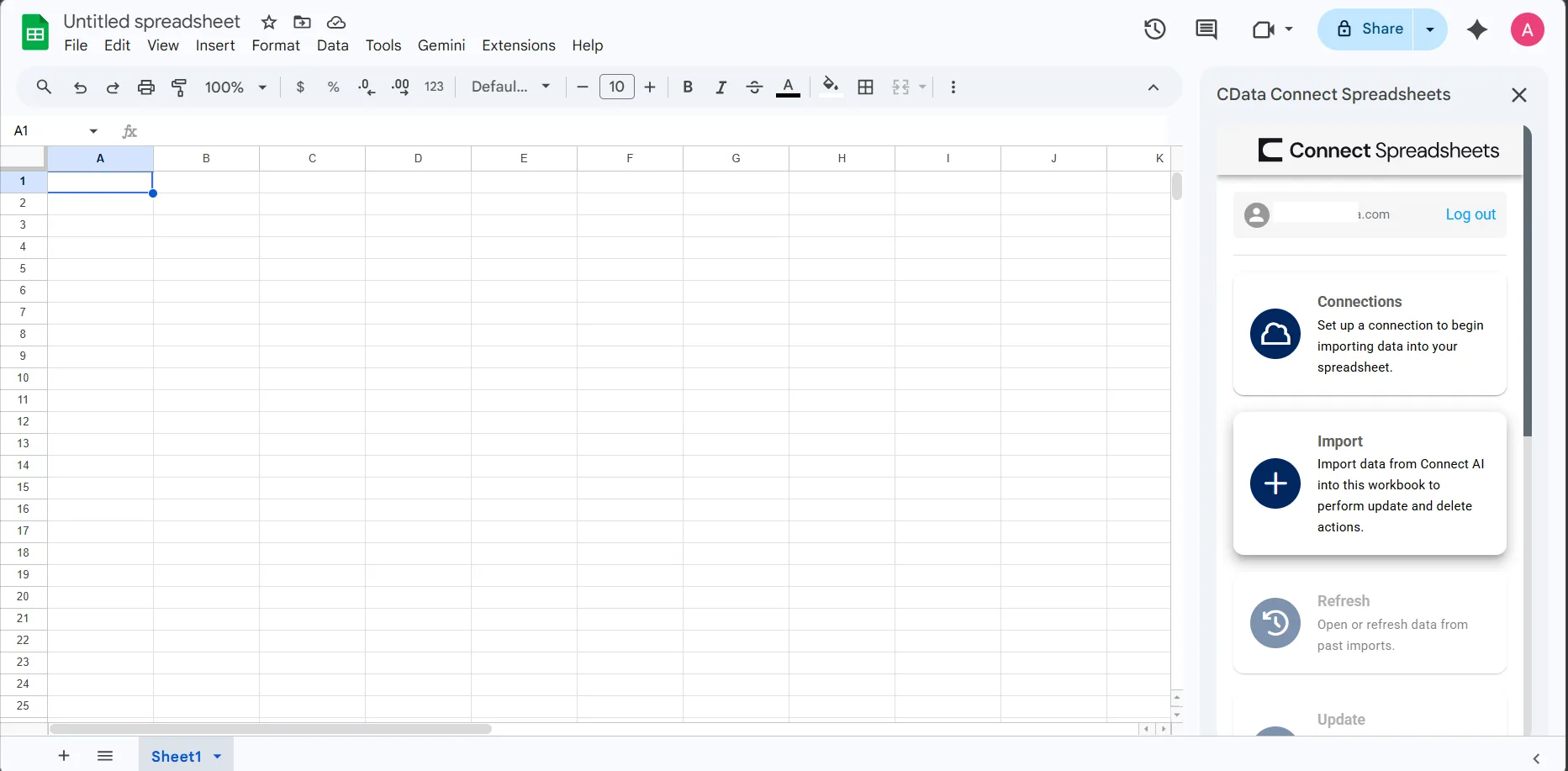
- In the Connect Spreadsheets panel in Google Sheets, click Import
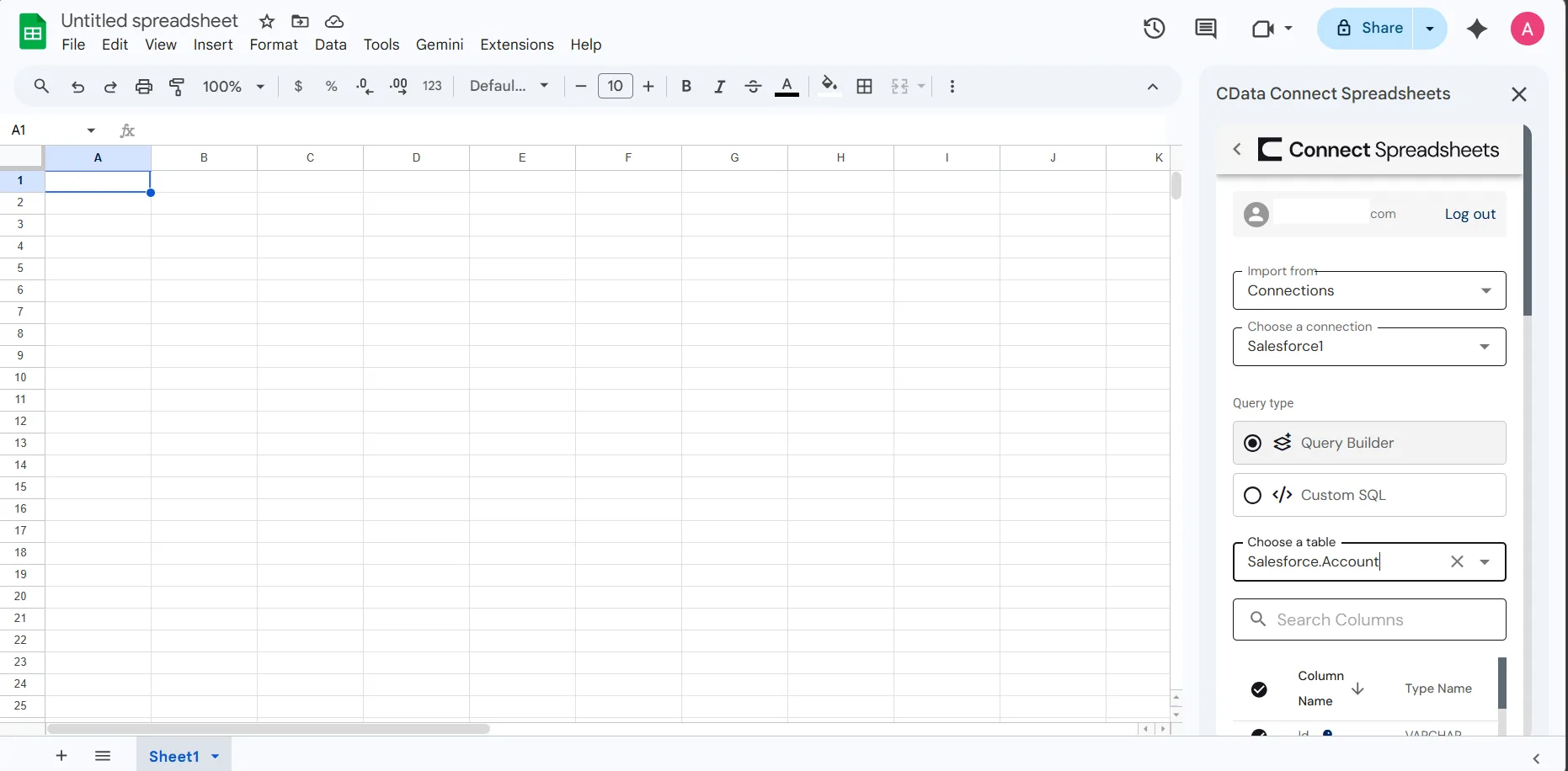
- Choose a Connection (e.g. API1), Table (e.g. AccountBilling, and Columns to import
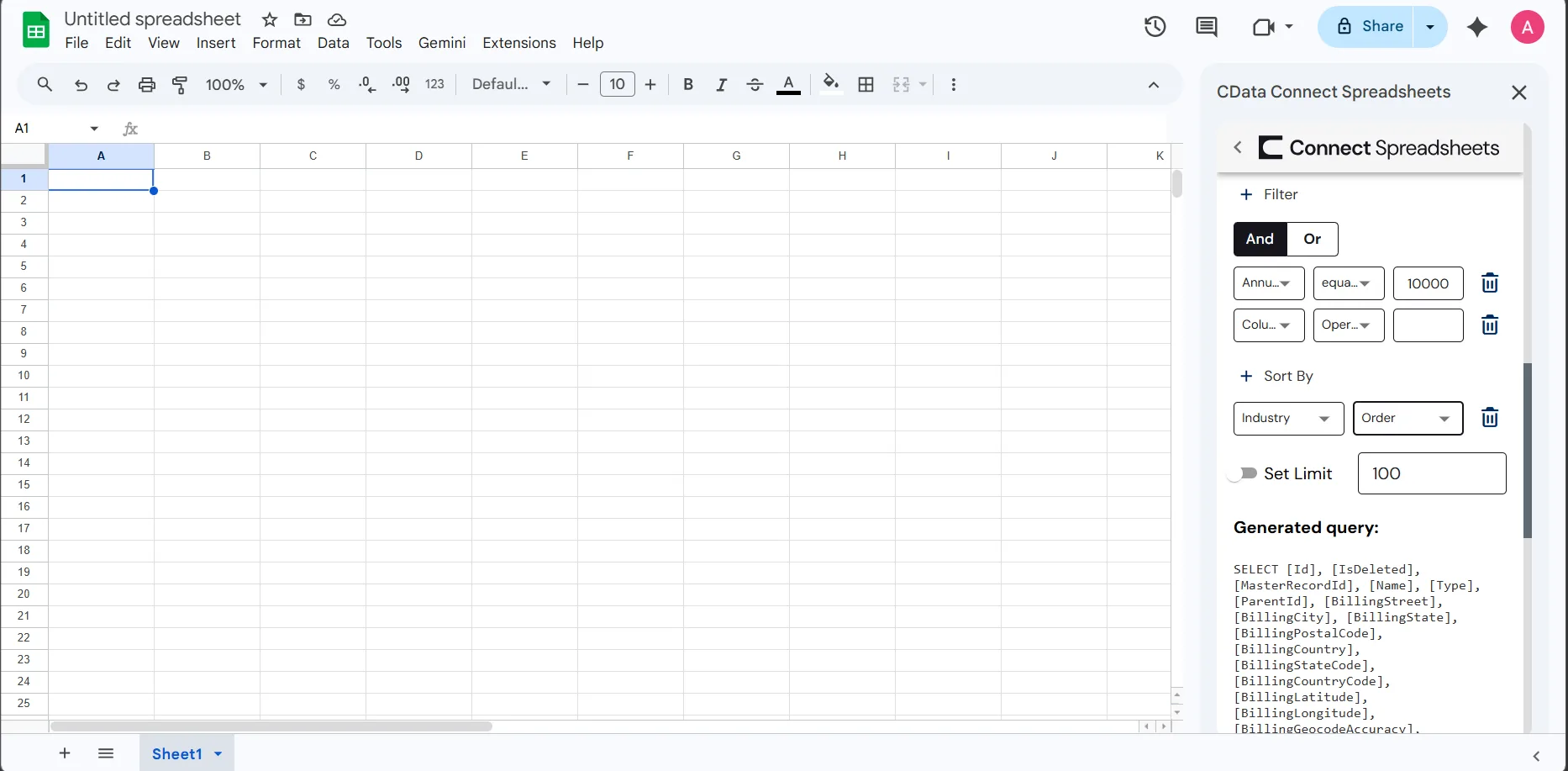
- Optionally add Filters, Sorting, and a Limit
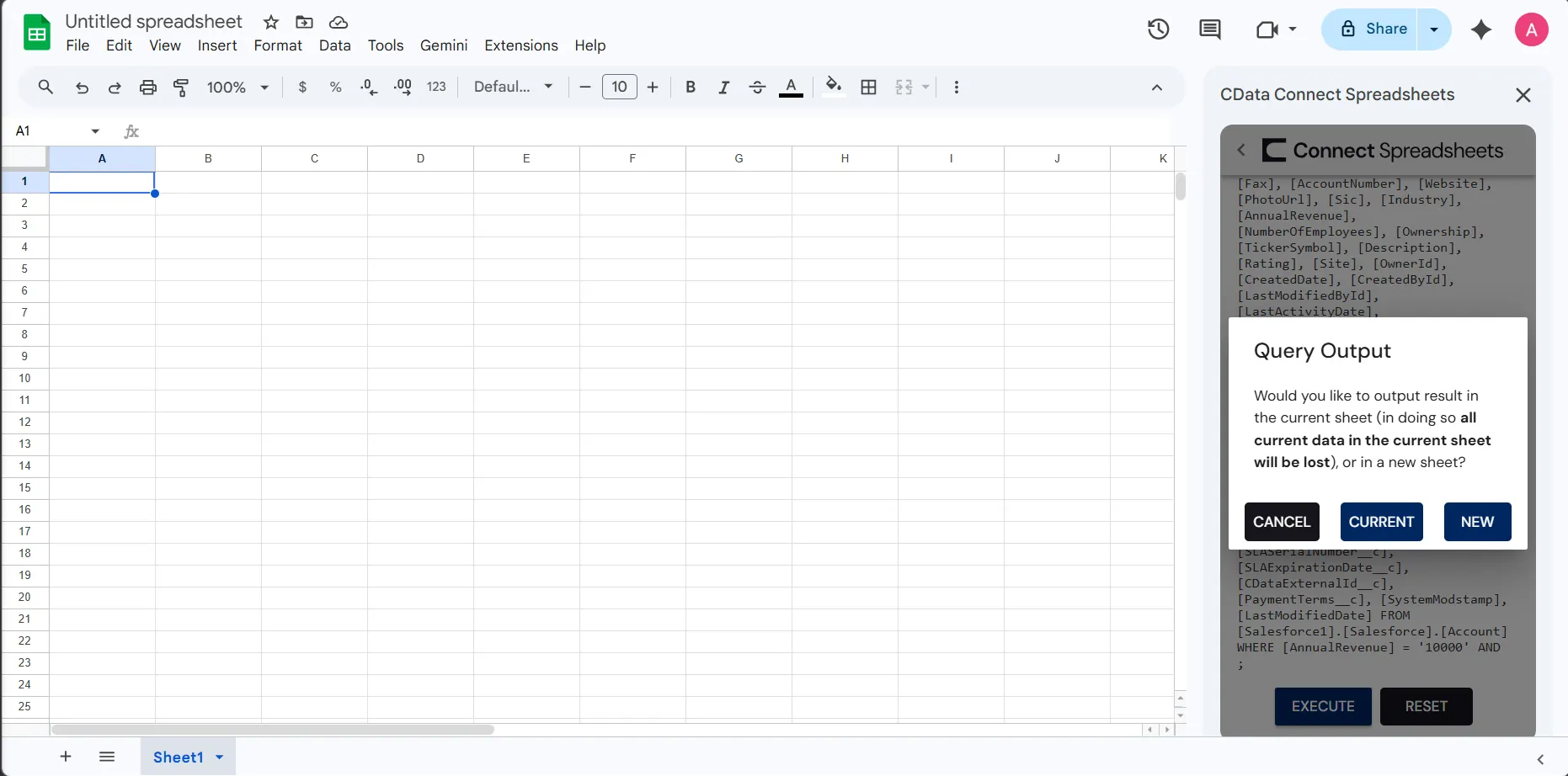
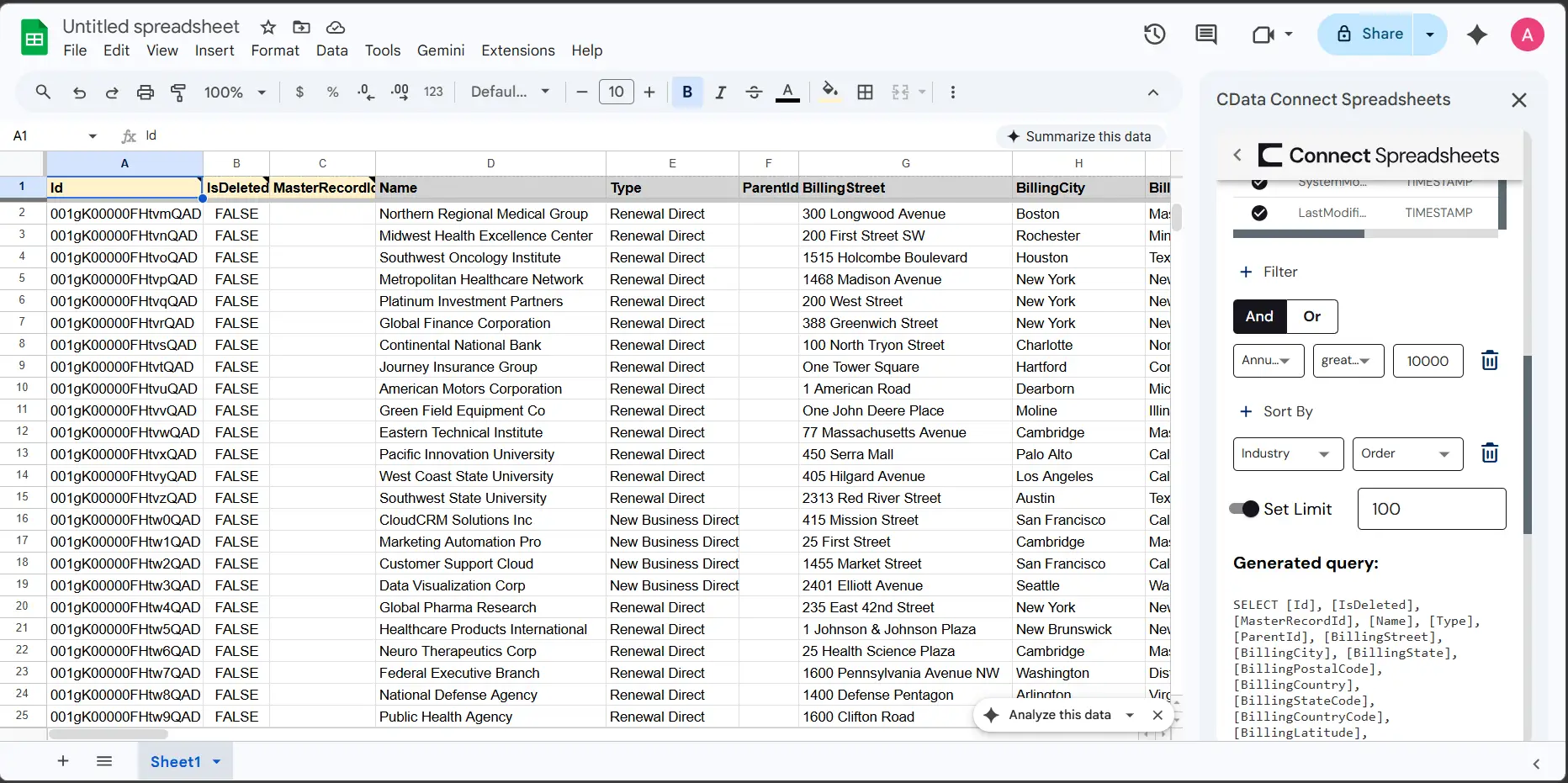
- Click Execute to import the data and opt to overwrite the existing sheet or create a new one.
Live Access to GetResponse Data from Cloud Applications
New, you have a direct, cloud-to-cloud connection to live GetResponse data from your Google Sheets workbook. You can add more data to your workbook for calculations, aggregations, collaboration, and more.
Try Connect Spreadsheets and get real-time data access to hundreds of SaaS, Big Data, and NoSQL sources directly from your cloud applications.