








Build Guru-Connected Apps in Bubble

Bubble is a no-code platform that simplifies the process of developing and launching apps and businesses. When coupled with CData Connect AI, you gain effortless no-code access to Guru data for streamlined app development. This article guides you through the integration process from Bubble to Guru using CData Connect AI.
CData Connect AI provides a pure cloud-to-cloud OData interface for Guru data that allows you to integrate from Bubble to Guru data in real time.
Connect to Guru from Bubble
To work with Guru data from Bubble, we need to connect to Guru from Connect AI, provide user access to the connection, and create a Workspace for the Guru data.
Connect to Guru from Connect AI
CData Connect AI uses a straightforward, point-and-click interface to connect to data sources.
- Log into Connect AI, click Sources, and then click Add Connection
- Select "Guru" from the Add Connection panel
-
Enter the necessary authentication properties to connect to Guru.
Start by setting the Profile connection property to the location of the Guru Profile on disk (e.g. C:\profiles\Guru.apip). Next, set the ProfileSettings connection property to the connection string for Guru (see below).
Guru API Profile Settings
In Guru, navigate to Settings > API and click Create New API Token. Use your email address as the User and the generated token as the Password.

- Click Save & Test
-
Navigate to the Permissions tab in the Add Guru Connection page and update the User-based permissions.



Add a Personal Access Token
When connecting to Connect AI through the REST API, the OData API, or the Virtual SQL Server, a Personal Access Token (PAT) is used to authenticate the connection to Connect AI. It is best practice to create a separate PAT for each service to maintain granularity of access.
- Click on the Gear icon () at the top right of the Connect AI app to open the settings page.
- On the Settings page, go to the Access Tokens section and click Create PAT.
-
Give the PAT a name and click Create.

- The personal access token is only visible at creation, so be sure to copy it and store it securely for future use.
Configure Guru Endpoints for Bubble
After connecting to Guru, create a workspace for your desired table(s).
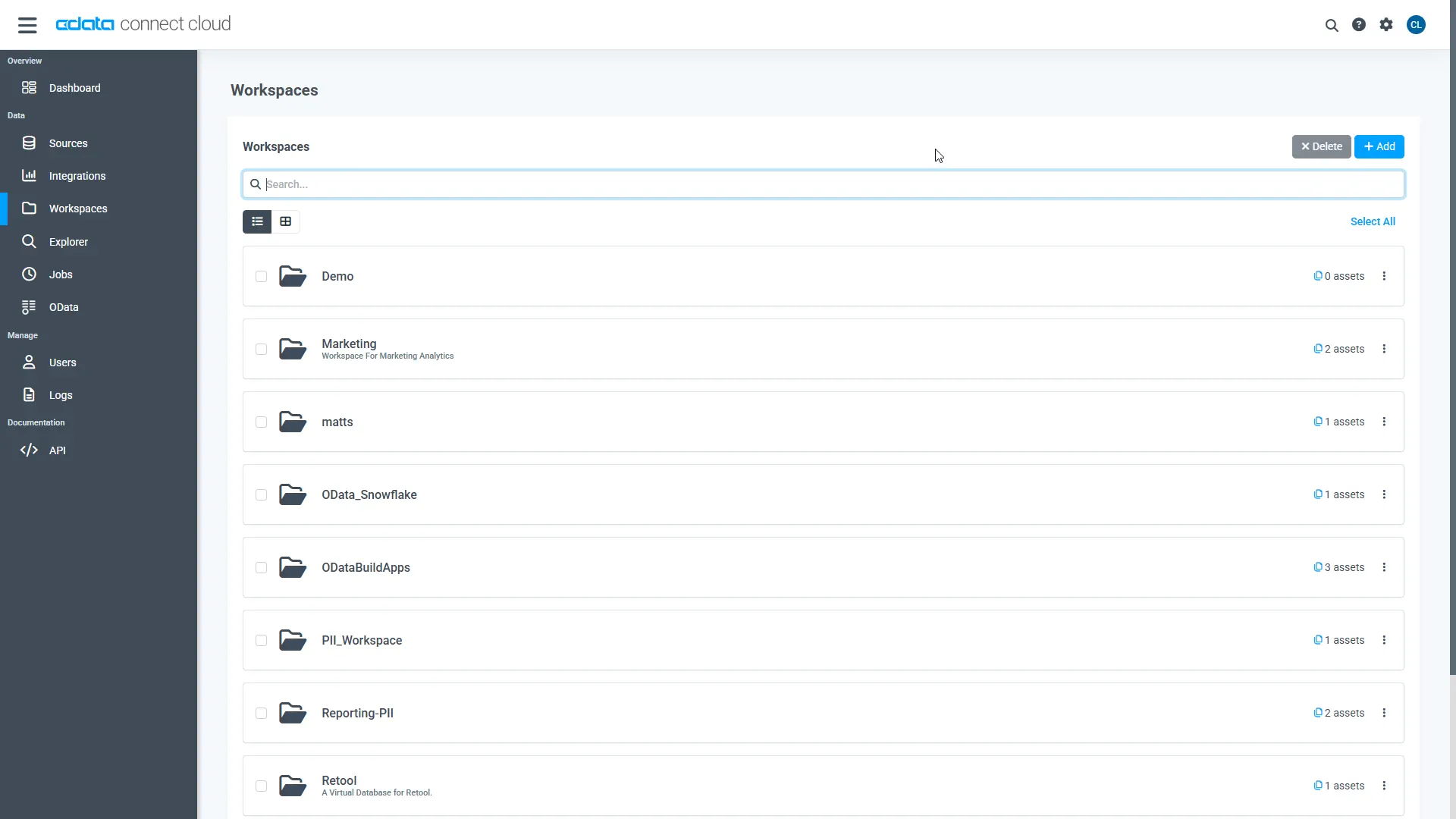
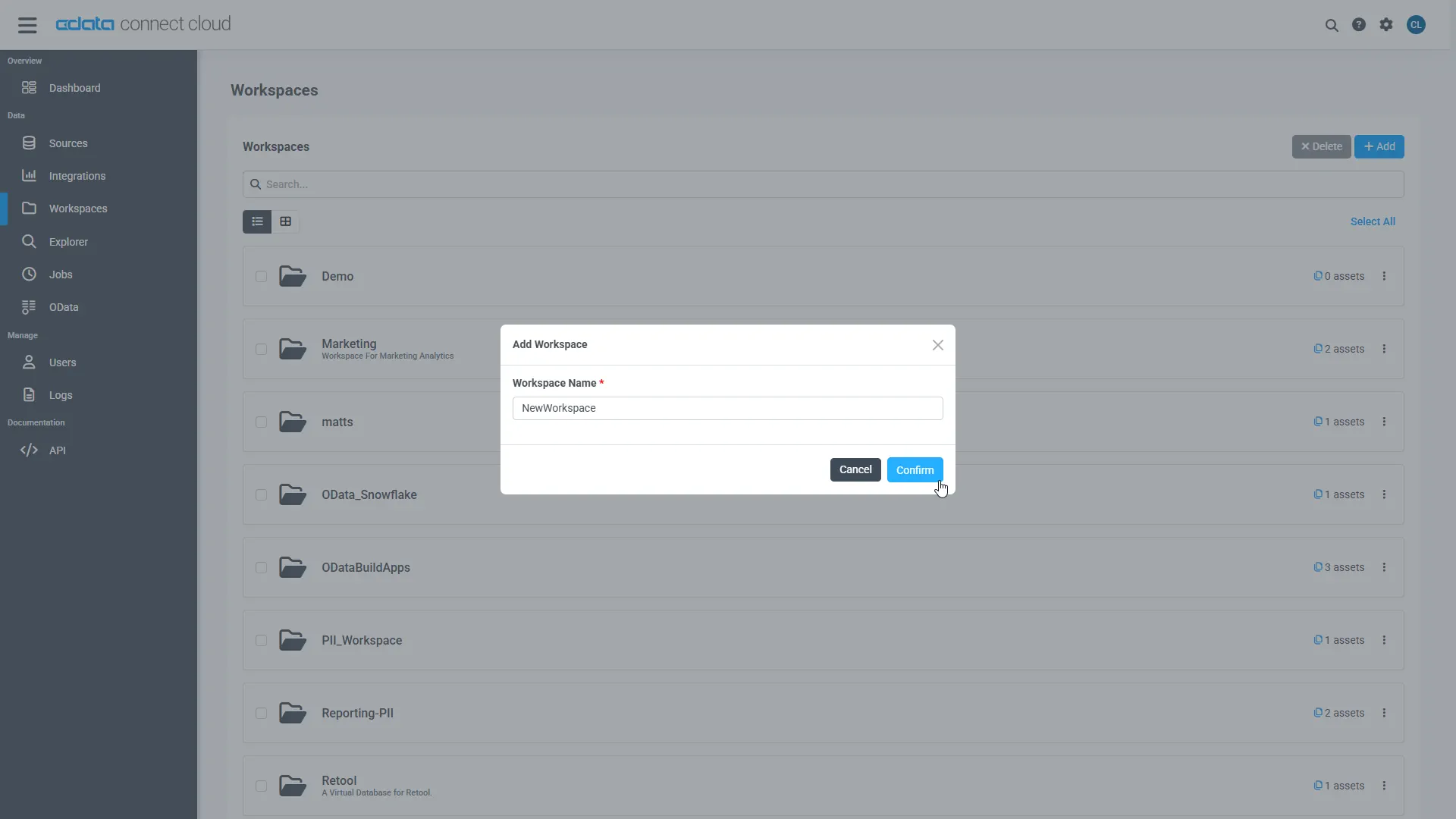
- Navigate to the Workspaces page and click Add to create a new Workspace (or select an existing workspace).
- Click Add to add new assets to the Workspace.
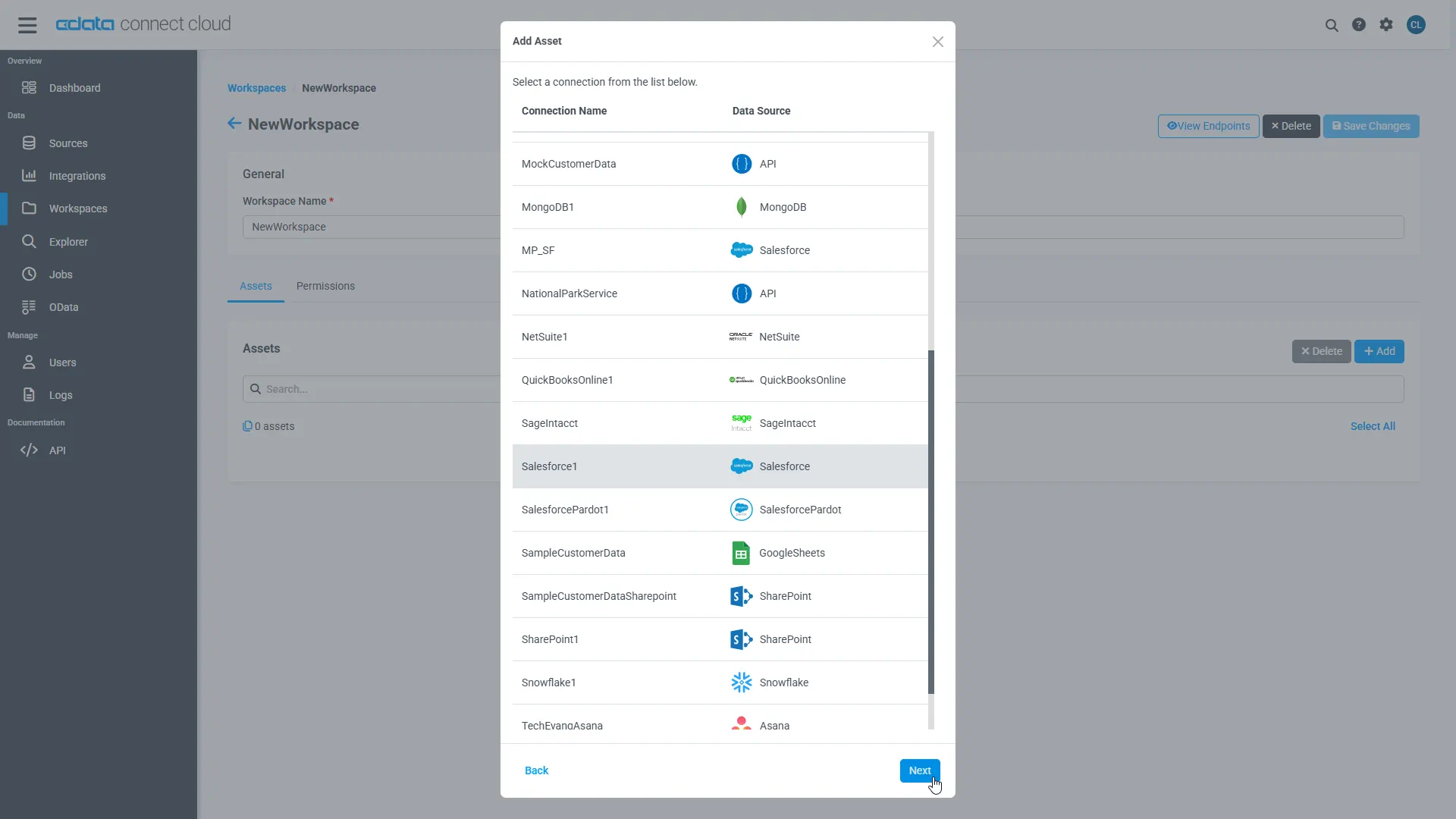
- Select the Guru connection (e.g. API1) and click Next.
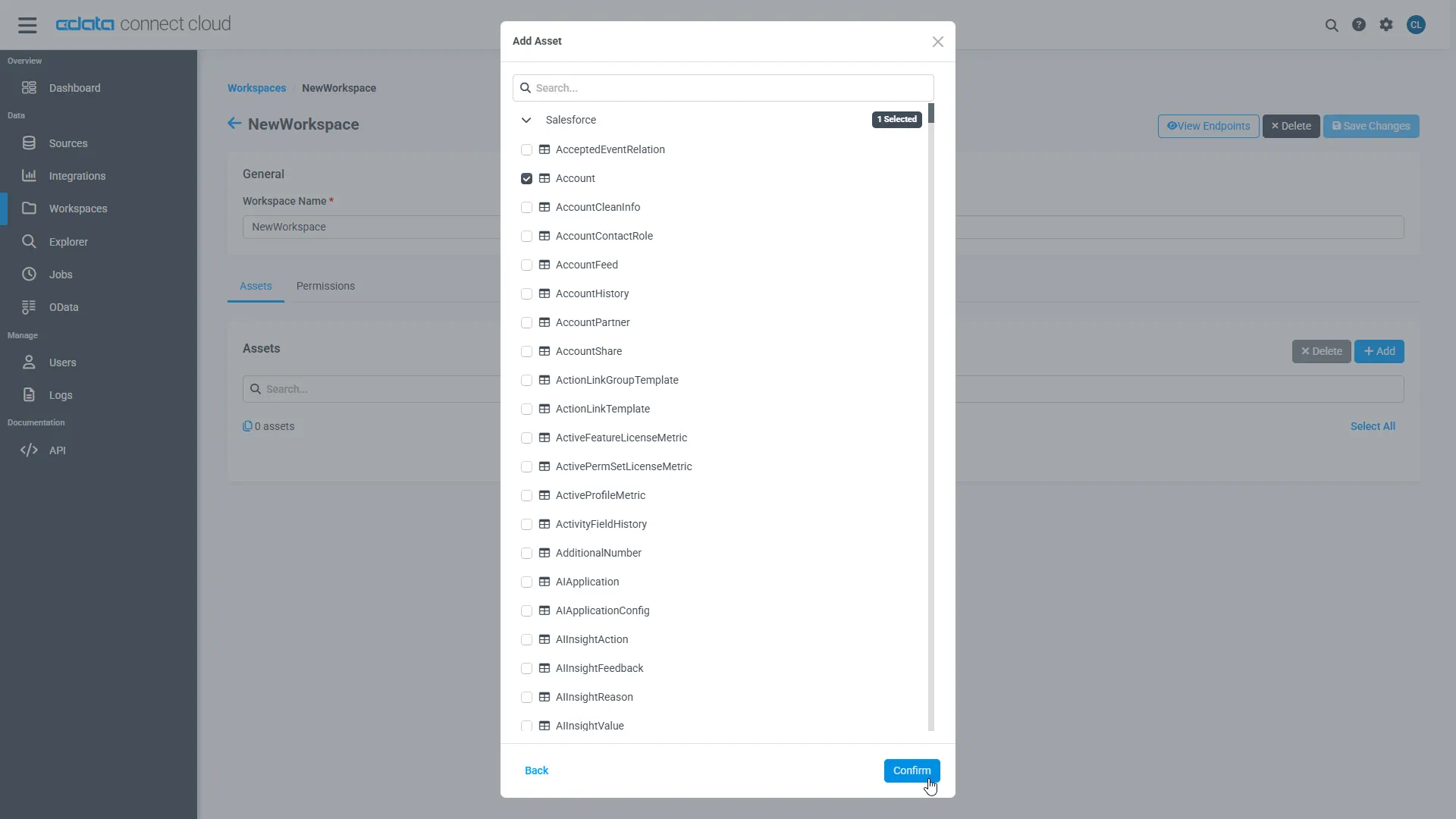
- Select the table(s) you wish to work with and click Confirm.
- Make note of the OData Service URL for your workspace, e.g. https://cloud.cdata.com/api/odata/{workspace_name}
With the connection, PAT, and Workspace configured, you are ready to connect to Guru data from Bubble.
Build a Guru-Connected App
With OData endpoints added to Connect AI, you can build an app in Bubble with live access to Guru data.
Configure the Bubble API Connector
To start, Configure the API Connector for accessing CData Connect AI from Bubble.
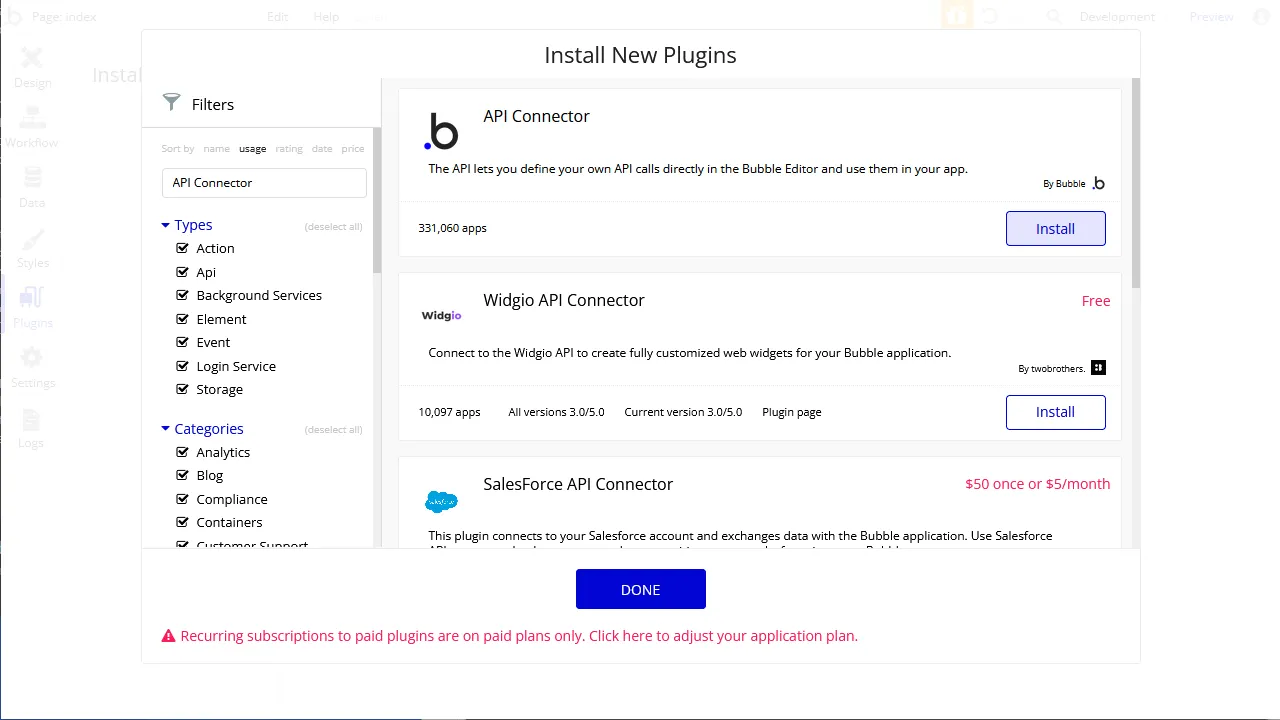
- In your app, click the Plugins tab and click Add plugins
- Search for "API Connector" and click Install
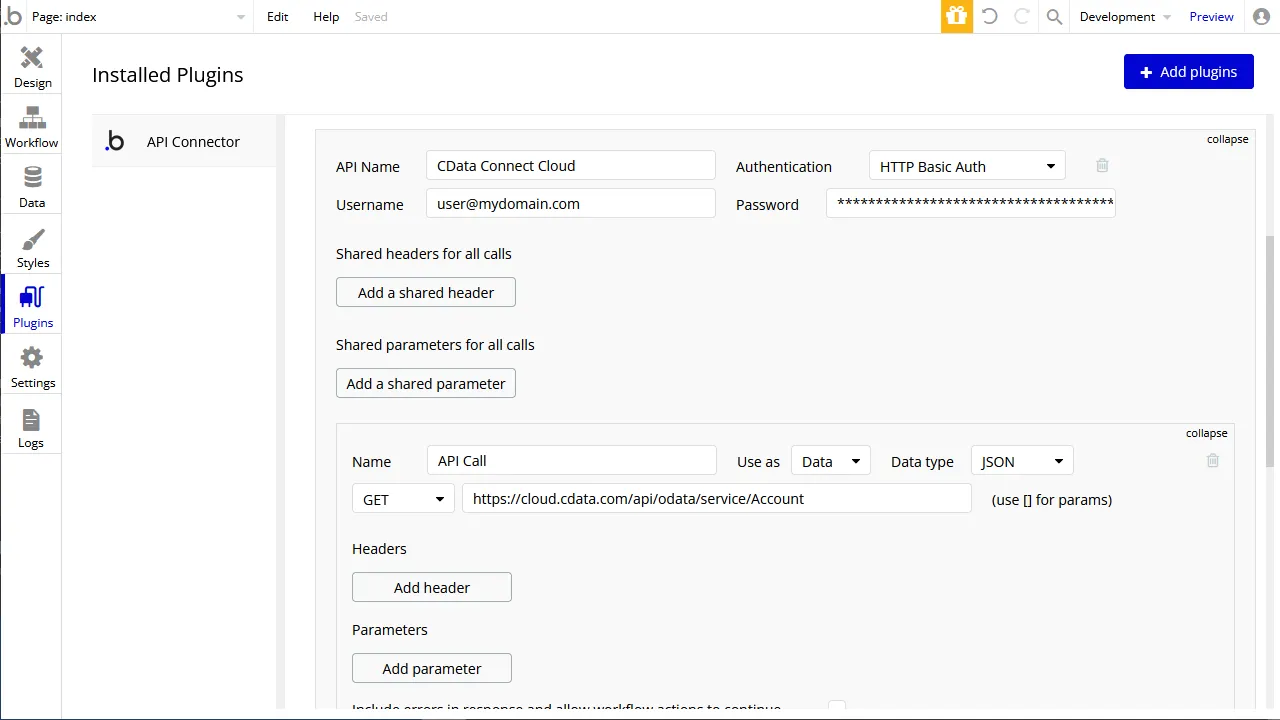
- After installation, click the "Add another API" button and configure the API:
- Name the API
- Set Authentication to "HTTP Basic Auth"
- Set Username to a Connect AI user (e.g. [email protected])
- Set Password to the PAT for the user
- Expand the API Call, select the "GET" command and set the URL to a Workspace endpoint you previously configured (e.g. https://cloud.cdata.com/api/odata/{workspace_name}/Analytics)
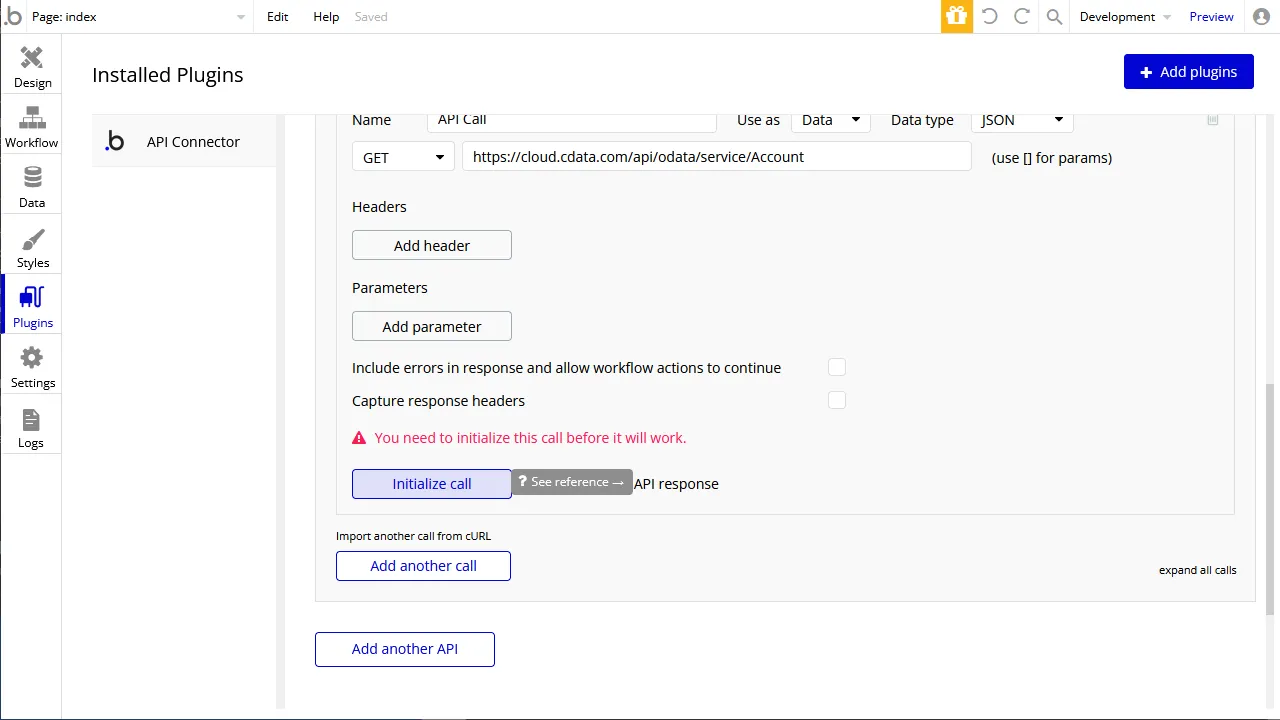
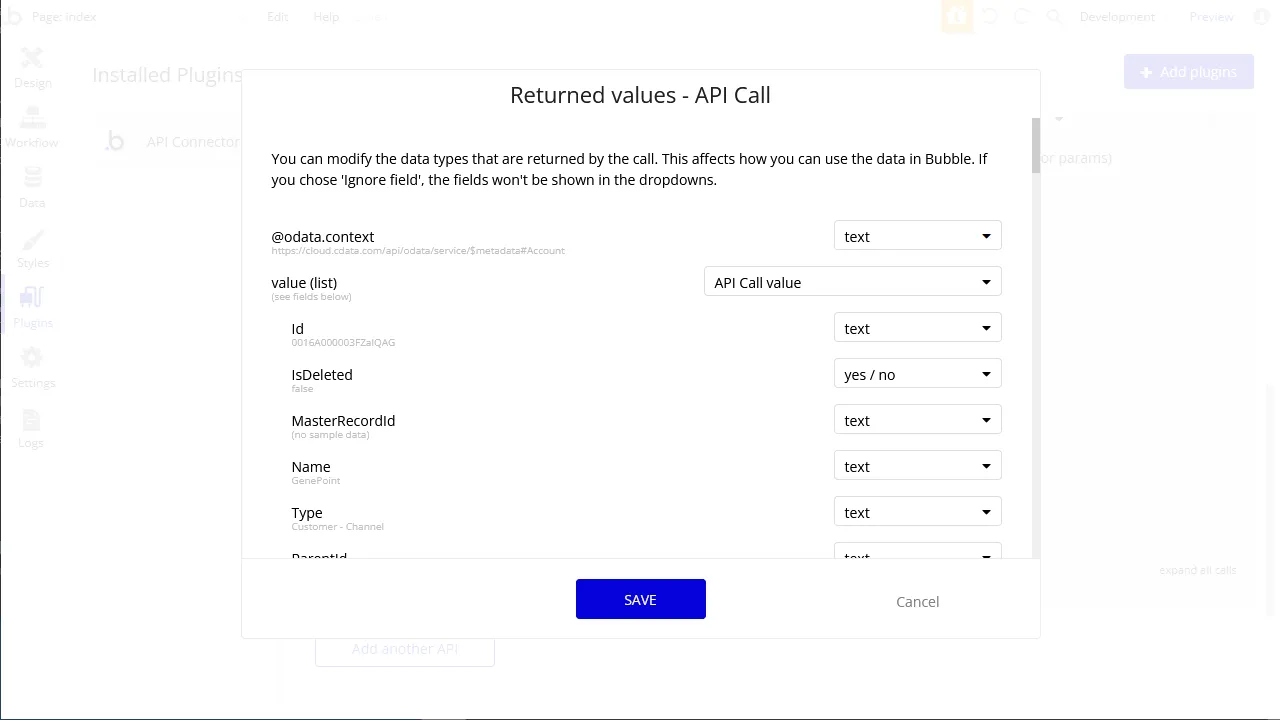
- Click the "Initialize call" button to adjust data types in the response (as needed)
- After making any necessary changes, click "Save"
Configure the App UI
With the API Connector configure, you are ready to retrieve Guru data in your Bubble app. In this article, we request the data with a UI component that can display an Excel-like table.
-
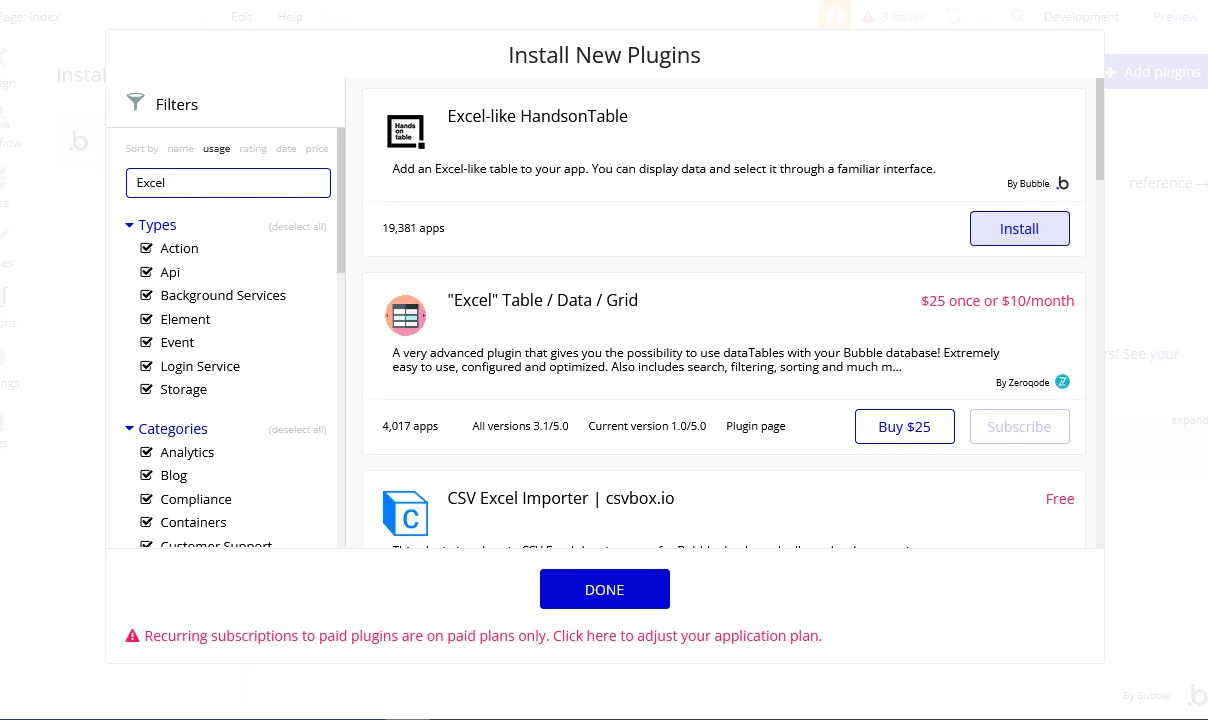
On the Plugin tab, install the "Excel-like HandsonTable"
- On the Design tab, add an "Excel Table" to the workspace
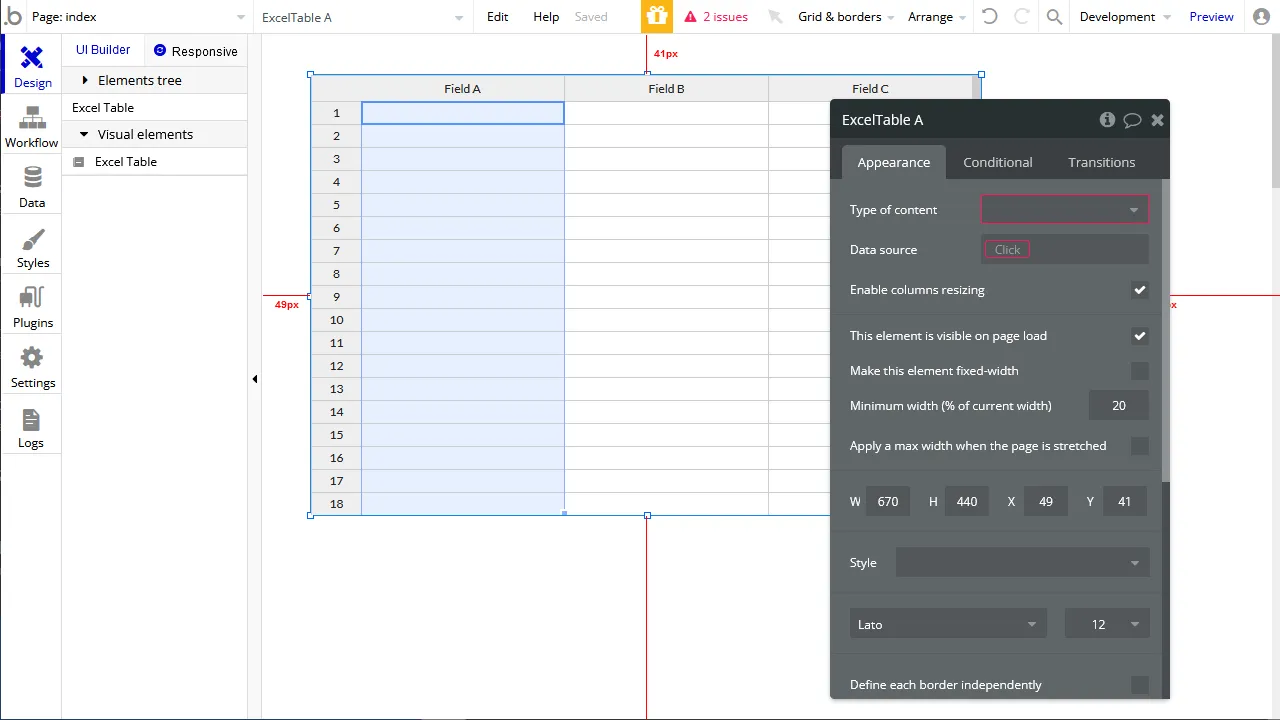
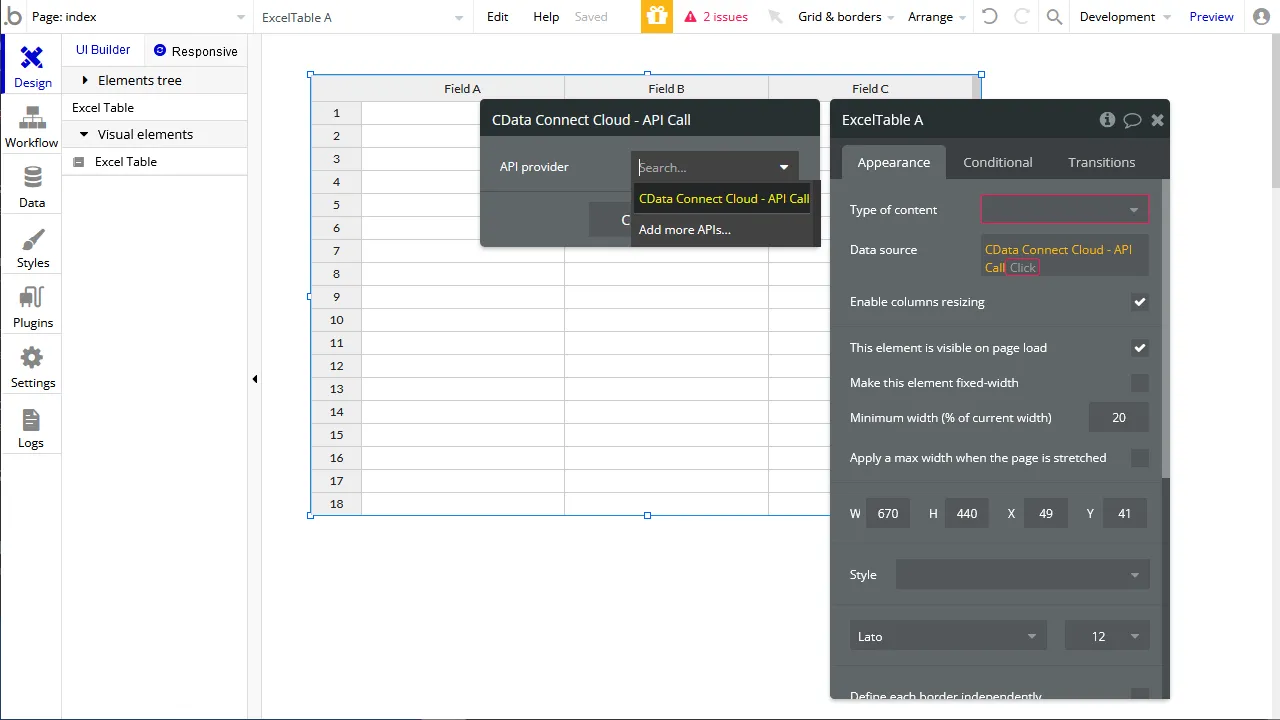
- In the Excel Table, in Data source, select "Get data from an external API"
- Set Type of content to "API Call value"
- Set Data source to "CData Connect AI - API Call's value" (or equivalent)
- Click "Preview" to ensure the data was retrieved from Guru.
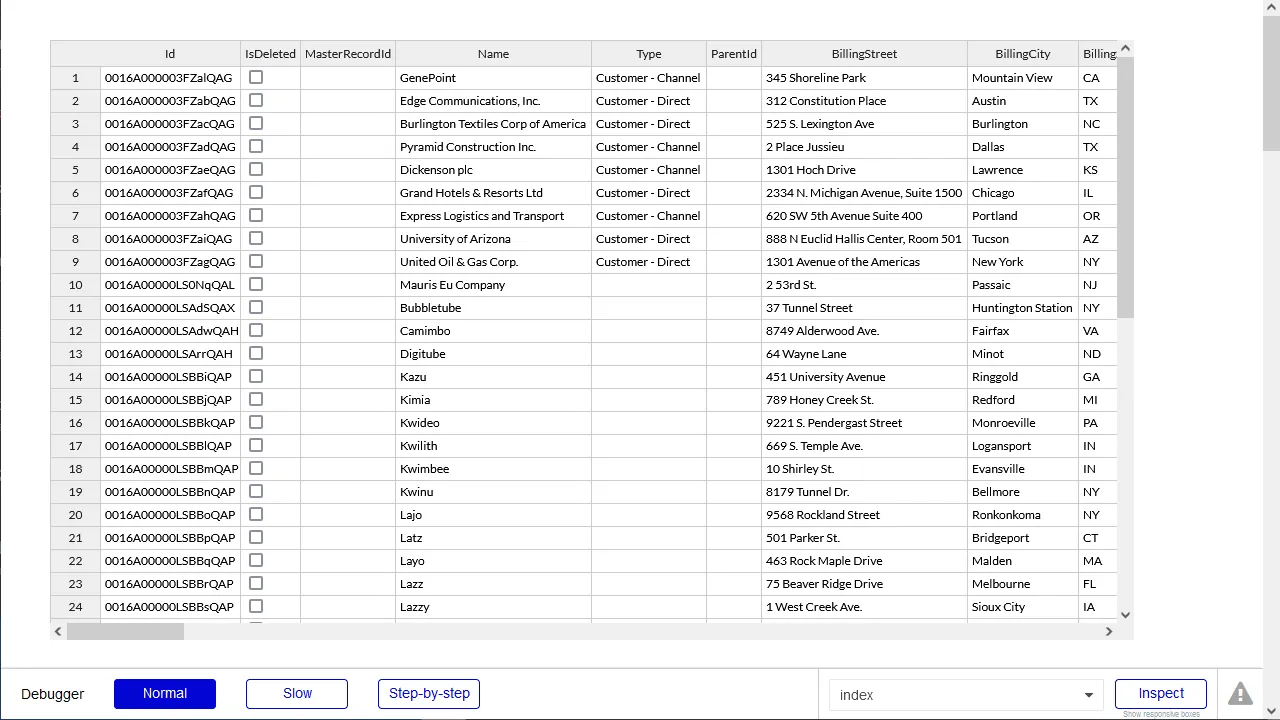
At this point, you can develop applications with live access to Guru data without needing to know the complexities of the back-end API.
Live Access to Guru Data from Cloud Applications
Now you have a direct connection to live Guru data from Bubble. You can create more Guru-connected apps — all without writing any code or replicating Guru data.
To get live data access to hundreds of SaaS, Big Data, and NoSQL sources directly from your cloud applications, see the CData Connect AI.