








Connect to HubDB Data in ACL Analytics

ACL Analytics, part of Diligent HighBond, is a powerful data analysis software primarily used for audit, risk management, and compliance. It enables professionals to examine and analyze large volumes of data to identify anomalies, trends, and potential risks or fraudulent activities.
CData Connect AI offers a dedicated cloud-to-cloud interface for HubDB, enabling analytics directly from live HubDB data within ACL Analytics, all without the need for data replication to a native database. With its inherent optimized data processing capabilities, CData Connect AI efficiently channels all supported SQL operations, including filters and JOINs, directly to HubDB. This leverages server-side processing to swiftly deliver the requested HubDB data.
Configure HubDB Connectivity for ACL Analytics
Connectivity to HubDB from ACL Analytics is made possible through CData Connect AI. To work with HubDB data from ACL Analytics, we start by creating and configuring a HubDB connection in CData Connect AI.
- Log into Connect AI, click Sources, and then click Add Connection
- Select "HubDB" from the Add Connection panel
- Enter the necessary authentication properties to connect to HubDB.
Enter the necessary authentication properties to connect to HubDB.
There are two authentication methods available for connecting to HubDB data source: OAuth Authentication with a public HubSpot application and authentication with a Private application token.
Using a Custom OAuth App
AuthScheme must be set to "OAuth" in all OAuth flows. Be sure to review the Help documentation for the required connection properties for you specific authentication needs (desktop applications, web applications, and headless machines).
Follow the steps below to register an application and obtain the OAuth client credentials:
- Log into your HubSpot app developer account.
- Note that it must be an app developer account. Standard HubSpot accounts cannot create public apps.
- On the developer account home page, click the Apps tab.
- Click Create app.
- On the App info tab, enter and optionally modify values that are displayed to users when they connect. These values include the public application name, application logo, and a description of the application.
- On the Auth tab, supply a callback URL in the "Redirect URLs" box.
- If you're creating a desktop application, set this to a locally accessible URL like http://localhost:33333.
- If you are creating a Web application, set this to a trusted URL where you want users to be redirected to when they authorize your application.
- Click Create App. HubSpot then generates the application, along with its associated credentials.
- On the Auth tab, note the Client ID and Client secret. You will use these later to configure the driver.
Under Scopes, select any scopes you need for your application's intended functionality.
A minimum of the following scopes is required to access tables:
- hubdb
- oauth
- crm.objects.owners.read
- Click Save changes.
- Install the application into a production portal with access to the features that are required by the integration.
- Under "Install URL (OAuth)", click Copy full URL to copy the installation URL for your application.
- Navigate to the copied link in your browser. Select a standard account in which to install the application.
- Click Connect app. You can close the resulting tab.
Using a Private App
To connect using a HubSpot private application token, set the AuthScheme property to "PrivateApp."
You can generate a private application token by following the steps below:
- In your HubDB account, click the settings icon (the gear) in the main navigation bar.
- In the left sidebar menu, navigate to Integrations > Private Apps.
- Click Create private app.
- On the Basic Info tab, configure the details of your application (name, logo, and description).
- On the Scopes tab, select Read or Write for each scope you want your private application to be able to access.
- A minimum of hubdb and crm.objects.owners.read is required to access tables.
- After you are done configuring your application, click Create app in the top right.
- Review the info about your application's access token, click Continue creating, and then Show token.
- Click Copy to copy the private application token.
To connect, set PrivateAppToken to the private application token you retrieved.

- Log into your HubSpot app developer account.
- Click Save & Test
-
Navigate to the Permissions tab in the Add HubDB Connection page and update the User-based permissions.



Add a Personal Access Token
When connecting to Connect AI through the REST API, the OData API, or the Virtual SQL Server, a Personal Access Token (PAT) is used to authenticate the connection to Connect AI. It is best practice to create a separate PAT for each service to maintain granularity of access.
- Click on the Gear icon () at the top right of the Connect AI app to open the settings page.
- On the Settings page, go to the Access Tokens section and click Create PAT.
-
Give the PAT a name and click Create.

- The personal access token is only visible at creation, so be sure to copy it and store it securely for future use.
With the connection configured and a PAT generated, you are ready to connect to HubDB data from ACL Analytics.
Connect to HubDB from ACL Analytics
The steps below outline connecting to CData Connect AI from ACL Analytics to create a new HubDB data source. The CData Connect AI Virtual SQL Server allows you to establish a connection to your data from integration tools that support connections to SQL servers. The Virtual SQL Server mimics the behavior of a traditional SQL server, and it supports a range of query options.
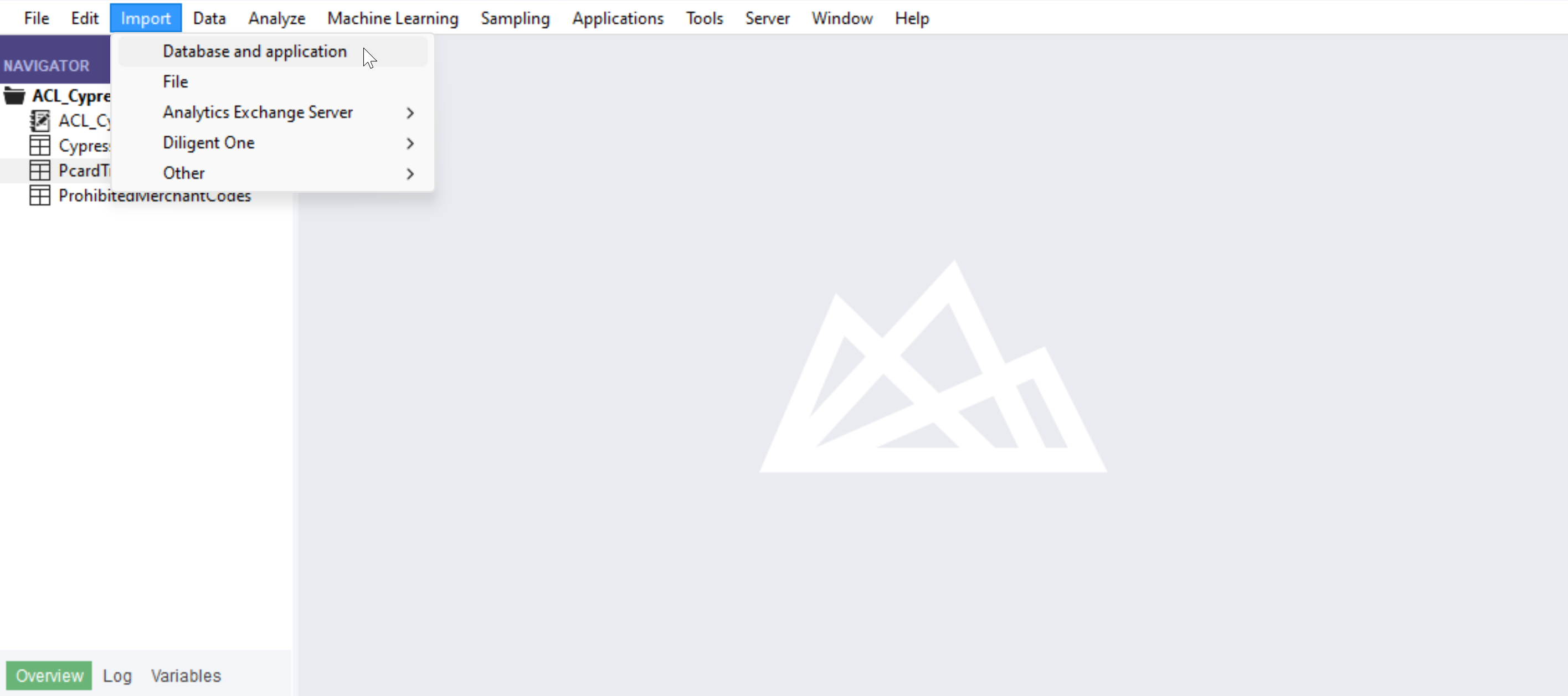
- With your Analytics File open, select 'Import' --> 'Database and application'
- Create a new SQL Server connection
- Set the connection information
- Server: tds.cdata.com
- Port: 14333
- Auth Scheme: Password
- Username: a Connect AI user, for example, [email protected]
- Password: the PAT for the above Connect AI user
- Database: the name of your HubDB connection, for example, HubDB1
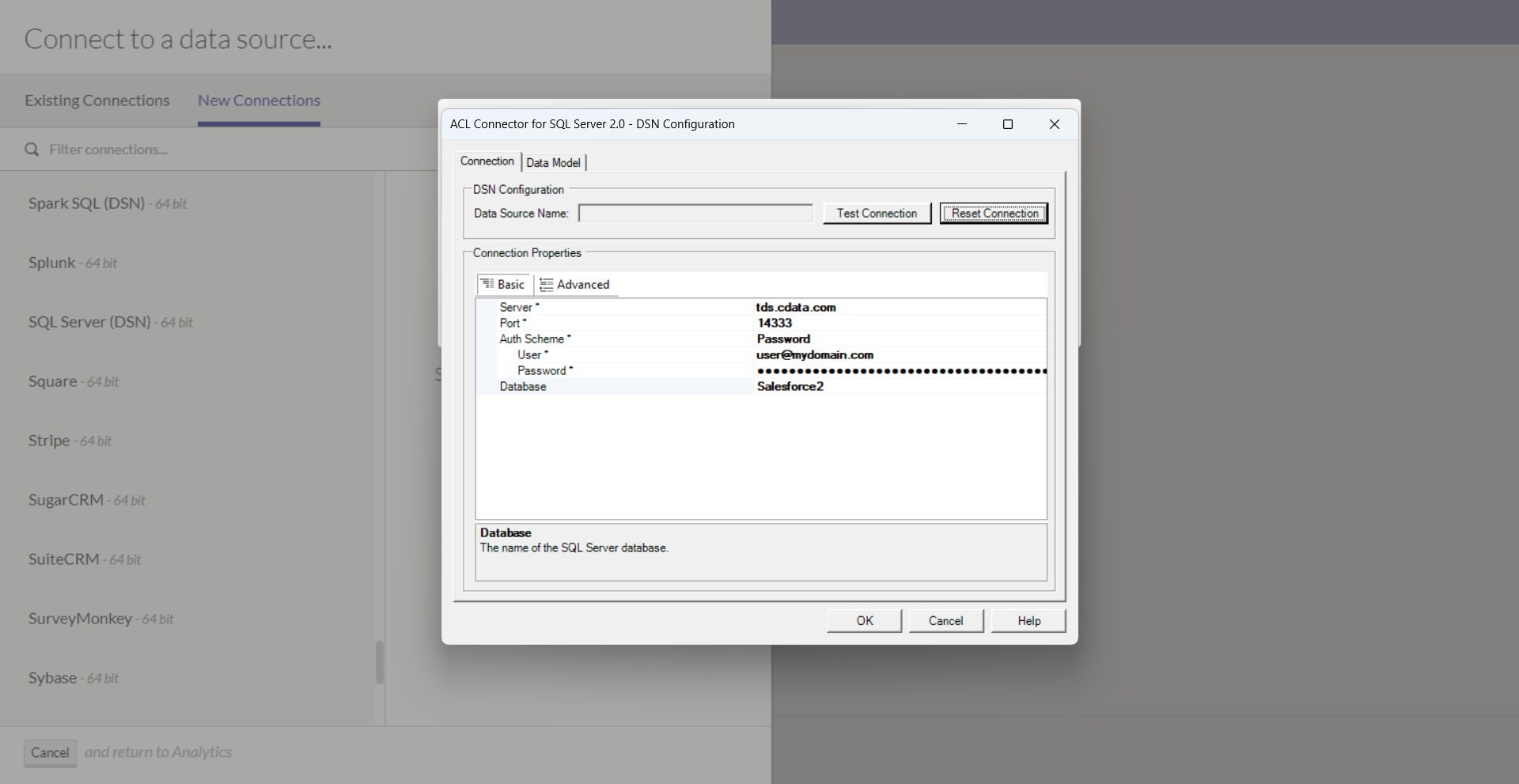
- Click "Test Connection"
- Click "OK"
- You are now ready to work with your HubDB data in ACL Analytics!
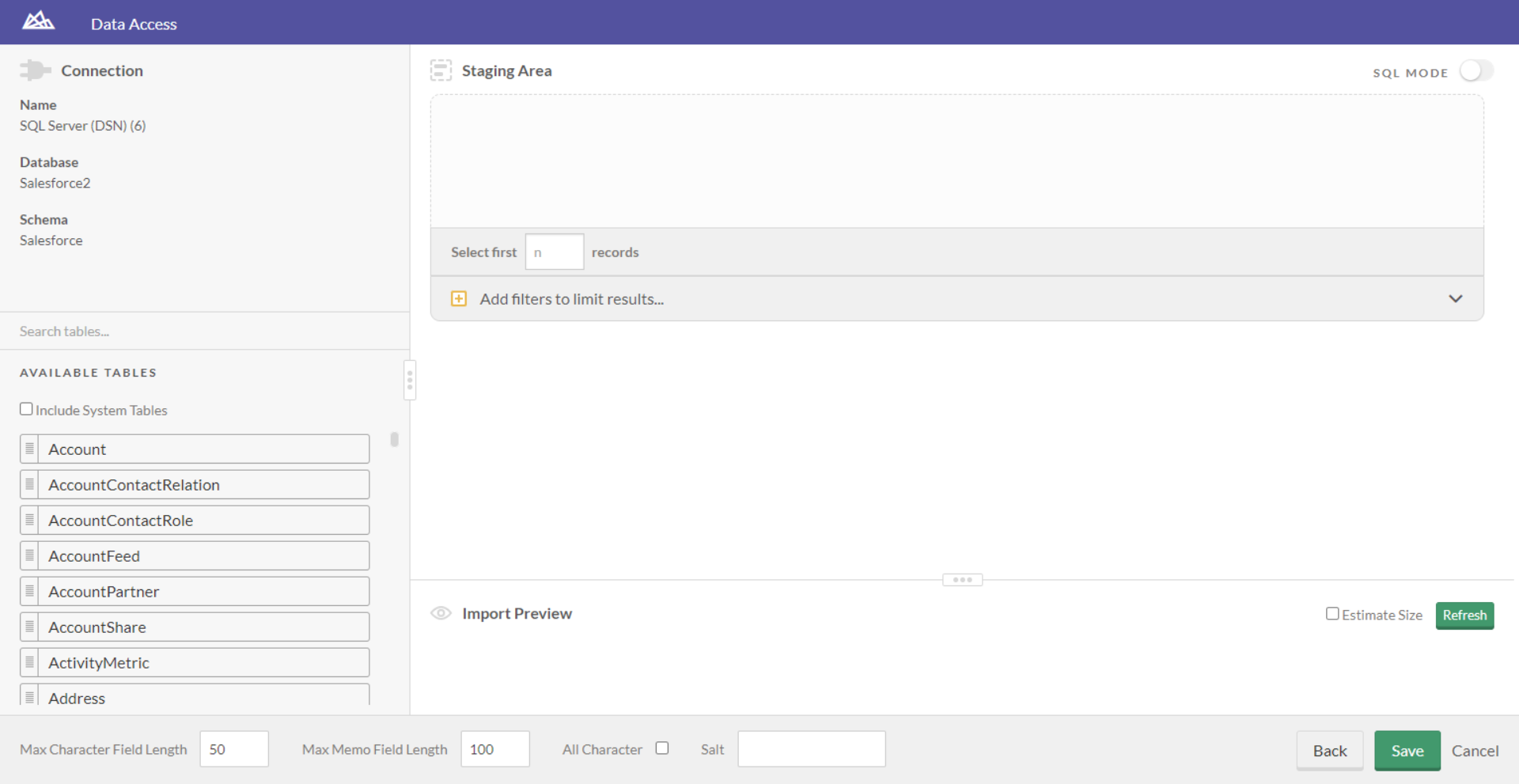
Live connections to HubDB data from your applications
ACL Analytics can now connect to live HubDB data directly through Connect AI, allowing you to analyze HubDB data without duplicating it.
To get live data access to hundreds of SaaS, Big Data, and NoSQL sources directly from your applications, try CData Connect AI today!