








Integrate Trae with Live IBM Cloud Object Storage Data via CData Connect AI

Trae is an AI-powered integrated development environment (IDE) that pairs a familiar editor with agent modes such as Builder and SOLO. It supports the Model Context Protocol (MCP), so you can add external tools and data sources and give the agent access to live data.
By integrating Trae with CData Connect AI through the built-in MCP Server, Trae gains governed, real-time access to live IBM Cloud Object Storage data. You can list catalogs, explore schemas, and query records from IBM Cloud Object Storage data using natural language prompts, with all data access running securely against authorized sources.
This article explains how to configure IBM Cloud Object Storage connectivity in Connect AI, generate the required personal access token, install Trae, add the Connect AI MCP Server, configure an LLM model, and verify the integration by querying live IBM Cloud Object Storage data from the Trae agent.
Step 1: Configure IBM Cloud Object Storage connectivity for Trae
Connectivity to IBM Cloud Object Storage from Trae is made possible through Connect AI's Remote MCP Server. To interact with IBM Cloud Object Storage data from Trae, start by creating and configuring a IBM Cloud Object Storage connection in Connect AI.
- Log into Connect AI, click Sources, and then click Add Connection
- Select IBM Cloud Object Storage from the Add Connection panel
-
Enter the necessary authentication properties to connect to IBM Cloud Object Storage.
Register a New Instance of Cloud Object Storage
If you do not already have Cloud Object Storage in your IBM Cloud account, follow the procedure below to install an instance of SQL Query in your account:
- Log in to your IBM Cloud account.
- Navigate to the page, choose a name for your instance and click Create. You will be redirected to the instance of Cloud Object Storage you just created.
Connecting using OAuth Authentication
There are certain connection properties you need to set before you can connect. You can obtain these as follows:
API Key
To connect with IBM Cloud Object Storage, you need an API Key. You can obtain this as follows:
- Log in to your IBM Cloud account.
- Navigate to the Platform API Keys page.
- On the middle-right corner click "Create an IBM Cloud API Key" to create a new API Key.
- In the pop-up window, specify the API Key name and click "Create". Note the API Key as you can never access it again from the dashboard.
Cloud Object Storage CRN
If you have multiple accounts, specify the CloudObjectStorageCRN explicitly. To find the appropriate value, you can:
- Query the Services view. This will list your IBM Cloud Object Storage instances along with the CRN for each.
- Locate the CRN directly in IBM Cloud. To do so, navigate to your IBM Cloud Dashboard. In the Resource List, Under Storage, select your Cloud Object Storage resource to get its CRN.
Connecting to Data
You can now set the following to connect to data:
- InitiateOAuth: Set this to GETANDREFRESH. You can use InitiateOAuth to avoid repeating the OAuth exchange and manually setting the OAuthAccessToken.
- ApiKey: Set this to your API key which was noted during setup.
- CloudObjectStorageCRN (Optional): Set this to the cloud object storage CRN you want to work with. While the connector attempts to retrieve this automatically, specifying this explicitly is recommended if you have more than Cloud Object Storage account.
When you connect, the connector completes the OAuth process.
- Extracts the access token and authenticates requests.
- Saves OAuth values in OAuthSettingsLocation to be persisted across connections.

- Click Save & Test
- Navigate to the Permissions tab and update user-based permissions



Add a Personal Access Token
A Personal Access Token (PAT) is used to authenticate the connection to Connect AI from Trae. It is best practice to create a separate PAT for each integration to maintain granular access control.
- Click the gear icon () at the top right of the Connect AI app to open Settings
- On the Settings page, go to the Access Tokens section and click Create PAT
- Give the PAT a descriptive name and click Create
- Copy the token when displayed and store it securely. It will not be shown again

With the IBM Cloud Object Storage connection configured and a PAT generated, Trae can now connect to IBM Cloud Object Storage data through Connect AI.
Step 2: Install Trae and configure the Connect AI MCP Server
Next, install Trae, add the Connect AI Remote MCP Server, and configure an LLM model so the agent can discover and call live data tools through Connect AI.
- Download and install the Trae IDE, then launch the application
-
Switch to SOLO mode using the toggle at the top left, or press Ctrl + Alt + \
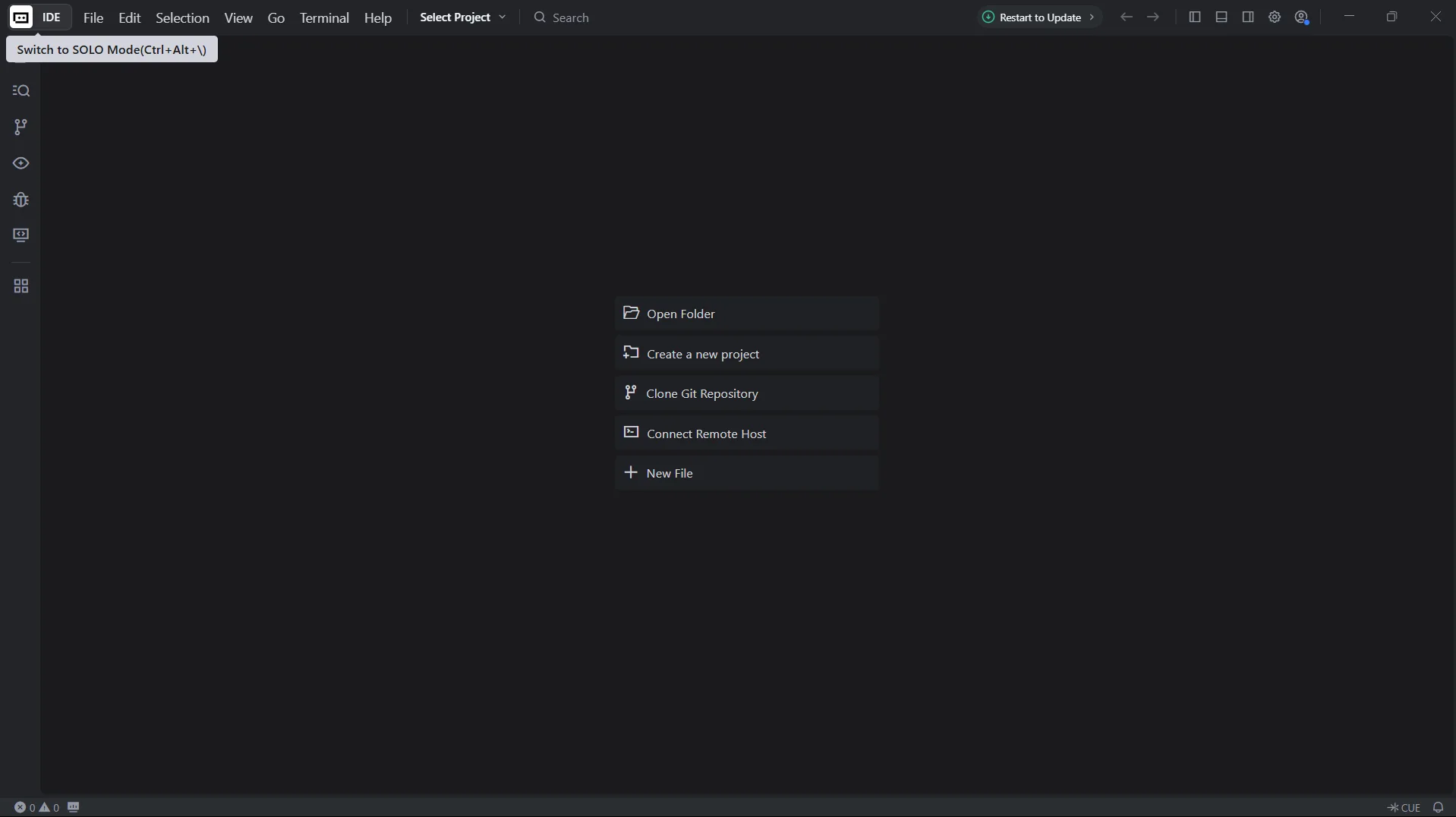
-
Click Toggle AI Sidebar to open the chat panel
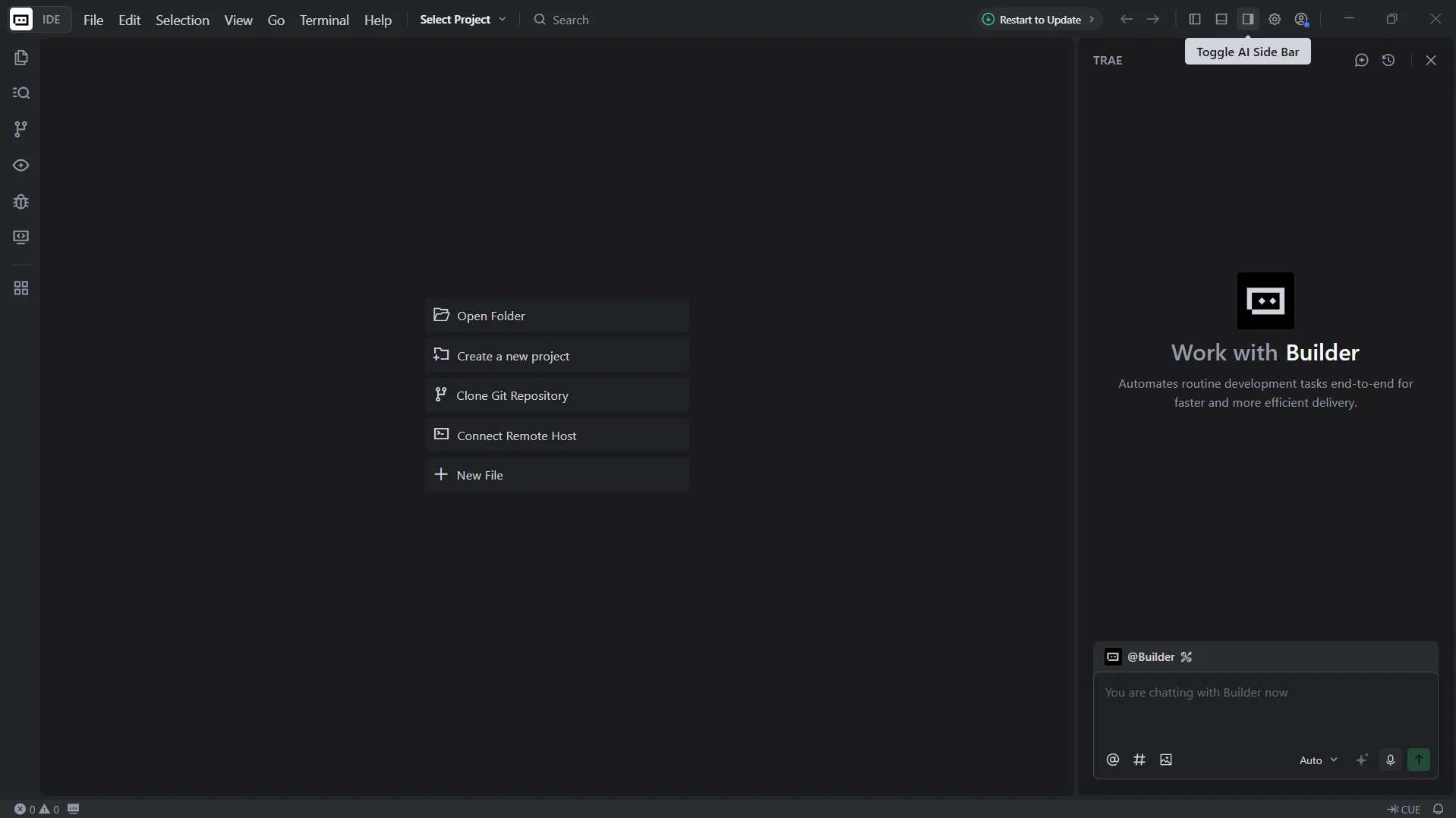
-
Open Settings, then select MCP from the left menu
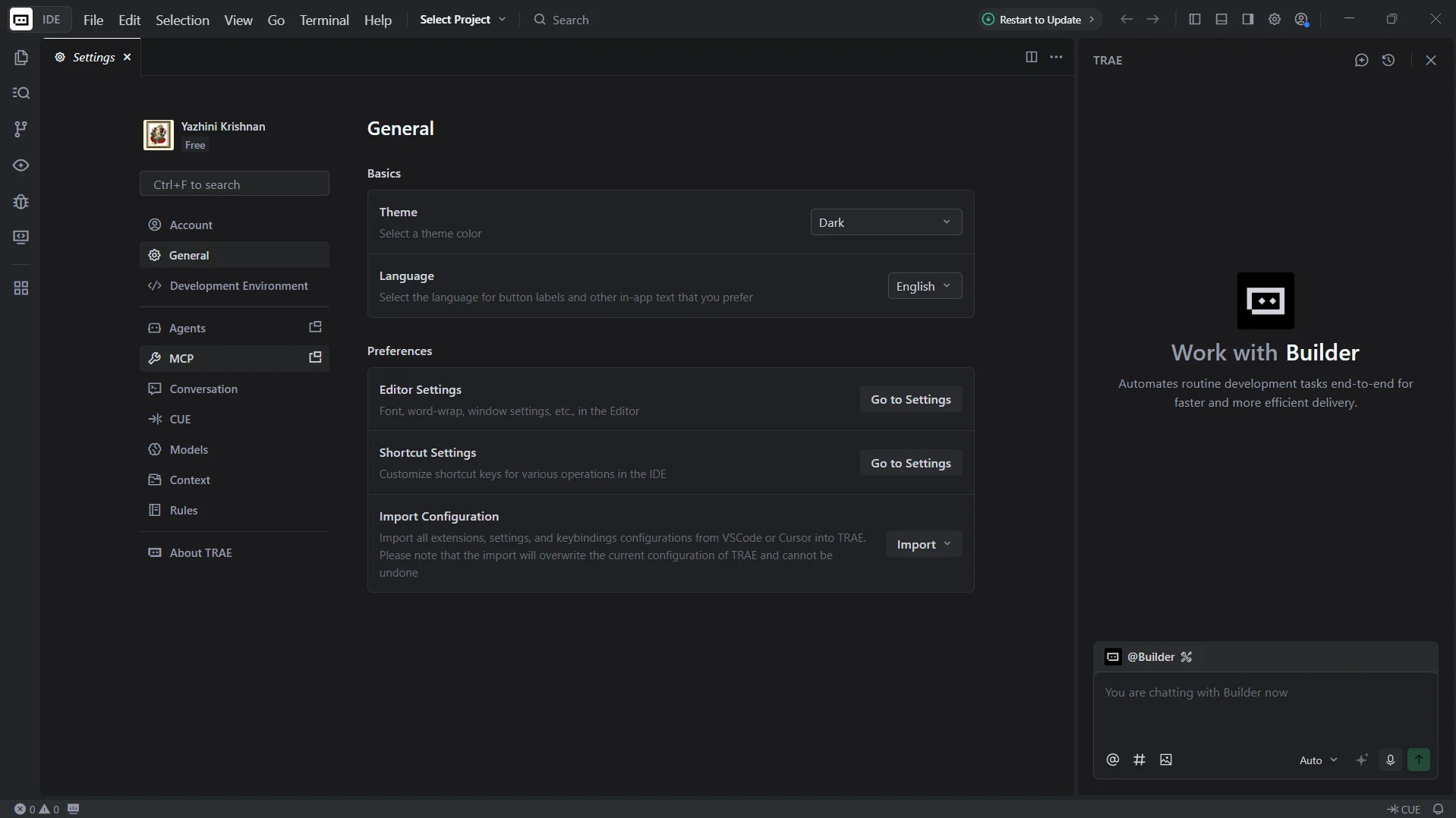
-
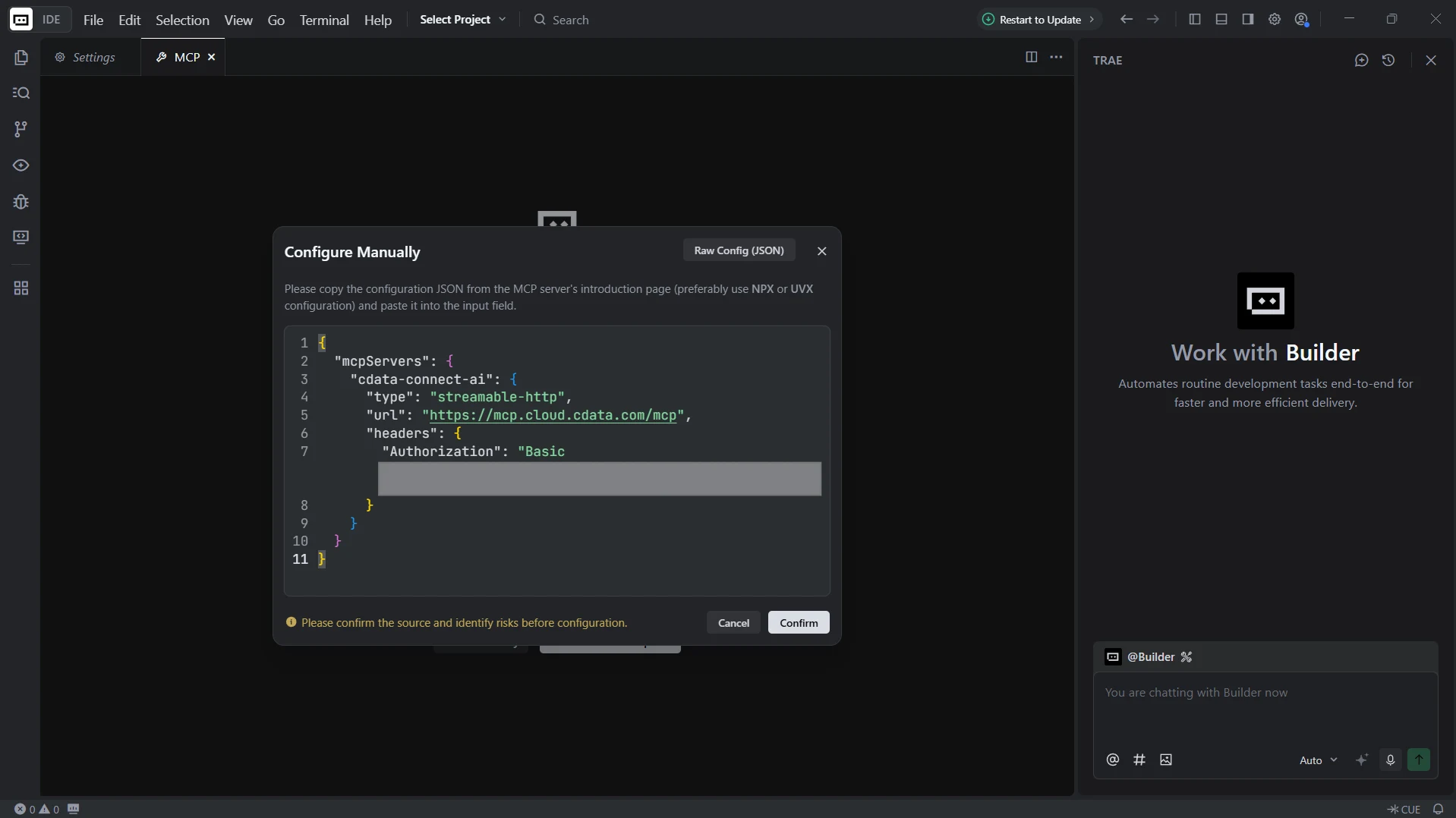
Click Add Manually
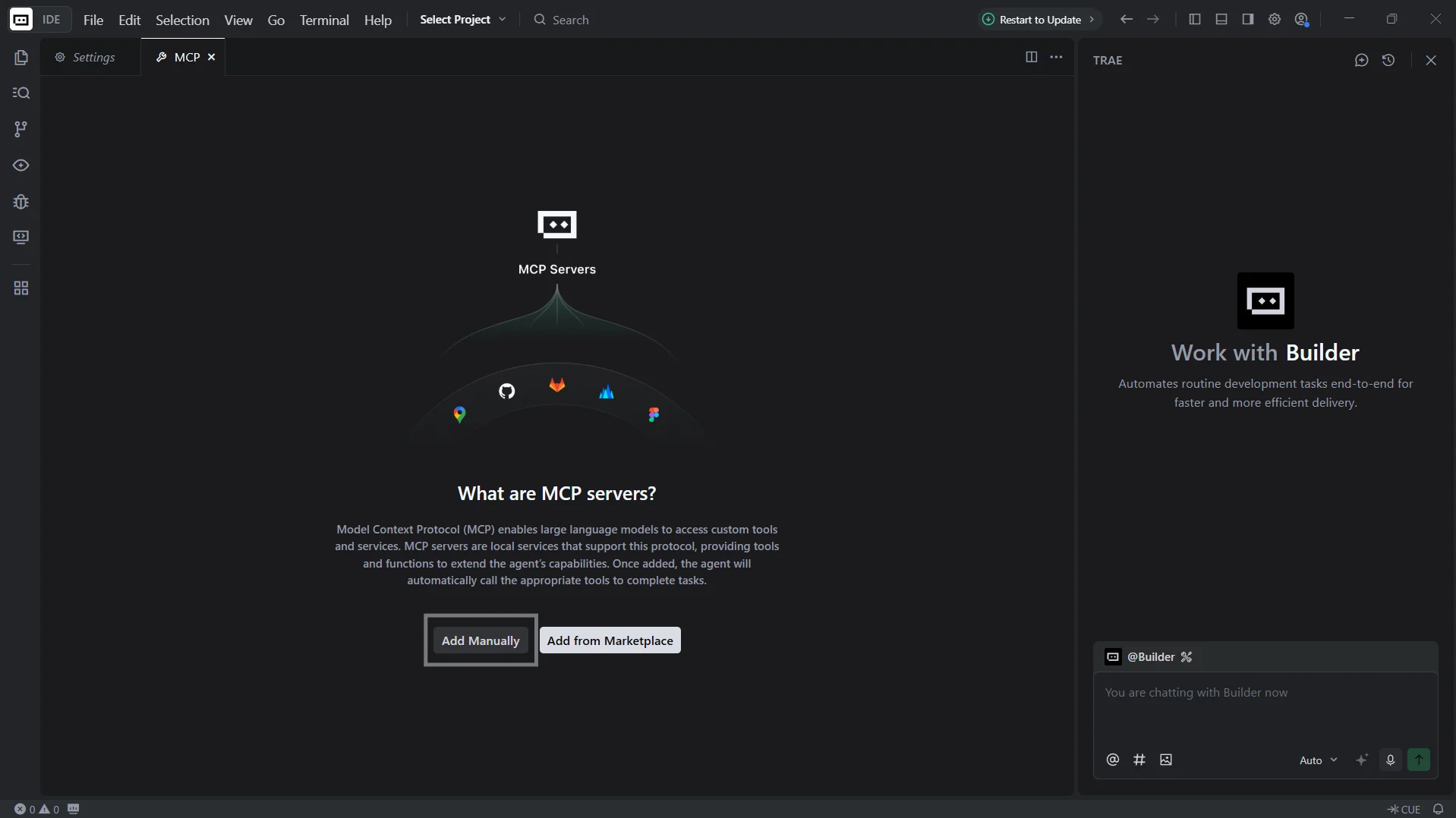
-
In the Configure Manually dialog, paste the following configuration and click Confirm:
{
  "mcpServers": {
    "cdata-connect-ai": {
      "type": "streamable-http",
      "url": "https://mcp.cloud.cdata.com/mcp",
      "headers": {
        "Authorization": "Basic your_base64_encoded_email_PAT"
      }
    }
  }
}
Note: Trae will use Basic authentication with Connect AI. Combine your Connect AI user email and the PAT you created earlier in the format email:PAT, base64 encode the combined string, and prefix it with Basic. For example, given [email protected]:ABC123...XYZ789, the Authorization header value becomes something like: Basic dXNlckBkb21haW4uY29tOkFCQzEyMy4uLlhZWjc4OQ==
Configure an LLM model
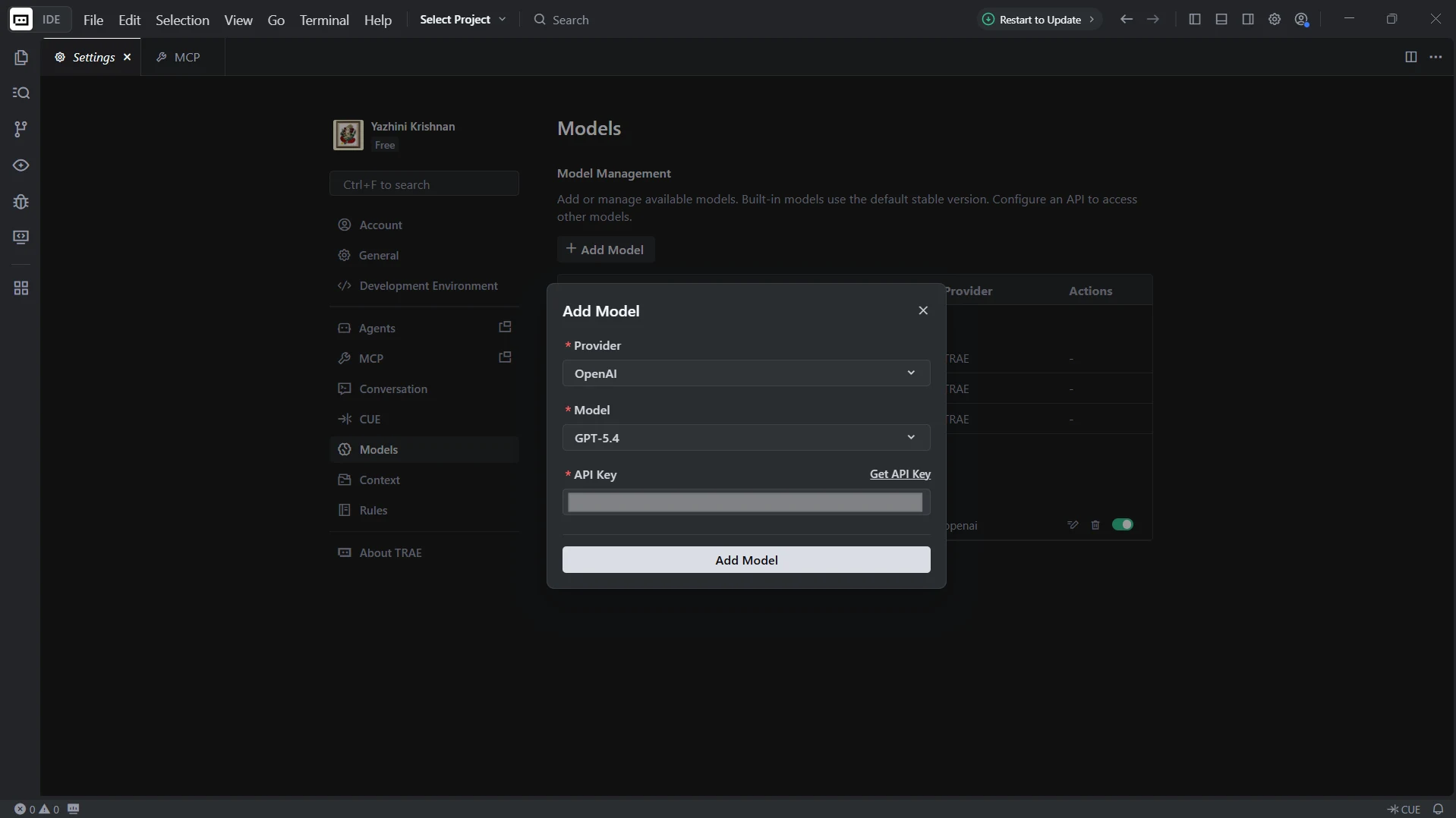
Trae requires at least one LLM model to power the agent's reasoning. Add a model so the agent can interpret prompts and call MCP tools through Connect AI.
- Return to Settings and select Models
-
Click Add Model, choose a provider such as OpenAI, Anthropic, or Google, select a model, enter your API key, and click Add Model
With the MCP server added and an LLM model configured, Trae is ready to query live IBM Cloud Object Storage data through Connect AI.
Step 3: Query live IBM Cloud Object Storage data from Trae
With the integration complete, use the Trae agent to interact with live IBM Cloud Object Storage data through natural language prompts handled by the configured LLM.
-
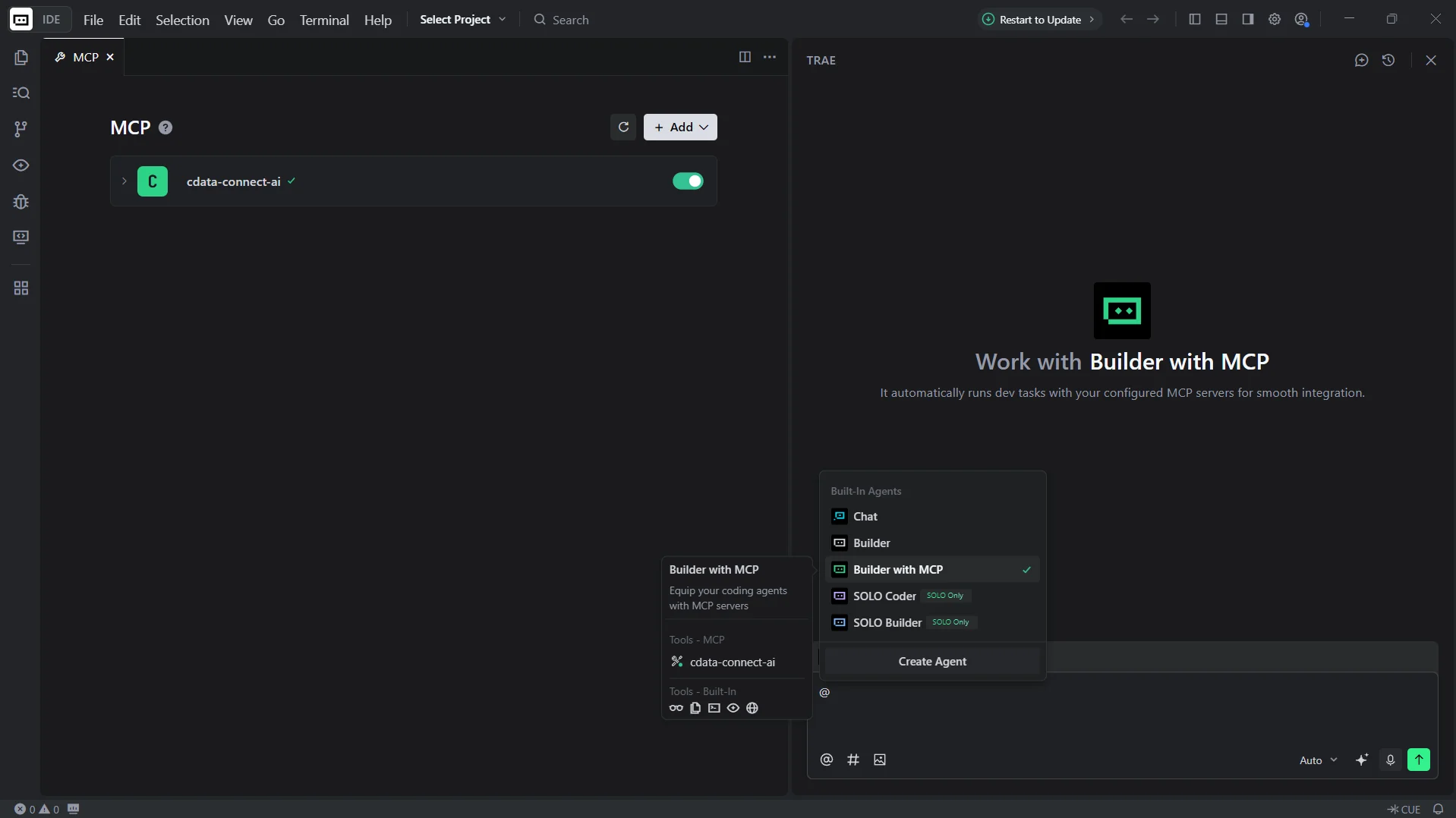
In the chat panel, type @ and select Builder with MCP. Confirm that cdata-connect-ai is listed under Tools - MCP
-
Enter a prompt to interact with your data, for example:
- List all catalogs in cdata-connect-ai
- Show the available schemas and tables for IBM Cloud Object Storage
- Query the top 5 records from a table in IBM Cloud Object Storage data
-
Trae calls the Connect AI MCP Server and returns live results from IBM Cloud Object Storage data
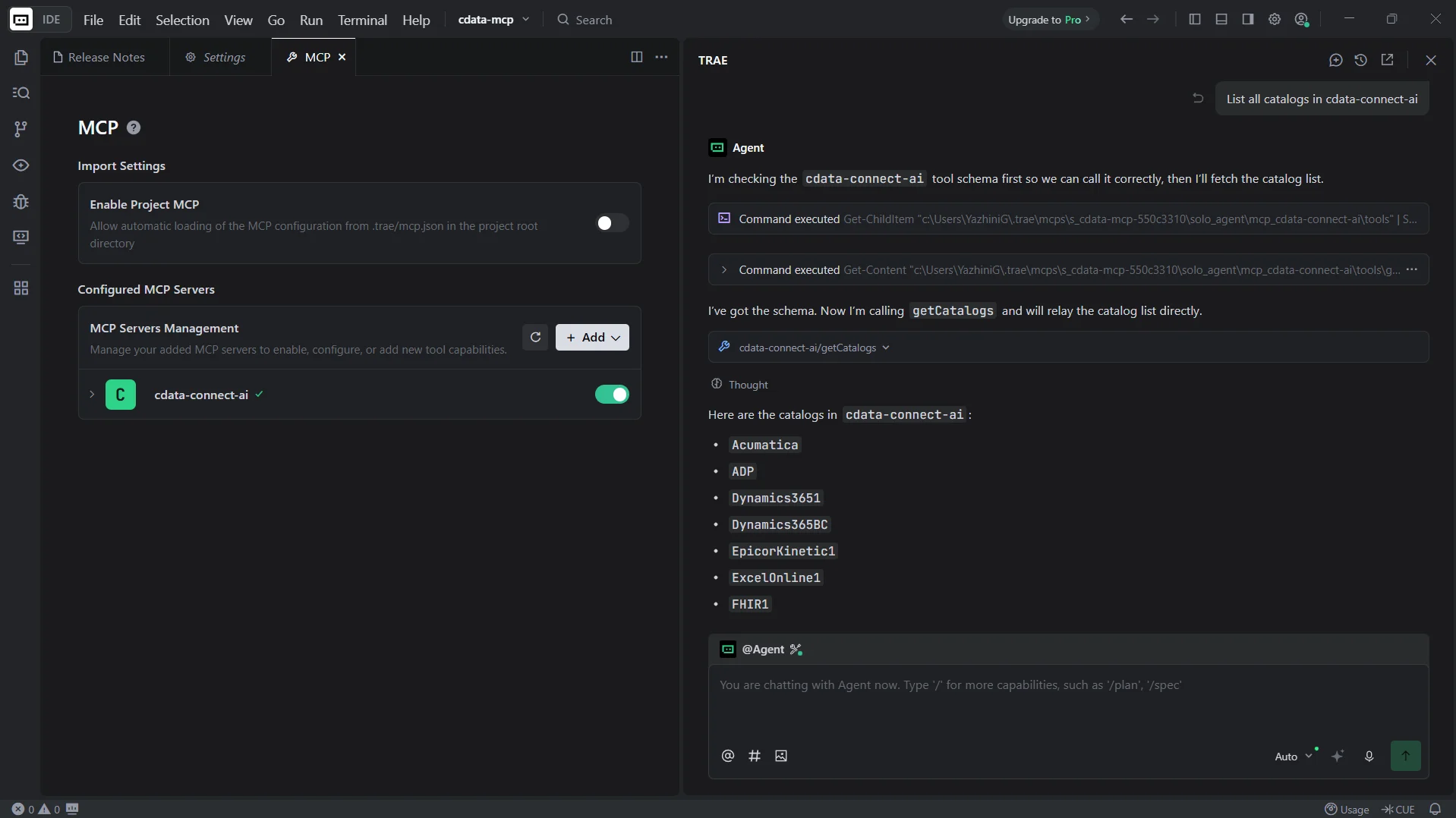
At this point, the Trae agent communicates with the Connect AI MCP Server and retrieves live IBM Cloud Object Storage data through remote MCP tools directly from the IDE.
Get CData Connect AI
To access hundreds of SaaS, big data, and NoSQL sources directly from your cloud applications, try CData Connect AI today. Download a free 14-day trial of CData Connect AI, and our Support Team is available to help with any questions you have.