




Getting Started with the CData ADO.NET Provider for JD Edwards
This guide explains everything you need to work with the CData ADO.NET Provider for JD Edwards. You will learn how to install the provider, set up a connection to your JD Edwards data, and run simple commands in your .NET applications using familiar ADO.NET patterns.
Whether you are building desktop apps, web apps, or background services, the provider enables secure, high-performance connectivity to live JD Edwards data without needing to manage API details manually.
Installation and Licensing
System Requirements
- Windows: Windows 10/11 or Windows Server 2016+
- .NET Versions: .NET Framework 4.0+, .NET 6+, .NET Standard assemblies
- IDE: Visual Studio 2017 or later
Installing the ADO.NET Provider
Windows Installation
- Download the ADO.NET provider installer from your CData account or the evaluation page.
- Run the installer and follow the installation wizard to completion.
- The installer registers the provider and places all assemblies in the appropriate CData installation folders.
-
You will be prompted for your license key during installation:
XXXX-XXXX-XXXX-XXXX-XXXX- Note: If you are using a trial, select Trial Key instead.
Activating your License
Licensing behavior varies depending on whether you are developing with the .NET Framework or .NET Standard. Use the steps below to activate the provider in your environment.
.NET Framework (Windows)
On Windows using the .NET Framework, no extra action is required. The installer or NuGet package automatically installs your development license.
.NET Standard (Windows/Mac/Linux)
For .NET Standard platforms like .NET Core, Mono, or Xamarin, you must install a license manually before using the provider.
Using the Install-License Tool
The toolkit includes an install-license utility in the
lib/netstandard2.0To install a trial license:
dotnet ./install-license.dll
To activate a full product license:
dotnet ./install-license.dll
After running the tool, your development machine is licensed and ready to use the provider in .NET applications.
Runtime Licensing
When deploying applications, specify the Runtime Key (RTK) in your connection string to enable redistribution.
| Property | Description |
|---|---|
| RTK | Your Runtime Key used for deployed ADO.NET applications. |
Common Licensing Questions
Can I use my license on multiple machines?
Yes, depending on your subscription tier. If unsure, review your order confirmation or contact [email protected].
I lost my license key. How do I retrieve it?
Email [email protected] with your order number.
Can I transfer my license to another machine?
Submit a License Transfer Request:
https://www.cdata.com/lic/transfer/
Once approved, an activation is added to your product key and the previous installation becomes invalid.
For more licensing support, visit portal.cdata.com or email [email protected].
Connection Configuration
Once installed, the next step is to configure a connection to JD Edwards. Connections are created using ADO.NET connection strings in your .NET application's code or configuration file.
Creating a connection manager
- Open Visual Studio.
- Navigate to View, select Server Explorer.
-
Click Connect to Database from the left sidebar.
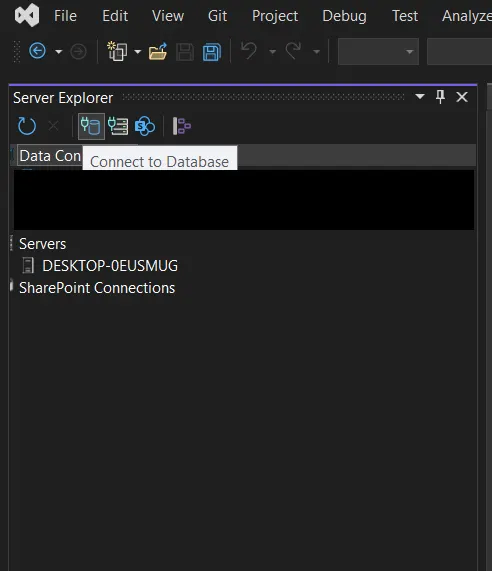
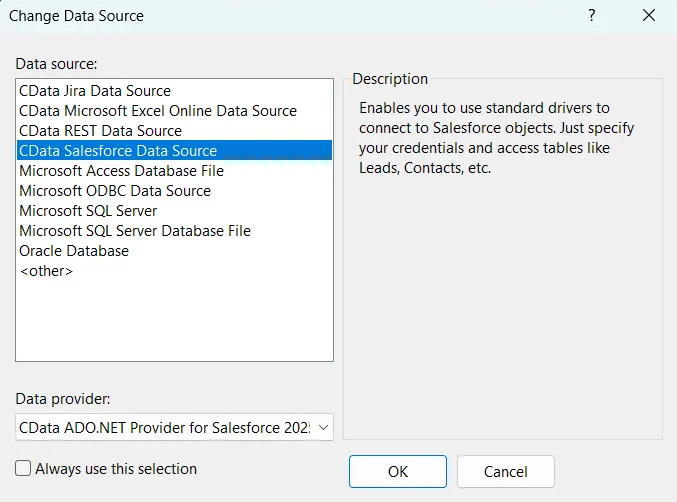
- In the Add Connection dialog, click Change.
-
Choose CData JD Edwards data source, then click OK.
Configuring Connection Properties
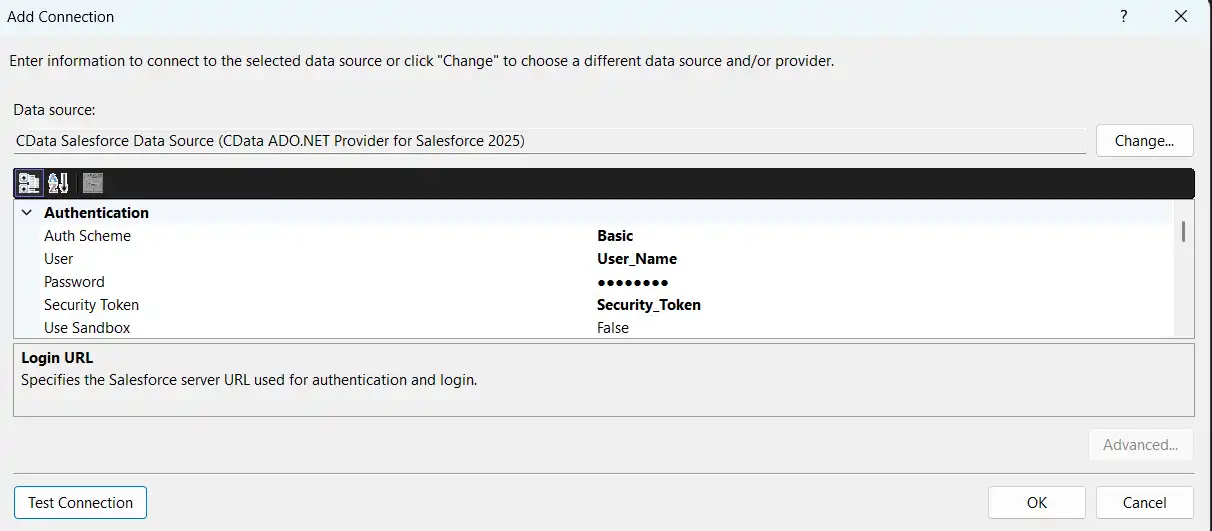
The driver connects to JD Edwards through your Application Interface Services (AIS) Server. Set the following connection properties:
- URL: The base HTTPS URL of your AIS Server (e.g., https://jde-ais.example.com:8300).
- User: Your JD Edwards username.
- Password: Your JD Edwards password.
- Environment (optional): The JD Edwards environment to use (e.g., PD920 for production or DV920 for development). If not specified, the AIS Server's default environment is used.
- Role (optional): The JD Edwards role for the session. If not specified, the AIS Server's default role is used.
- DeviceName (optional): An identifier for the connecting device or application, used for auditing and logging on the AIS Server.
- Jasserver (optional): The specific Java Application Server (JAS) instance to route requests through, useful in clustered environments.
Choosing Which Data Is Exposed
JD Edwards organizes tables and business views by System Code, and the driver exposes each System Code as its own schema. Use these properties to control which schemas are available:
- DataModel: One or more ERP modules (comma-separated) whose System Codes are exposed as schemas, or All to expose every System Code in the connected instance. Defaults to FinancialManagement.
- SystemCodes: A comma-separated list of additional System Codes to expose alongside those from DataModel (e.g., 42,43).
When you connect, the driver sends your credentials to the AIS Server to obtain a session token and caches it. The driver requests a new token automatically before the session expires.
Test your connection
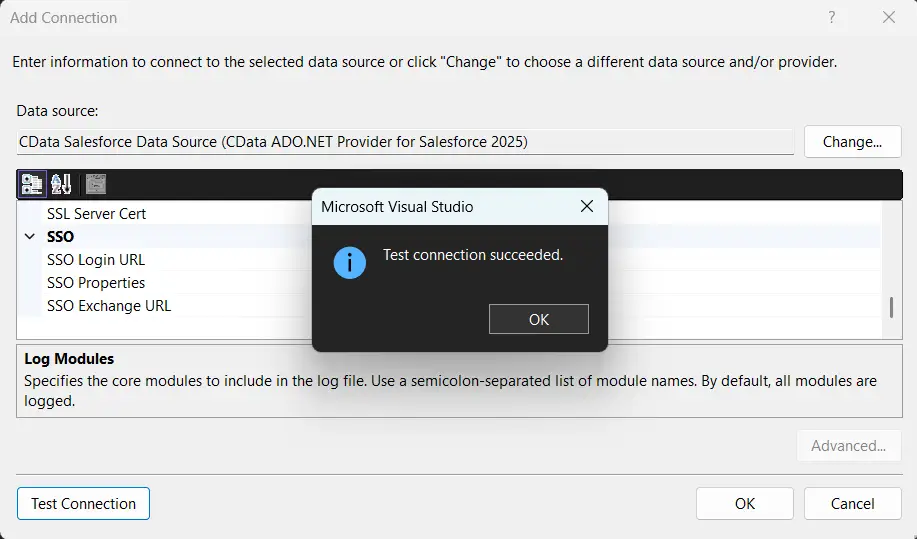
- Click Test Connection.
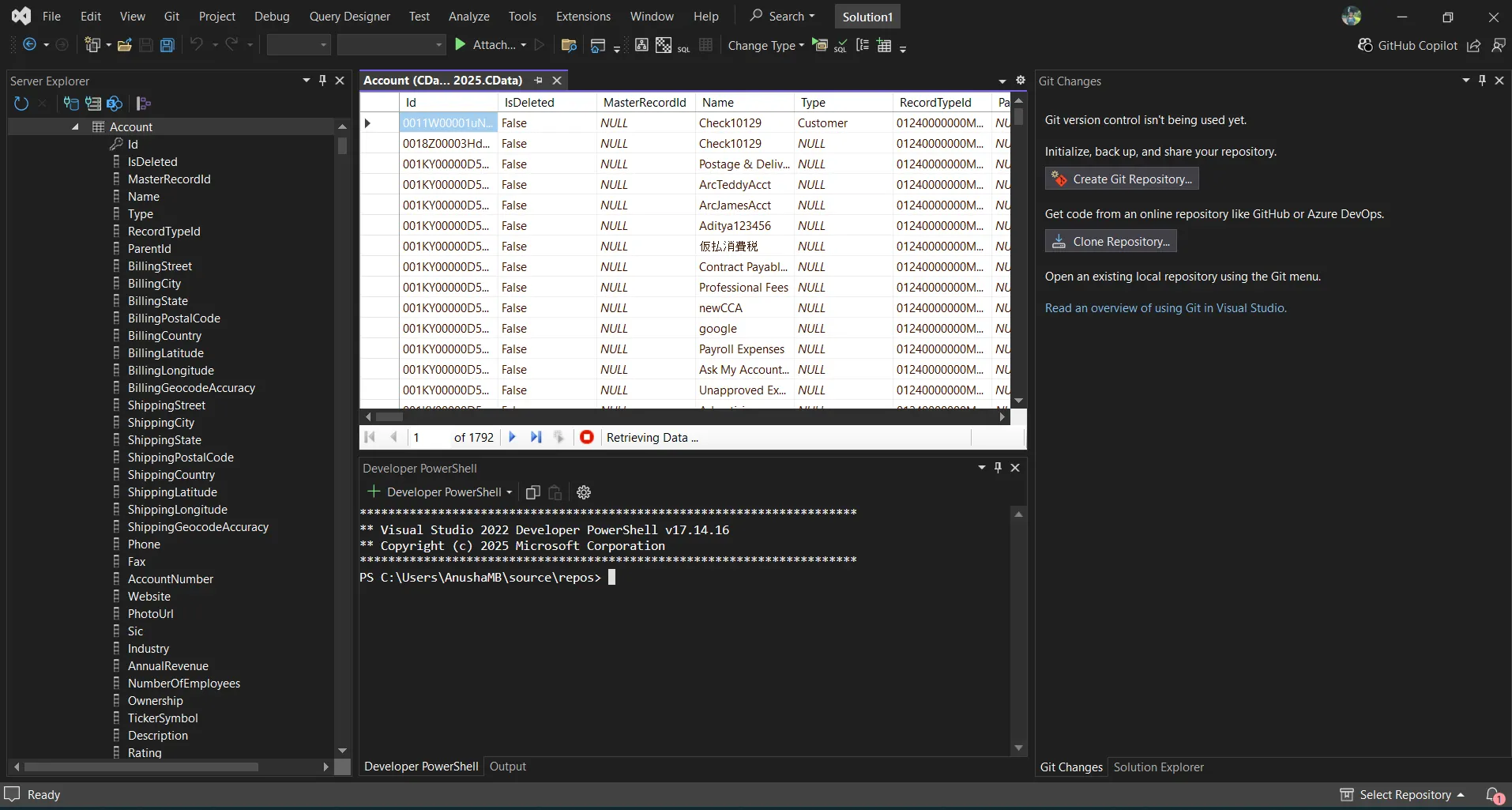
- Once the connection is successful, you can explore the data inside Visual Studio.
Common Connection Issues
Authentication Failed
Solution: Verify OAuth settings, client IDs, secrets, or token permissions for your JD Edwards. Contact [email protected] for assistance.
Cannot Reach Server
Solution: Check firewall, proxy, and VPN configurations. Contact [email protected] for required port information.
Table Not Found
Solution: Confirm you selected the correct schema or database when querying JD Edwards.
What's Next
Now that you have installed, licensed, and configured the ADO.NET provider, here are scenarios you can use to explore our ADO.NET tools:
| ADO.NET Providers | Article Title |
|---|---|
| .NET Charts | DataBind Charts to JD Edwards |
| EF - Code First | Access JD Edwards with Entity Framework 6 |
| DevExpress | DataBind JD Edwards to the DevExpress Data Grid |
| LINQPad | Working with JD Edwards in LINQPad |
| EF - LINQ | LINQ to JD Edwards |
| EF - MVC | Build MVC Applications with Connectivity to JD Edwards |
| PowerBuilder | Connect to JD Edwards from PowerBuilder |
| TIBCO Spotfire | Visualize JD Edwards in TIBCO Spotfire through ADO.NET |
| Microsoft SSAS | Build an OLAP Cube in SSAS from JD Edwards |
Get Support
If you need assistance at any point:
- Technical Support: [email protected]
- Community Forum: CData Community Site
- Help Documentation: Installed locally and available online
FAQs
Installation and Licensing
-
Do I need administrator rights to install the ADO.NET Provider?
Yes, administrator rights are required to install components for use across Visual Studio. -
Do I need an RTK to deploy to Azure Data Factory?
Yes. Set the RTK property in your application's connection string before publishing.
Connecting
-
Can I use multiple JD Edwards accounts?
Create separate Connection =strings for each account. -
Can I connect through a proxy?
Yes. Configure proxy settings in the Connection string. -
How do I test my connection?
Click Test Connection in the Connection Manager UI.
Performance & Troubleshooting
-
How can I improve query performance
Apply filters, limit row counts, and leverage server-side paging properties. -
How do I enable logging?
Add the following to your connection manager:- Logfile: /path/to/logfile.log
- Verbosity: 3
Be prepared to securely upload the log file upon request when reaching out to [email protected] for troubleshooting analysis.
For questions not covered in this FAQ, contact [email protected].
Ready to get started?
Download a free trial of the JD Edwards Data Provider to get started:
Download NowLearn more:
 JD Edwards ADO.NET Provider
Rapidly create and deploy powerful .NET applications that integrate with JD Edwards data including AccountLedger, ProposalofPayment, ContractRevenueSummary, EmployeeEnrollment, RentIncreaseAmounts, and more!