








Use ChatGPT to Talk to Your LDAP Objects via CData Connect AI

ChatGPT is an AI chatbot developed by OpenAI, launched in November 2022. Based on large language models (LLMs), it enables users to refine and steer conversations through natural language processing. ChatGPT's developer mode, available to Plus and Pro subscribers, provides full Model Context Protocol (MCP) support for connecting to external data sources and tools.
CData Connect AI offers a dedicated cloud-to-cloud interface for connecting to LDAP objects. The CData Connect AI Remote MCP Server enables secure communication between ChatGPT and LDAP. This allows you to ask questions and take actions on your LDAP objects using ChatGPT, all without the need for data replication to a natively supported database. With its inherent optimized data processing capabilities, CData Connect AI efficiently channels all supported SQL operations, including filters and JOINs, directly to LDAP. This leverages server-side processing to swiftly deliver the requested LDAP objects.
Step 1: Configure LDAP Connectivity for ChatGPT
Connectivity to LDAP from ChatGPT is made possible through CData Connect AI Remote MCP. To interact with LDAP objects from ChatGPT, we start by creating and configuring a LDAP connection in CData Connect AI.
- Log into your Connect AI account, click Sources, and then click Add Connection.
- Select "LDAP" from the Add Connection panel.
-
Enter the necessary authentication properties to connect to LDAP.
To establish a connection, the following properties under the Authentication section must be provided:
- Valid User and Password credentials (e.g., Domain\BobF or cn=Bob F,ou=Employees,dc=Domain).
- Server information, including the IP or host name of the Server, as well as the Port.
BaseDN: This will limit the scope of LDAP searches to the height of the distinguished name provided.
Note: Specifying a narrow BaseDN may greatly increase performance; for example, cn=users,dc=domain will only return results contained within cn=users and its children.

- Click Save & Test


With the connection configured, we are ready to connect to LDAP objects from ChatGPT.
Step 2: Connect ChatGPT to CData Connect AI
Follow these steps to add a CData Connect AI connection in ChatGPT:
- Sign in to ChatGPT with a Plus or Pro subscription.
- Navigate to Apps from the left panel.
- Select the CData Connect AI app from the list. .
- Click Connect to authenticate to your Connect AI account.
- Click Sign in with CData Connect AI to add Connect AI to your ChatGPT account.
- After successful authorization, you will be redirected back to ChatGPT.
- Click Start Chat to start a new conversation in ChatGPT with Connect AI connected at the background.
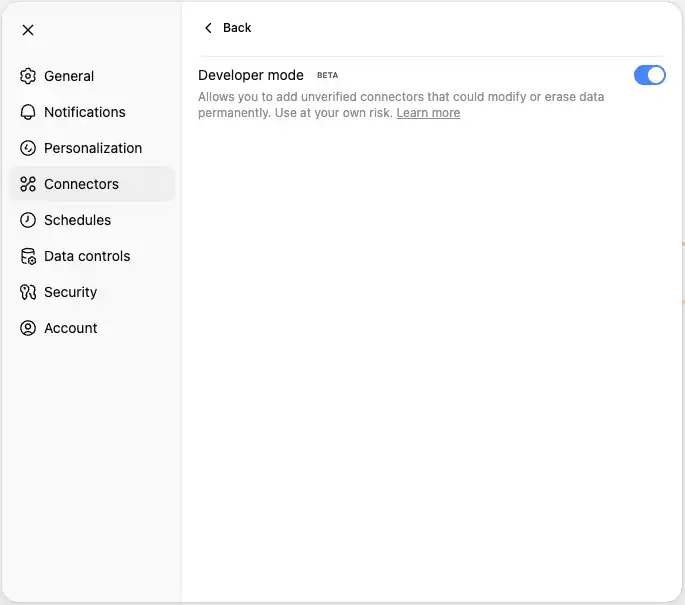
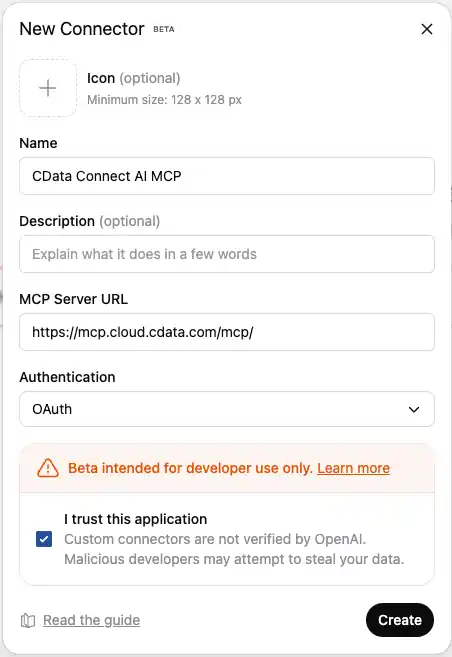


Step 3: Explore Live LDAP Objects with ChatGPT
- Start a new conversation in ChatGPT.
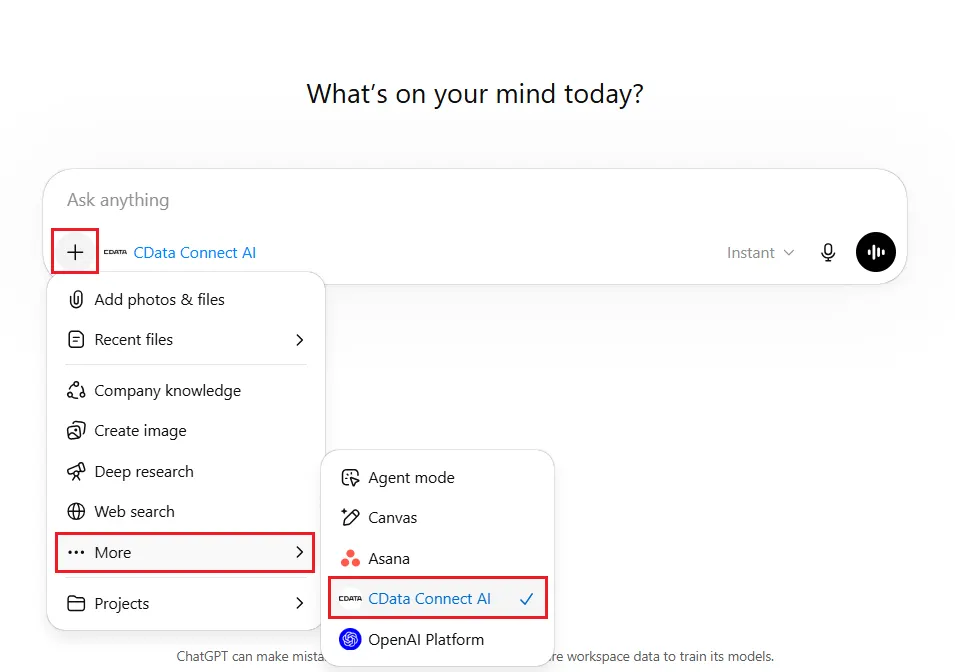
- Connect AI should ideally be automatically enabled in the chat. If not, navigate to -> More -> CData Connect AI, under the chatbox, to enable the connector from the dropdown
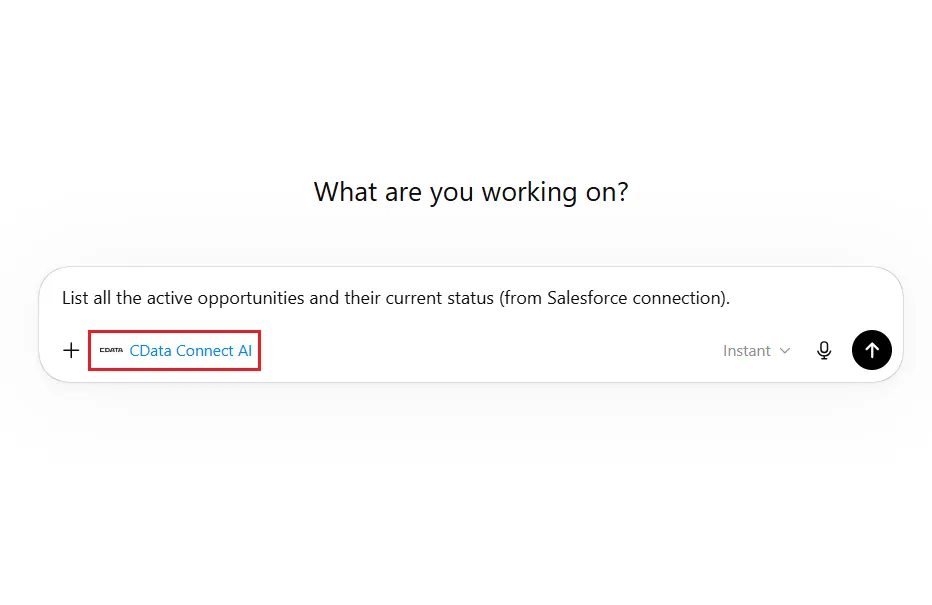
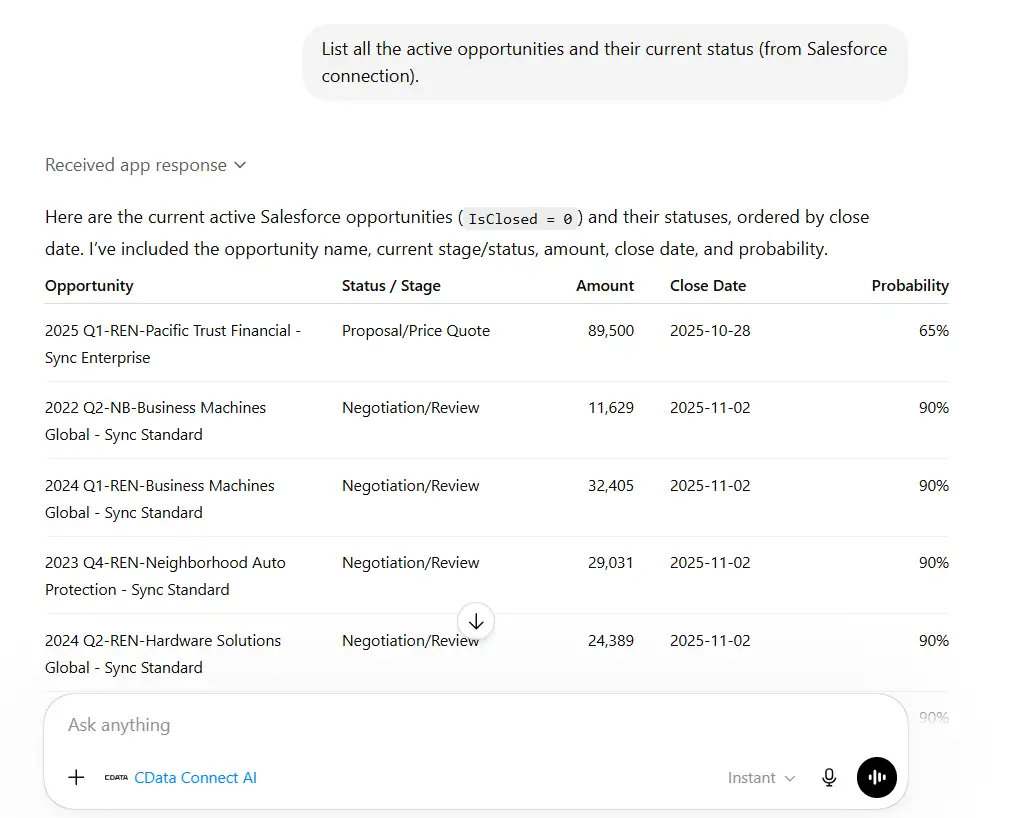
- You can now start exploring your data with natural language prompts. ChatGPT will use the Connect AI MCP server to query your live LDAP objects. Example prompts:
- "Show me all customers from the last 30 days"
- "What are my top performing products?"
- "Analyze sales trends for this quarter"
- "List all active projects and their current status"
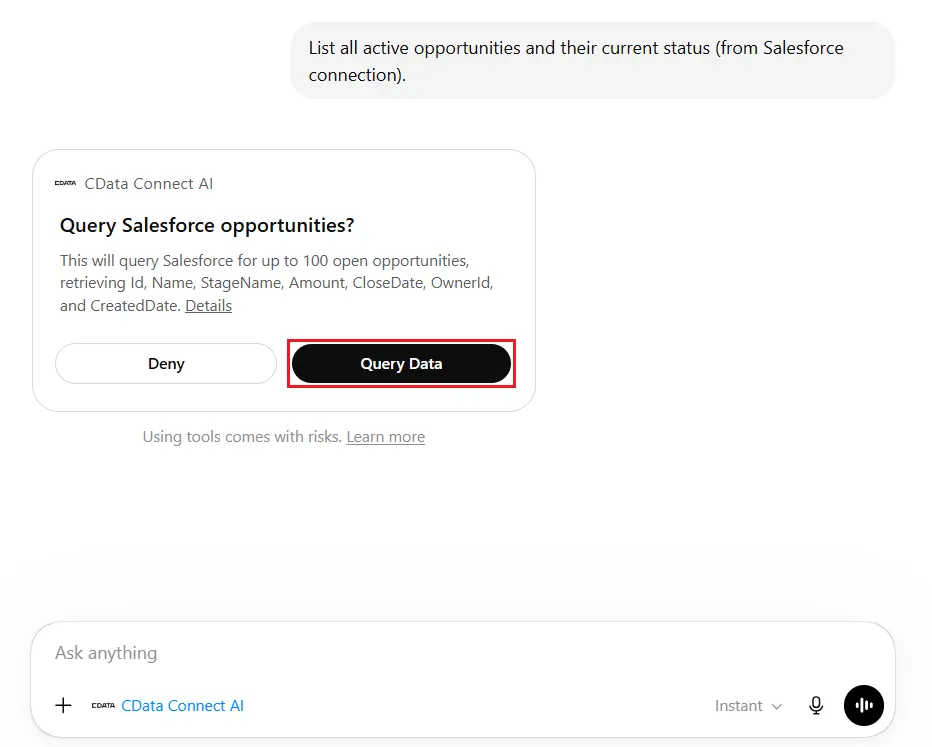
- Permit ChatGPT to access your LDAP objects. Click Query Data to continue, or Deny to refuse.
- ChatGPT translates your natural language queries into SQL and execute them against your LDAP data through the Connect AI MCP server.
Get CData Connect AI
To get live data access to hundreds of SaaS, Big Data, and NoSQL sources directly from your cloud applications, try CData Connect AI today!