








Connect to Printify Data in Airbyte ELT Pipelines

Airbyte empowers users to load your data into any data warehouse, data lake, or database. When combined with CData Connect AI, Airbyte users can create Extract, Load, Transform (ELT) pipelines directly from live Printify data. This article illustrates the process of connecting to Printify through Connect AI and constructing ELT pipelines for Printify data within Airbyte.
CData Connect AI offers a dedicated SQL Server interface for Printify, facilitating data querying without the need for data replication to a native database. With built-in optimized data processing capabilities, CData Connect AI efficiently directs all supported SQL operations, including filters and JOINs, straight to Printify. This harnesses server-side processing to swiftly retrieve the desired Printify data.
Configure Printify Connectivity for Airbyte
Connectivity to Printify from Airbyte is made possible through CData Connect AI. To work with Printify data from Airbyte, we start by creating and configuring a Printify connection.
- Log into Connect AI, click Sources, and then click Add Connection
- Select "Printify" from the Add Connection panel
-
Enter the necessary authentication properties to connect to Printify.
Start by setting the Profile connection property to the location of the Printify Profile on disk (e.g. C:\profiles\Profile.apip). Next, set the ProfileSettings connection property to the connection string for Printify (see below).
Printify API Profile Settings
In order to authenticate to Printify, you'll need to provide your API Key. To get your API Key navigate to My Profile, then Connections. In the Connections section you will be able to generate your Personal Access Token (API Key) and set your Token Access Scopes. Personal Access Tokens are valid for one year. An expired Personal Access Token can be re-generated using the same steps after it expires. Set the API Key to your Personal Access Token in the ProfileSettings property to connect.

- Click Save & Test
-
Navigate to the Permissions tab in the Add Printify Connection page and update the User-based permissions.



Add a Personal Access Token
When connecting to Connect AI through the REST API, the OData API, or the Virtual SQL Server, a Personal Access Token (PAT) is used to authenticate the connection to Connect AI. It is best practice to create a separate PAT for each service to maintain granularity of access.
- Click on the Gear icon () at the top right of the Connect AI app to open the settings page.
- On the Settings page, go to the Access Tokens section and click Create PAT.
-
Give the PAT a name and click Create.

- The personal access token is only visible at creation, so be sure to copy it and store it securely for future use.
With the connection configured and a PAT generated, you are ready to connect to Printify data from Airbyte.
Connect to Printify from Airbyte
To establish a connection from Airbyte to CData Connect AI, follow these steps.
- Log in to your Airbyte account
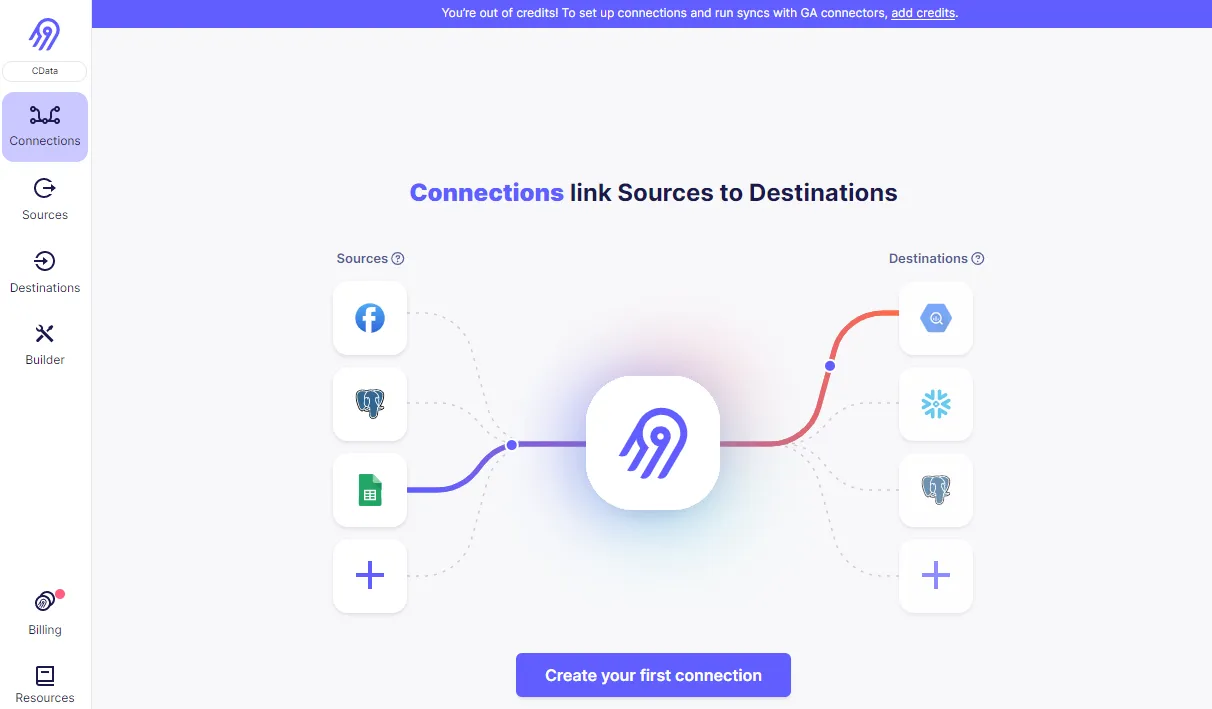
- On the left panel, click Sources, then Add New Source
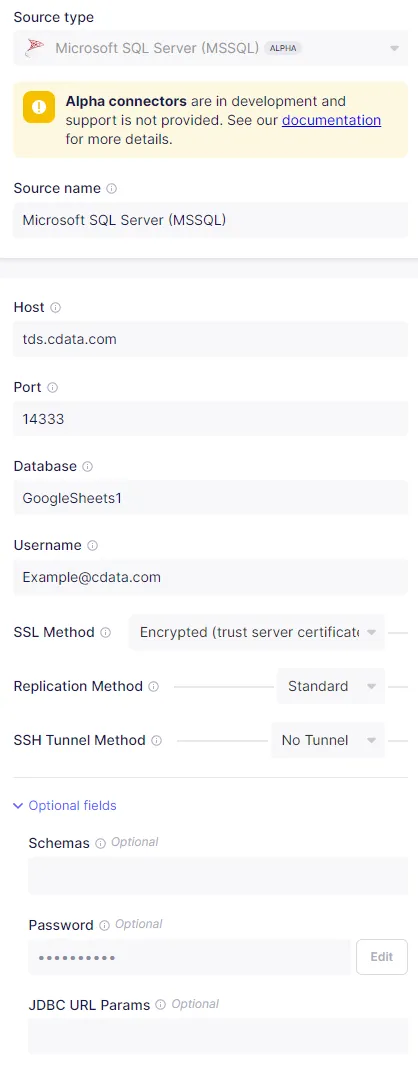
- Set Source Type to MSSQL Server to connect the TDS endpoint
- Set Source Name
- Set Host URL to tds.cdata.com
- Set Port to 14333
- Set Database to the name of the connection you previously configured, e.g. API1.
- Set Username to your Connect AI username
- Set SSL Method to Encrypted (trust server certificate), leave the Replication Method as standard, and set SSH Tunnel Method to No Tunnel
- (Optional) Set Schema to anything you want to apply to the source
- Set Password to your Connect AI PAT
- (Optional) Enter any needed JBDC URL Params
- Click Test and Save to create the data source.
Create ELT Pipelines for Printify Data
To connect Printify data with a new destination, click Sources and then Set Up Connection to connect to your destination. Select the source created above and your desired destination, then allow Airbyte to process. When it is done, your connection is ready for use.
Get CData Connect AI
To get live data access to hundreds of SaaS, Big Data, and NoSQL sources directly from Airbyte, try CData Connect AI today!