








Build Agents in Relevance AI with Access to Live RSS Feeds via CData Connect AI

Relevance AI is an AI automation and agent-building platform that enables organizations to create autonomous workflows powered by natural language reasoning. Users can visually design agents that interact with APIs, databases, and third-party systems to complete everyday business tasks or data operations.
By integrating Relevance AI with CData Connect AI through the built-in MCP (Model Context Protocol) Server, your agents can query, summarize, and act on live RSS feeds in real time. This connection bridges Relevance AI intelligent workflow engine with the governed enterprise connectivity of CData Connect AI ensuring every query runs securely against authorized sources without manual data export.
This article outlines the steps to configure RSS connectivity in Connect AI, register Connect AI in Relevance AI, and build an agent that interacts with live RSS feeds.
Step 1: Configure RSS Connectivity for Relevance AI
Connectivity to RSS from Relevance AI is made possible through CData Connect AI's Remote MCP Server. To interact with RSS feeds from Relevance AI, we start by creating and configuring a RSS connection in CData Connect AI.
- Log into Connect AI, click Sources, and then click Add Connection
- Select RSS from the Add Connection panel
-
Enter the necessary authentication properties to connect to RSS.
You can connect to RSS and Atom feeds, as well as feeds with custom extensions. To connect to a feed, set the URL property. You can also access secure feeds. A variety of authentication mechanisms are supported. See the help documentation for details.

- Click Save & Test
- Navigate to the Permissions tab and update user-based permissions



Add a Personal Access Token
A Personal Access Token (PAT) is used to authenticate the connection to Connect AI from Relevance AI. It is best practice to create a separate PAT for each integration to maintain granular access control.
- Click the gear icon () at the top right of the Connect AI app to open Settings
- On the Settings page, go to the Access Tokens section and click Create PAT
- Give the PAT a descriptive name and click Create
- Copy the token when displayed and store it securely. It will not be shown again

With the RSS connection configured and a PAT generated, Relevance AI can now connect to RSS feeds through Connect AI.
Step 2: Configure Connectivity in Relevance AI
The CData Connect AI MCP endpoint and authorization details are registered within Relevance AI so that agents can call live data from Connect AI.
- Sign in to Relevance AI and create an account if you do not already have one
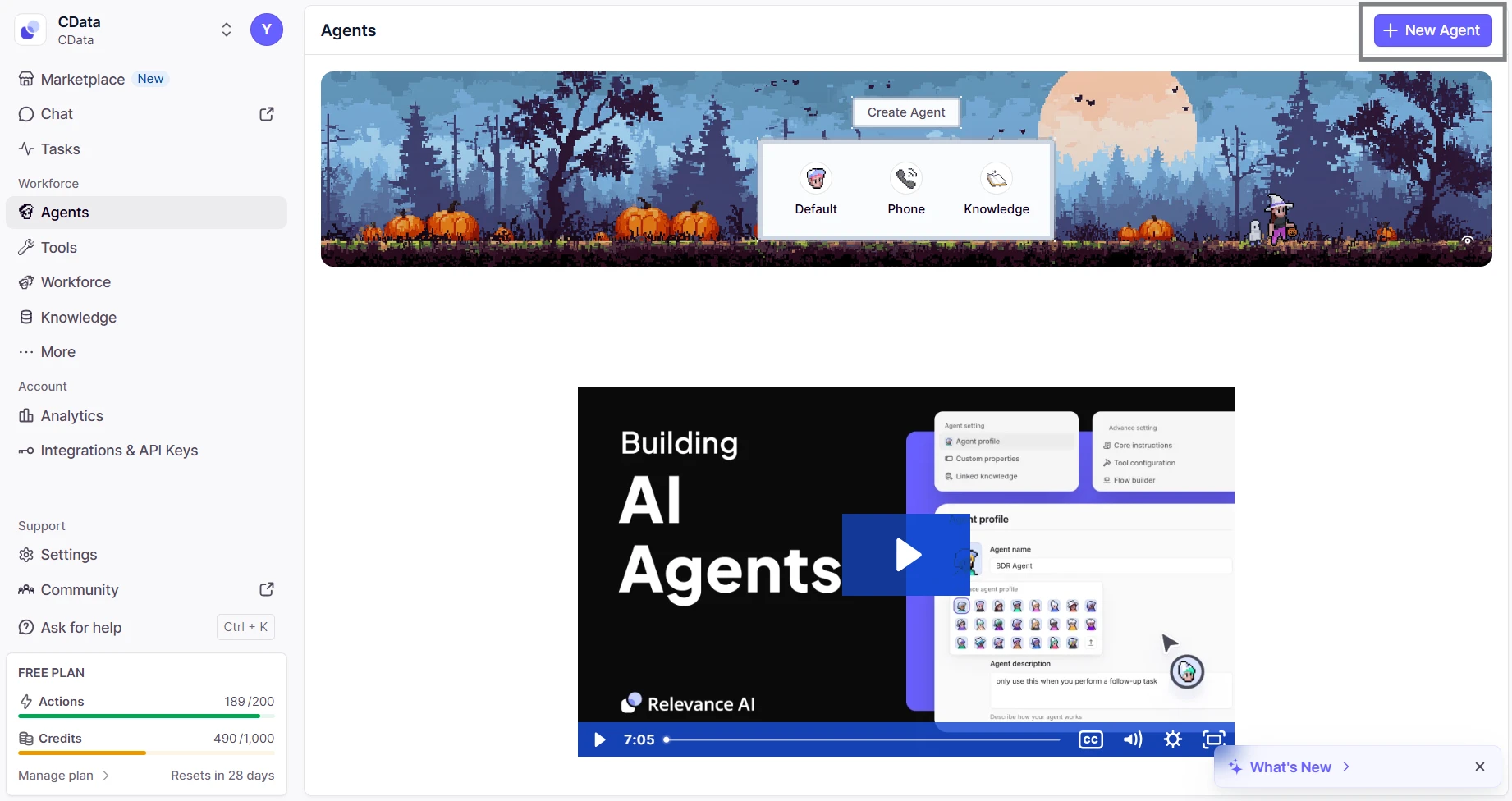
- From the sidebar, navigate to Agents and then click on New Agent
- Select Build from scratch and name the agent (eg; CData MCP Server)
- Inside the agent editor, select Advanced and then switch to the MCP Server tab
- Click + Add Remote MCP Tools
- In the dialog that appears, fill out the fields as follows:
- URL: https://mcp.cloud.cdata.com/mcp
- Label: Any custom label (eg; cdata_mcp_server)
- Authentication: Select Custom headers
- Add header key:value pair. Combine your email and PAT as email:PAT and encode that string in Base64 and then prefix with the word Basic
- Key: Authorization
- Value: Basic base64(email:PAT)


Click Connect to establish the connection. Relevance AI will verify your credentials and register the CData Connect AI MCP Server for use in agents.
Step 3: Build and Run a Relevance AI Agent with Live RSS Feeds
- Switch to the Run tab for your agent
- Enter a task for example, "List the five most recent incidents from ServiceNow"
- The agent will query Connect AI via the MCP endpoint and display live results from RSS feeds


With the connection complete, Relevance AI agents can now issue queries, retrieve records, and perform AI-driven tasks over live RSS feeds through CData Connect AI MCP Server.
Get CData Connect AI
To access hundreds of SaaS, Big Data, and NoSQL sources directly from your cloud applications, try CData Connect AI today!