








Use Agno to Talk to Your Sage 300 Data via CData Connect AI

Agno is a developer-first Python framework for building AI agents that reason, plan, and take actions using tools. Agno emphasizes a clean, code-driven architecture where the agent runtime remains fully under developer control.
CData Connect AI provides a secure cloud-to-cloud interface for integrating hundreds of enterprise data sources with AI systems. Using Connect AI, live Sage 300 data data can be exposed through a remote MCP endpoint without replication.
In this guide, we build a production-ready Agno agent using the Agno Python SDK. The agent connects to CData Connect AI via MCP using streamable HTTP, dynamically discovers available tools, and invokes them to query live Sage 300 data.
Prerequisites
- Python 3.9+.
- A CData Connect AI account – Sign up or log in here.
- An active Sage 300 account with valid credentials.
- An LLM API key (for example, OpenAI).
Overview
Here is a high-level overview of the process:
- Connect: Configure a Sage 300 connection in CData Connect AI.
- Discover: Use MCP to dynamically retrieve tools exposed by CData Connect AI.
- Query: Wrap MCP tools as Agno functions and query live Sage 300 data.
Step 1: Configure Sage 300 in CData Connect AI
To enable Agno to query live Sage 300 data, first create a Sage 300 connection in CData Connect AI. This connection is exposed through the CData Remote MCP Server.
-
Log into Connect AI, click Sources, and then click
Add Connection.

-
Select "Sage 300" from the Add Connection panel.

-
Enter the required authentication properties.
Sage 300 requires some initial setup in order to communicate over the Sage 300 Web API.
- Set up the security groups for the Sage 300 user. Give the Sage 300 user access to the
option under Security Groups (per each module required). - Edit both web.config files in the /Online/Web and /Online/WebApi folders; change the key AllowWebApiAccessForAdmin to true. Restart the webAPI app-pool for the settings to take.
- Once the user access is configured, click https://server/Sage300WebApi/ to ensure access to the web API.
Authenticate to Sage 300 using Basic authentication.
Connect Using Basic Authentication
You must provide values for the following properties to successfully authenticate to Sage 300. Note that the provider reuses the session opened by Sage 300 using cookies. This means that your credentials are used only on the first request to open the session. After that, cookies returned from Sage 300 are used for authentication.
- Url: Set this to the url of the server hosting Sage 300. Construct a URL for the Sage 300 Web API as follows: {protocol}://{host-application-path}/v{version}/{tenant}/ For example, http://localhost/Sage300WebApi/v1.0/-/.
- User: Set this to the username of your account.
- Password: Set this to the password of your account.
 Click Create & Test.
- Set up the security groups for the Sage 300 user. Give the Sage 300 user access to the
-
Open the Permissions tab and configure user access.

Add a Personal Access Token
A Personal Access Token (PAT) authenticates MCP requests from Agno to CData Connect AI.
- Open Settings and navigate to Access Tokens.
- Click Create PAT.
-
Save the generated token securely.

Step 2: Install dependencies and configure environment variables
Install Agno and the MCP adapter dependencies. LangChain is included strictly for MCP tool compatibility.
pip install agno agno-mcp langchain-mcp-adapters
Configure environment variables:
export CDATA_MCP_URL="https://mcp.cloud.cdata.com/mcp"
export CDATA_MCP_AUTH="Base64EncodedCredentials"
export OPENAI_API_KEY="your-openai-key"
Where "Base64EncodedCredentials" is your Connect AI user email and your Personal Access Token joined by a colon (":") and Base64 Encoded: Base64([email protected]:MY_CONNECT_AI_PAT)
Step 3: Connect to CData Connect AI via MCP
Create an MCP client using streamable HTTP. This establishes a secure connection to CData Connect AI.
import os
from langchain_mcp_adapters.client import MultiServerMCPClient

mcp_client = MultiServerMCPClient(
  connections={
    "default": {
      "transport": "streamable_http",
      "url": os.environ["CDATA_MCP_URL"],
      "headers": {
        "Authorization": f"Basic {os.environ['CDATA_MCP_AUTH']}"
      }
    }
  }
)
Step 4: Discover MCP tools
CData Connect AI exposes operations as MCP tools. These are retrieved dynamically at runtime.
langchain_tools = await mcp_client.get_tools()
for tool in langchain_tools:
  print(tool.name)
Step 5: Convert MCP tools to Agno functions
Each MCP tool is wrapped as an Agno function so it can be used by the agent.
NOTE: Agno performs all reasoning, planning, and tool selection.LangChain is used only as a lightweight MCP compatibility layer to consume tools exposed by CData Connect AI.
from agno.tools import Function

def make_tool_caller(lc_tool):
  async def call_tool(**kwargs):
    return await lc_tool.ainvoke(kwargs)
  return call_tool
Step 6: Create an Agno agent and query live Sage 300 data
Agno performs all reasoning, planning, and tool invocation. LangChain plays no role beyond MCP compatibility.
from agno.agent import Agent
from agno.models.openai import OpenAIChat

agent = Agent(
  model=OpenAIChat(
    id="gpt-4o",
    temperature=0.2,
    api_key=os.environ["OPENAI_API_KEY"]
  ),
  tools=agno_tools,
  markdown=True
)

await agent.aprint_response(
  "Show me the top 5 records from the available data source"
)

if __name__ == "__main__":
    asyncio.run(main())
The results below show an Agno agent invoking MCP tools through CData Connect AI and returning live Sage 300 data data.
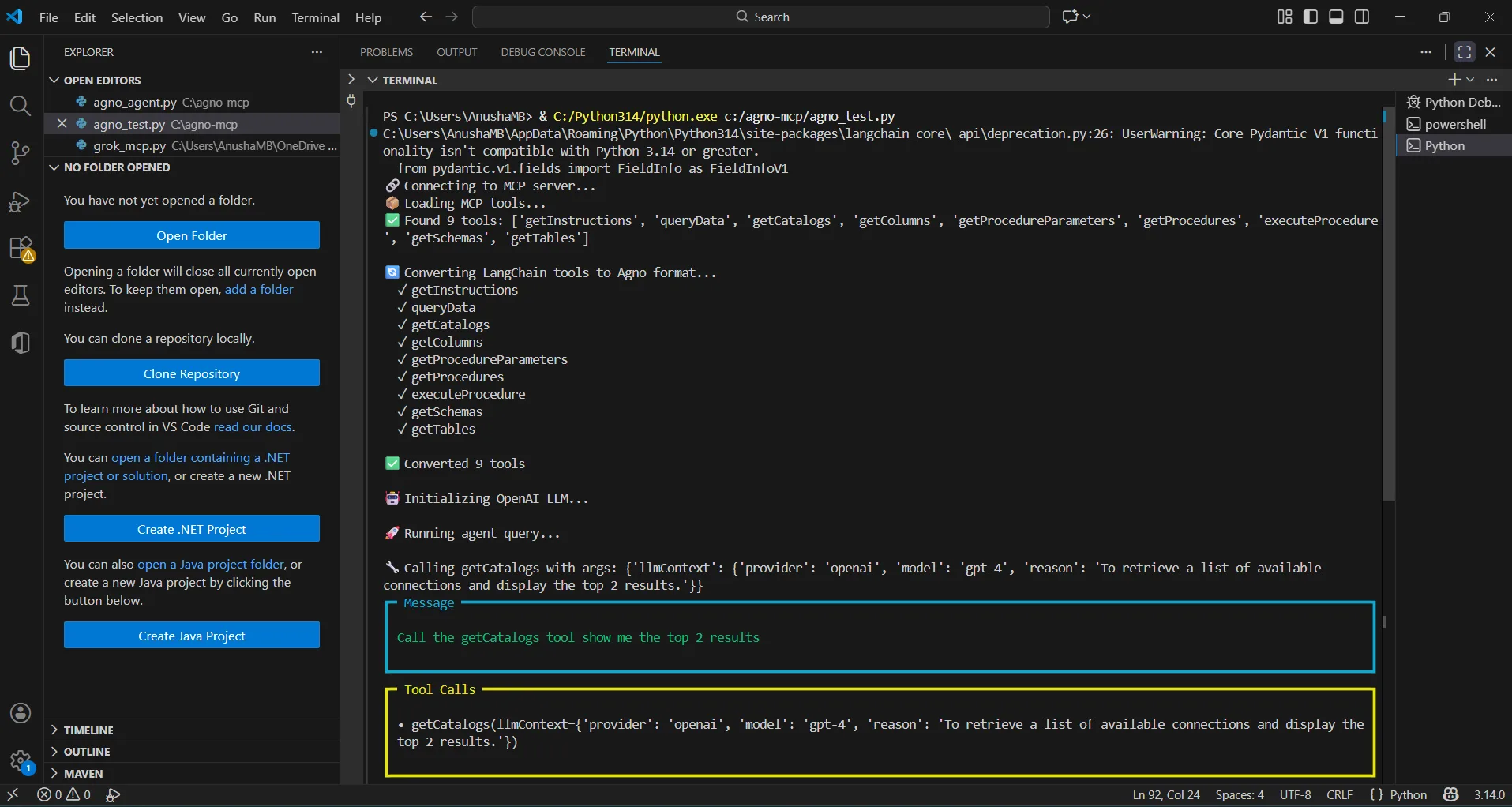
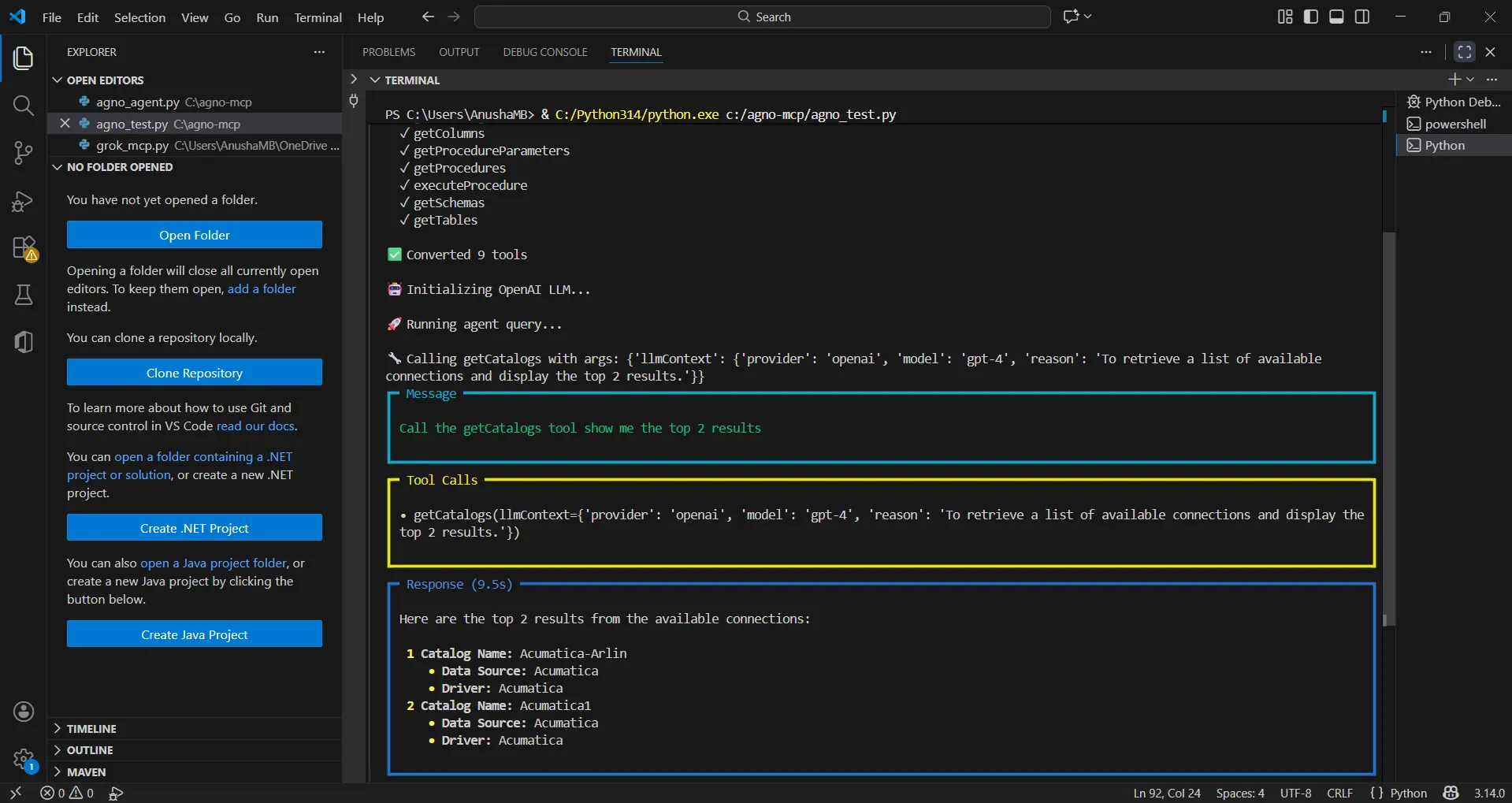
You can now query live Sage 300 data using natural language through your Agno agent.
Get CData Connect AI
To get live data access to hundreds of SaaS, Big Data, and NoSQL sources directly from your cloud applications, try CData Connect AI today!