








Use Manus AI to Talk to Your SAP Business Warehouse Data via CData Connect AI

Manus AI is an autonomous AI agent platform that helps users accomplish complex tasks through natural language from browsing the web to executing code and interacting with external services. When combined with CData Connect AI remote MCP, users can leverage Manus AI to interact with their SAP Business Warehouse data in real-time, without any data replication.
This article explains how to connect to SAP Business Warehouse using the CData Connect AI MCP Server and configure Manus AI to conversationally explore (or Vibe Query) their SAP Business Warehouse data. With Connect AI, users can build AI agents with access to live SAP Business Warehouse data, plus hundreds of other sources.
Step 1: Configure SAP Business Warehouse connectivity for Manus AI
Connectivity to SAP Business Warehouse from Manus AI is made possible through CData Connect AI Remote MCP. To interact with SAP Business Warehouse data from Manus AI, we start by creating and configuring a SAP Business Warehouse connection in CData Connect AI.
-
Log into Connect AI, click Connections and click Add Connection

-
Select "SAP Business Warehouse" from the Add Connection panel

-
Enter the necessary authentication properties to connect to SAP Business Warehouse.
To connect to SAP Business Warehouse, set the URL property to a valid SAP Business Warehouse server base URL. The driver must connect to SAP Business Warehouse instances hosted over HTTP with XMLA access.
The driver supports the following authentication schemes via the AuthScheme property:
- None: Anonymous authentication, if available on the server.
- Basic: Set User and Password and set AuthScheme to Basic.
- Kerberos: See the Using Kerberos section of the help documentation for the required Kerberos properties.
By default, the driver attempts to negotiate SSL/TLS by checking the server's certificate against the system's trusted certificate store. To specify another certificate, see the SSLServerCert property for the available formats.
 Click Save & Test
-
Navigate to the Permissions tab in the Add SAP Business Warehouse Connection page and update the User-based permissions.

Add a Personal Access Token
A Personal Access Token (PAT) is used to authenticate the connection to Connect AI from Manus AI. It is best practice to create a separate PAT for each service to maintain granularity of access.
- Click on the Gear icon () at the top right of the Connect AI app to open the settings page.
- On the Settings page, go to the Access Tokens section and click Create PAT.
-
Give the PAT a name and click Create.

- The personal access token is only visible at creation, so be sure to copy it and store it securely for future use.
With the connection configured and a PAT generated, we are ready to connect to SAP Business Warehouse data from Manus AI.
Step 2: Get started with Manus AI
Navigate to Manus and sign in to your Manus AI account. Once logged in, you are ready to configure the CData Connect AI MCP Server as a custom connector.
Step 3: Add the CData Connect AI MCP Server as a connector
Manus AI supports connecting to external MCP servers via its Connectors settings. There are two methods to add the CData Connect AI MCP Server: Import by JSON or Direct Configuration. Both methods are explained below.
-
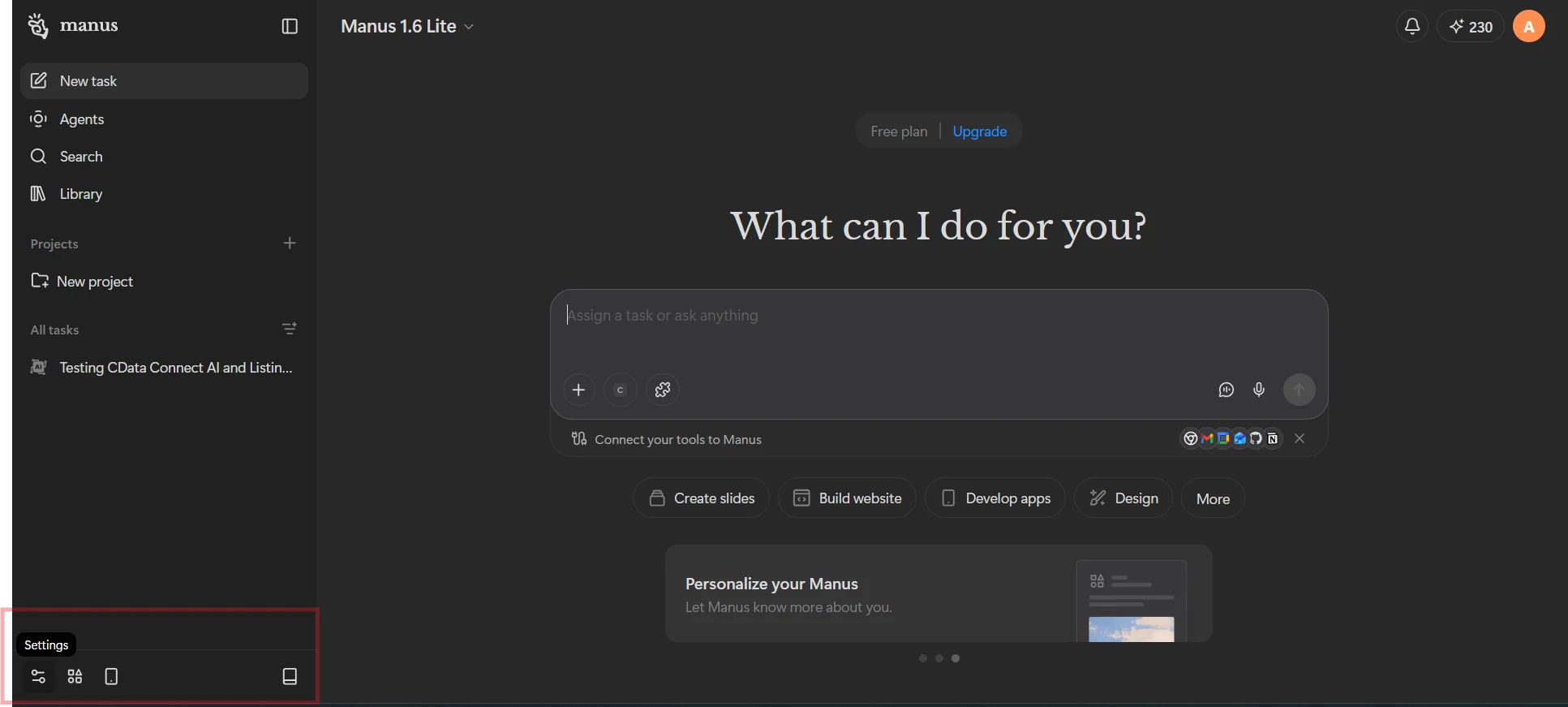
In Manus AI, click on the profile icon and navigate to Settings
-
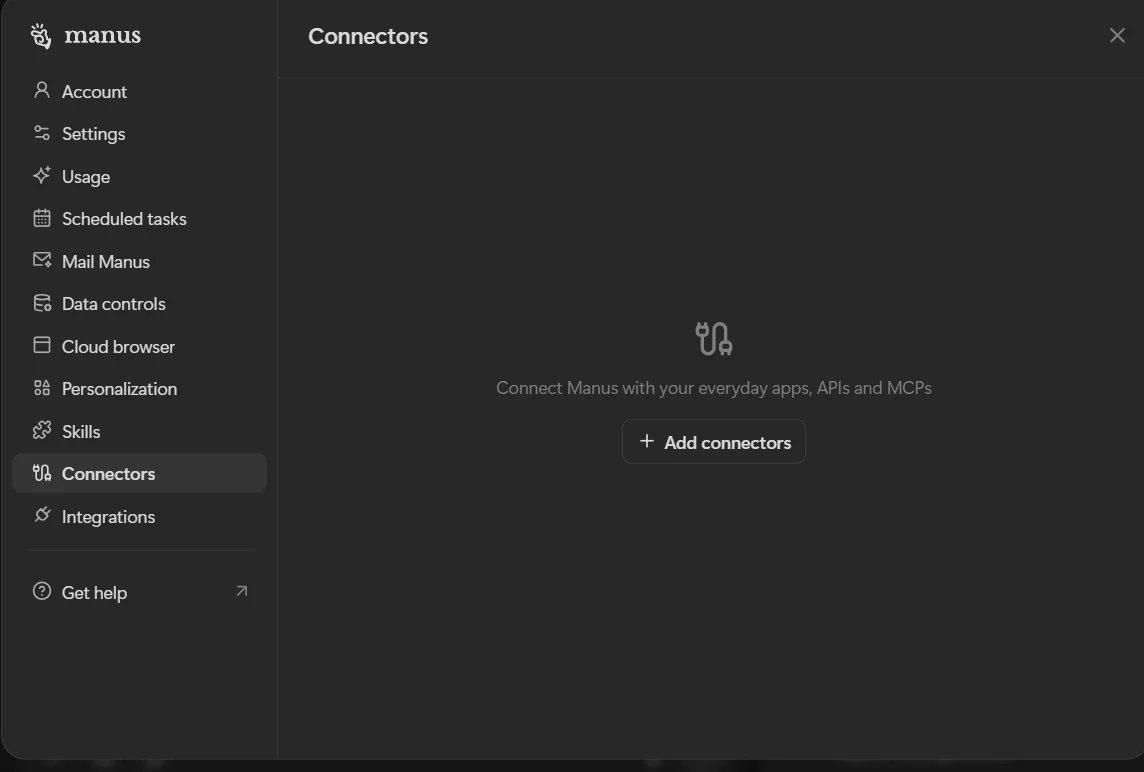
Go to the Connectors section and click Add Connectors
-
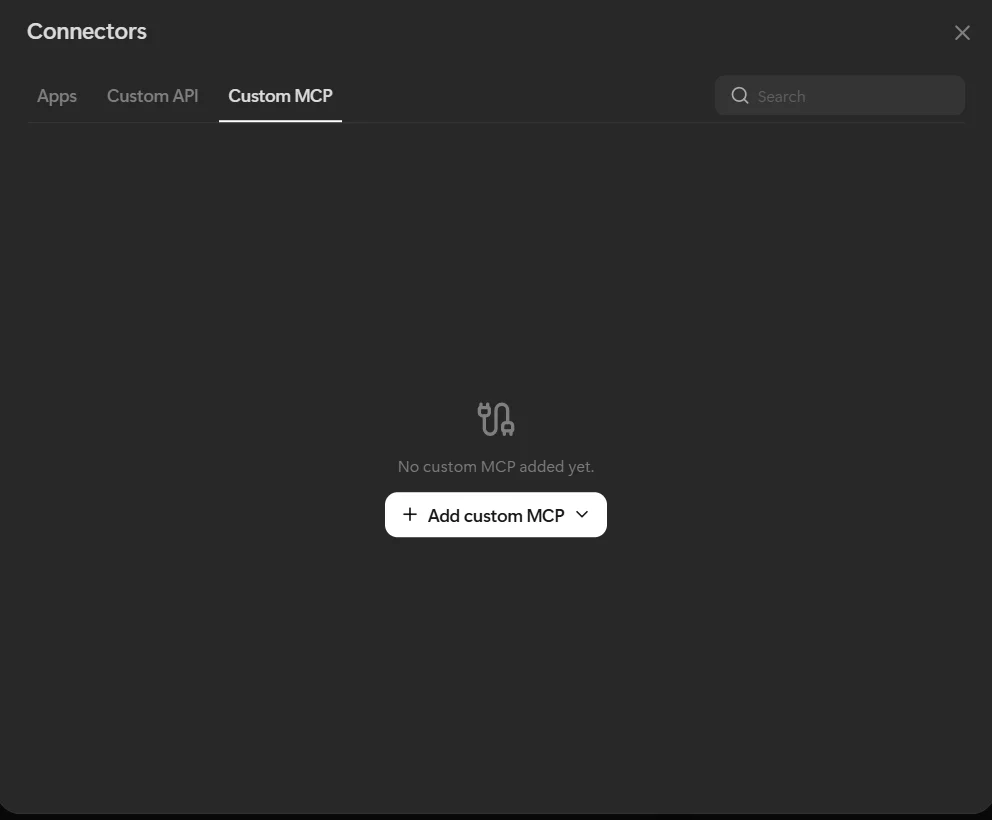
Locate Custom MCP
-
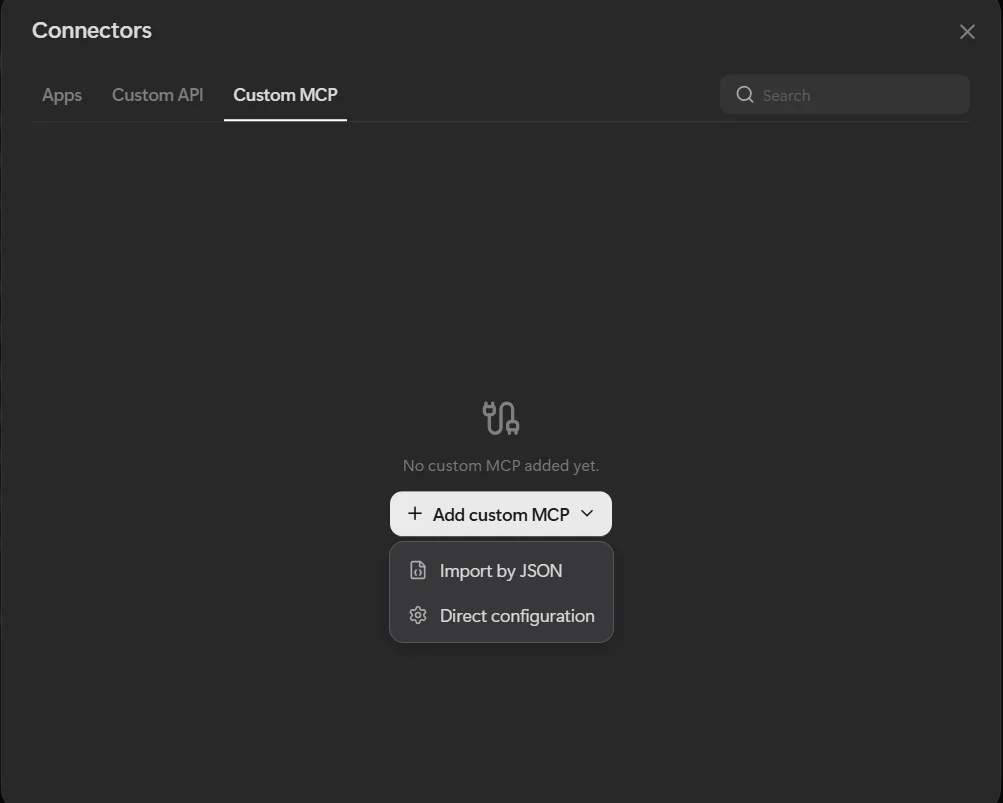
Click Add custom MCP to select the configuration options
Option A: Import by JSON
Use this method to quickly configure the MCP Server by pasting a JSON configuration snippet.
- Select Import by JSON from the connector setup options.
-
Paste the following JSON into the configuration field, replacing the placeholder values with your Connect AI credentials:
Replace url with the Connect AI MCP URL, USER_NAME with your Connect AI email address, and YOUR_CONNECTAI_PAT with the Personal Access Token created in Step 1.{ "mcpServers": { "cdata-connect-ai": { "transport": "sse", "url": "https://mcp.cloud.cdata.com/mcp", "headers": { "Authorization": "Basic USER_NAME:YOUR_CONNECTAI_PAT;" } } } }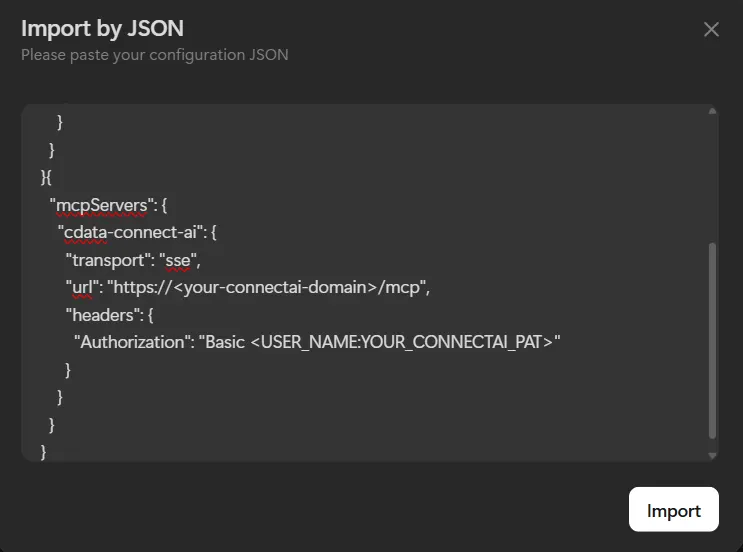
- Click Import to apply the configuration.
Option B: Direct Configuration
Use this method to manually enter the MCP Server connection properties through the Manus AI interface.
- Select Direct Configuration from the connector setup options.
-
Fill in the following fields:
- Server Name: CData Connect AI
- Transport Type: HTTP
- Server URL: https://mcp.cloud.cdata.com/mcp
- Custom Headers: Add a header with the name Authorization and the value Basic Base64Encoded(username:pat), replacing the placeholder with your Base64-encoded Connect AI email and PAT combination.
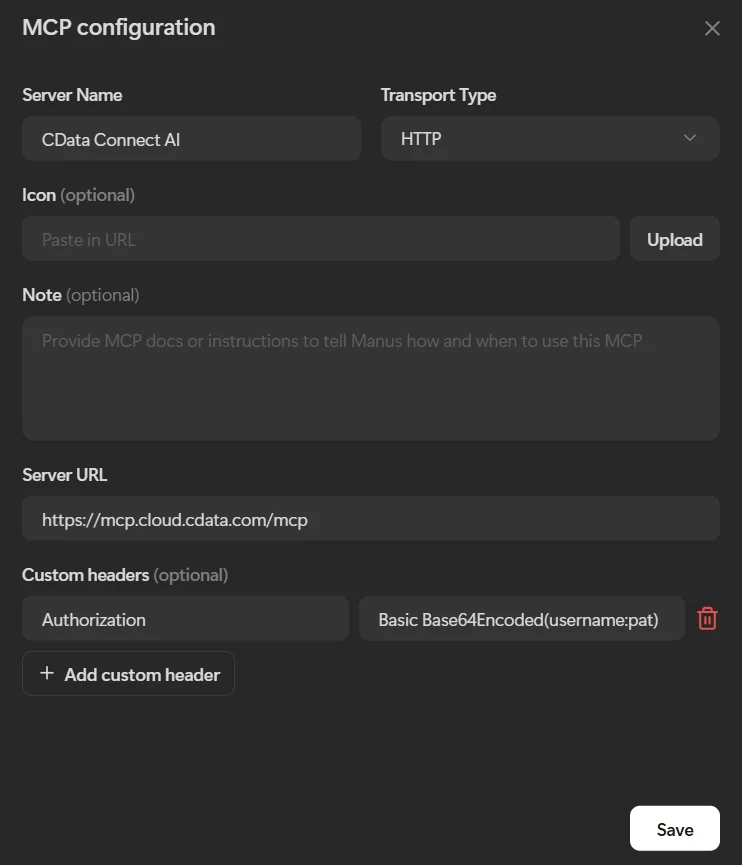
- Optionally, enter a Note to provide Manus AI with instructions on how and when to use this MCP connector.
- Click Save to establish the connection to the CData Connect AI MCP Server. Once saved, the connector will appear as active in your Connectors list.
Step 4: Query your SAP Business Warehouse data using natural language
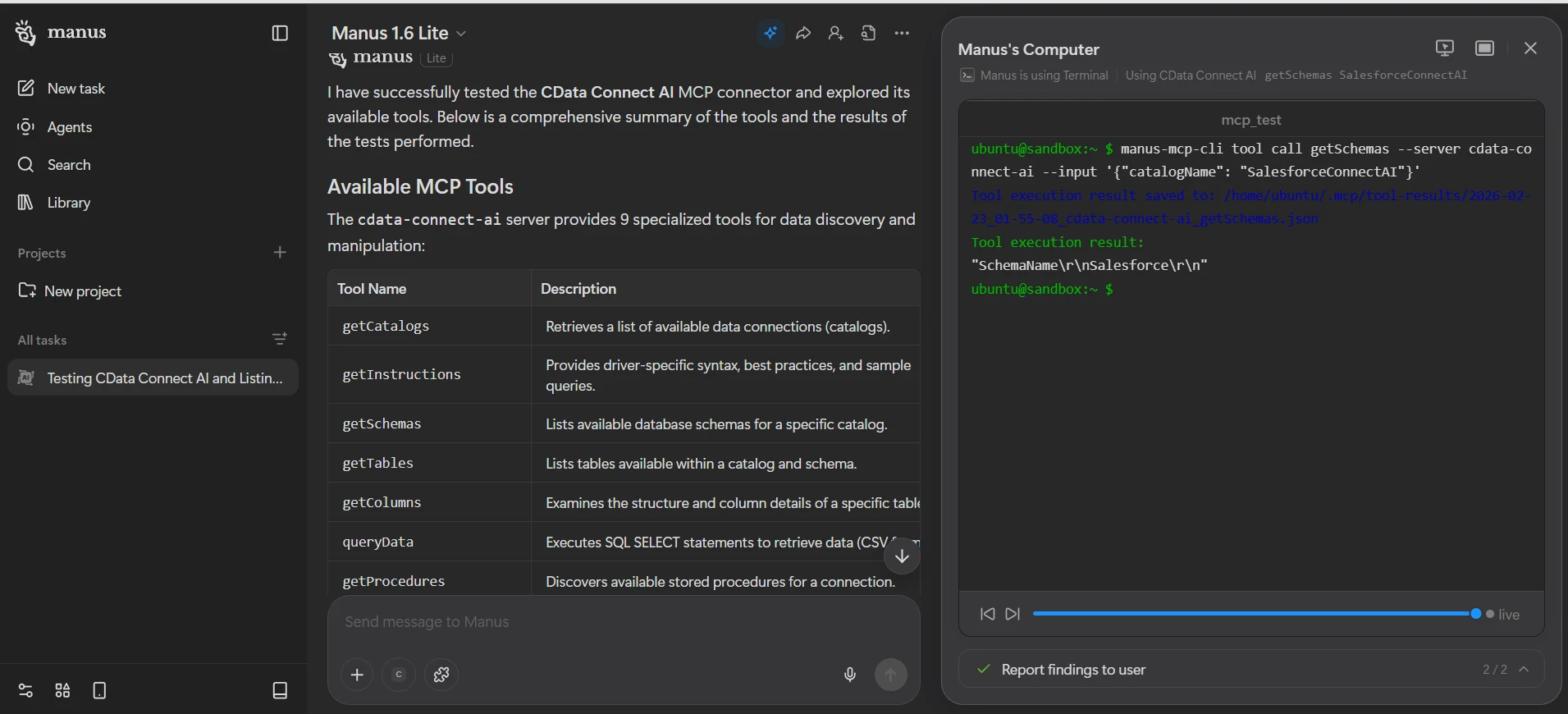
With the CData Connect AI MCP configured in Manus AI, users can now interact with their SAP Business Warehouse data using natural language in any new Manus AI chat session.
- Open a new chat in Manus AI.
-
Start asking questions about the SAP Business Warehouse data. For example:
- Show me all customers from the last 30 days
- What are my top performing products?
- Analyze sales trends for Q4
- List all active projects with their current status
-
Manus AI will use the CData Connect AI MCP Server to query your SAP Business Warehouse data in real-time and provide responses based on live data.
Get CData Connect AI
To get live data access to hundreds of SaaS, big data, and NoSQL sources directly from your cloud applications, try CData Connect AI today!