








Create Apps from SAP Business Warehouse Data in Qlik Sense Cloud

Qlik Sense Cloud allows you to create and share data visualizations and interact with information in new ways. CData Connect AI creates a live connection to SAP Business Warehouse. By pairing Qlik Sense Cloud with CData Connect AI, you get true cloud-to-cloud connectivity to all of your SaaS and cloud-based Big Data and NoSQL sources — no need to migrate your data or write your integrations. Simply connect to Connect AI from Qlik Sense Cloud and get instant, live access to your SAP Business Warehouse data.
In this article, we walk through two connections:
- Connecting to SAP Business Warehouse in Connect AI
- Connecting to Connect AI from Qlik Sense Cloud to create a model and build a simple dashboard
Configure SAP Business Warehouse Connectivity for Qlik Sense Cloud
Connectivity to SAP Business Warehouse from Qlik Cloud is made possible through CData Connect AI. To work with SAP Business Warehouse data from Qlik Cloud, we start by creating and configuring a SAP Business Warehouse connection.
- Log into Connect AI, click Sources, and then click Add Connection
- Select "SAP Business Warehouse" from the Add Connection panel
-
Enter the necessary authentication properties to connect to SAP Business Warehouse.
To connect to SAP Business Warehouse, set the URL property to a valid SAP Business Warehouse server base URL. The driver must connect to SAP Business Warehouse instances hosted over HTTP with XMLA access.
The driver supports the following authentication schemes via the AuthScheme property:
- None: Anonymous authentication, if available on the server.
- Basic: Set User and Password and set AuthScheme to Basic.
- Kerberos: See the Using Kerberos section of the help documentation for the required Kerberos properties.
By default, the driver attempts to negotiate SSL/TLS by checking the server's certificate against the system's trusted certificate store. To specify another certificate, see the SSLServerCert property for the available formats.

- Click Save & Test
-
Navigate to the Permissions tab in the Add SAP Business Warehouse Connection page and update the User-based permissions.



Add a Personal Access Token
When connecting to Connect AI through the REST API, the OData API, or the Virtual SQL Server, a Personal Access Token (PAT) is used to authenticate the connection to Connect AI. It is best practice to create a separate PAT for each service to maintain granularity of access.
- Click on the Gear icon () at the top right of the Connect AI app to open the settings page.
- On the Settings page, go to the Access Tokens section and click Create PAT.
-
Give the PAT a name and click Create.

- The personal access token is only visible at creation, so be sure to copy it and store it securely for future use.
With the connection configured and a PAT generated, you are ready to connect to SAP Business Warehouse data from Qlik Sense Cloud.
Create a Qlik Sense App from SAP Business Warehouse Data
This section explains how to add SAP Business Warehouse data to a Qlik Sense app for visualizations, analytics, reporting, and more.
Create a New App and Upload Data
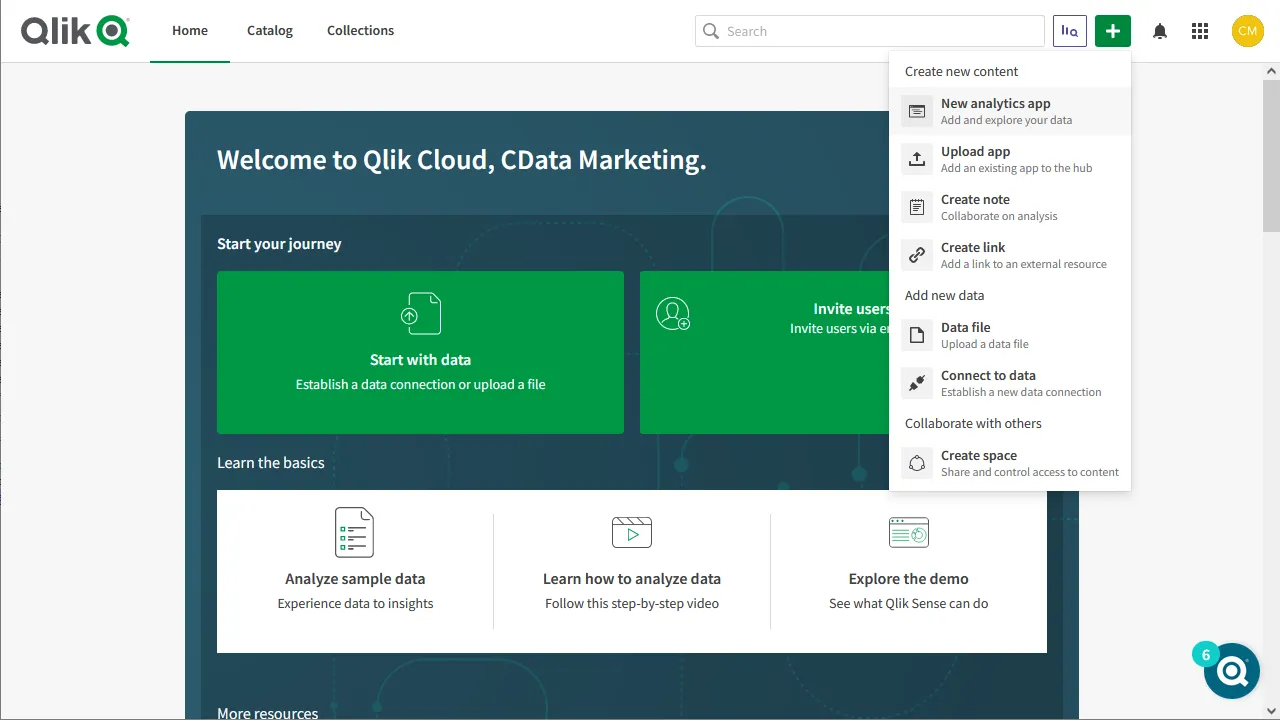
- Log into your Qlik Sense instance and click the button to create a new app
- Name and configure the new app and click "Create"
- In the workspace, click to open the new app
- Click to add data from files and other sources
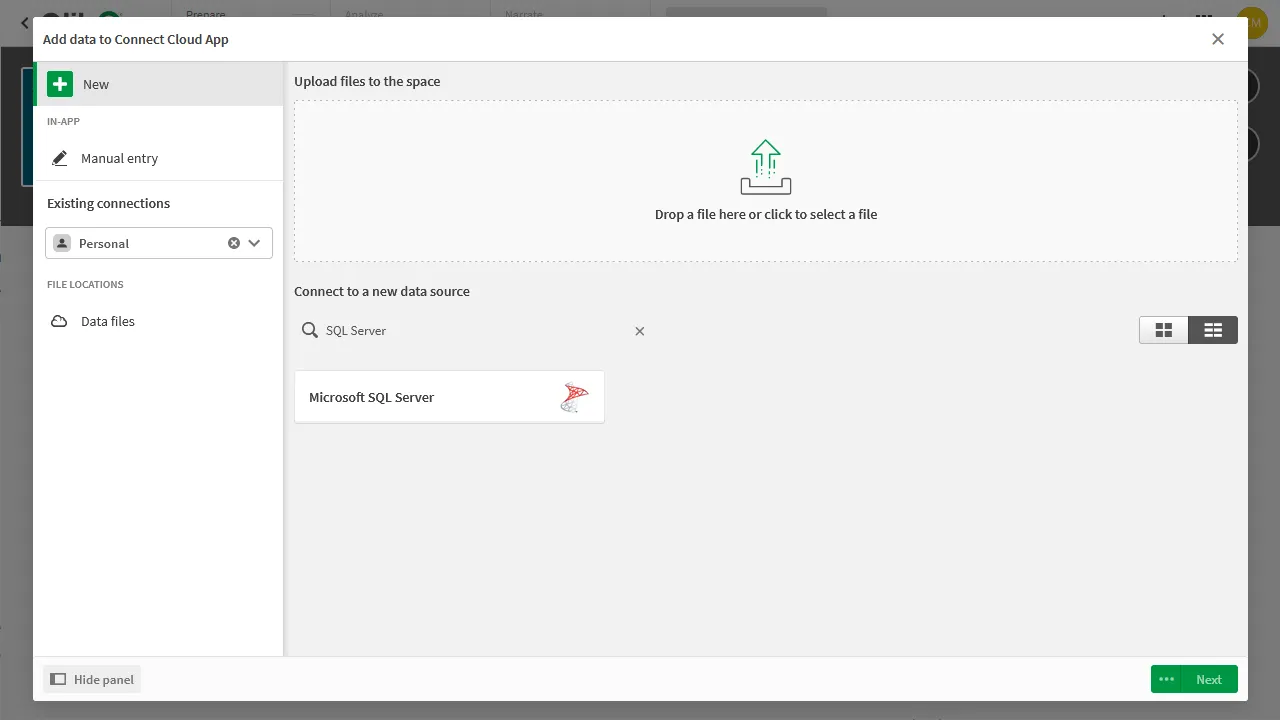
- Select the Microsoft SQL Server connector and set the configuration properties.
- Set Server to tds.cdata.com
- Set Port to 14333
- Set Database to the connection you created (e.g. SAPBusinessWarehouse1)
- Set User name to the Connect AI user (e.g. [email protected])
- Set Password to the PAT for the above user
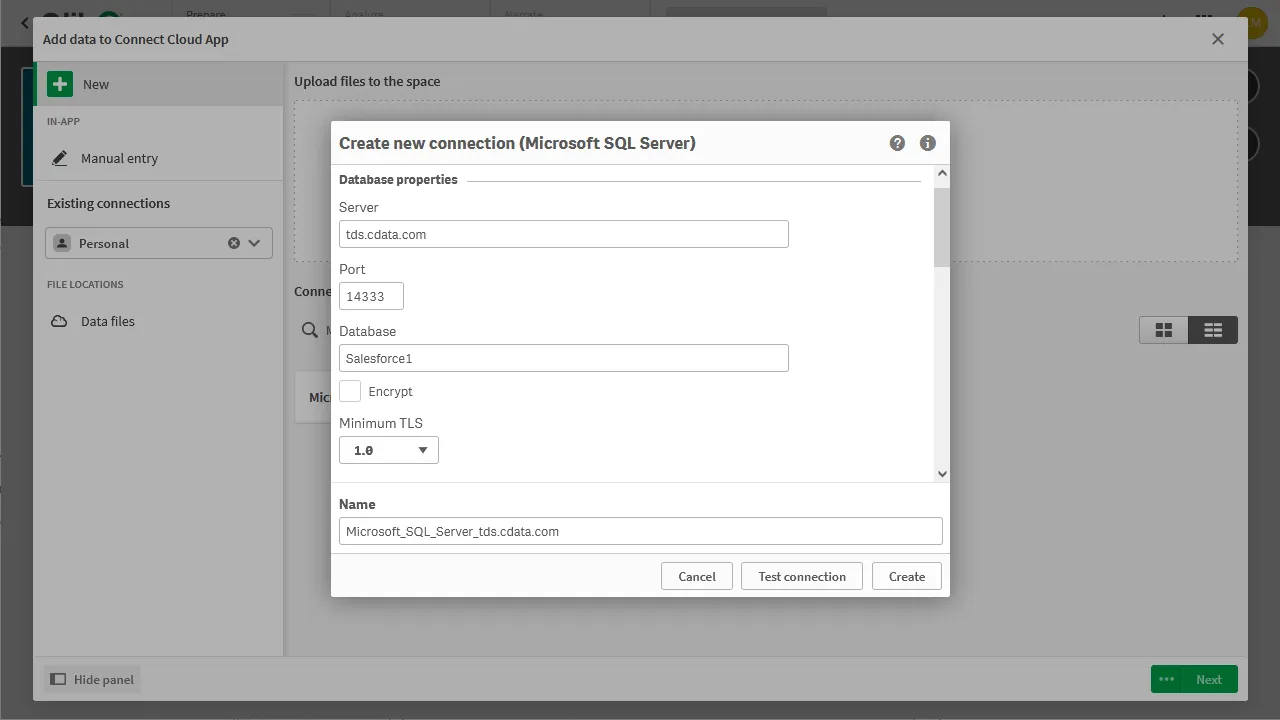
- Select an owner for the connection
- Select a SAP Business Warehouse entity (Table) to view
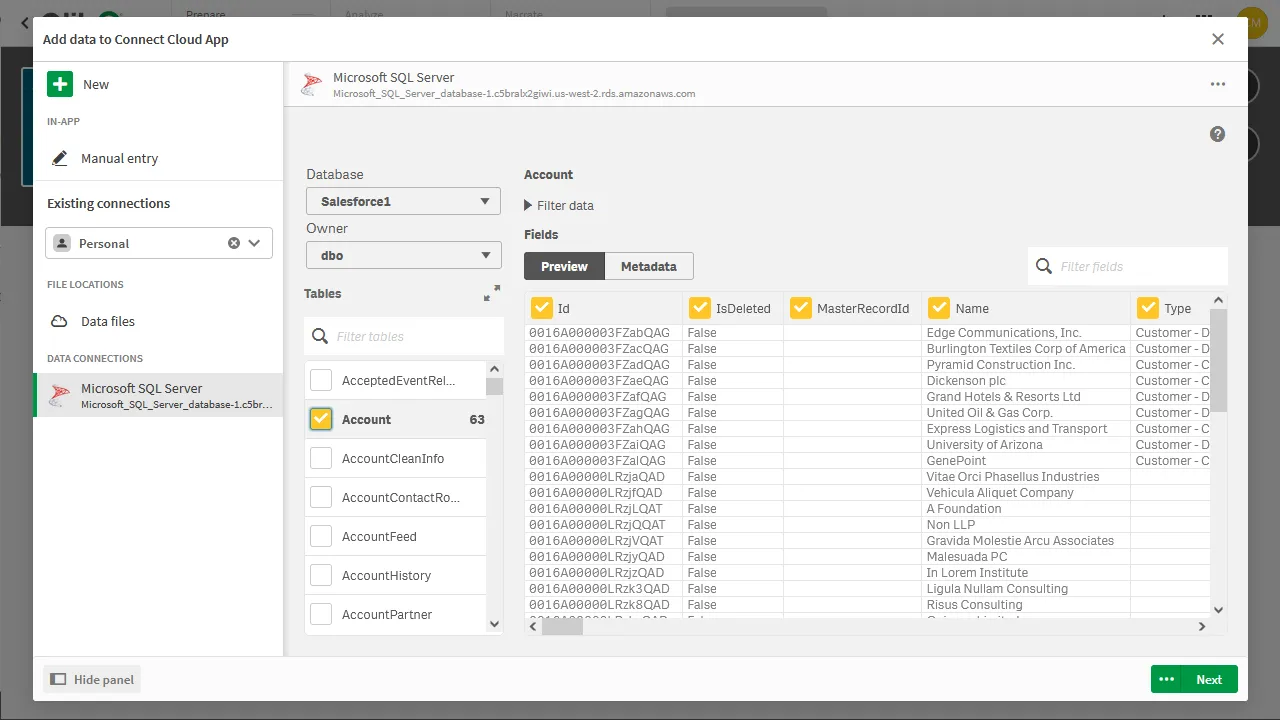
- Click Next, configure the model, and load the data into Qlik Sense.
Generate Insights or Customize Your App
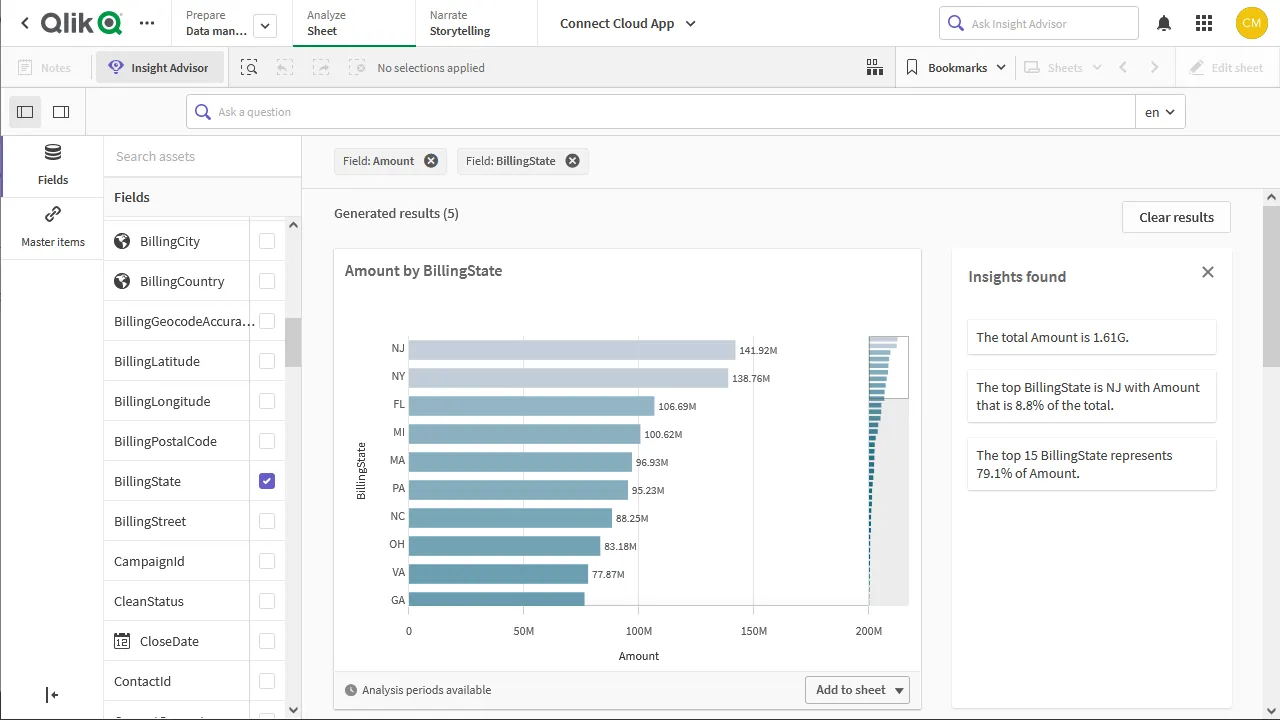
With the data loaded into Qlik Sense, you are ready to begin discovering insights. You can build custom visualizations, reports, and dashboards engineered to gain actionable insights into your SAP Business Warehouse data.
More Information & Free Trial
Now, you have created a simple but powerful dashboard from live SAP Business Warehouse data. For more information on creating OData feeds from SAP Business Warehouse (and more than 100 other data sources), visit the Connect AI page. Sign up for a free trial and start working with live SAP Business Warehouse data in Qlik Sense Cloud.