








Use Microsoft Copilot Studio to talk to your ServiceDesk Plus Data via CData Connect AI

Microsoft Copilot Studio is a no-code/low-code platform for creating AI Agents that can automate tasks, answer questions, and assist with various business processes. When combined with CData Connect AI Remote MCP, you can leverage Copilot Studio to interact with your ServiceDesk Plus data in real-time. This article outlines the process of connecting to ServiceDesk Plus using Connect AI Remote MCP and creating a connection in Copilot Studio to interact with your ServiceDesk Plus data.
CData Connect AI offers a dedicated cloud-to-cloud interface for connecting to ServiceDesk Plus data. The CData Connect AI Remote MCP Server enables secure communication between Microsoft Copilot Studio and ServiceDesk Plus. This allows you to ask questions and take actions on your ServiceDesk Plus data using Microsoft Copilot Studio, all without the need for data replication to a natively supported database. With its inherent optimized data processing capabilities, CData Connect AI efficiently channels all supported SQL operations, including filters and JOINs, directly to ServiceDesk Plus. This leverages server-side processing to swiftly deliver the requested ServiceDesk Plus data.
In this article, we show how to build a agent in Microsoft Copilot Studio to conversational explore (or Vibe Query) your data. The connectivity principals apply to any Copilot agent. With Connect AI you can build workflows and agents with access to live ServiceDesk Plus data, plus hundreds of other sources.
Step 1: Configure ServiceDesk Plus Connectivity for Microsoft Copilot Studio
Connectivity to ServiceDesk Plus from Microsoft Copilot Studio is made possible through CData Connect AI Remote MCP. To interact with ServiceDesk Plus data from Microsoft Copilot Studio, we start by creating and configuring a ServiceDesk Plus connection in CData Connect AI.
-
Log into Connect AI, click Connections and click Add Connection

-
Select "ServiceDesk Plus" from the Add Connection panel

-
Enter the necessary authentication properties to connect to ServiceDesk Plus.
Using OAuth Authentication
ServiceDeskPlus uses Zoho OAuth 2.0 for secure authentication. To set up OAuth access:
- Register your application in the Zoho Developer Console at https://api-console.zoho.com
- Configure your redirect URI to match your application setup
- Note your Client ID and Client Secret from the application settings
After setting the following connection properties, you are ready to connect:
- AuthScheme: Set this to OAuth.
- OAuthClientId: Set this to your Zoho application Client ID.
- OAuthClientSecret: Set this to your Zoho application Client Secret.
- Scope: Set this to the required ServiceDeskPlus permissions (default includes read access to requests, problems, assets, and projects).
- Domain: Set this to your ServiceDeskPlus domain
- Portal: Set this to your ServiceDeskPlus portal
Example Connection String
Profile=C:\profiles\ServiceDeskPlus.apip;ProfileSettings="Portal=itdesk;Domain=.in;Scope=SDPOnDemand.requests.READ SDPOnDemand.problems.READ SDPOnDemand.assets.READ SDPOnDemand.projects.READ";AuthScheme=OAuth;OAuthClientId=your_client_id;OAuthClientSecret=your_client_secret;
 Click Save & Test
-
Navigate to the Permissions tab in the Add ServiceDesk Plus Connection page and update the User-based permissions.

With the connection configured, we are ready to connect to ServiceDesk Plus data from Microsoft Copilot Studio.
Step 2: Connect Microsoft Copilot Studio to CData Connect AI
Follow these steps to add a CData Connect AI MCP connection in Microsoft Copilot Studio:
-
Under Tools, click Add tool, then click + New Tool.

-
In the Add Tool window, search for and click CData Connect AI.

-
In the Connect to CData Connect AI window, click Create to authenticate your connection CData Connect AI using OAuth authentication.

-
Click Add and configure to add the CData Connect AI Tool to your agent.

Optional: Give the AI Agent context
This step establishes the AI Agent's role and provides context for the conversation through the Instructions property in the Agent. By providing instructions that explicitly informs the agent about its role as an MCP Server expert and lists the available tools, you can enhance the agent's understanding and response accuracy. For example, you can set the System Message to:
You are an expert at using the MCP Client tool connected which is the CData Connect AI MCP Server. Always search thoroughly and use the most relevant MCP Client tool for each query. Below are the available tools and a description of each:
queryData: Execute SQL queries against connected data sources and retrieve results. When you use the queryData tool, ensure you use the following format for the table name: catalog.schema.tableName
getCatalogs: Retrieve a list of available connections from CData Connect AI. The connection names should be used as catalog names in other tools and in any queries to CData Connect AI. Use the `getSchemas` tool to get a list of available schemas for a specific catalog.
getSchemas: Retrieve a list of available database schemas from CData Connect AI for a specific catalog. Use the `getTables` tool to get a list of available tables for a specific catalog and schema.
getTables: Retrieve a list of available database tables from CData Connect AI for a specific catalog and schema. Use the `getColumns` tool to get a list of available columns for a specific table.
getColumns: Retrieve a list of available database columns from CData Connect AI for a specific catalog, schema, and table.
getProcedures: Retrieve a list of stored procedures from CData Connect AI for a specific catalog and schema
getProcedureParameters: Retrieve a list of stored procedure parameters from CData Connect AI for a specific catalog, schema, and procedure.
executeProcedure: Execute stored procedures with parameters against connected data sources
Step 3: Explore Live ServiceDesk Plus Data with Microsoft Copilot Studio
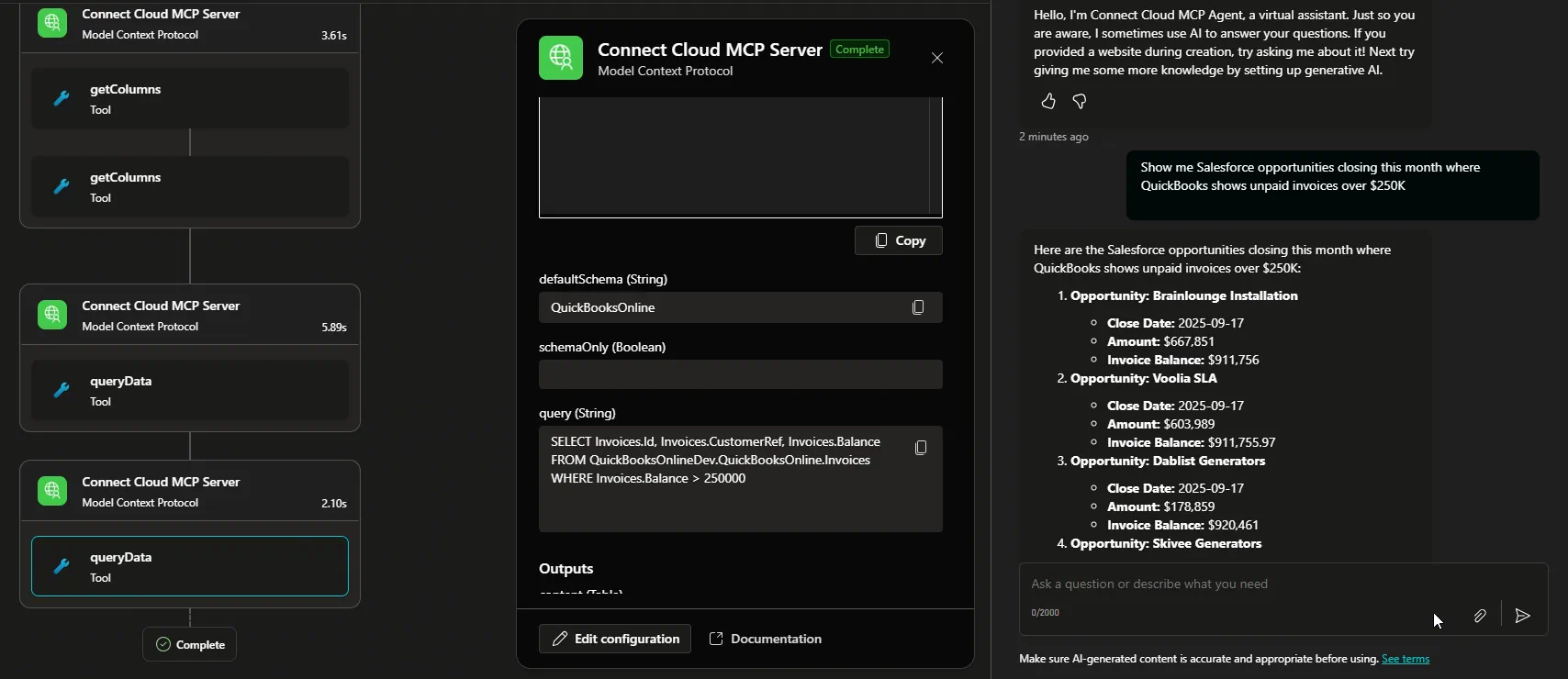
With the Agent created in Microsoft Copilot Studio and the MCP tool connected, you can now interact with your ServiceDesk Plus data using Microsoft Copilot Studio. The MCP tool allows you to send queries and receive responses from the ServiceDesk Plus data source in real-time.
Open the chat window in your Microsoft Copilot Studio Agent to begin interacting with your ServiceDesk Plus data. You can ask questions, retrieve data, and perform actions on your ServiceDesk Plus data using the MCP tool:
Get CData Connect AI
To get live data access to hundreds of SaaS, Big Data, and NoSQL sources directly from your cloud applications, try CData Connect AI today!