








Create SFTP-Connected Business Apps in AppSheet

Google AppSheet is a no-code development platform for application software, enabling users to design mobile, tablet, and web applications. When combined with CData Connect AI, you gain immediate cloud-to-cloud access to SFTP data for business applications. This article outlines the process of connecting to SFTP using Connect AI and constructing a basic app from SFTP data within AppSheet.
CData Connect AI offers a dedicated cloud-to-cloud interface for SFTP, enabling the creation of reports directly from live SFTP data within AppSheet, all without the need for data replication to a native database. When you design applications that interact with data, AppSheet formulates SQL queries to retrieve the required information. With its inherent optimized data processing capabilities, CData Connect AI efficiently channels all supported SQL operations, including filters and JOINs, directly to SFTP. This leverages server-side processing to swiftly deliver the requested SFTP data.
Configure SFTP Connectivity for AppSheet
Connectivity to SFTP from AppSheet is made possible through CData Connect AI. To work with SFTP data from AppSheet, we start by creating and configuring a SFTP connection.
- Log into Connect AI, click Sources, and then click Add Connection
- Select "SFTP" from the Add Connection panel
-
Enter the necessary authentication properties to connect to SFTP.
SFTP can be used to transfer files to and from SFTP servers using the SFTP Protocol. To connect, specify the RemoteHost;. service uses the User and Password and public key authentication (SSHClientCert). Choose an SSHAuthMode and specify connection values based on your selection.
Set the following connection properties to control the relational view of the file system:
- RemotePath: Set this to the current working directory.
- TableDepth: Set this to control the depth of subfolders to report as views.
- FileRetrievalDepth: Set this to retrieve files recursively and list them in the Root table.

- Click Save & Test
-
Navigate to the Permissions tab in the Add SFTP Connection page and update the User-based permissions.



Add a Personal Access Token
When connecting to Connect AI through the REST API, the OData API, or the Virtual SQL Server, a Personal Access Token (PAT) is used to authenticate the connection to Connect AI. It is best practice to create a separate PAT for each service to maintain granularity of access.
- Click on the Gear icon () at the top right of the Connect AI app to open the settings page.
- On the Settings page, go to the Access Tokens section and click Create PAT.
-
Give the PAT a name and click Create.

- The personal access token is only visible at creation, so be sure to copy it and store it securely for future use.
With the connection configured and a PAT generated, you are ready to connect to SFTP data from AppSheet.
Connect to SFTP from AppSheet
The steps below outline connecting to CData Connect AI from AppSheet to create a new SFTP data source.
- Log into AppSheet
- Click "My account" in the menu
- Click the Sources tab and add a new data source
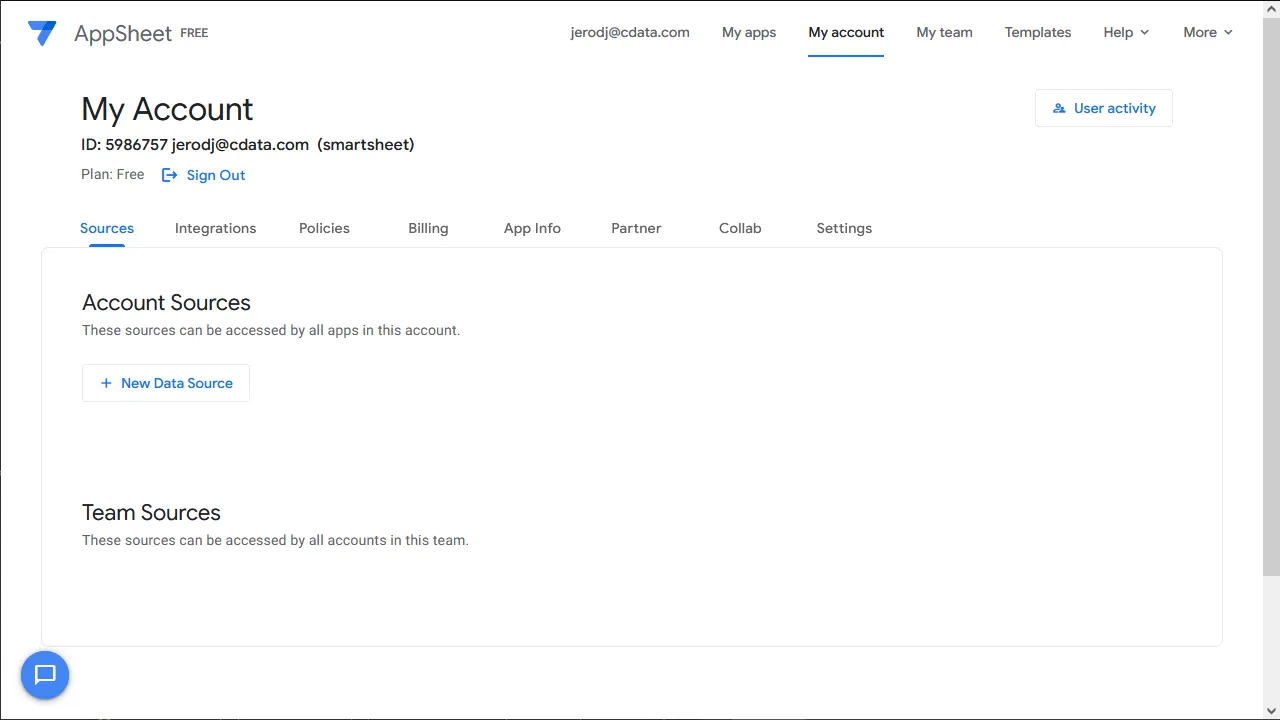
- Select Cloud Database and set the connection information
- Type: Sql Server
- Server: tds.cdata.com,14333
- Database: the SFTP connection, for example, SFTP1
- Username: a Connect AI user, for example, [email protected]
- Password: the PAT for the above Connect AI user
- SSL: Require SSL
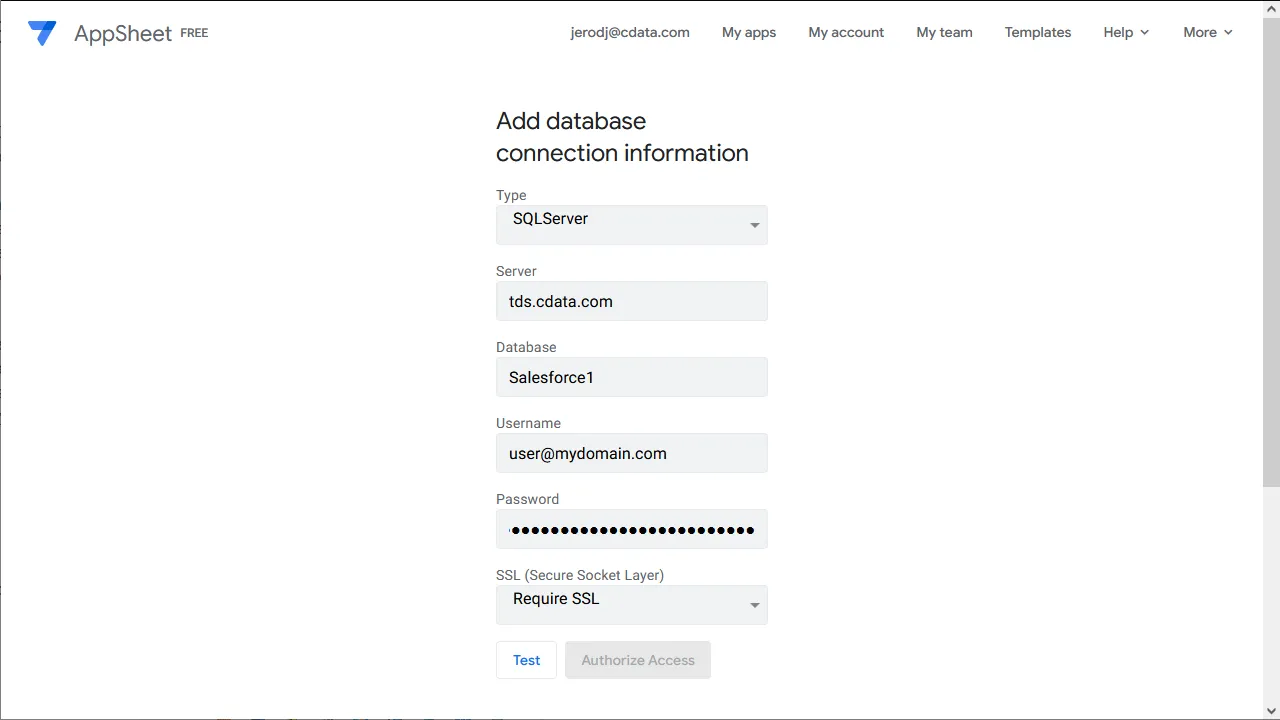
- Click "Test Connection"
- Click "Authorize Access"
Create an App
Once you create the data source for SFTP, you can start building apps on SFTP data. Start by clicking "My apps" in the menu.
- Click to create a new app and select "Start with your own data"
- Name the app and select an appropriate category, based on your data
- Select the newly created data source
- Select the table or view with the data you want
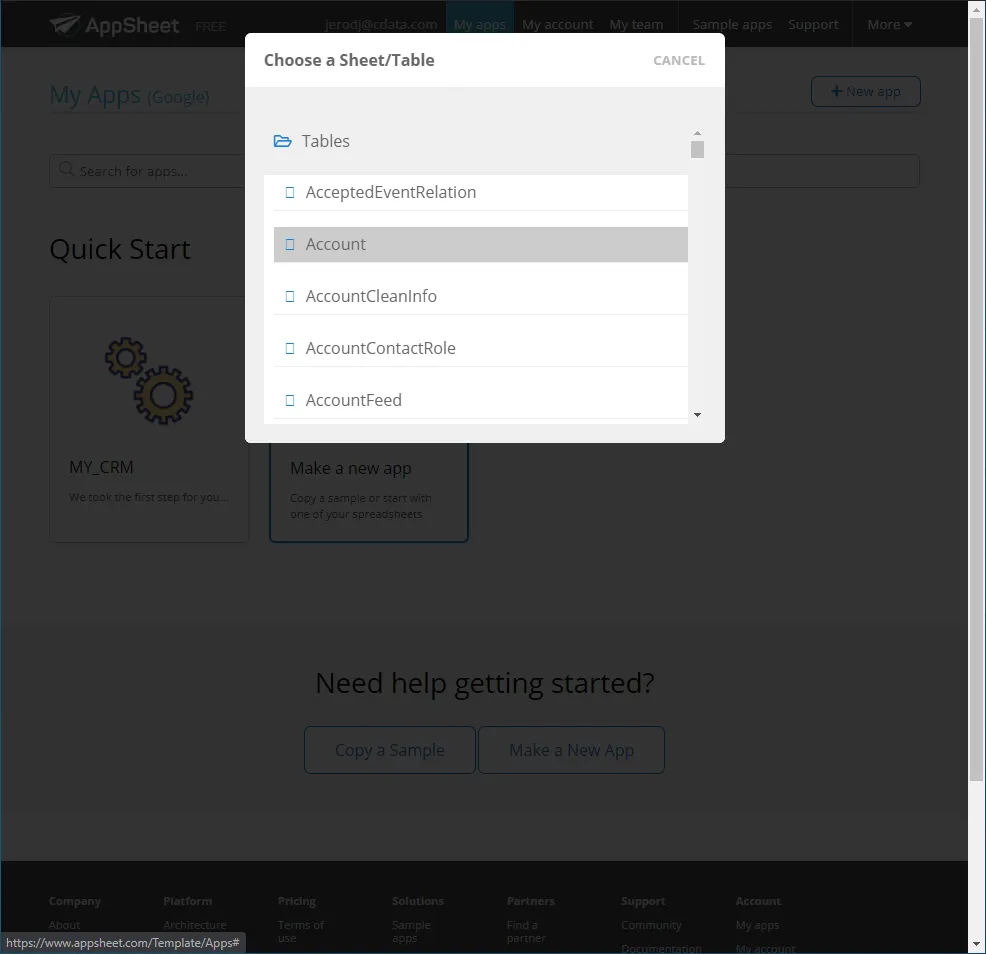
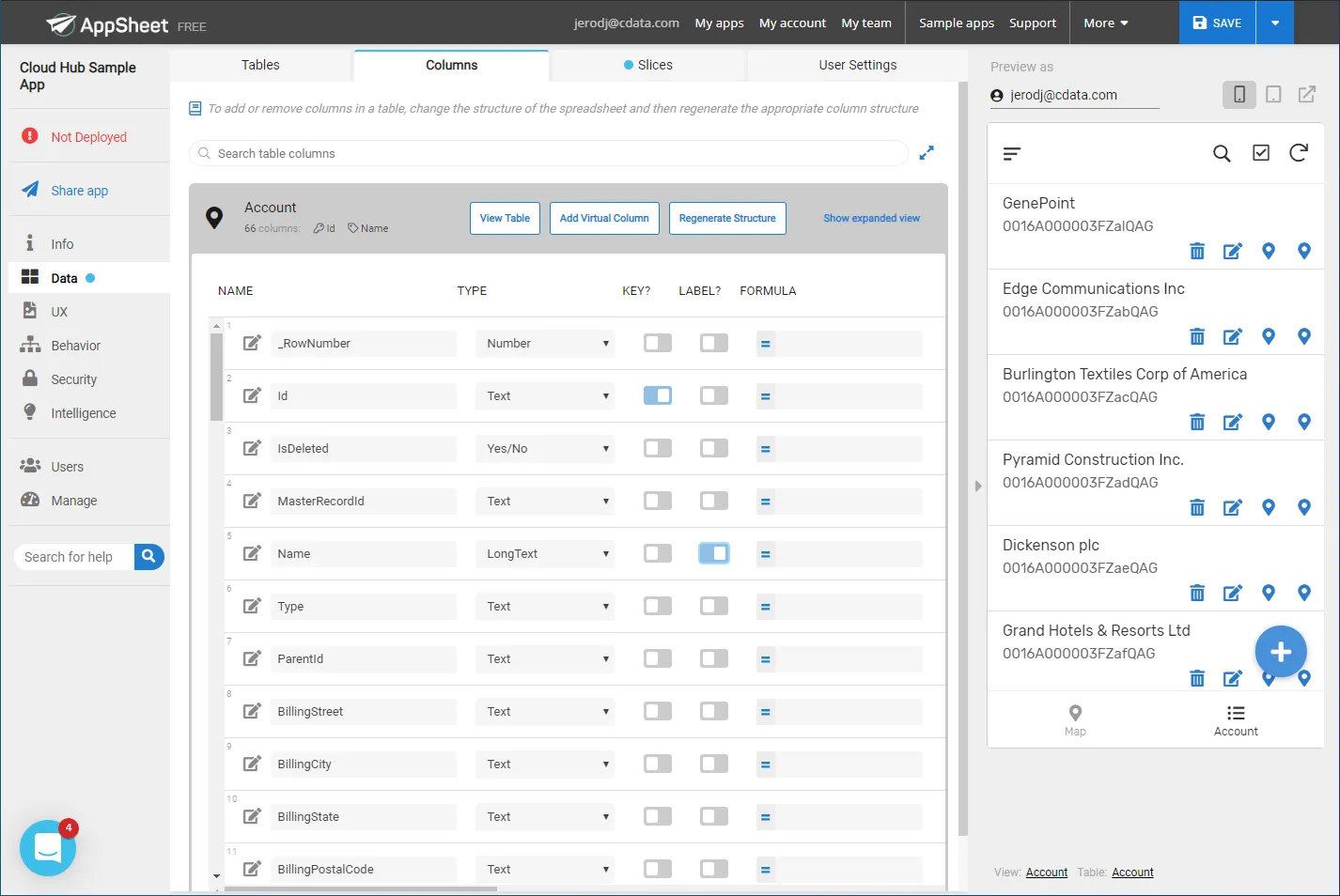
At this point, you can configure the design of your app, selecting which columns from the selected table to display, use as labels, and more. Preview the app in the preview panel and then publish or share it when ready.
To get live data access to hundreds of SaaS, Big Data, and NoSQL sources directly from your cloud applications, try CData Connect AI today!